
Slack integration
Keep Rocket moving, without leaving Slack
Get notified when Rocket needs your input, reply in the thread, and receive digests, documents, and task summaries where your team already works.
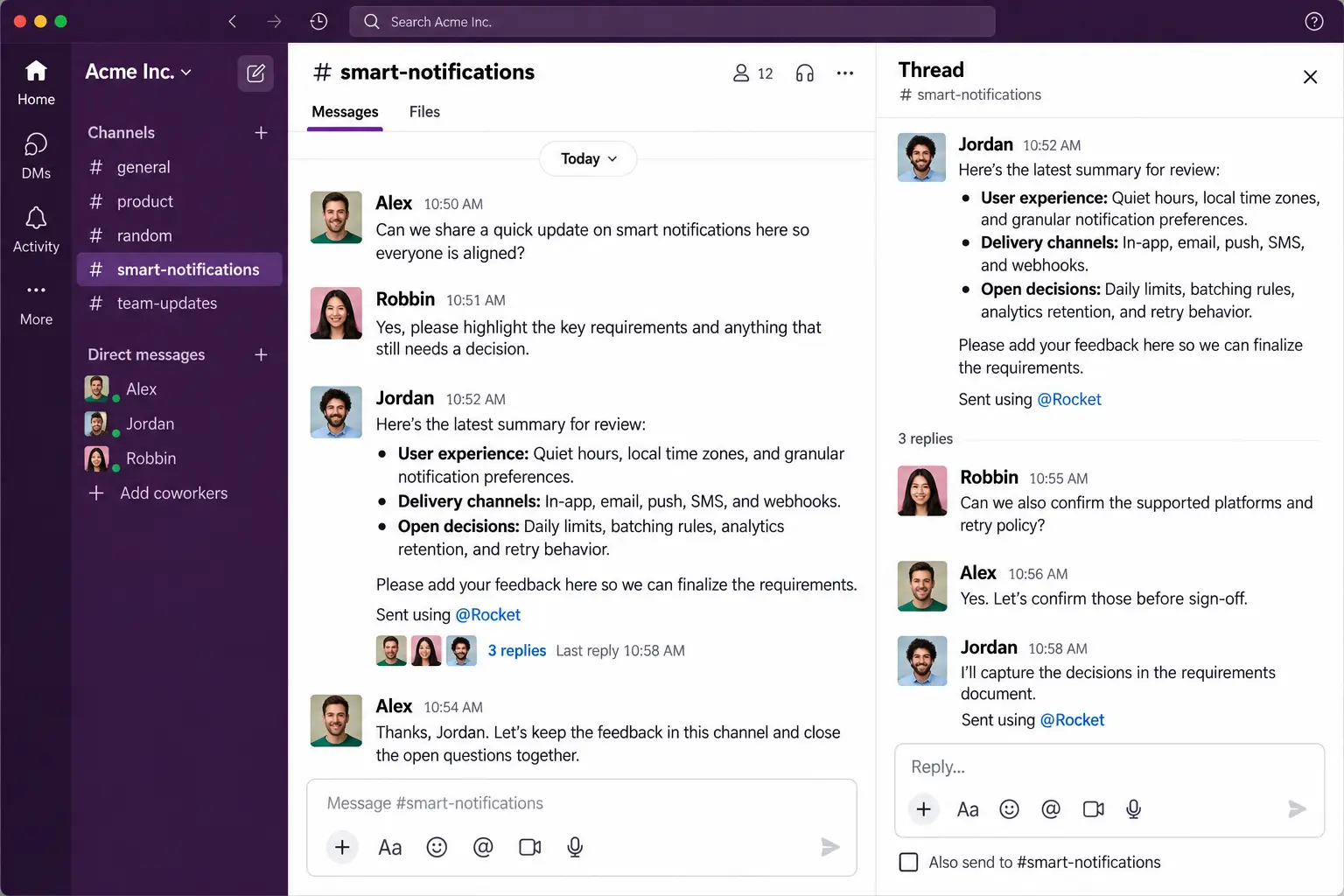

Connect once. Stay in Slack.
1
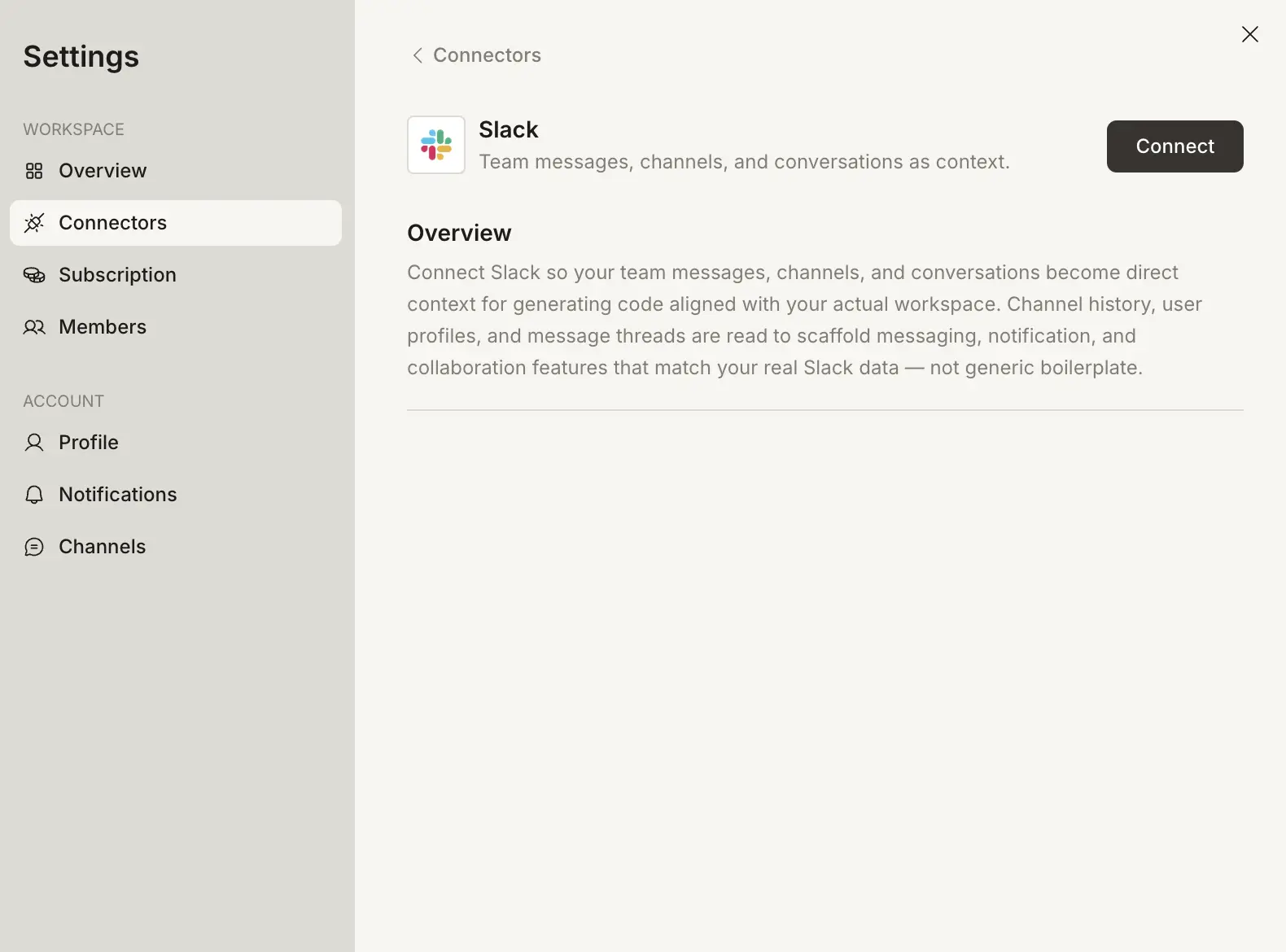
Connect Slack
Open Settings → Channels → Slack, click Connect, and authorize your workspace.
2
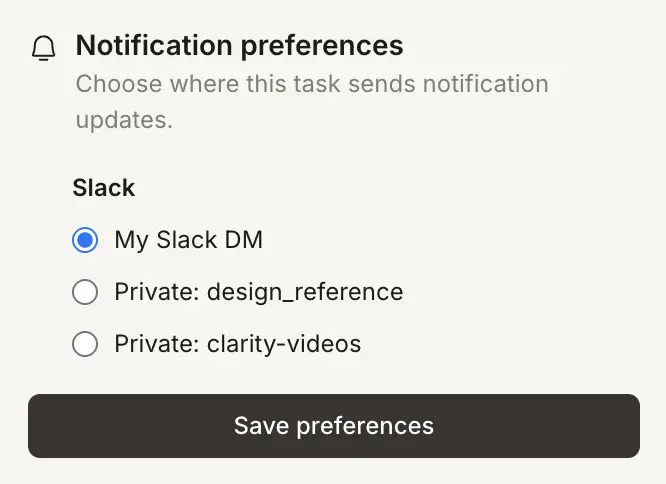
Choose a destination
On any task, open Notification preferences and pick where Slack updates should go.
3
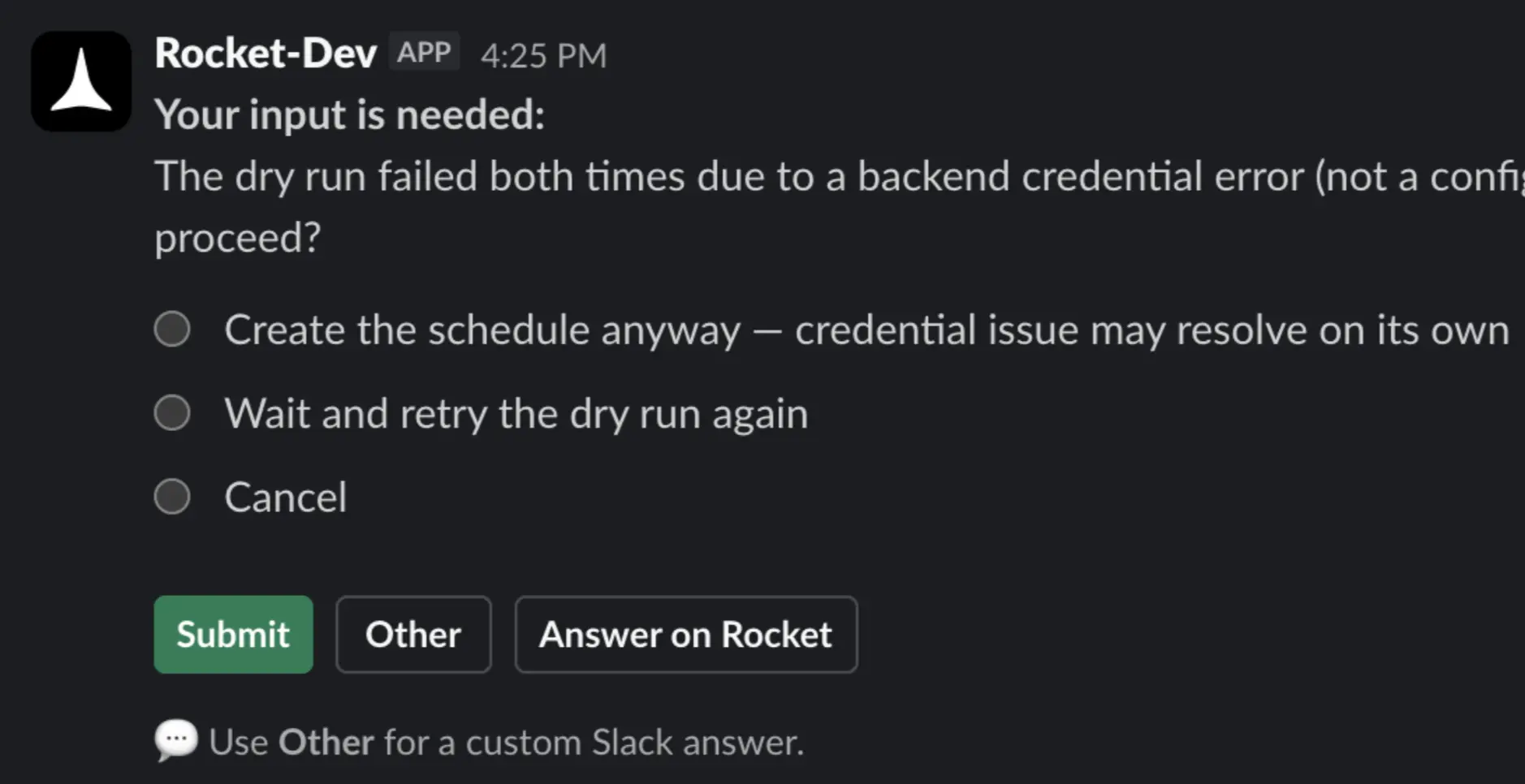
Get updates in Slack
Rocket notifies you in Slack when it needs input, when work finishes, and when digests or documents are ready.
What you get in Slack
Three ways Rocket keeps you unblocked and informed.
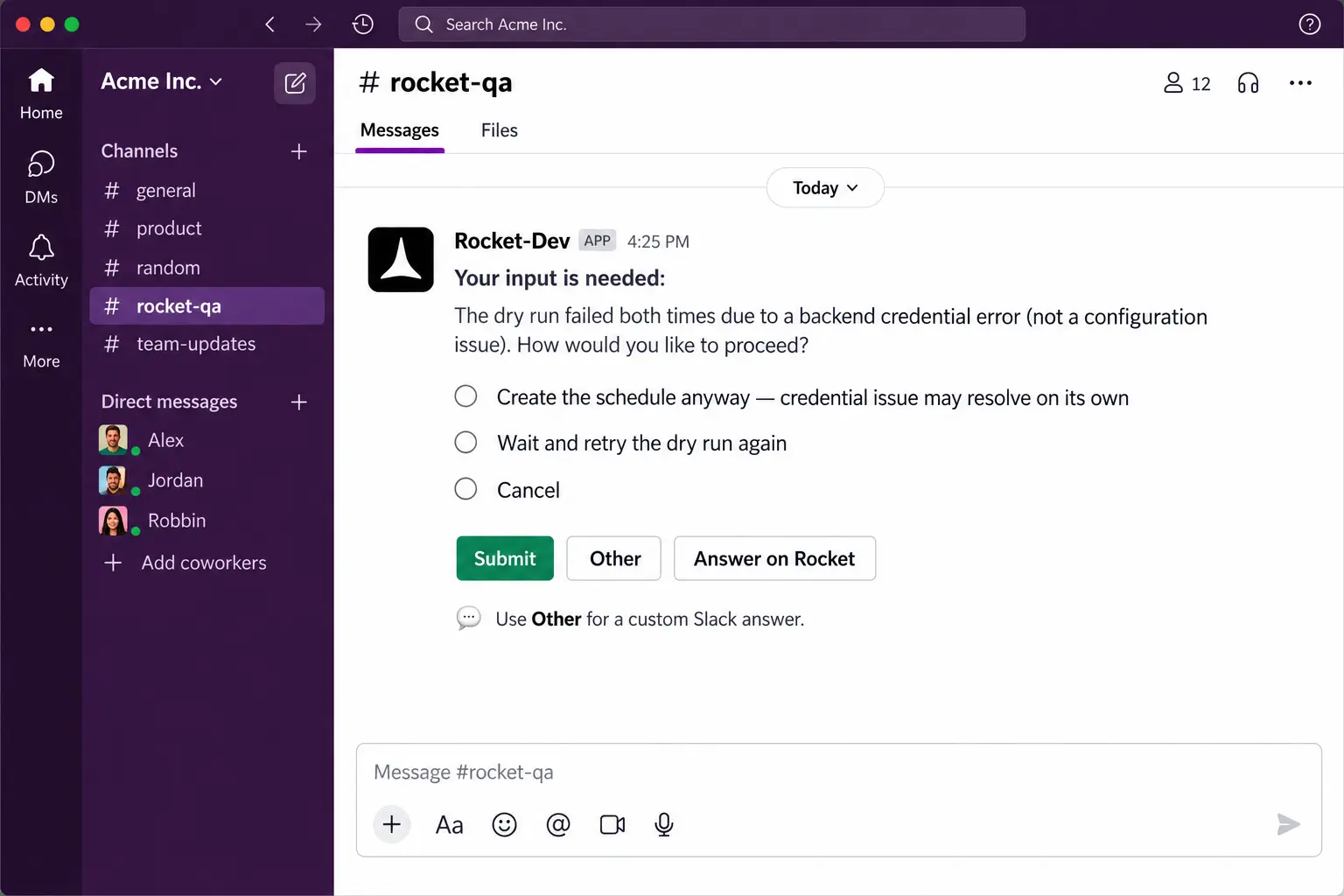
Respond to Rocket from Slack
When Rocket needs a decision or clarification, it pings you in Slack. Respond in the thread and work continues—no context switch back to the browser.
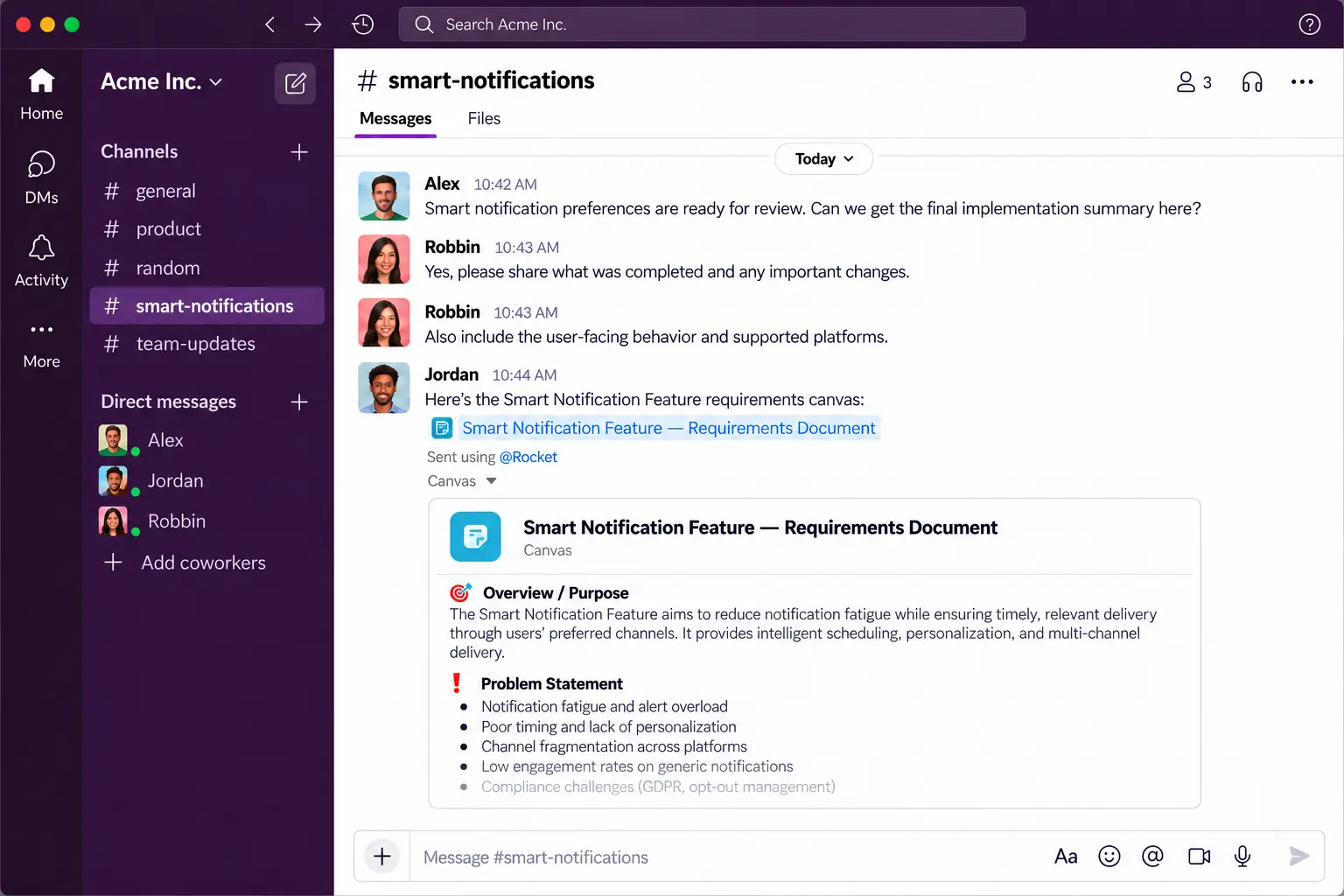
Digests and documents on your schedule
Receive hourly, daily, or monthly updates and summaries in Slack. If you want a generated document in Slack too, you can.
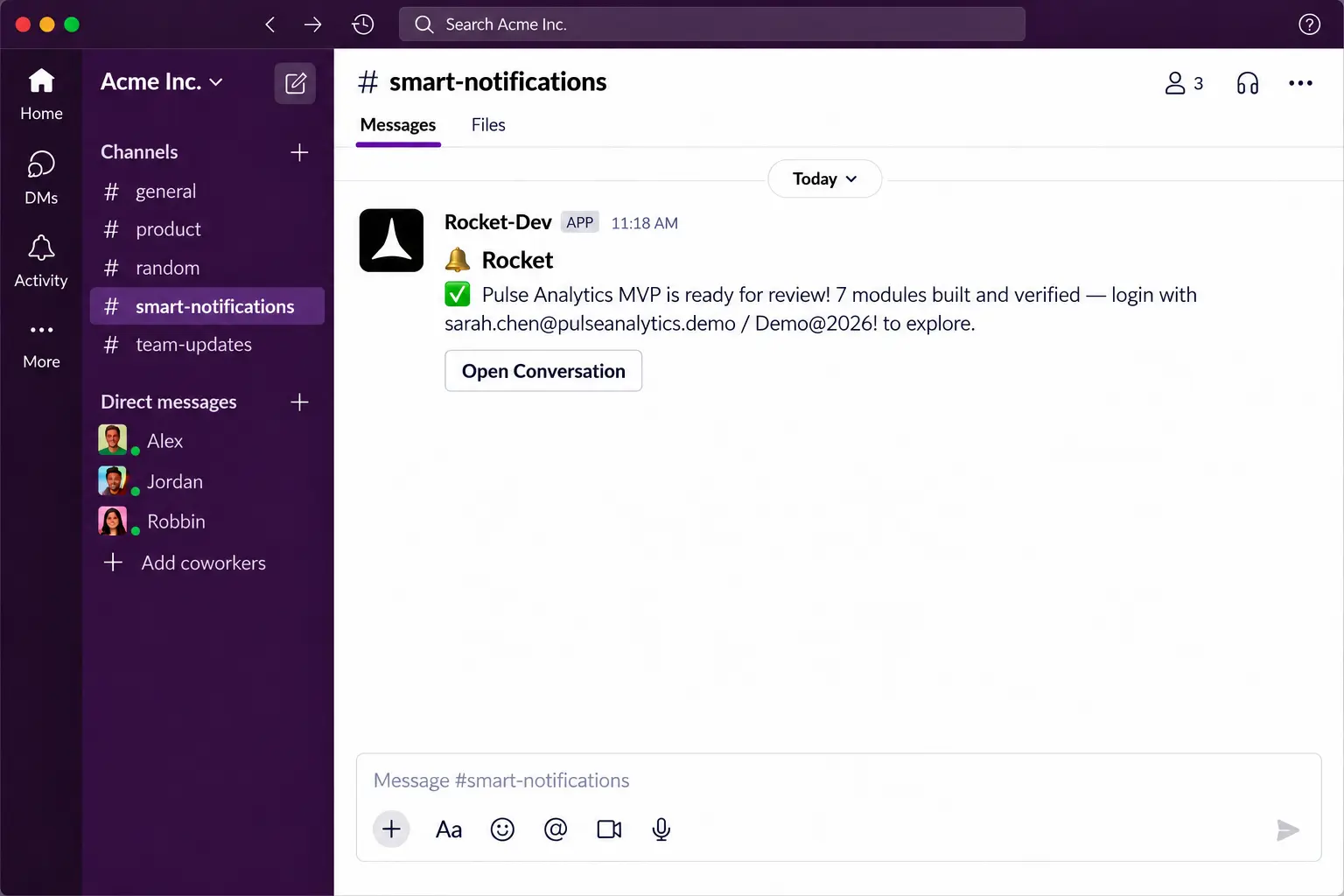
Know when a task is done and what changed
As soon as a task completes, Rocket sends a Slack notification with a clear summary of the work, so you can review outcomes without hunting for status.
Faq's
Sign in to Rocket, go to Settings → Channels → Slack, click Connect, and finish the Slack authorization. Your workspace is then ready to receive Rocket messages.

Bring Rocket into the channel you already live in
Connect Slack once. Get unblocked faster, stay on top of summaries, and catch finished work with context.