Delhi Garage Door Repair Landing Page Template
Hoist is a single-page landing page template built for Delhi garage door repair services. It uses a zigzag team layout to introduce each technician, build trust face-by-face, and guide visitors toward booking a repair slot. The design follows an Executive Suite theme with a Cloud Canvas palette, keeping the experience clean, credible, and focused on getting the door fixed fast.
by Rocket studio
Quick summary
Hoist is a booking-focused landing page template for Delhi garage door repair businesses. It alternates technician profiles with service details in a zigzag layout, building visitor trust before presenting the booking form. The Cloud Canvas color system and Executive Suite theme give it a clean, professional feel that works for homeowners, property managers, and small business owners alike.
Who this template is for
This template is designed for local garage door repair businesses operating in Delhi. It suits any team that handles residential and commercial repair calls and wants to convert late-night panic visits into scheduled bookings.
- Garage door technicians and small repair crews serving Delhi neighborhoods
- Property managers who need a reliable contact point for maintenance calls across multiple units
- Small business owners whose roll-up gate or entry door is a daily operational necessity
What problem this template solves
Finding a garage door repair service at eleven at night is stressful. Most service pages offer no sense of who will actually show up. Visitors leave without booking because trust never forms.
- Homeowners have no way to verify who the technician is before letting them onto the property
- Property managers need a single, reliable page to share with tenants or call teams across multiple sites
- Emergency callers need a fast path to a phone number, not a long read
What you get with this template
You get a complete, single-page layout designed specifically around booking and trust-building. Every section has a clear job: introduce the team, describe the service, and move the visitor toward a confirmed appointment.
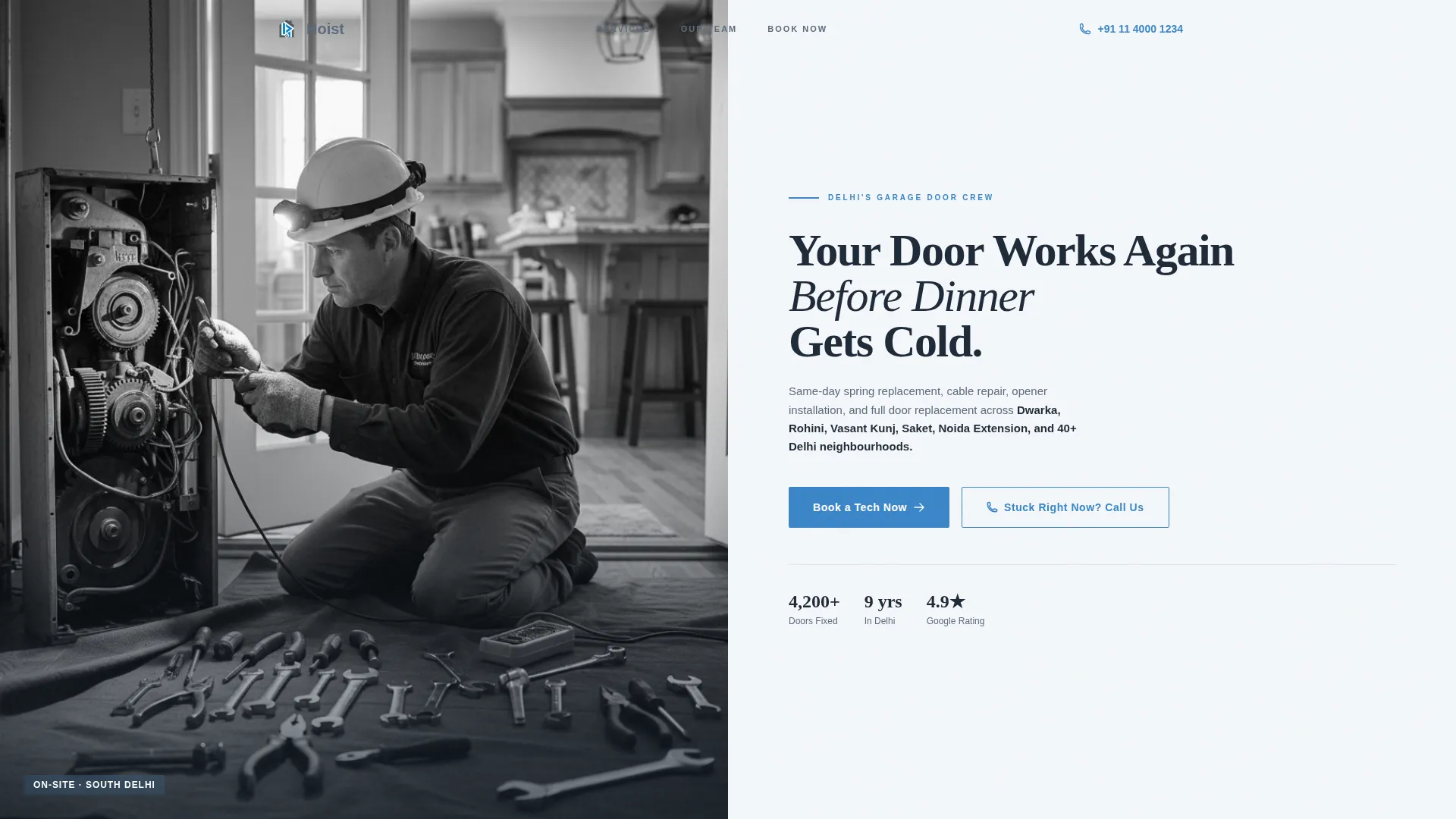
- A half-page photo-and-text header with a lead technician portrait and a primary booking button
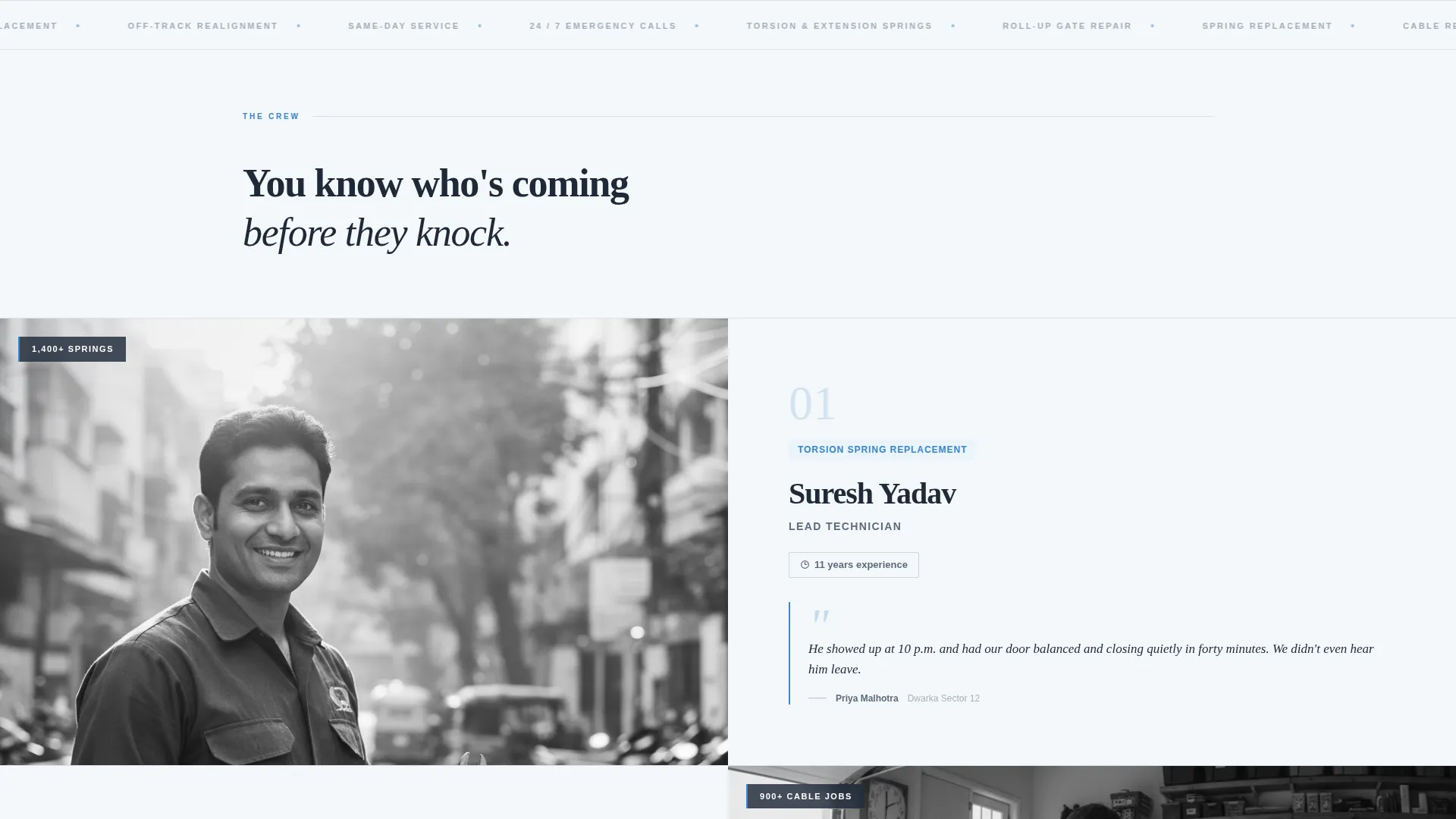
- A full zigzag alternating section set introducing each crew member alongside their specialty and a real customer quote
- A three-field booking form, a tap-to-call emergency button, and a sticky mobile bottom bar for the primary call to action
Feature list
Half-Page Photo and Text Header
The header splits the screen between a portrait-orientation technician photo on the left and a heavy-weight headline on the right. The headline reads "Your Door Works Again Before Dinner Gets Cold." Below it, a single brushed slate line names the Delhi service radius, and a signal-blue booking button pulses once on load to draw the eye.
Zigzag Technician Profile Sections
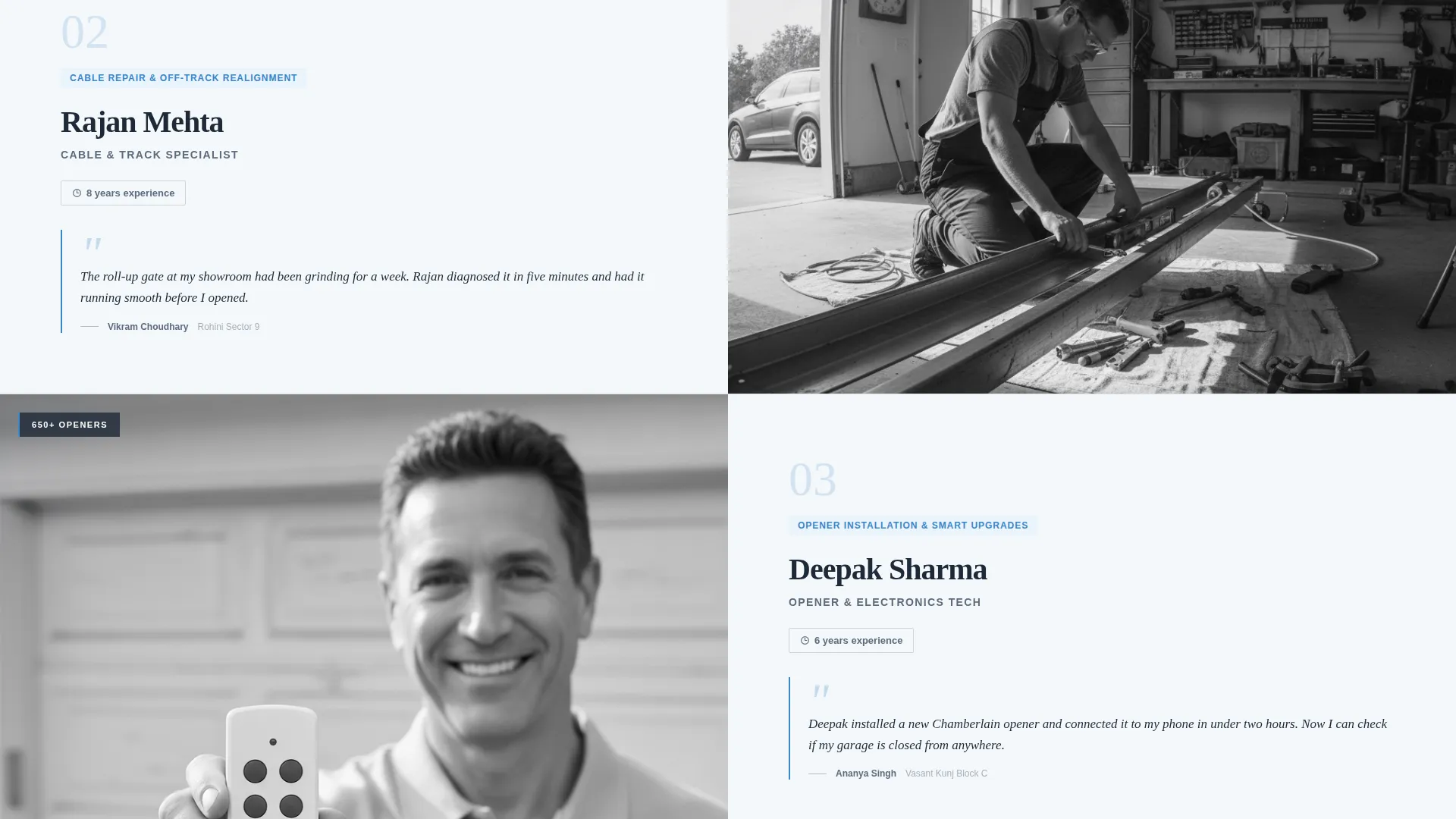
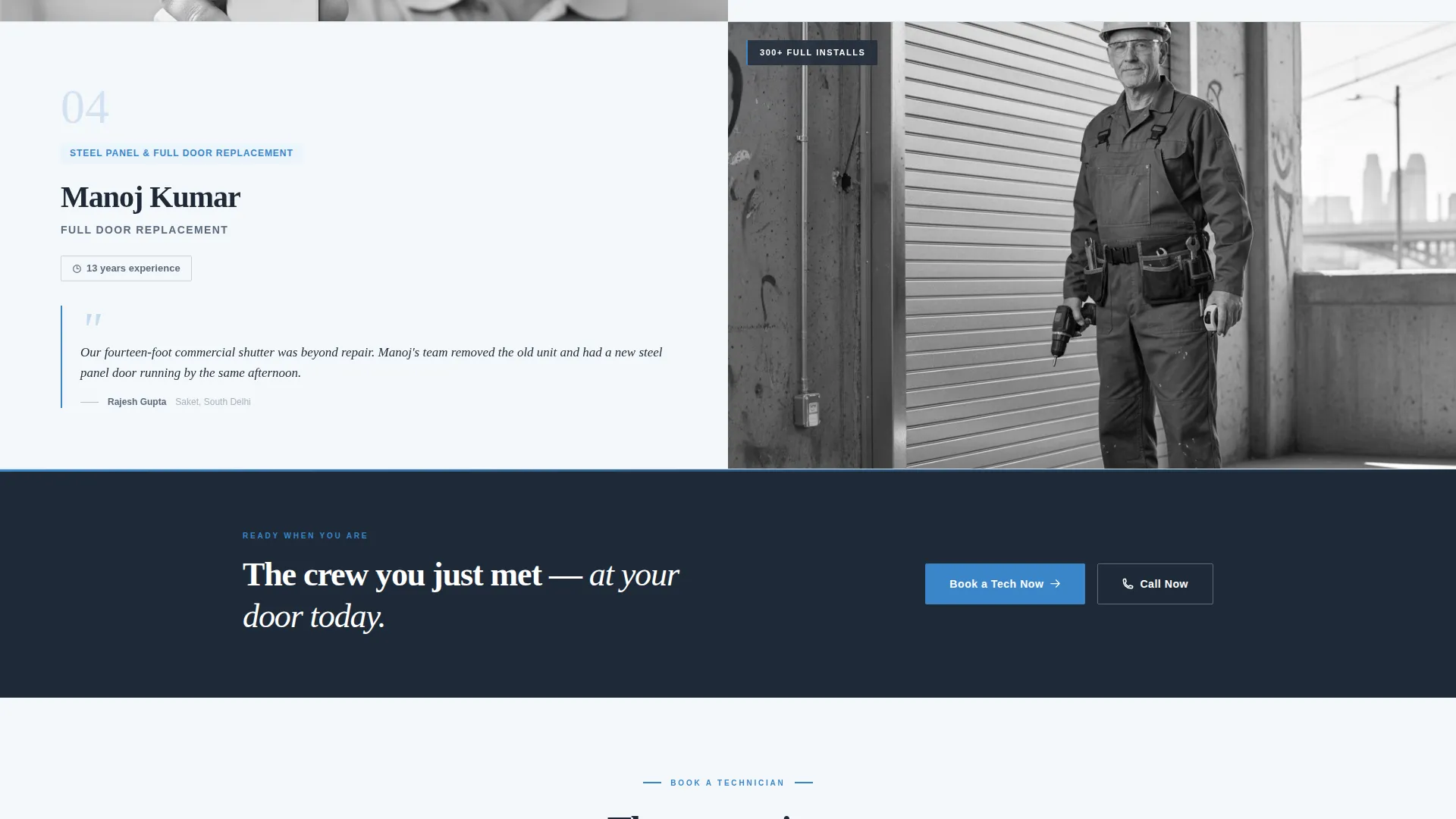
Each alternating section pairs a candid on-site photo with the technician's specialty, years of experience, and one customer quote. The layout scrolls from spring replacement through cable repair, opener installation, and full door replacement. By the bottom of the page, the visitor has met every crew member by name.
Three-Field Booking Form
The booking form collects exactly three inputs in a logical order: service address with Delhi locality autosuggest, issue type from a defined list, and preferred time slot. The controlled scope keeps the form fast to complete and reduces drop-off before submission.
Tap-to-Call Emergency Button
A secondary call-to-action button labeled "Stuck Right Now? Call Us" sits directly beneath the booking form. It is styled in signal blue and provides an immediate phone path for visitors who cannot wait for a scheduled slot.
Sticky Mobile Bottom Bar
On mobile screens, the primary "Book a Tech Now" call to action persists as a sticky bar at the bottom of the viewport. Visitors never have to scroll back up to find the booking entry point, regardless of where they are on the page.
Repeat Call-to-Action Placement
The primary booking button appears three times: in the header, after the third technician section, and in the mobile sticky bar. This placement pattern catches visitors at natural decision points without feeling repetitive or pushy.
Page sections overview
| Section | Purpose |
|---|---|
| Header split layout | Introduces the lead technician and primary booking action |
| Spring replacement profile | Builds trust for the most common repair service |
| Cable repair profile | Introduces the technician who owns cable work |
| Opener installation profile | Covers new opener fitting and technician expertise |
| Full door replacement profile | Addresses major replacements with a specialist face |
| Mid-page booking form | Captures service address, issue type, and time slot |
| Tap-to-call button | Provides an emergency phone path below the form |
| Mobile sticky bar | Keeps the booking action reachable on small screens |
Design & branding system
The template uses an Executive Suite theme built on the Cloud Canvas color system. Every color has a specific role, keeping the visual hierarchy clear and intentional throughout the page.
- Cirrus white (#F4F7FA) fills open backgrounds, keeping the page airy and easy to read
- Brushed slate (#5B6B7D) handles body text and section dividers, while charcoal suiting (#1E2A38) anchors headlines and navigation
- Signal blue (#3A86C9) appears exclusively on buttons, phone numbers, and interactive highlights, creating a confident and consistent visual cue
Mobile & speed optimization
The template is designed to work cleanly on the small screens that emergency visitors are most likely to be using. Layout decisions prioritize fast scanning and easy tapping over decorative complexity.
- The sticky bottom bar keeps the booking call to action visible without requiring the user to scroll
- The tap-to-call button is sized and positioned for easy thumb access on mobile screens
- The booking form limits input to three fields, reducing friction for users filling out forms on a phone
How this template helps you convert
The page earns the booking before it asks for it. Trust is built section by section through real technician faces, specialties, and customer quotes, so by the time the form appears, the visitor already feels like they know who is coming.
- The header immediately anchors the service to a specific geographic area and a named technician, reducing the anonymity that causes hesitation
- The zigzag profile sequence builds familiarity with the crew across the natural scroll path, so the form arrival feels like a natural next step rather than an interruption
- The tap-to-call emergency button catches high-intent visitors who need help right now, giving them a direct path that does not require form completion
Other information about this template
This template is part of a broader set of local service landing page designs built for professional service businesses. It is particularly well-suited for niches where trust and speed of response are the two factors that decide whether a visitor books or leaves.
- The Hoist template is built for single-operator crews and multi-technician teams of any size
- It can support a Delhi garage door repair business that handles both residential driveways and commercial roll-up gates
- The template is designed to be customized with real team photos and actual service radius details to maximize credibility
- It fits within the Professional Services category and is specifically scoped for Delhi local services with neighborhood-level address autosuggest
Theme
Executive Suite
Creative direction
Team & People
Color system
Cloud Canvas
Style
Zigzag/Alternating
Direction
Booking/Scheduling
Page Sections
Half-page Photo and Text Header
Zigzag Technician Profile Layout
Three-field Booking Form
Tap-to-call Emergency Button
Sticky Mobile Bottom Bar
Repeat Call-to-action Placement
Related questions
Can I customize the technician profiles with my own team photos?
How many service types does the booking form support?
Is this template suitable for a one-person operation or a small crew?
Does the template include an emergency contact option?
Where does the primary booking button appear on the page?