Military & Defense Booking Website Template
Muster is a single-column landing page template built for county veterans affairs offices. It leads visitors through a calm, sequential benefits process with animated stats counters, a four-stage step-by-step guide, and a focused appointment registration form. The design feels grounded and trustworthy, built to serve veterans, surviving family members, and newly separated service members equally well.
by Rocket studio
Quick summary
Muster is a civic service landing page template designed for a county veterans affairs office. It opens with quietly animated metrics counters, walks visitors through a four-stage benefits process, and closes with a simple four-field appointment form. The entire layout moves in a single column, keeping the experience calm, clear, and easy to follow on any device.
Who this template is for
This template is built for county-level veterans affairs offices that guide former service members through federal benefits at no cost. It serves offices where the relationship between staff and visitor is personal and face-to-face.
- Veterans from any era or branch who are unsure what benefits they qualify for
- Gold Star spouses and surviving family members navigating survivor benefits for the first time
- Newly separated service members in their first months after leaving active duty
What problem this template solves
The federal benefits process is genuinely confusing. Veterans often do not know what they qualify for, what documents they need, or where to begin. A poorly organized page makes that uncertainty worse and drives visitors away before they ever book an appointment.
- Visitors arrive without context and leave without taking action
- The claims process feels overwhelming when it is not broken into clear, sequential steps
- There is no obvious low-commitment path for visitors who are not yet ready to book
What you get with this template
This template delivers a complete, conversion-focused landing page structured around one goal: getting a veteran to reserve an intake appointment. Every section earns the next step rather than rushing to the form.
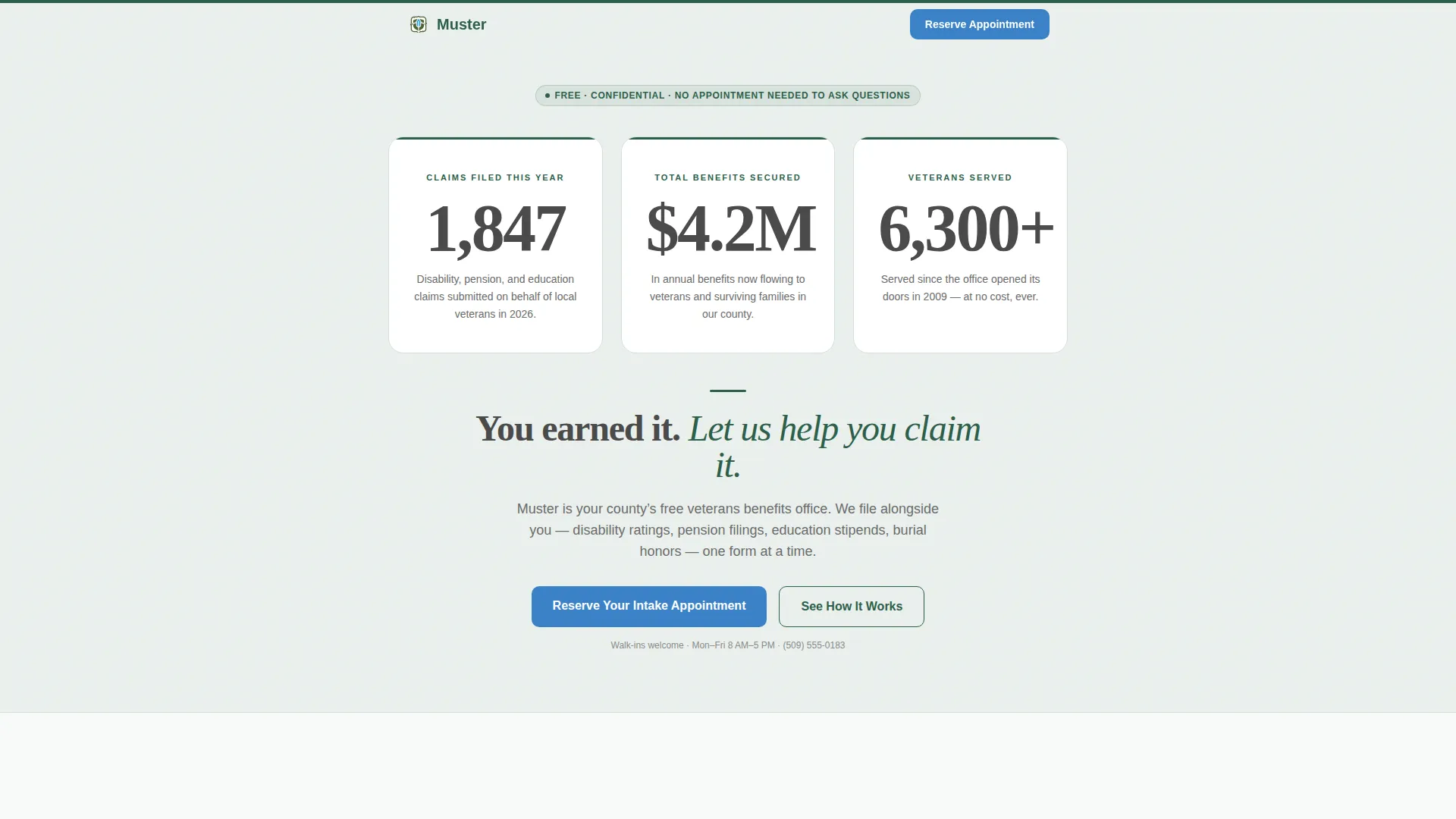
- An animated hero section with three count-up metrics counters and a grounding tagline
- A four-stage step-by-step guide with embedded veteran quotes, document callouts, and processing time details
- A dual-path conversion section with an appointment form and a secondary email-capture path for a downloadable benefits checklist
Feature list
This template is built around a set of focused, purposeful components. Each one serves the visitor's need to understand the process before committing to an appointment.
Animated Stats Counters Hero
Three large count-up counters display claims filed, total benefits secured in dollars, and veterans served since the office opened. The counters animate quietly against a frost-white background before the tagline appears below, letting the numbers speak first.
Four-Stage Step-by-Step Guide
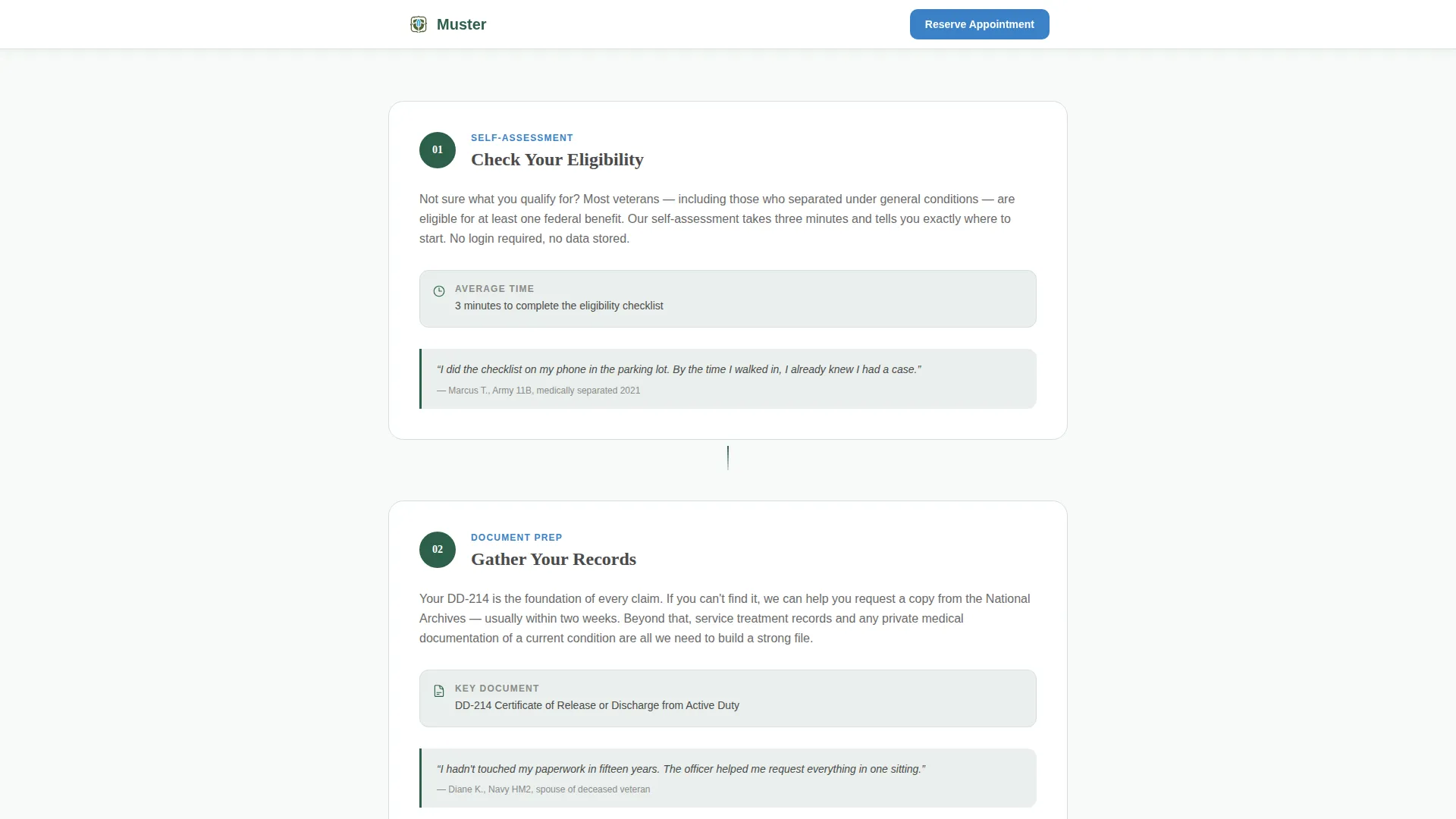
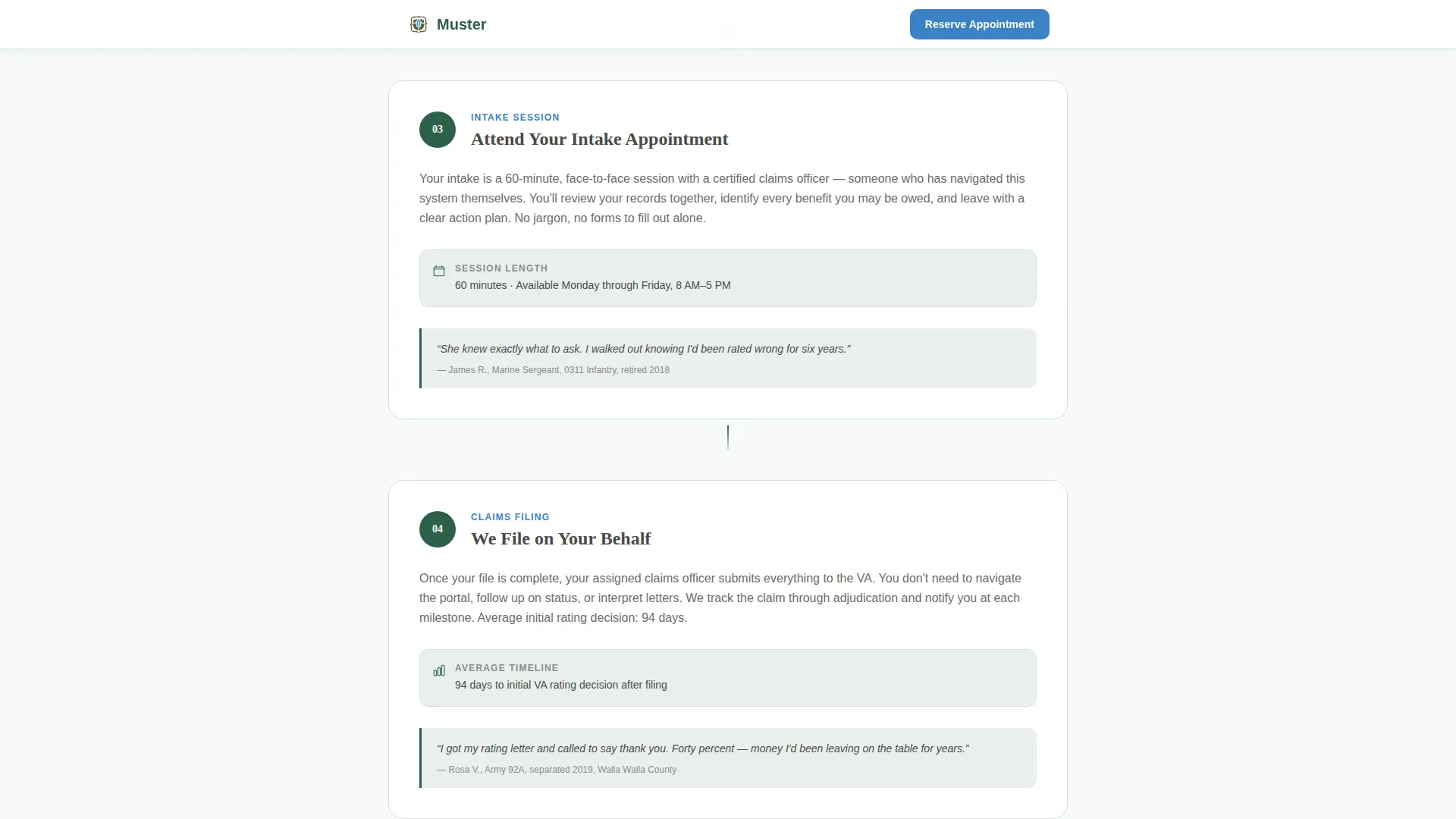
The page scrolls through four numbered stages: eligibility self-assessment, document gathering, intake appointment, and claim filing on the visitor's behalf. Each stage includes a short paragraph, a supporting detail such as a processing time or required document name, and a real quote from a veteran who completed that step.
Appointment Registration Form
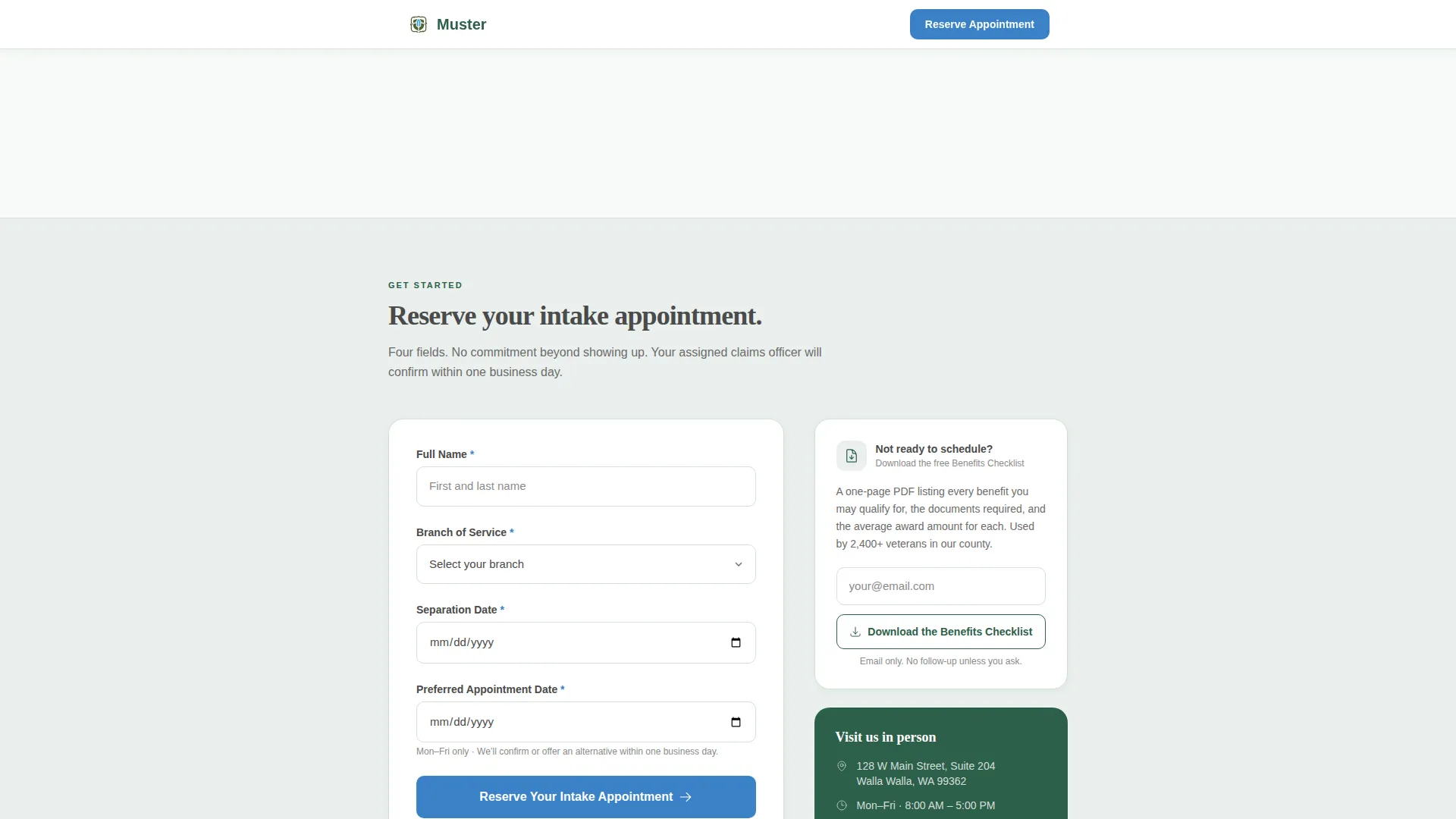
The primary conversion form collects four fields only: full name, branch of service, separation date, and preferred appointment date via a calendar picker. Nothing extra. The form appears at the bottom of the step-by-step flow where the visitor already understands the process.
Secondary Benefits Checklist Path
Visitors who are not ready to book can download a benefits checklist PDF by entering only their email address. This secondary path keeps a lower-commitment option visible without distracting from the primary appointment goal.
Sticky Mobile Call to Action
On mobile, a sticky "Reserve Your Intake Appointment" button activates after the visitor passes stage two of the step-by-step guide. It stays accessible as the visitor continues scrolling without interrupting the reading experience.
Scroll-Reveal Section Transitions
Each stage of the step-by-step guide and the form section reveal with a staggered scroll animation. The pacing reinforces the calm, sequential tone and guides attention down the page naturally.
Page sections overview
| Section | Purpose |
|---|---|
| Hero Stats Counter | Display animated claims, dollars, and veterans-served metrics with tagline |
| Step One: Eligibility | Walk visitor through the self-assessment eligibility check |
| Step Two: Documents | List required records including the DD-214 and service documents |
| Step Three: Intake | Explain the scheduled face-to-face appointment process |
| Step Four: Filing | Show how the claims officer files on the veteran's behalf |
| Appointment Form | Capture four-field intake registration with calendar date picker |
| Checklist Download | Offer PDF benefits checklist via email for undecided visitors |
| Footer Row | Provide office contact, linear single-row footer layout |
Design & branding system
The visual identity follows a Civic Service theme built on an Alpine Fresh color palette. Every color choice is intentional. Pine grounds authority, frost creates calm, granite carries readable body text, and the single blue accent appears only where an action is required.
- Mountain pine (#2D5F4A) anchors headers and section dividers; morning frost (#EAF0ED) washes the page background
- Granite trail (#4A4A4A) carries all body text for clear readability against the light background
- Clear-sky accent blue (#3B82C8) is reserved strictly for buttons and progress indicators, keeping calls to action visually distinct
Mobile & speed optimization
This template is built mobile-first. Many visitors will arrive via a phone link shared through a VA referral, a community flyer, or a text message. The layout is a single column that reads naturally at any screen width.
- The sticky "Reserve Your Intake Appointment" button activates on mobile after the visitor passes stage two, keeping the primary action reachable without forcing a scroll back to the top
- Static sections use server-rendered components for fast initial load; the animated counters and appointment form run as client components only where interaction is needed
How this template helps you convert
Every layout decision in Muster is designed to reduce hesitation and make the appointment feel like the logical next step. The page earns the click before it asks for it.
- The hero counters open with proof before any request is made, showing real volume of claims filed and benefits secured so visitors arrive at stage one already trusting the office
- The step-by-step guide demystifies the process completely before the form appears, so by the time the visitor reaches the appointment section the next step already feels obvious rather than uncertain
Other information about this template
Muster is built as a single-column flow landing page using a Civic Service theme. It is designed for government and public sector use cases within the military and defense subcategory, specifically for veterans affairs offices operating at the county level.
- Typography uses Fraunces for display headlines and counters, paired with DM Sans for body text, balancing authority with approachability
- Animation is set to a medium level: count-up counters, staggered scroll reveals, and the sticky mobile call to action are the only moving elements
- The footer uses a linear single-row pattern, keeping the bottom of the page clean and uncluttered
- The template supports English language, United States date format, and United States dollar denomination throughout
Theme
Civic Service
Creative direction
Step-by-Step Guide
Color system
Alpine Fresh
Style
Single Column Flow
Direction
Event Registration
Page Sections
Animated Stats Counters Hero
Four-stage Step-by-step Guide
Four-field Appointment Form
Secondary Checklist Download Path
Sticky Mobile Call to Action
Staggered Scroll-reveal Transitions
Related questions
Who is this landing page template designed for?
What does the appointment form collect?
What is the secondary conversion path for undecided visitors?
Can I update the step-by-step guide with my office's real information?
When does the sticky button appear on mobile?