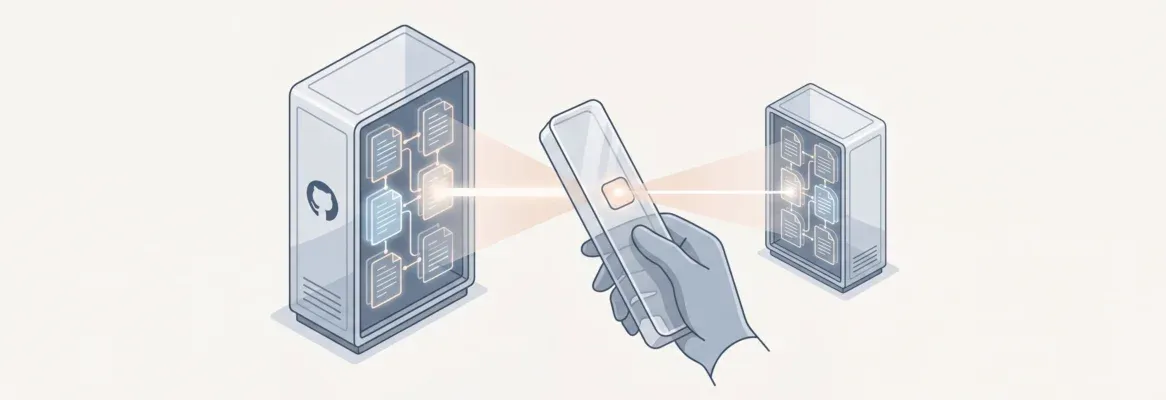
How to clone a repository from GitHub takes one command, git clone [url], but doing it right means choosing the correct URL type, verifying your setup, and knowing the advanced options that save hours on large or complex projects.
How do you clone a repository from GitHub without running into authentication errors or slow downloads?
Run git clone [url] in your terminal. Grab the URL from the green Code button on GitHub. Choose HTTPS for beginners or SSH for daily contributors. Then verify your setup with cd repo-name and git remote -v. Advanced options include shallow clones, branch-specific clones, and submodule support.
Cloning a repository copies an entire GitHub project onto your computer. It brings the code, branches, and history so you can work locally. With over 180 million developers building on GitHub, knowing how to clone a repository from GitHub correctly is a basic but essential skill.
This blog walks through the exact steps. It covers finding the repo URL, verifying your local copy, advanced techniques, real-world use cases, and troubleshooting for every scenario you will encounter.
What is a Git Repository and Why Does Cloning Matter?
A git repository is a smart project folder. It stores every file, tracks every change, and preserves the full history of your project. Every commit, branch, and tag is recorded so you can roll back mistakes, compare versions, and collaborate without overwriting each other's work.
Cloning creates a complete, independent local copy of that repository on your machine. Unlike downloading a ZIP file, a clone preserves the full commit history and all branches. It also maintains a live connection to the remote repository called origin. This lets you push changes back, pull updates, and open pull requests. It also works offline once the initial clone is complete.
This is why cloning is the standard first step for any developer joining a project, contributing to open source, or setting up a new development environment.
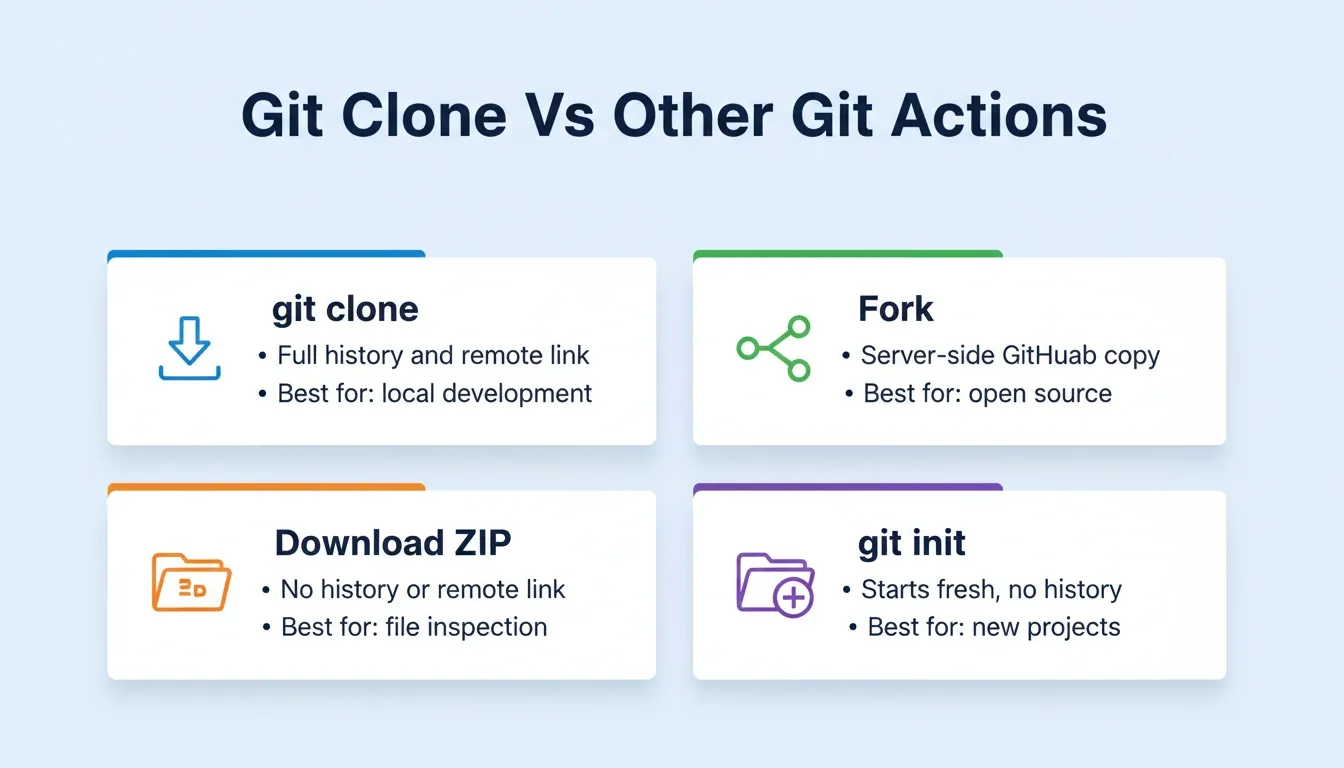
Git Clone Vs Other Git Actions: how cloning compares to forking, downloading, and initializing a repository.
Git Clone vs. Git Fork vs. Git Download
Understanding this distinction prevents a very common beginner mistake. Many developers download a ZIP and then wonder why Git commands do not work.
| Action | Preserves History | Remote Connection | Can Push Back | Use Case |
|---|---|---|---|---|
| git clone | Yes | Yes (origin) | Yes (with permission) | Local development |
| Fork (GitHub UI) | Yes | Yes (upstream) | Via pull request | Open source contribution |
| Download ZIP | No | No | No | Quick file inspection only |
| git init | No (starts fresh) | No | After adding remote | Brand-new project |
Prerequisites Before You Clone a Repository from GitHub
Before jumping into cloning a repository, get a few things in order. Think of this as your warm-up checklist.
- Git installed on your local computer. This is the tool that tracks changes and lets you clone repositories. Verify it with
git --versionin your terminal. - A GitHub account. You need this to access remote repositories and manage your projects, especially private ones.
- Git Bash or terminal access. On Windows, use Git Bash or PowerShell. On macOS and Linux, use the built-in Terminal.
- A local directory where the repository will live. This is the folder on your computer where the project files will be stored.
- SSH key configured (optional but recommended). If you plan to clone private repositories or push changes frequently, setting up an SSH key removes the need to enter credentials every time.
These prerequisites make cloning smoother and help prevent common errors.
Checking Your Git Version
1git --version
2# Expected output: git version 2.x.xIf Git is not installed, download it from git-scm.com and follow the installer for your operating system.
Understanding the difference between cloning and other Git workflows matters as much as the command itself. For a broader view of how this fits into modern development, vibe coding vs traditional coding covers how AI-assisted workflows are changing the way developers approach version control and project setup.
Understanding Repository URLs and Access
Every GitHub repository has a unique URL that points to its location on the server. You can choose between HTTPS and SSH links. The right choice depends on your workflow.
HTTPS vs. SSH: Which Should You Use?
| Feature | HTTPS | SSH |
|---|---|---|
| Setup required | None (works immediately) | SSH key pair must be generated and added to GitHub |
| Authentication | Username and Personal Access Token | Key pair (no password each time) |
| Firewall compatibility | Works behind most firewalls | May be blocked on port 22 in some corporate networks |
| Best for | Beginners, public repos, one-time clones | Frequent contributors, CI/CD pipelines, private repos |
| Security | Secure (TLS encrypted) | Highly secure (asymmetric key encryption) |
HTTPS URL format:
1<https://github.com/username/repository-name.git>SSH URL format:
1git@github.com:username/repository-name.gitGitHub CLI format (if you have gh installed):
1gh repo clone username/repository-nameStep-by-Step: How to Clone a Repository from GitHub
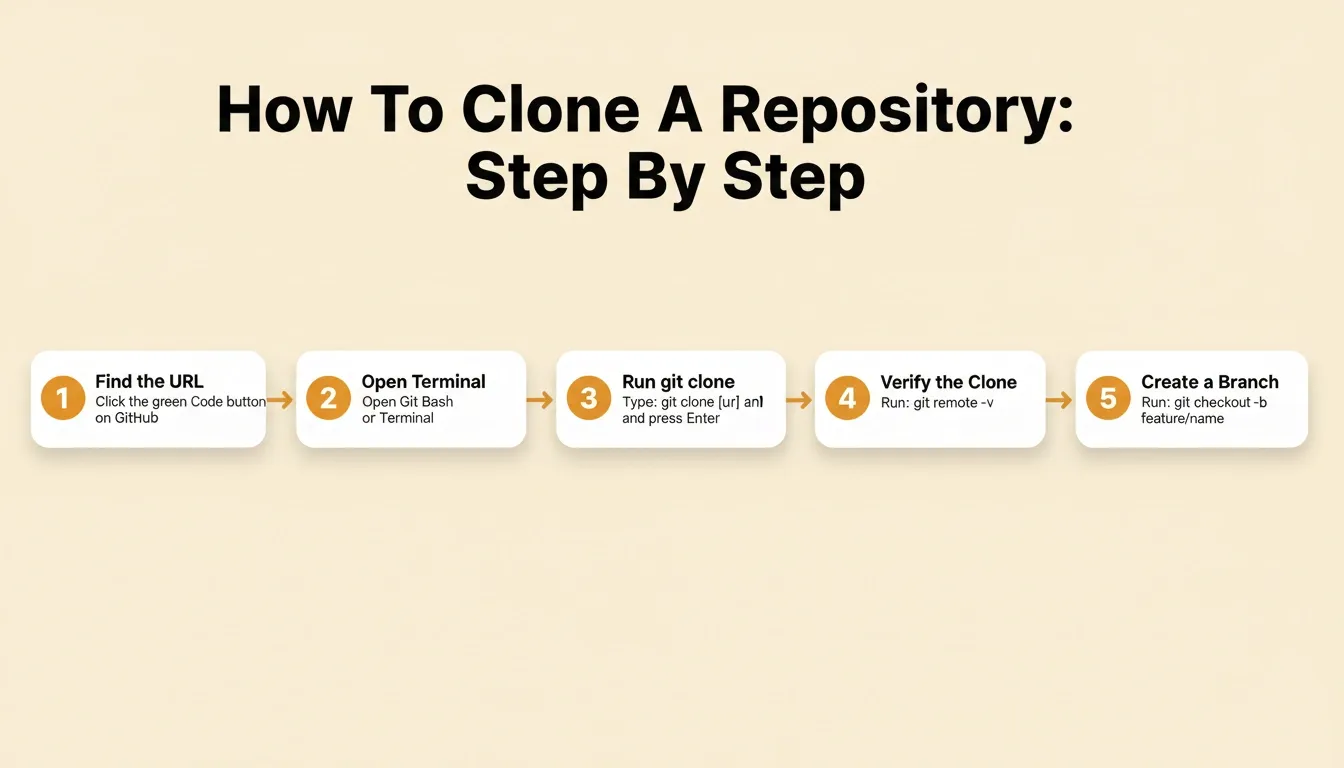
Step 1: Find the Repository URL
Navigate to the GitHub repository you want to clone. Click the green Code button near the top of the page. This opens a dropdown with options for HTTPS, SSH, and GitHub CLI. Click the copy icon next to the URL you want.
Use HTTPS if you are cloning a public repo or have not set up SSH keys yet. Use SSH if you have already added an SSH key to your GitHub account. It saves you from entering credentials every time.
Step 2: Open Your Terminal or Git Bash
Open Git Bash on Windows or Terminal on macOS and Linux. Navigate to the location where you want the project stored. To create a new folder first, run the following:
1mkdir my-projects
2cd my-projectsPro tip: Keep all your repositories in a single parent directory, such as ~/projects or C:\dev. This makes them easy to find and manage.
Step 3: Run the Git Clone Command
Run the git clone command followed by the URL you copied in Step 1:
1git clone <https://github.com/username/repository-name.git>Press Enter. Git will start downloading the repository and show progress messages like these:
1Cloning into 'repository-name'...
2remote: Enumerating objects: 1234, done.
3remote: Counting objects: 100% (1234/1234), done.
4Receiving objects: 100% (1234/1234), 5.23 MiB | 8.10 MiB/s, done.
5Resolving deltas: 100% (789/789), done.These messages confirm that Git is transferring the repository's files and history to your machine.
Step 4: Verify the Cloned Repository
Once cloning finishes, a new folder appears in your current directory. It is named after the repository. Move into it and run these verification commands:
1cd repository-name
2git remote -v # Confirms the remote URL is correctly set
3git log --oneline -5 # Shows the last 5 commitsYou should see the project's files and folders. This confirms you have a full local copy of the repository, including its commit history.
Step 5: Start Working with the Cloned Repository
Never commit directly to main. Always create a feature branch after cloning. The standard Git workflow from here is:
1git checkout -b feature/my-new-feature
2git add .
3git commit -m "feat: add user authentication module"
4git push origin feature/my-new-featureFrom here, your local copy stays in sync with the remote repository. Use the standard workflow of pulling, committing, and pushing changes.
How the Git Clone Workflow Works
Figure: Simplified git clone decision flow from GitHub to your local machine.
Advanced Git Clone Techniques
Once you are comfortable with the basic clone, these advanced options save significant time and disk space on larger projects.
Knowing which technique to use is part of building a professional development workflow. The best AI tools for developers covers how developers are pairing Git skills with AI-assisted coding to move faster without losing control of their codebase.
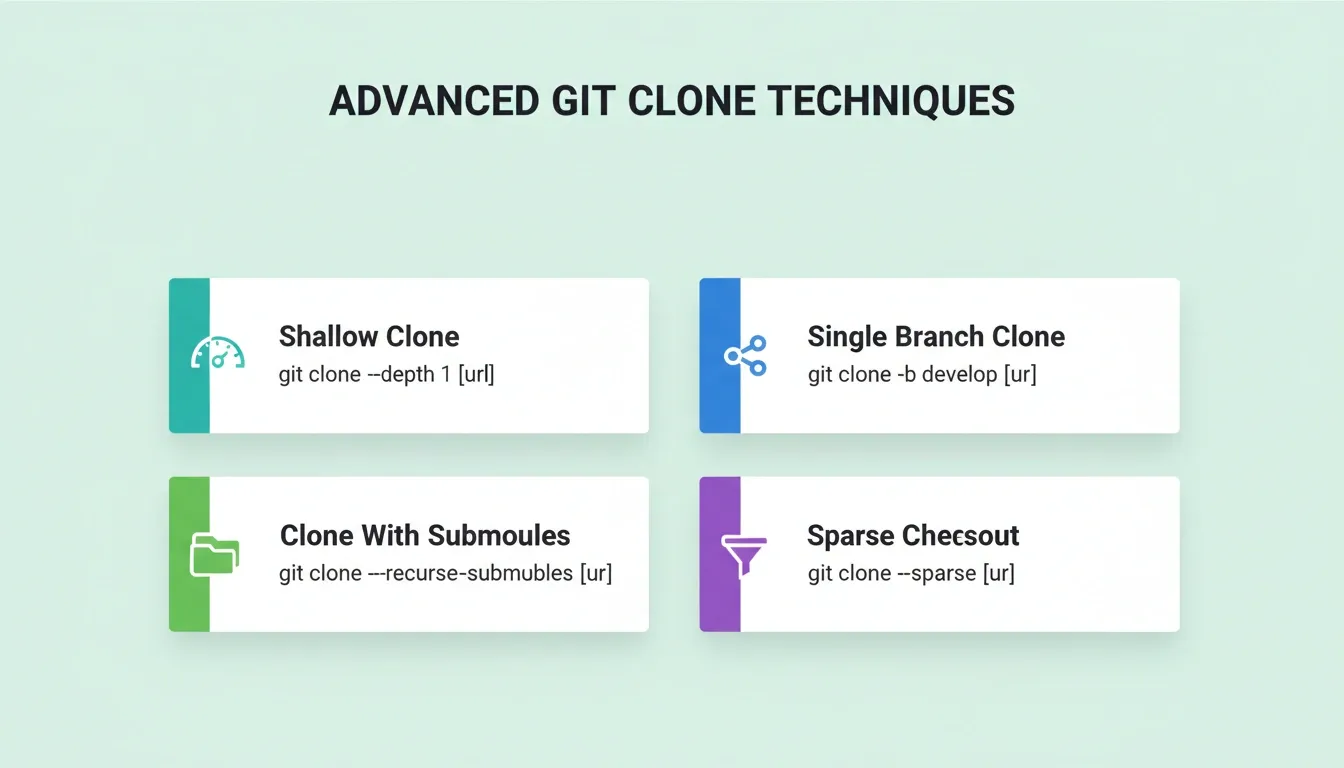
Shallow Clone: Get Only the Latest Code
For large repositories where you do not need the full history, use a shallow clone. This is common for deployments and quick exploration:
1git clone --depth 1 <https://github.com/username/repo.git>This downloads only the most recent commit, which dramatically reduces clone time and storage. The Linux kernel repository is over 4 GB with full history but under 200 MB with --depth 1.
Clone a Specific Branch
When you only need a particular branch, not the entire repository, use the -b flag:
1git clone -b develop <https://github.com/username/repo.git>Clone with Submodules
Many projects include submodules, which are nested repositories. Without the flag, submodules appear as empty folders. To include them, run:
1git clone --recurse-submodules <https://github.com/username/repo.git>If you already cloned without this flag, fix it with:
1git submodule update --init --recursiveSparse Checkout: Clone Only Specific Folders
For monorepos where you only need one subdirectory, use sparse checkout:
1git clone --filter=blob:none --sparse <https://github.com/username/monorepo.git>
2cd monorepo
3git sparse-checkout set path/to/subfolderComplete Git Clone Command Reference
Before running these commands, make sure you are in the correct directory. Also confirm you have the necessary permissions to access the remote repository.
| Command | Description | When to Use |
|---|---|---|
| git clone [url] | Clone the entire repository with full history | Standard development setup |
| git clone -b [branch] [url] | Clone a specific branch only | Working on a non-default branch |
| git clone --depth 1 [url] | Shallow clone, latest commit only | CI/CD, deployment, quick exploration |
| git clone --recurse-submodules [url] | Clone with all submodules | Projects with nested dependencies |
| git clone [url] . | Clone into the current directory (must be empty) | Pre-created target directory |
| git clone --mirror [url] | Full mirror backup including all refs | Repository backup and migration |
| git clone --sparse [url] | Sparse checkout for large monorepos | Monorepo with many packages |
| git init | Initialize an empty git repository | Starting a brand-new project |
| git fetch | Fetch updates from remote without merging | Checking for remote changes |
| git remote -v | View configured remote URLs | Verifying clone origin |
GitHub and Git: Key Statistics
GitHub hosts over 330 million repositories, making it the world's largest code hosting platform. A new developer joins GitHub every second, and the platform processes millions of git clone operations daily.
The average open-source repository has grown significantly in size over the past decade. Larger asset files, more comprehensive test suites, and longer commit histories all contribute to this growth. Using --depth 1 for read-only workflows like deployments and CI pipelines is now considered a best practice in professional engineering teams.
Real-World Use Cases for Git Clone
Understanding when and why developers clone repositories helps you apply the skill confidently in different contexts.
Use Case 1: Joining an Existing Team Project
When you join a company or open-source project, the first thing you do is clone the main repository. This gives you an identical copy of what every other developer is working with, which ensures consistency across the team. Consistent local environments are the foundation of reliable collaborative development. Git clone is what makes that possible.
1git clone git@github.com:company/product.git
2cd product
3npm installUse Case 2: Contributing to Open Source
Contributing to open source typically involves forking first via the GitHub UI, then cloning your fork. Adding upstream lets you pull in the original project's updates while keeping your fork in sync.
1git clone <https://github.com/YOUR-USERNAME/open-source-project.git>
2cd open-source-project
3git remote add upstream <https://github.com/ORIGINAL-OWNER/open-source-project.git>Use Case 3: Deploying Code to a Server
On a production or staging server, you clone the repository to deploy your application. For automated deployments, --depth 1 is common to keep the server's disk usage minimal.
1git clone <https://github.com/company/app.git> /var/www/app
2cd /var/www/app
3git checkout mainUse Case 4: Learning from Existing Codebases
Cloning popular repositories is one of the fastest ways to learn professional coding patterns. Studying how large, well-maintained projects structure their code accelerates your growth far faster than tutorials alone.
Use Case 5: Setting Up a Local Development Environment
When switching computers or onboarding a new machine, cloning restores your entire project instantly. There are no manual file transfers, no missing files, and no version mismatches.
Troubleshooting Common Git Clone Errors
A few issues come up often enough that it is worth checking for them before, or right after, running git clone.
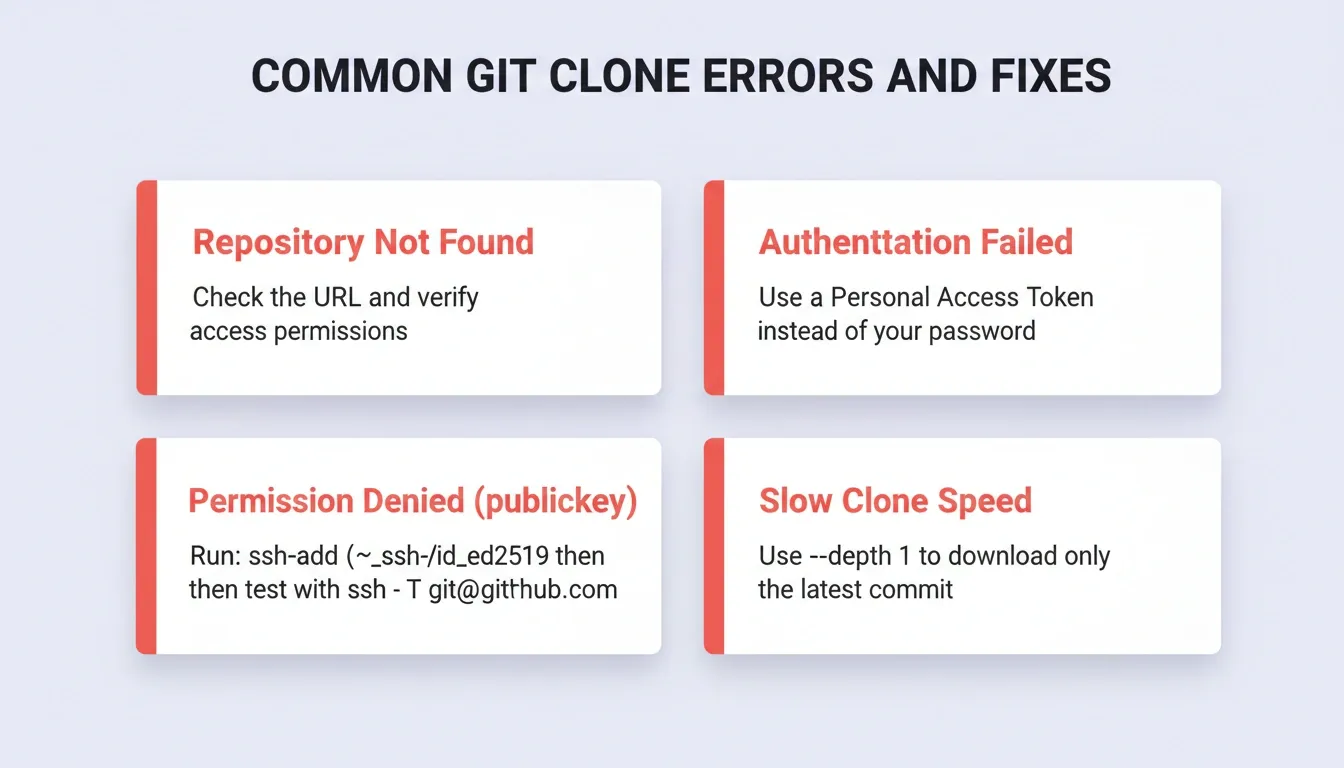
Error: "Repository Not Found" or 404
Cause: The URL is wrong, the repository is private, or you do not have access.
1git clone <https://YOUR-TOKEN@github.com/username/private-repo.git>Error: "Authentication Failed" on HTTPS
Cause: GitHub no longer accepts account passwords for HTTPS clones. Generate a Personal Access Token at Settings, then Developer settings, then Personal access tokens. Use that token instead.
1git clone <https://github.com/username/repo.git>
2# Username: your-github-username
3# Password: ghp_xxxxxxxxxxxxxxxxxxxx (your PAT)Error: "Permission Denied (publickey)" on SSH
Cause: Your SSH key is not added to GitHub or the SSH agent is not running.
1ssh-add -l # Check if your SSH key is loaded
2ssh-add ~/.ssh/id_ed25519 # Add it if not loaded
3ssh -T git@github.com # Test the connectionError: "Destination Path Already Exists"
Cause: A folder with the same name as the repository already exists in your current directory.
1git clone <https://github.com/username/repo.git> repo-v2Slow Clone Speed
Cause: Large repository with extensive history.
1git clone --depth 1 <https://github.com/username/large-repo.git>Cloning Private Repositories: A Complete Guide
Private repositories require authentication. Here are all the methods, from simplest to most secure.
Method 1: Personal Access Token (HTTPS)
Generate a PAT at GitHub. Go to Settings, then Developer settings, then Personal access tokens, then Tokens (classic). Grant repo scope. To avoid re-entering credentials, store them with this command:
1git config --global credential.helper storeMethod 2: SSH Key Authentication
1ssh-keygen -t ed25519 -C "your-email@example.com"
2cat ~/.ssh/id_ed25519.pub
3# Add to GitHub: Settings, then SSH and GPG keys, then New SSH key
4git clone git@github.com:username/private-repo.gitMethod 3: GitHub CLI
1gh auth login
2gh repo clone username/private-repoMethod 4: Deploy Keys (for Servers)
For CI/CD pipelines and servers, use repository-specific deploy keys with read-only access. This is the most secure option for automated environments because each key is scoped to a single repository and can be revoked independently.
Git Clone Best Practices
Following these practices will save you from common mistakes and keep your repositories organized.
1. Always clone into a dedicated directory structure. Keep work, personal, and open-source projects in separate parent folders for clarity.
2. Verify the remote after cloning with git remote -v to confirm the origin URL is correct before making any changes.
3. Never commit directly to main. Always create a feature branch immediately after cloning. This is a non-negotiable habit in professional teams.
4. Use SSH for repositories you contribute to regularly. SSH eliminates credential prompts and is more secure for long-term projects.
5. Keep your clone up to date before starting any new work:
1git pull origin main6. Use .gitignore before your first commit to ensure sensitive files like .env are never accidentally pushed.
From Cloned Repository to Deployed App with Rocket
Rocket is a vibe solutioning platform that combines three pillars in one workspace. Solve handles strategic research and market validation before you write a line of code. Build generates production-ready Next.js web apps and Flutter mobile apps from natural language. Intelligence monitors competitors continuously so you always know what is changing in your market.
When it comes to GitHub workflows, Rocket supports importing existing Next.js TypeScript repositories directly. This lets you pick up where you left off and build on top of your existing code with AI.
Once you import a repository into Rocket, you get full two-way sync with GitHub. Rocket pushes changes to a rocket-update branch and automatically opens a pull request to main for each batch of code edits. You can also pull the latest state of main from your local IDE or teammates back into Rocket at any time.
Note: Two-way sync and automatic pull request creation require a paid plan (Pro or above). They also require a Next.js project using TypeScript. JavaScript-only projects and all other frameworks support manual push only, with no automatic pull request.
What gets imported: all files and folders, package.json dependencies, environment variable keys and values, and task structure and routing.
What is not imported: Issues and PRs, CI/CD workflows, git history (only the latest state of the default branch), and branch-specific content.
| Starting Method | Best For |
|---|---|
| From GitHub | You already have a Next.js TypeScript codebase and want to enhance it with AI |
| From an idea | Starting fresh with a plain-language description |
| From a template | Launching quickly from a pre-built starting point |
| Redesign | Rebuilding or redesigning an existing website |
How to Clone a Repository from GitHub: Summary
Cloning a repository is a simple but powerful way to get a full working copy of a project on your local machine. Knowing how to clone a repository from GitHub helps you collaborate, learn, and experiment at the speed of professional developers. Git makes version control straightforward once you get the hang of commands like git clone, git fetch, and git init.
Having a local copy of a repository means you can work offline, test new ideas safely, and track all changes before pushing them back to GitHub. For a related skill, see our guide on how to delete a repository in GitHub once you no longer need a local or remote copy.
Master Git, Then Build What Matters
Knowing how to clone a repository from GitHub is the entry point to every serious development workflow. As repositories grow larger and teams grow faster, the techniques in this guide become the difference between a smooth setup and hours of debugging. Shallow clones, SSH authentication, deploy keys, and sparse checkouts all play a role.
Git skills compound. The developer who clones correctly, branches consistently, and keeps their local environment in sync with the remote is the one who ships without friction. That discipline carries forward into every project you touch.
As AI-assisted development continues to reshape how teams build software, the fundamentals of version control remain constant. The tools change, but the need for a clean and connected local environment does not.
Start building with Rocket and take your cloned repository from local setup to deployed, production-ready app.
Table of contents
- -What is a Git Repository and Why Does Cloning Matter?
- -Git Clone vs. Git Fork vs. Git Download
- -Prerequisites Before You Clone a Repository from GitHub
- -Checking Your Git Version
- -Understanding Repository URLs and Access
- -HTTPS vs. SSH: Which Should You Use?
- -Step-by-Step: How to Clone a Repository from GitHub
- -Step 1: Find the Repository URL
- -Step 2: Open Your Terminal or Git Bash
- -Step 3: Run the Git Clone Command
- -Step 4: Verify the Cloned Repository
- -Step 5: Start Working with the Cloned Repository
- -How the Git Clone Workflow Works
- -Advanced Git Clone Techniques
- -Shallow Clone: Get Only the Latest Code
- -Clone a Specific Branch
- -Clone with Submodules
- -Sparse Checkout: Clone Only Specific Folders
- -Complete Git Clone Command Reference
- -GitHub and Git: Key Statistics
- -Real-World Use Cases for Git Clone
- -Use Case 1: Joining an Existing Team Project
- -Use Case 2: Contributing to Open Source
- -Use Case 3: Deploying Code to a Server
- -Use Case 4: Learning from Existing Codebases
- -Use Case 5: Setting Up a Local Development Environment
- -Troubleshooting Common Git Clone Errors
- -Error: "Repository Not Found" or 404
- -Error: "Authentication Failed" on HTTPS
- -Error: "Permission Denied (publickey)" on SSH
- -Error: "Destination Path Already Exists"
- -Slow Clone Speed
- -Cloning Private Repositories: A Complete Guide
- -Method 1: Personal Access Token (HTTPS)
- -Method 2: SSH Key Authentication
- -Method 3: GitHub CLI
- -Method 4: Deploy Keys (for Servers)
- -Git Clone Best Practices
- -From Cloned Repository to Deployed App with Rocket
- -How to Clone a Repository from GitHub: Summary
- -Master Git, Then Build What Matters