Plan your user flow first, build reusable interactive components, connect screens in Figma's Prototype tab, and apply smart animate for smooth transitions. Start with 5-10 key screens, test with real users, then convert your validated design into a working app using Rocket.new
A high-fidelity Figma prototype turns static designs into interactive, clickable experiences that feel real. This guide walks designers, founders, and product teams through every step, from planning user flows to adding smart animated transitions, so you can build a polished Figma prototype in hours, not days.
Why Bother With High-Fidelity Prototypes at All?
A high-fidelity prototype simulates exactly how the real app or website will behave. Users can click, scroll, and feel how things move before a single line of code is written.
It is not just pretty. It is persuasive. It gives developers, clients, and testers a clear picture. These prototypes show real interactions, transitions, and interactive components that mimic the final product.
Research from the Nielsen Norman Group shows that even a single round of usability testing with five participants uncovers the majority of critical design issues, and a high-fidelity prototype is what makes that testing meaningful.
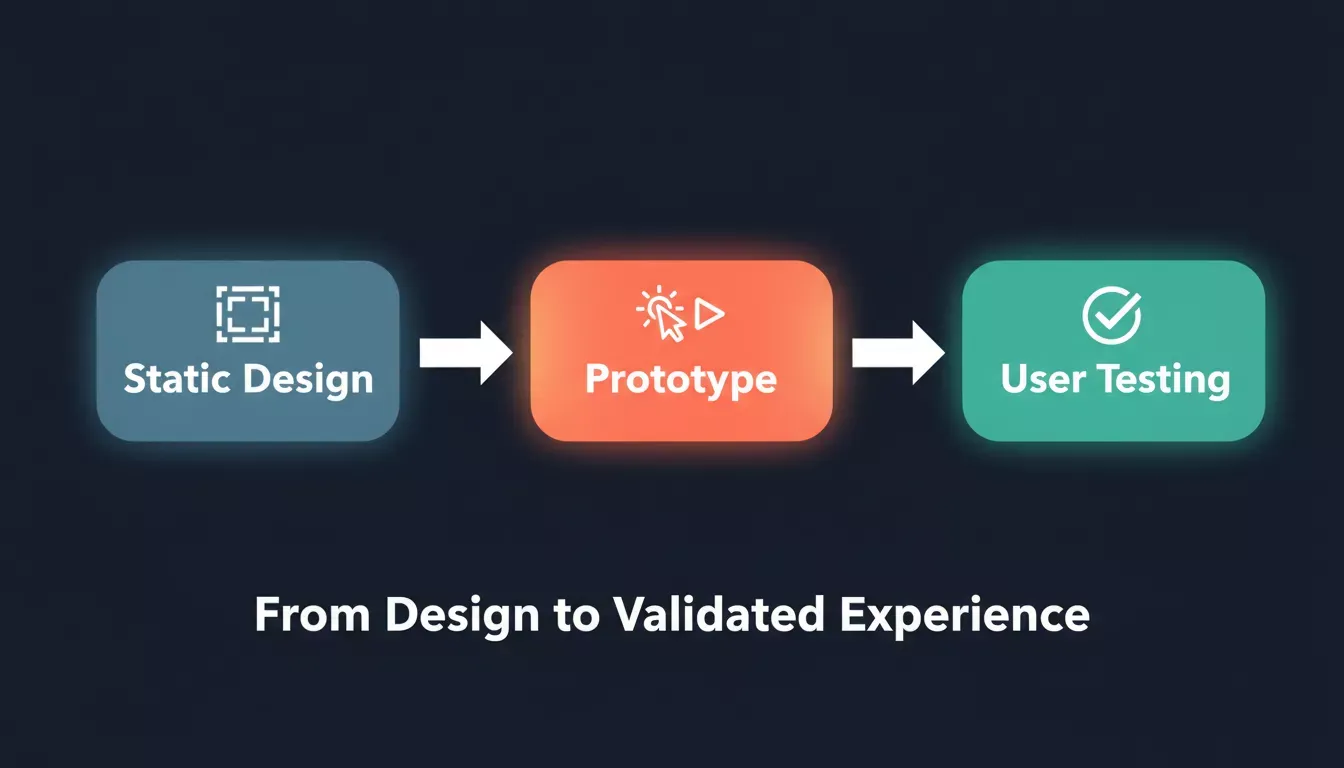
A Figma prototype bridges the gap between static design and validated user experience.
| Prototype Type | Fidelity | Time to Build | Best For |
|---|---|---|---|
| Paper sketch | Low | 30 min | Early ideation |
| Wireframe (Figma) | Medium | 2-4 hours | Flow validation |
| High-fidelity Figma prototype | High | 4-8 hours | Stakeholder sign-off, user testing |
| AI-generated app (Rocket.new) | High | Under 1 hour | Rapid MVP validation |
Step 1: Start With a Clear Plan
Map your user flow first: list every screen in order before opening Figma. This single step cuts prototype build time in half.
Think like a storyteller. What are the screens your users will see first? What actions move them forward? That is your user flow.
Write a quick list like:
- Login screen
- Home page
- Navigation to Profile
- Settings
For a typical MVP flow, 5-10 screens are the right starting scope, enough to tell the story without drowning in edge cases. You can always add more screens incrementally once the core flow is validated.
Step 2: Set Up Your Figma File With Purpose
Create one named frame per screen, assign a single starting frame, and keep all elements inside the frame boundary.
- Create frames for every major screen. Think of each screen as a page the user will interact with.
- Name them clearly (Login, Home, Profile, etc).
- Always assign a single starting frame as the first screen your prototype shows.
According to Figma's design guidelines, all components and visual elements must be placed inside the screen's Frame. Elements placed outside the Frame are ignored during import and may cause visual gaps or missing content.
Pro tip: if you have multiple user flows (like logged-in vs logged-out), mark each flow's starting point clearly. It helps when you present or test later.
Step 3: Build Reusable Interactive Components
Define component behavior once, including hover states, toggle states, and variant changes, then reuse across every screen.
Interactive components let you define behavior once and reuse it everywhere. Buttons that change on hover. Toggles that switch state. Stuff like that.
Imagine you made a button that changes color when hovered. Instead of linking multiple frames just for that button state, you build it once and reuse it. That cuts down design time and keeps your prototype tidy.
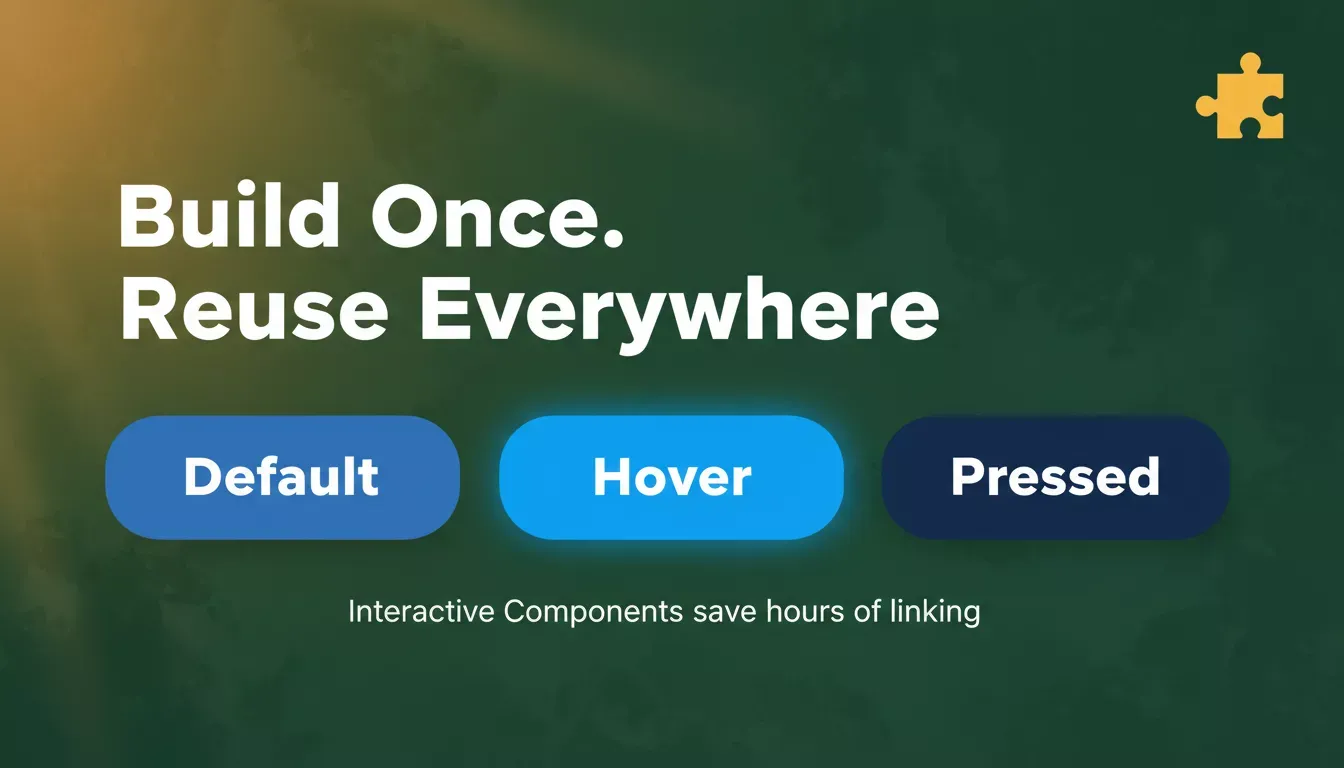
Interactive components eliminate repetitive frame linking and keep your prototype clean and maintainable.
If you are looking to speed up the component-building phase, explore how AI app builders save development costs by automating repetitive design-to-code translation work.
Step 4: Switch to the Prototype Tab and Start Connecting
Go to the Prototype tab, select an element, and drag the blue arrow to the destination screen to create a connection.
Once your static screens are ready:
- Go to the prototype tab in the right panel.
- Select an element (like a button).
- Drag the blue arrow to link to the next screen.
You literally create connections by dragging from the element to the screen. Every link you make defines how your app will flow.
Ask yourself simple questions as you work:
- What triggers the transition? (tap, drag, hover, mouse enter)
- Does it animate?
- What is the destination?
These choices shape how natural your Figma prototype feels to anyone clicking through it.
Step 5: Add Smart Animate Transitions
Smart Animate detects matching layer names across frames and automatically animates position, opacity, and size, with no manual keyframing needed.
Smart Animate is a feature that senses differences between two screens and automatically animates the properties (position, opacity, size). So if a sidebar slides in on the Home screen, you do not manually animate every piece.
As Figma's official documentation states, smart animate works best when layer names match exactly across frames. A small naming discipline pays off in every transition. If your headers, icons, and cards stay consistent across screens, smart animate makes them move instead of pop.
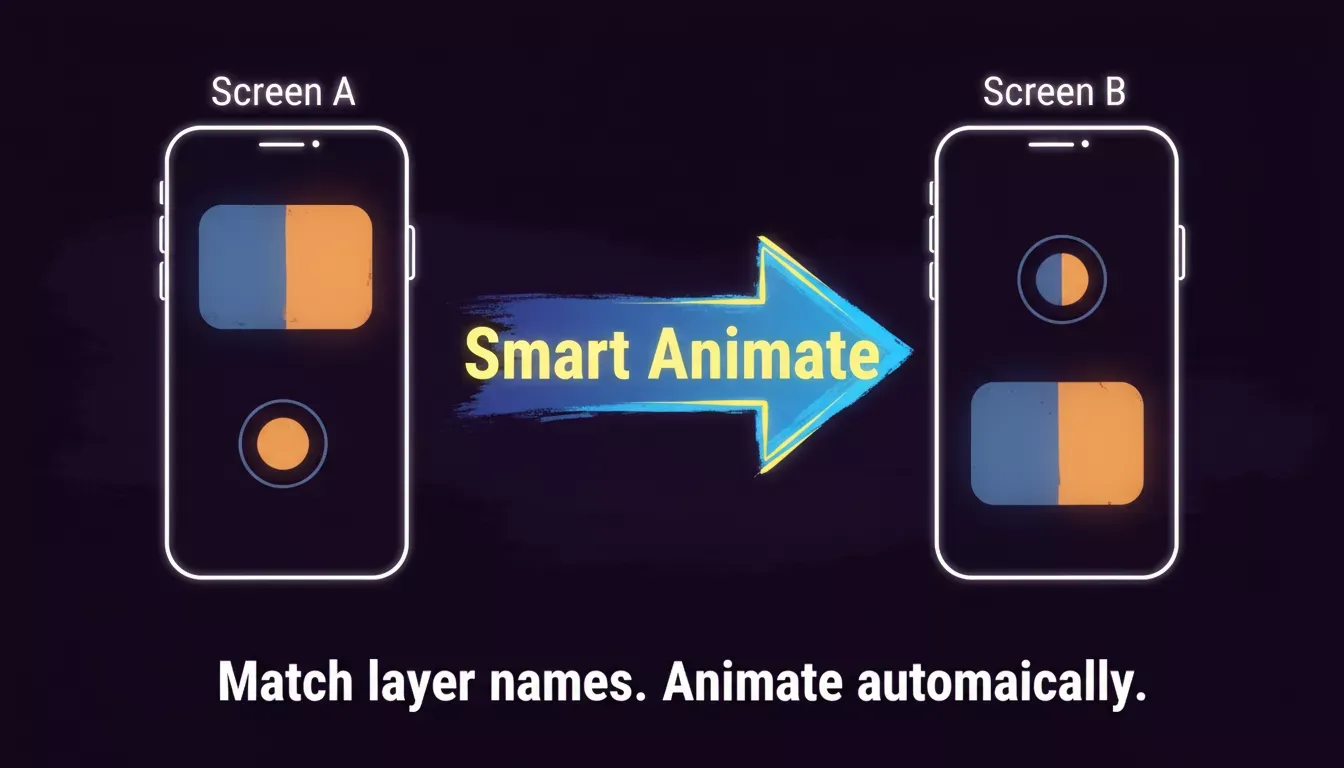
Smart Animate reads matching layer names and animates the difference between two frames automatically.
Step 6: Build Multiple Flows (Without Losing Your Mind)
Use Figma's multiple flows feature to simulate separate user journeys, each with its own starting frame, inside a single file.
Not all users are the same. You might have a new visitor flow and a returning user flow.
Here is a quick way to handle that:
- Assign one frame per major screen
- Use multiple flows in the prototype settings
- Mark the flow starting point for each
This lets you simulate real usage paths like Login to Home or Sign Up to Home. You treat these like separate movies, but all in one file, keeping the prototype organized and quicker to edit.
A Quick Interactive Checklist
Use this checklist as a mini roadmap while building your Figma animation prototype. It keeps your workflow organized and ensures nothing is missed.
| Task | Goal |
|---|---|
| Map user flow on paper first | Avoid wasted frames |
| Create a starting frame | Sets the first screen |
| Name all layers consistently | Enables smart animate |
| Build interactive components | Reuse interactive behavior |
| Switch to the Prototype tab | Start linking screens |
| Create connections | Define user flow |
| Apply smart animate | Smooth transitions |
| Set flow starting points | Manage multiple user paths |
| Test your prototype | Identify issues and gather feedback |
Glossary
Smart Animate: A Figma prototype feature that automatically animates differences between two frames, including position, size, and opacity, when layer names match across screens.
Interactive components: Reusable Figma components with built-in state changes (hover, pressed, focused) that carry behavior across your entire prototype without linking additional frames.
Prototype flow: A named sequence of connected screens in Figma, starting from a designated frame, that simulates a specific user journey through your design.
User flow: The ordered path a user takes through an app or website to complete a goal. It is the blueprint you map before building any prototype screens.
Frame: The Figma canvas element that represents a single screen. Rocket.new's design guidelines require all elements to sit inside the frame boundary for accurate code generation.
Tricky Bits But Easy Fixes
Sometimes a prototype feels clunky. Here is what you can check:
- Layers not named consistently? Smart animate will not find matching elements. Rename layers to match across frames.
- Too many overlapping frames? Separate them for clean linking.
- No trigger set? Every connection needs a trigger (tap, drag, hover, mouse enter). Without one, nothing fires.
- Interactive components nested too deeply? Keep them modular. One level of nesting is usually enough.
- Transitions feel abrupt? Tweak easing curves. "Ease out" on entrances and "ease in" on exits feel most natural to users.
These small adjustments keep your prototype clean, predictable, and easy to navigate.
Understanding how rapid prototyping drives faster innovation can help you decide which level of fidelity is right for each stage of your project.
Quick Usability Testing That Actually Helps
Share the prototype link, watch what users click, ask where they hesitate, and fix flow glitches. Five users are enough to surface most critical issues.
According to the Nielsen Norman Group, testing with as few as five participants uncovers approximately 85% of usability problems in a design. That makes a quick prototype test one of the highest-ROI activities in product development.
Usability testing can be as simple as:
- Share the prototype link (use the play link, not the edit link)
- Watch what users click
- Ask where they hesitated
- Fix flow glitches
Do not ask complex tasks right away. Go for something short like "Try to get to the settings screen." You will see where your interactive components shine or fail.
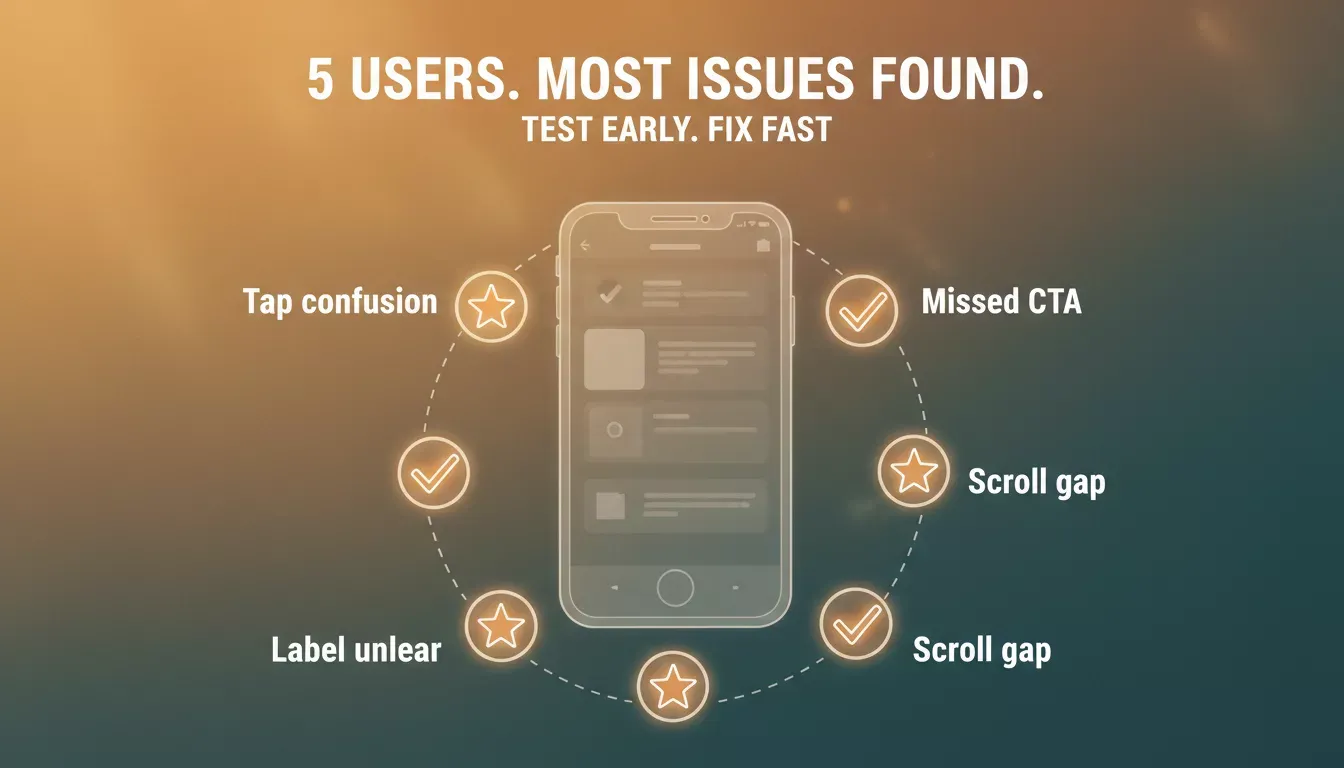
Testing with five users is enough to surface the majority of critical usability issues in your prototype.
For deeper methodology, the Interaction Design Foundation's guide to usability testing covers both moderated and unmoderated approaches in detail.
Explore how prototyping tools improve product design and speed to get more context on choosing the right approach for your team.
Why Prototyping Pays Off: The Data
Investing time in a high-fidelity prototype before development consistently reduces cost and rework. The numbers below reflect widely cited industry benchmarks across UX and product teams. Prototyping early reduces revision cycles, surfaces issues faster, and helps teams ship with confidence.
| Metric | Benchmark |
|---|---|
| Users needed to find 85% of the issues | 5 participants |
| Typical high-fidelity prototype build time | 4-8 hours |
| Recommended starting screen count | 5-10 screens |
| Max screens per Rocket.new Figma import | 40 screens |
If you are building a product from scratch, understanding how AI is changing product development gives useful context on where prototyping fits in modern workflows.
Beyond the Prototype: Turn Your Figma Screens Into a Real App With Rocket.new
A Figma prototype shows how an experience should feel. Rocket.new turns those same designs into a working app with real navigation, a live backend, and deployable code.
Important: Figma import in Rocket.new is only available on the web browser at Rocket.new. It is not available in the Rocket.new mobile app. The import itself runs in your browser; the output can be a web app (React/Next.js) or a native mobile app (Flutter for iOS and Android).
What the Import Does
Paste your Figma file URL (not a prototype link, as those do not work), select your screens, choose a tech stack, and Rocket.new generates production-ready code. You can import up to 40 screens at a time. Rocket.new's own documentation recommends starting with your most important 5-10 screens first, then adding more incrementally.
Rocket.new's Figma import features:
- Figma to Code Import - Paste your Figma file URL, and Rocket.new generates real screens and logic from it. Prototype links are not supported; use the file or frame URL.
- Automatic Backend Setup - Authentication, database setup, and API endpoints are generated without writing server code.
- Live Preview & Edit - Tweak screens or logic with plain English prompts and see changes instantly in a preview.
- Web and Mobile Output - Generate a React/Next.js web app or a Flutter mobile app from the same Figma file.
Why This Matters for Prototypers
Once your Figma prototype validates the flow, the logical next step is making it real. Rocket.new closes that gap without a handoff document or a developer sprint. Read the full Figma import documentation for step-by-step guidance on preparing your file and running your first import.
If you are building a no-code web app from your designs, see how Figma to website no-code workflows compare to traditional development handoffs.
For teams building mobile-first products, the Figma to mobile app guide covers the full Flutter generation flow from import to app store submission.
Take Your Figma Prototypes Beyond Clicks
A great Figma prototype is not the finish line. It is the proof that your idea works, the tool that gets everyone aligned, and the blueprint that makes building faster.
Once your flows are validated and your screens feel real, the next move is turning them into a product people can actually use.
Ready to build a real, working product?
Start building with Rocket.new for free and turn your Figma designs into fully functional apps in minutes. Figma import is available on the web at Rocket.new and supports up to 40 screens per import.
Table of contents
- -Why Bother With High-Fidelity Prototypes at All?
- -Step 1: Start With a Clear Plan
- -Step 2: Set Up Your Figma File With Purpose
- -Step 3: Build Reusable Interactive Components
- -Step 4: Switch to the Prototype Tab and Start Connecting
- -Step 5: Add Smart Animate Transitions
- -Step 6: Build Multiple Flows (Without Losing Your Mind)
- -A Quick Interactive Checklist
- -Glossary
- -Tricky Bits But Easy Fixes
- -Quick Usability Testing That Actually Helps
- -Why Prototyping Pays Off: The Data
- -Beyond the Prototype: Turn Your Figma Screens Into a Real App With Rocket.new
- -What the Import Does
- -Why This Matters for Prototypers
- -Take Your Figma Prototypes Beyond Clicks