React Component Library | Free Website Template | Rocket
Vault is a production-ready React plugin directory landing page template built around a dark, data-dense dashboard aesthetic. It features a browser-chrome tab switcher, a live sortable plugin grid, ecosystem charts, and a no-gate stack comparator. Designed for senior engineers and engineering managers, Vault lets visitors evaluate real plugin data before any call to action.
by Rocket studio
Quick summary
Vault is a single-page React plugin directory template styled for developers who value data over decoration. The page opens inside an interactive plugin grid, escalates through ecosystem charts and survey-backed callouts, and closes with a frictionless stack comparator. Every section is built to earn trust through real data, not marketing copy.
Who this template is for
This template is built for technical builders who evaluate tools under pressure. It speaks the language of engineers who have a terminal open on one monitor and a browser on the other. The page layout respects their time and skips the fluff.
- Senior frontend engineers comparing state management or user interface libraries at decision time
- Engineering managers assembling internal tooling stacks and needing fast, credible plugin data
- Indie developers searching for a specific library, such as a drag-and-drop component, that works cleanly inside an existing React project
What problem this template solves
Evaluating React plugins today means bouncing between npm, GitHub, bundle-phobia, and the State of JS results in five separate browser tabs. There is no single page that surfaces bundle size, GitHub stars, TypeScript support, and weekly download velocity side by side. Vault solves exactly that problem by presenting a ranked, scored directory in one scannable data grid.
- Engineers waste hours cross-referencing scattered data sources before making a library decision
- Directory pages for developer tools often feel like marketing sites, creating distrust before the first scroll
- Generic templates force teams to build sortable grids, chart sections, and comparison flows from scratch
What you get with this template
Vault delivers a complete, opinionated landing page layout ready to drop into any React project. The template ships with every section, interaction pattern, and visual component shown in the preview. You do not need to configure a separate design system or write boilerplate layout code.
- A browser-chrome header with a three-tab feature switcher and pre-populated data grid
- An ecosystem snapshot section with horizontal bar charts and category heatmap
- A sticky call-to-action navigation bar and an inline multi-select stack comparator
Feature list
This section covers the core built-in capabilities that make Vault useful from the first install.
Browser-Chrome Tab Switcher Header
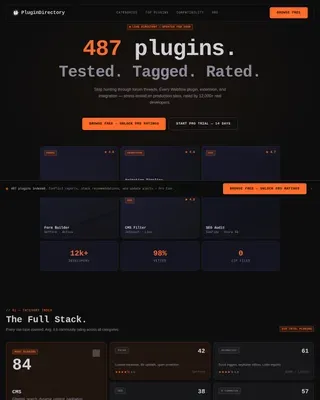
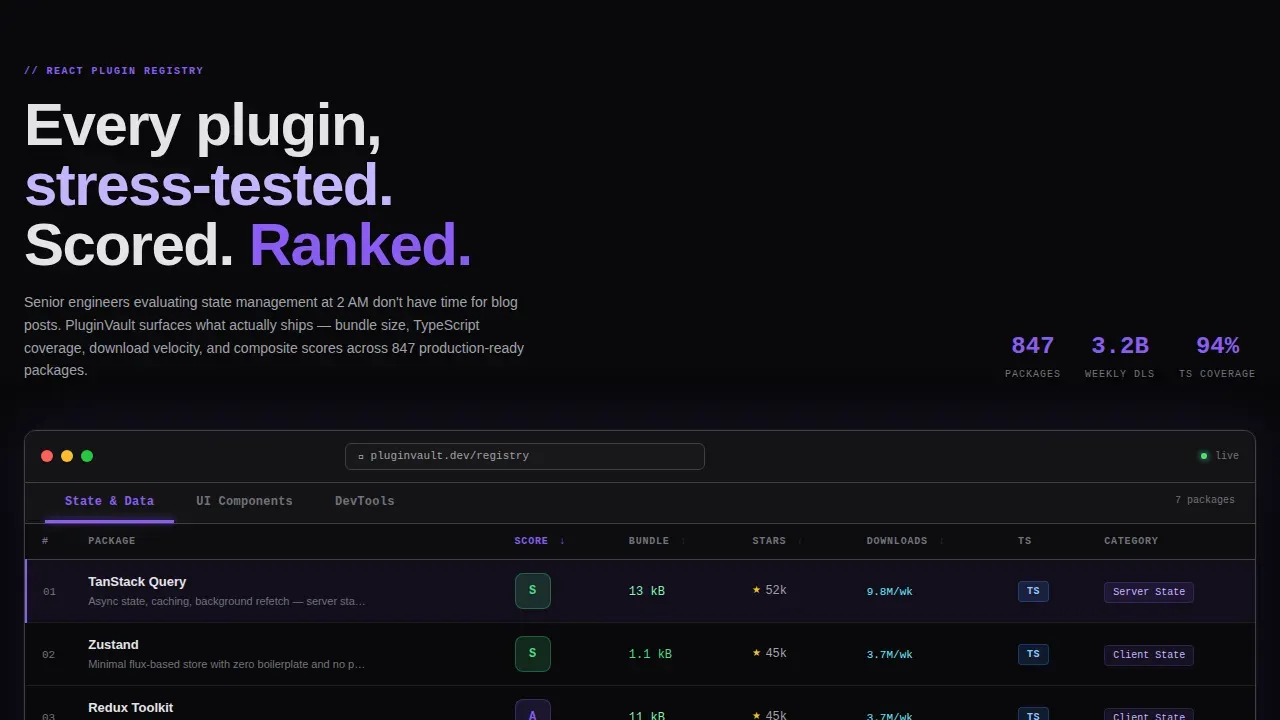
The header renders a realistic browser chrome frame containing three tabs: "State and Data," "user interface Components," and "DevTools." Each tab swap loads a fresh data grid below it with plugin cards ranked by composite score. The default tab loads pre-selected so the visitor lands directly inside the product experience.
Sortable Plugin Data Grid
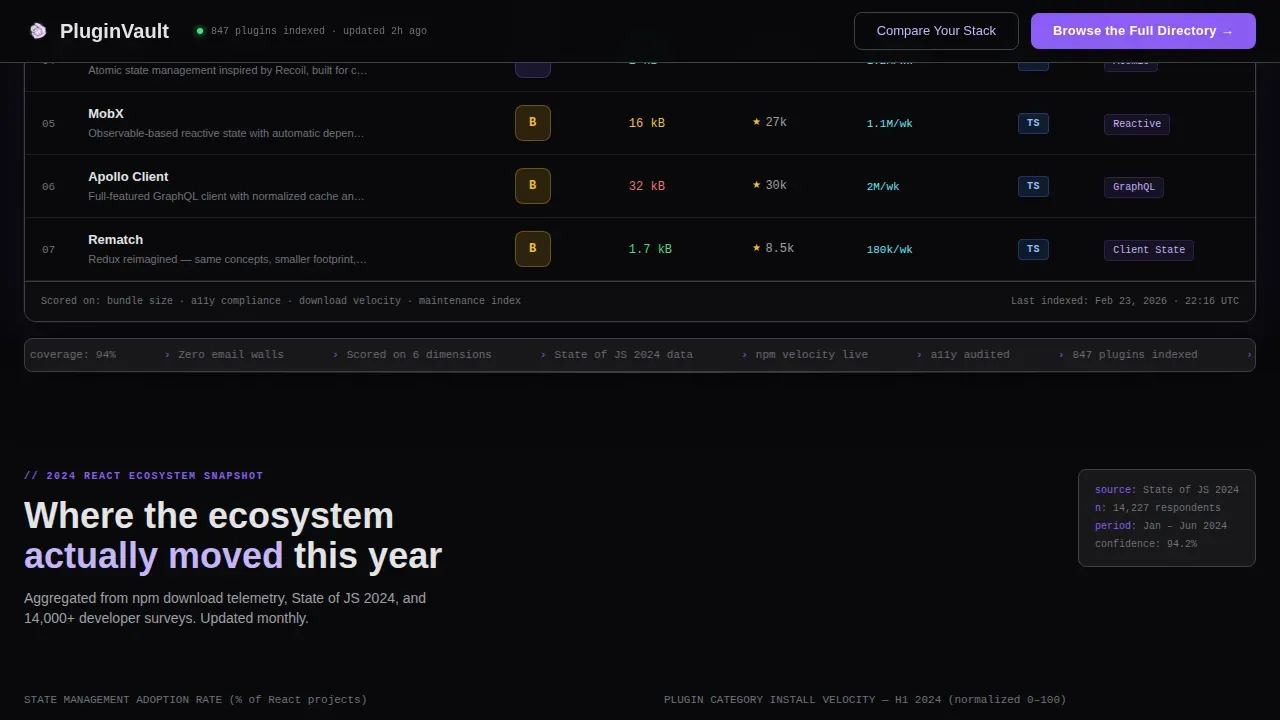
The plugin grid displays columns for bundle size in kilobytes, GitHub stars, TypeScript support badge, and a truncated one-line description. Bundle size cells are color-coded from green to amber so a vault user can read performance signals without opening a second tab. Column headers are clickable so visitors can re-sort the data by any key metric instantly.
Ecosystem Snapshot Charts
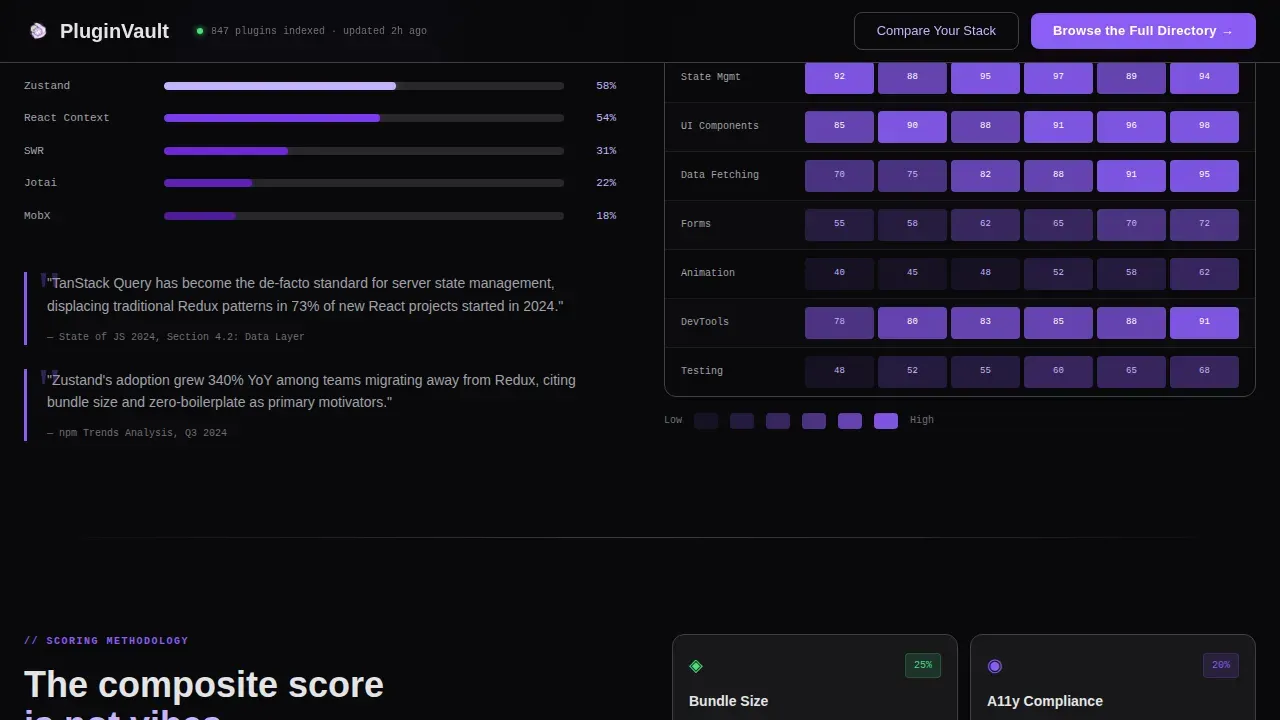
After the header grid, the page reveals a "2024 React Ecosystem Snapshot" section. It contains horizontal bar charts comparing framework adoption rates and a heatmap of plugin categories by monthly installs. Scroll-triggered animations fill the bars progressively, giving the section an authoritative, report-like cadence.
State of JS Pull-Quote Callouts
Pull-quote blocks sourced from State of JS survey data appear between chart sections. These callouts reinforce the directory's authority by anchoring claims to recognizable community research. Each quote is styled as a typographic highlight inside the dark layout.
Sticky Navigation with Primary Call to Action
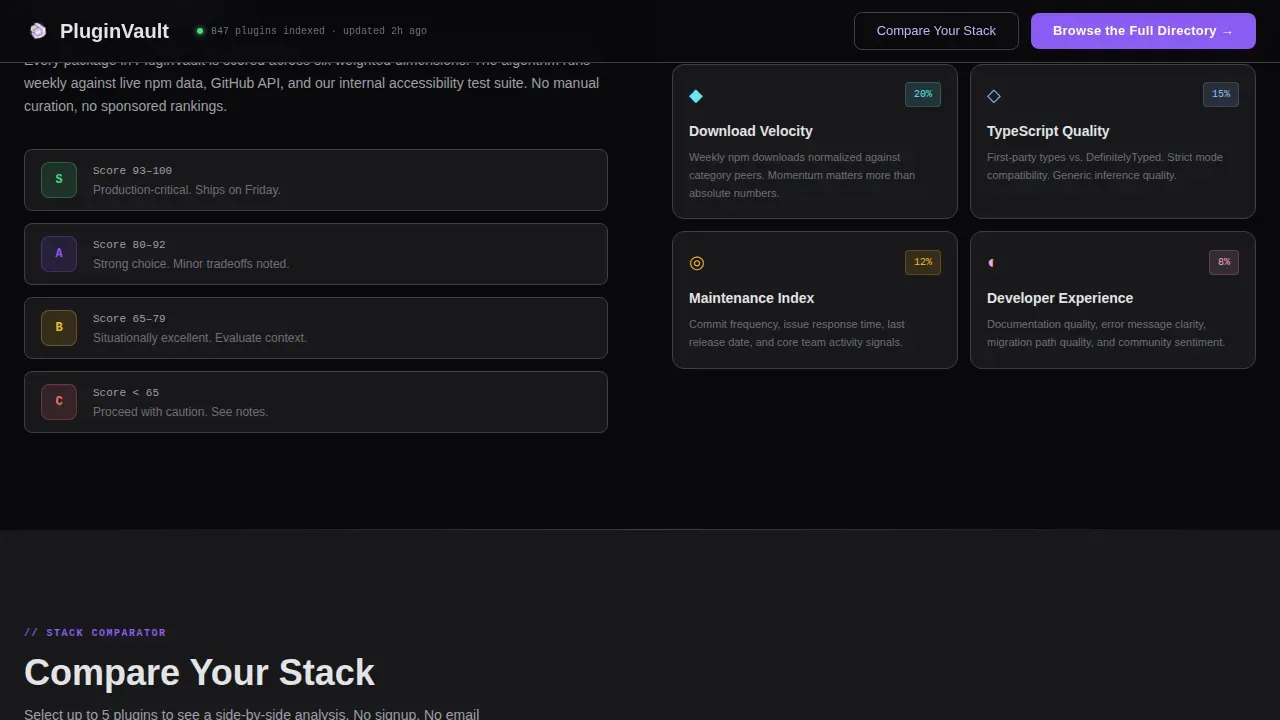
A slim sticky navigation bar appears after the first scroll. It pins the primary "Browse the Full Directory" button in a violet-filled style so the call to action is always reachable. The vault server of that nav layer is purely client-side and adds no layout shift on scroll.
Inline Stack Comparator
The secondary call-to-action triggers an inline multi-select interface. Visitors pick their current libraries and get routed to a filtered comparison view inside the main app. There is no email wall and no signup gate, vault access is immediate.
Page sections overview
| Section | Purpose |
|---|---|
| Browser Chrome Header | Tab-switched live plugin grid |
| Plugin Score Grid | Ranked data with sortable columns |
| Ecosystem Snapshot | Bar charts and adoption rates |
| Category Heatmap | Monthly installs by plugin type |
| State of JS Quotes | Survey-backed authority callouts |
| Stack Comparator | Inline filtered comparison tool |
| Sticky Nav Bar | Persistent primary call to action |
| Developer Minimal Footer | GitHub-style minimal footer pattern |
Design & branding system
The visual identity is built around a Void and Violet color system that reads like a terminal window with a carefully tuned custom theme. Every color decision is intentional. Nothing is decorative unless it carries data meaning.
- Background is absolute void black at hex value #09090B, with deep graphite at #18181B used for card surfaces and data rows; electric violet at #8B5CF6 drives active states, selected tabs, and sort indicators; phantom lavender at #C4B5FD handles secondary text and hover glows
- Typography splits into two roles: JetBrains Mono renders all data values, bundle sizes, and code references, while DM Sans handles prose headings and descriptive copy
- Animation is set to a medium intensity level: tab switching uses smooth transitions, bar charts fill on scroll, and numeric counters animate on entry
Mobile & speed optimization
The template is designed desktop-first, reflecting the reality that its primary vault user is a senior engineer working on a large monitor inside an IDE context. Mobile layout is supported and degrades gracefully without losing core functionality.
- The data grid reflows to a card-based layout on smaller viewports so plugin data remains readable without horizontal scrolling
- Interactive components including the tab switcher and comparator are isolated as client-only React components, keeping the static portions of the page lightweight
- The default tab grid pre-populates on load so there are zero empty states on first paint, regardless of device or connection speed
How this template helps you convert
Vault is structured around a specific conversion path: let the visitor use the product before asking them to commit to anything. The page earns the click rather than demanding it.
- The visitor lands directly inside a live plugin grid rather than a hero image, so their first action is evaluating real data, not reading about the product
- As they scroll, bar charts and survey callouts build authority progressively, transforming the experience from product demo to industry reference
- The sticky navigation bar keeps the primary vault call-to-action visible throughout the scroll without interrupting reading flow, and the stack comparator closes the session with a personalized, gate-free interaction
Other information about this template
This section covers additional technical context that is useful when setting up or extending the Vault template inside a real development environment.
- The vault production ready react plugin directory landing page template ships as a structured React project you can clone, install dependencies from, and run immediately using your preferred package manager such as npm or yarn
- To start the local vault dev server, run the following commands from your project root: install dependencies first, then start the dev server using the standard command line instruction for your package manager; the vault server boots to a localhost path by default
- The vault ui layer is driven by environment variables for any runtime configuration, such as the base url for your data source or the host name of your backend; set these in a new file at the project root before you start vault
- Vault configuration lives in a single configuration file; the vault data directory path, storage backend references, and any import paths for custom modules are all declared there
- When you initialize vault for a new project, vault initialization generates a root key and distributes unseal keys to designated operators; in production environments, you enable tls using valid tls certificates rather than a self signed certificate, and you configure a certificate authority to validate connections
- The vault process relies on the initial root token during vault initialization; the root token grants full access to all vault capabilities and should be rotated immediately after you unseal vault using the unseal keys from that initialization step
- To unseal vault after a restart, provide the required number of unseal keys via the vault api or the vault ui; the vault instance returns to an operational state once the threshold is met
- The vault ui interface provides a JSON editor for managing secrets and policies, supports creation and revocation of tokens, and allows a vault user to manage secrets across mounted storage backends; vault ui can also be configured using environment variables for connection and authentication parameters
- Vault binary installation on a remote server, such as an AWS EC2 instance, requires basic tools like unzip before you download the vault binary; connect via SSH, update your package index, create a directory to store the configuration file, and then follow the following example steps from the official documentation to install vault and start the vault server
- To enable the vault ui on a self-hosted vault server, add the line
ui = trueto the configuration file before you start vault; without this line, the vault ui will not be available in the browser - The vault api is available at the default path on port 8200; you can use it to automate updating secrets, reading encryption keys, or managing tokens without opening the vault ui in a browser
- Modular, reusable components improve organization and scalability; a basic setup using shadcn/ui components alongside a headless CMS such as Storyblok, Payload CMS, or Strapi provides a clean API for React components and supports server-side rendering for better page performance
- For a minimal example of integrating DHTMLX Vault with a React component, create a new file in your React project, set the container to render the vault component inside, provide a data set, and handle vault events in your React component; you can customize the vault code after the basic setup is complete
- Advanced filtering through a prominent search bar, dropdowns, and instant results is essential for any production-ready directory page; tools like Algolia give the vault user immediate, filtered access to the plugin directory without page reloads
- The distribution-manifest.json file describes a client code distribution when you deploy custom vault ui code; deploy your client code to vault by uploading a ZIP file containing multiple files, and note that the custom page client code must export the value of the definePage() function
- Additional resources for vault setup, including storage backend configuration, auto-unseal with a cloud provider key management service, and high-availability using Consul as a backend, are available in the official HashiCorp Vault documentation; note that styled components or similar CSS-in-JS approaches can be used inside the vault ui code layer when building custom ui code for vault custom pages
- The same type of role-based access pattern used in HashiCorp Vault applies conceptually to how the template manages route-level access for the comparison view; vault user permissions, root token scope, and secrets path conventions are useful reference points when designing access control for your own React app
- Sensitive information such as root token values, unseal keys, and encryption keys should never be committed to a repository or stored inside the project root without protection; use environment variables or a dedicated secrets manager to keep these values out of your code
Theme
Dashboard Pro
Creative direction
Industry Report
Color system
Void & Violet
Direction
Click-Through
Page Sections
Browser-chrome Tab Switcher
Sortable Plugin Score Grid
Ecosystem Snapshot Section
State of JS Pull-quote Blocks
Sticky Call-to-action Navigation
Inline Stack Comparator
Related questions
Can I run this template without setting up a backend?
How do I customize the plugin data shown in the grid?
Does the template support TypeScript?
Is there a signup or email gate in the comparator flow?
Can I connect this template to a headless CMS or live API?