Advanced Version Control Platform Landing Page Template
Branch is a Git and version control landing page built for time-constrained developers who need to stop fearing the terminal and start working with confidence. It combines a multi-step onboarding form, three real student case studies with before-and-after comparison tables, a 12-module curriculum overview, and a freemium email capture flow into one focused, scroll-driven page.
by Rocket studio
Quick summary
Branch is a single-page landing page template for a git and version control online course. It opens with a conversational multi-step form, flows into three narrative case study arcs with side-by-side comparison tables, presents a 12-module curriculum with pricing tiers, and closes with a freemium email capture. Every section is designed to build quiet confidence in developers who feel lost the moment git breaks.
Who this template is for
This template is built for educators and course creators who teach developers how to use git properly. It speaks directly to the emotional reality of learning version control under pressure, whether that is a junior developer panicking in a pull request review or a self-taught parent with thirty minutes before the kids wake up.
- Course creators selling git, version control, or developer workflow training to beginners and bootcamp graduates
- EdTech builders who want freemium conversion flows rather than hard paywalls
- Developers building personal course brands around practical, story-driven teaching
What problem this template solves
Most course landing pages dump a feature list and a price. They do not earn trust. The developer audience for a git course is often anxious, not just curious. They have already Googled "detached HEAD state" at midnight. They do not need another wall of bullet points. They need to see themselves in the story of someone who figured it out.
- Generic course pages fail to address the emotional barrier that stops developers from committing to a course
- A one-size-fits-all hero section ignores the fact that different learners have different fears and different time budgets
- Comparison tables buried in a PDF curriculum do not communicate progress the way a before-and-after narrative does
What you get with this template
This template delivers a complete, single-page conversion experience structured around three core jobs: personalize the entry point, build trust through real stories, and capture the lead without friction. Every section flows into the next with scroll-reveal transitions and terminal-warm styling.
- A multi-step terminal form hero that asks what scares the visitor most about git, then asks how many hours per week they can study
- Three student case study blocks, each with a two-column before-and-after comparison table, followed by a short human narrative paragraph
- A 12-module curriculum section with pricing tiers, completion certificates, and a sticky bottom bar that locks in the primary call to action after the first scroll
Feature list
A paragraph introducing the feature set: every feature in this template is drawn directly from the project brief and serves the single goal of converting a skeptical developer into a course student.
Multi-Step Terminal Form Hero
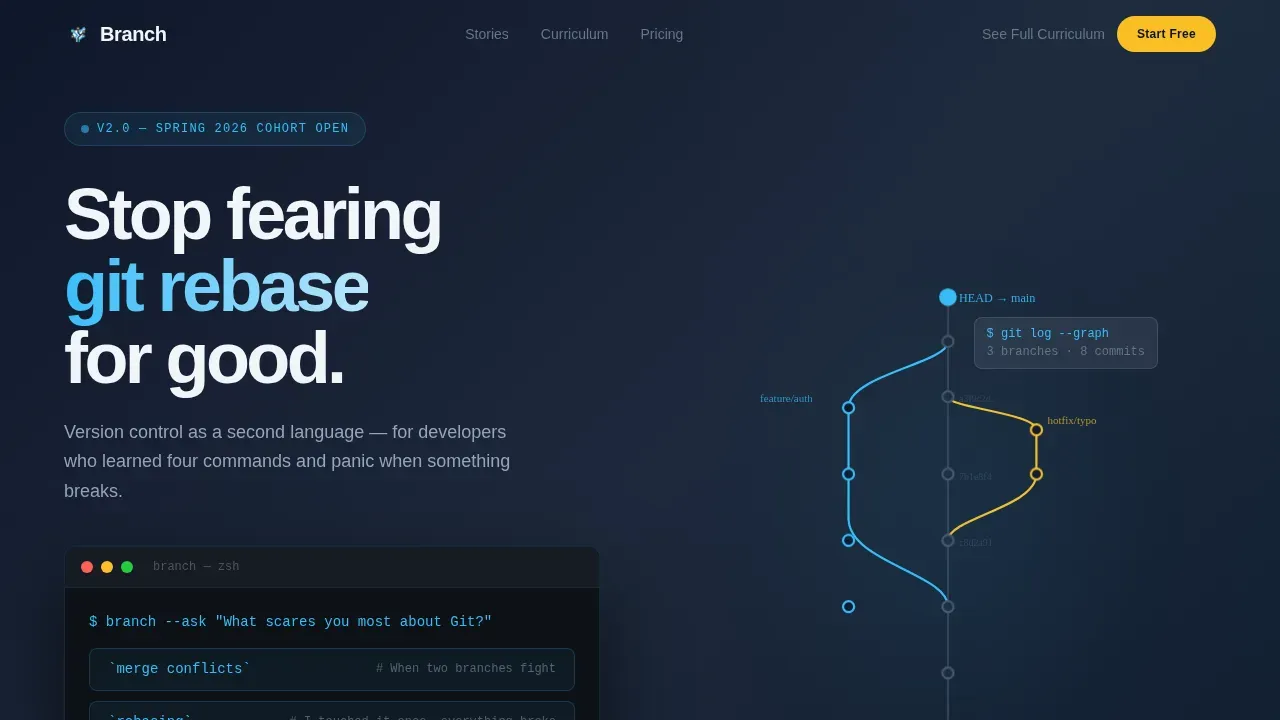
The hero opens as a terminal prompt with a blinking cursor asking "What scares you most about Git?" Visitors choose from three styled command-line responses: merge conflicts, rebasing, or honestly, all of it. A second step asks how many hours per week they can study. The form feels like a conversation, not an interrogation, and sits against a branching-tree illustration that mirrors a git log graph.
Before-and-After Comparison Tables
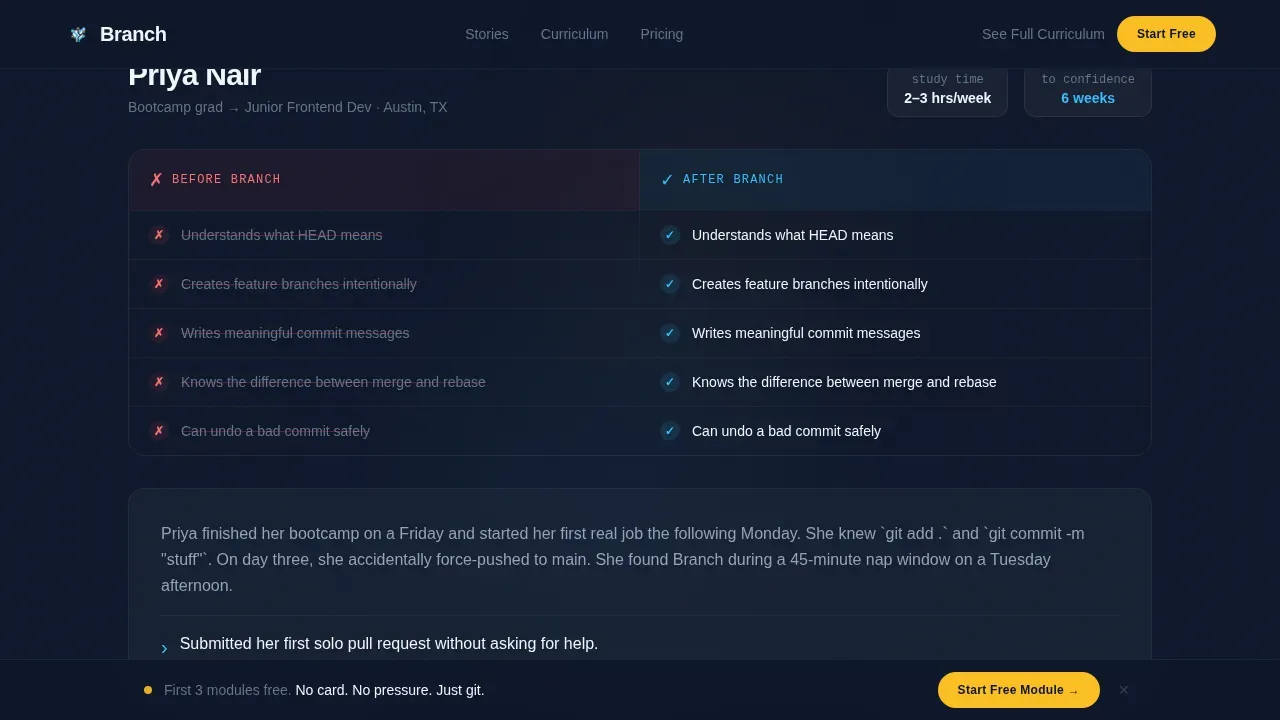
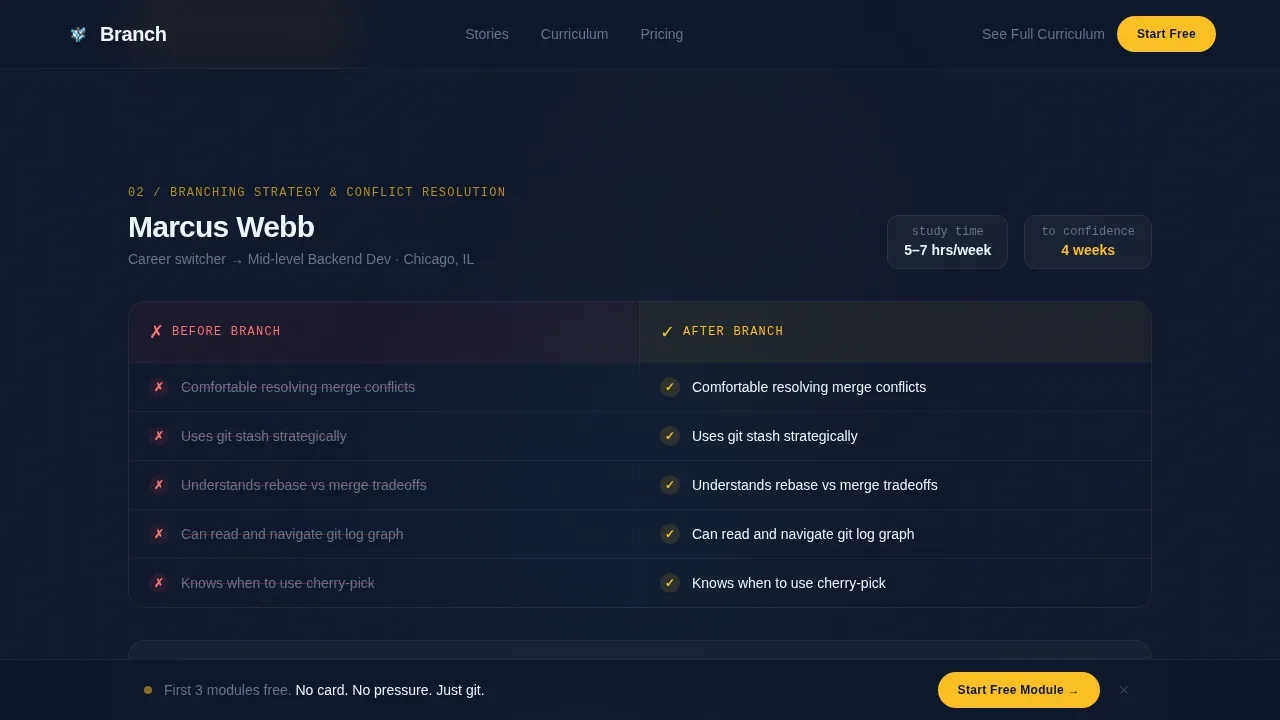
Three student stories are structured as before, during, and after arcs. Each story opens with a two-column comparison table showing what the student knew before versus what they can do now, using checkmarks and x-marks to make the gap visceral. The stories escalate in complexity: basic commits and staging, branching strategies, and interactive rebasing.
Freemium Email Capture with Sticky Bar
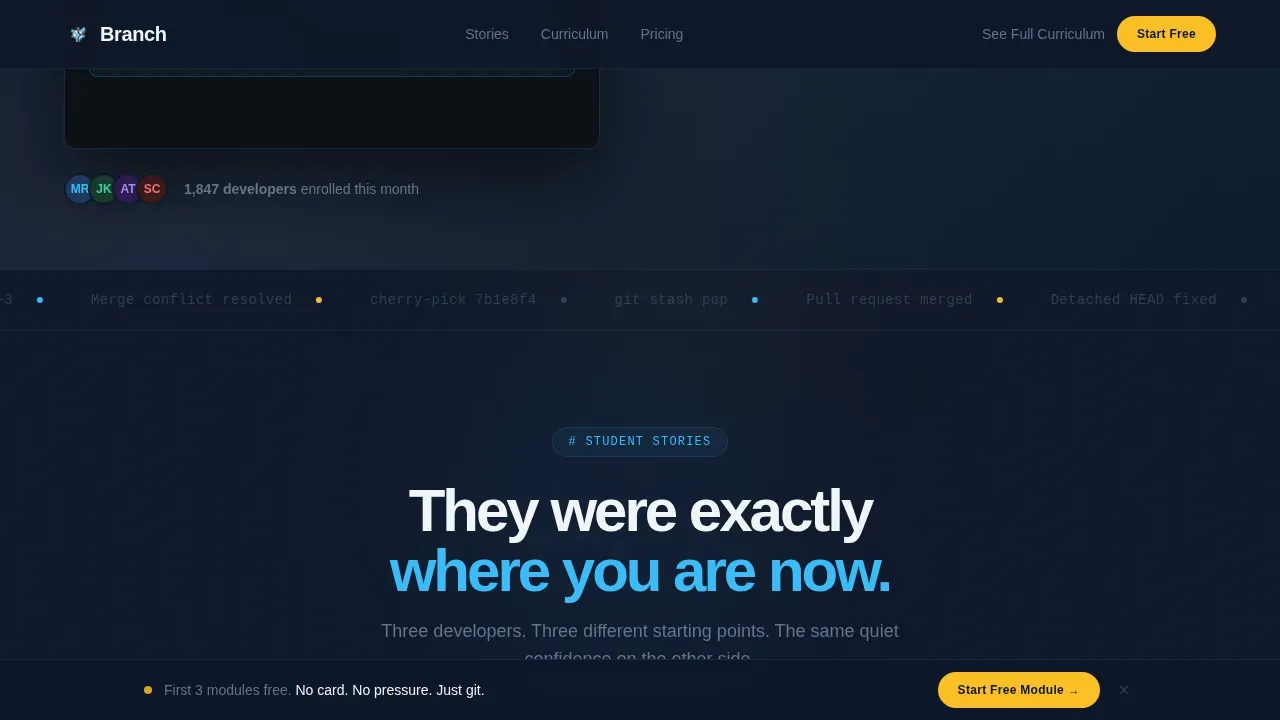
The primary call to action reads "Start the Free Module" and appears after each case study. After the first scroll, it locks into a sticky bottom bar that stays visible for the rest of the page. Clicking opens a single-field email capture modal with the note that no card and no spam are required, just the first three lessons on commits, branches, and merges.
12-Module Curriculum Section
A dedicated curriculum section lays out all twelve modules with pricing tiers and completion certificates. A secondary path labeled "See the Full Curriculum" serves comparison-shoppers who need full transparency before committing, converting them through information rather than pressure.
Scroll-Reveal Animations and Terminal Typing
The template includes high-animation interactivity: cursor parallax, terminal typing effects, stagger reveals, and scroll-triggered section entrances. These are handled via client-side components so static sections stay fast while interactive elements feel alive.
Page sections overview
| Section | Purpose |
|---|---|
| Terminal Form Hero | Personalize entry by asking visitor fears and study availability |
| Case Study One | Basic commits story with before-and-after comparison table |
| Case Study Two | Branching strategies story with narrative and comparison table |
| Case Study Three | Interactive rebasing story with escalated complexity table |
| Curriculum Overview | 12-module list with pricing tiers and completion certificates |
| Freemium call to action Block | Email capture modal triggered after each case study |
| Sticky Bottom Bar | Persistent primary call to action that follows the visitor down the page |
| Footer | Horizontal flow footer pattern with supporting links |
Design & branding system
The visual identity follows a Family First theme built on a Slate and Sky color system. The palette feels like a code editor window reflecting against a night-dark kitchen window: cool professionalism softened by the glow of home. Deep terminal slate dominates backgrounds and code blocks. Soft cloud gray gives breathing room between sections. Steady sky blue marks interactive highlights and active states. Warm kitchen-light amber appears only where decisions happen, on calls to action and progress indicators.
- Colors: deep terminal slate (#1E293B), soft cloud gray (#F1F5F9), steady sky blue (#38BDF8), warm amber (#FBBF24) reserved for calls to action
- Typography: DM Sans for readable body and headings, JetBrains Mono for all terminal and code-style elements
- Visual motifs: a branching tree SVG in the hero that subtly mirrors a git log graph, blinking terminal cursor, and amber-highlighted action zones
Mobile & speed optimization
The template is designed mobile-first, built for developers who study on laptops at kitchen tables late at night. Interactive elements like the multi-step form and sticky bar are handled by client-side components, while static sections use server components to keep the initial load lean.
- Mobile-first layout that reflows the comparison tables and case study arcs cleanly on small screens
- Server components handle static content; client components handle the multi-step form, sticky call to action bar, and email capture modal
- Scroll-reveal and stagger animations are scoped to client components so they do not block static rendering
How this template helps you convert
This template is built around one insight: a developer who feels understood is far more likely to start a free trial than one who just read a feature list. Every section is sequenced to reduce anxiety and increase readiness.
- The multi-step form captures intent immediately and makes the visitor feel seen before they have scrolled past the hero, which warms them toward the course content that follows
- The three case study arcs with comparison tables show social proof through story rather than star ratings, letting the visitor identify with a real person who started exactly where they are now
- The sticky freemium call to action removes the decision barrier by making the free entry point always visible, so the visitor can act the moment they feel ready without hunting for a button
Other information about this template
This template is designed to teach the full mental model of version control, not just memorized commands. The course content it represents covers the git workflow from first commit through complex conflict resolution. Understanding how a git repository works, how to create a new branch, and how to keep a clean commit history are core outcomes of the curriculum.
From a technical perspective, git stores data as a series of snapshots. Each commit object records the state of all the files in the repository at a specific point in time. The git log command lets you walk through that commit history and understand how a project evolved. Running git init sets up a new git repository in a new folder, creating the structure git needs to start tracking a project's files. Running git status shows the current branch and any staged or unstaged changes before you run git add and git commit.
A git repo typically starts with an initial commit on the main branch, which becomes the default branch. From there, developers create a new branch for each new feature or fix. Using git checkout or the shorthand git checkout -b, you can switch to a local branch, check out a remote branch, or create a new branch in a single command. Git's branching model is lightweight: creating a new branch is nearly instantaneous, and switching branches changes the files in your working directory to match the snapshot of that branch.
The master branch should always be in a stable, production-ready state. The master branch should never receive direct commits. All changes should arrive via a pull request so the team can review source code before it enters the main project. Feature-specific branches keep development isolated from the main branch. Syncing the latest changes from the main branch into active feature branches daily helps minimize merge conflicts. Merge conflicts occur when multiple users are concurrently making edits to the same section in the same file. It is always important to resolve merge conflicts before proceeding with commits.
Good habits make collaboration sustainable. Commit messages should be concise but descriptive to provide context for the changes made. Use a gitignore file to exclude files that should not be tracked, such as build artifacts, logs, and environment-specific files. A gitignore file prevents unnecessary files from cluttering the repository. You can also use a git tag to mark specific releases for easy rollback to a recent version. Git hooks let you automate checks before commits are accepted. Git Large File Storage, known as git lfs, handles large binary files that would otherwise bloat the repository. Readme files give collaborators a clear entry point to understand the project.
The basic workflow follows a commit-pull-push pattern: make changes on your local machine in your local repository, stage them with git add, write a clear commit message, then push via origin main to upload to the remote repository. Pull the latest changes from the remote version before pushing your own to avoid conflicts. A local repo reflects the remote version only after you pull. Each file in the repository has a history, and using git log lets you inspect the last commit, a specific commit, or the entire commit history without switching branches. You can use a git tag to mark a specific commit as a release. The current branch is always visible in the terminal prompt and in git status output. Using git checkout b lets you create a new branch and switch to it in a single command.
There are a few ways to create a new git repository: you can run git init locally, clone an existing remote repository, or use a web interface. Git config lets you set your identity before your initial commit so every commit object carries the right author information. Readme files, gitignore files, and a clear initial branch structure are all good defaults when starting a new project. Git, created by Linus Torvalds, is the most widely used version control system in the world. Version control gives you the ability to recall different versions of files at any specific point in time, keep the source code organized, and directly edit with confidence knowing you can always roll back. A github account connects your local repository to the remote repository and unlocks collaboration features including pull requests, code review comments, and task assignment. You can use above methods or other tools to manage branches, but the git command line remains the most direct and portable approach.
- The branch master git version control landing page template is available as a fully coded, ready-to-customize file
- The template includes all section blocks described in the brief: terminal hero, case studies, curriculum, and footer
- Localization defaults are English, United States dollar pricing, and United States date format
Theme
Family First
Creative direction
Case Study Narrative
Color system
Slate & Sky
Style
Comparison Table
Direction
Freemium/Trial
Page Sections
Multi-step Terminal Form Hero
Before-and-after Comparison Tables
Freemium Sticky Conversion Bar
Module Curriculum with Pricing Tiers
Scroll-reveal and Terminal Animations
Family First Visual Theme
Related questions
Who is the Branch template designed for?
Does the template include the multi-step form logic?
Can I customize the case study content and comparison tables?
What does the freemium conversion flow include?
Is the curriculum section customizable?