
Want shoppers to find products instantly in your store? Learn to create an advanced eCommerce search bar with clean design, fast results, smart filters, and image search to increase sales and engagement.
How to create search bar for an eCommerce store with advanced features?
Build a smart search bar with a clean design, fast results, filters, and image search to help visitors find products in seconds. A smooth search experience increases sales and keeps people on your website longer.
According to Baymard Institute, 41% of ecommerce sites fail to support the most common search query types needed for good on-site search**.** That stat alone should make any store owner pay attention.
In a crowded online world, search is not just a tiny box in the navigation bar. It is a direct path to sales.
Why a Search Bar Matters on an Ecommerce Website?
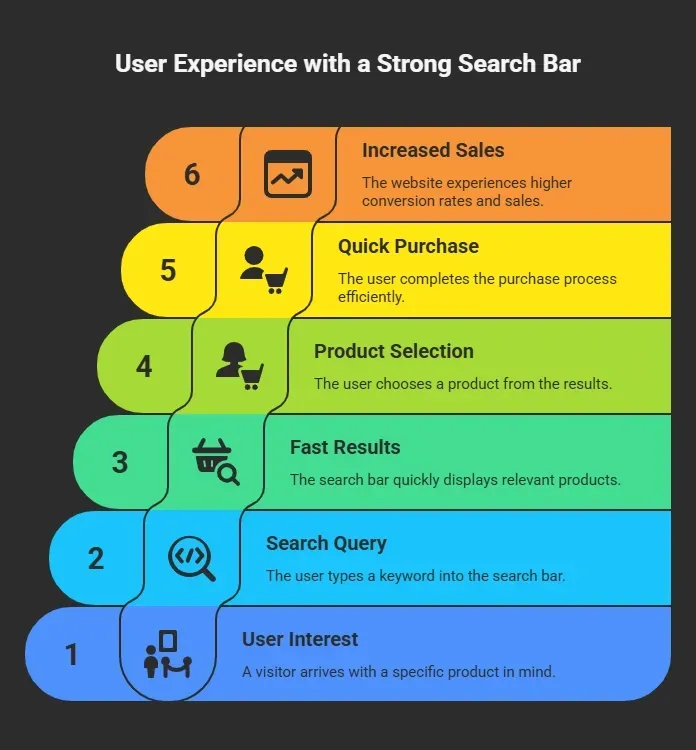
A search bar is often the most active feature on a website. Many visitors skip browsing pages and go straight to search. They type a keyword and expect fast results. If the results are slow or messy, they leave without thinking twice. A strong search bar helps users find products faster, buy more quickly, and move through pages without friction.
Basic Structure: HTML and CSS Setup
So, let’s start simple. A search bar creation process begins with basic HTML and CSS.
Here is a simple example code structure:
1<div class="navigation-bar">
2 <form action="/search">
3 <input type="text" placeholder="Search products..." />
4 <button type="submit">Search</button>
5 </form>
6</div>This HTML block creates the search input inside the navigation bar. Now style it using CSS.
Key styling areas: width and max width, padding, border, margin, background color, font size, text align, text decoration
Example styling idea:
- Set width to 60 percent
- Add padding of 10px
- Set border to 1px solid gray
- Add margin top and margin right for spacing
- Set background color to white
- Keep font size readable
- Use text align left
Keep overflow hidden if needed to avoid layout break. This simple structure gives a working search bar. But ecommerce needs more than basic search.
Adding Advanced Features
Basic search is fine. But ecommerce is not basic. If the goal is to keep visitors clicking rather than leaving, advanced features are the real game-changers.
These additions make the search bar smarter, faster, and far more helpful for every user who lands on the site.
1. Live Search Suggestions
When a user types, show suggestions instantly. This active feature improves the effectiveness of the search function.
Pull data from your product index. Display similar products while typing. This keeps visitors engaged.
Add hover effects on suggestions. Change background color on hover. Adjust the padding and border to improve the style.
2. Filters and Category Search
Add filters for price, size, or category. This helps users narrow results.
For example, if someone types “jacket,” show filter options on the side. The navigation bar can stay fixed at the top. Keep the filter panel width controlled with the max width.
3. Image Search
Image search is becoming popular in ecommerce. Many users prefer uploading an image instead of typing text.
Add an image upload icon inside the search bar. After upload, run image verification to match products. This protects the store from spam files and improves verification quality.
Display results in a grid layout. Keep image thumbnails clear. Use consistent padding and margin between items.
This feature is common in large ecommerce apps worldwide. It helps shoppers find similar items fast.
Design Tips That Actually Matter
A search bar learn process includes design lessons too. Good design decisions shape how users interact with search and how comfortable they feel on the website.
Small layout choices influence behavior more than expected. When spacing, color, and alignment feel balanced, users move faster and trust the site more.
- Keep placeholder text clear and helpful
- Use readable font size
- Set background color that matches branding
- Maintain consistent color theme
- Avoid too much text decoration
Use center alignment for main search elements if the layout allows. Use margin to space elements evenly.
Also, add hidden search fields for advanced filters if needed. These hidden options can expand when users click “Advanced.” Keep content clean. Avoid clutter. People want fast results.
Basic vs Advanced Search Bar
Before choosing features, it helps to understand the difference between a basic and an advanced search bar. Both serve a purpose, but the experience they deliver is very different.
| Feature | Basic Search Bar | Advanced Search Bar |
|---|---|---|
| Text Input | Yes | Yes |
| Live Suggestions | No | Yes |
| Image Search | No | Yes |
| Filters by Category | Limited | Full Support |
| Background Color Styling | Simple | Custom Branding |
| Hover Effects | Minimal | Active Styling |
| Data Indexing | Basic | Structured Index |
This comparison helps determine what your store needs.
If the goal is to create a simple site with a limited product range, a basic search bar may work fine. But for a growing eCommerce website, advanced search features often lead to better results, stronger branding, and smoother navigation across pages.
Rocket.new: Building Smart Apps Faster
Rocket.new is a platform focused on building web app solutions quickly. It connects directly to eCommerce needs like a search bar and creates workflows.
Not just the search bar for the eCommerce websites, but it can help you build an entire website, a web app with just plain english prompt
Rocket.new lets developers build scalable apps with backend logic built in. That means product data, search index, and image search features can be structured without complex setup.
Top features:
- Prompt to App Creation: Builds apps directly from single prompts
- Figma Import: Converts design files into live, editable layouts
- AI-Powered Backend: Automatically handles logic, data, and workflows
- Custom Domain Support: Publishes projects with a branded domain
- Code Export: Allows developers to extend or customize later
- Live Preview: Shows instant updates while editing.
From all these features, you can build and modify the version you get every time by interacting with the AI and get the desired results.
Use Cases
eCommerce Store Setup: Create a store app with advanced search filters and image upload support. Manage product index and results logic inside the platform.
Marketplace Platform: Build multi vendor search with category filtering. Add contact pages and service listings.
Content Driven Website: Add search across posts, services, and product pages. Keep the navigation bar consistent.
Rocket.new makes the process smoother. It reduces setup time and helps protect development investment.
Styling Deep Dive
Good styling is not just about looks. It directly affects the search bar's comfort and how smoothly users interact with the website. Small visual decisions can shape the entire search experience.
Key Styling Elements to Focus On:
- Set the width carefully and control max width to prevent the search bar from stretching too much on large screens.
- Use padding inside the input field to create breathing room for text.
- Add margin top to separate it from the navigation bar.
- Add margin right if icons or buttons sit inside the search bar.
- Keep the border soft but visible so the input area stands out clearly.
- Choose a color that matches branding and keeps the design consistent.
- Use text align left for input text to keep it natural and readable.
- Use center alignment for buttons if it fits the layout.
- Apply text decoration only when it supports the overall style.
- Select a background color that contrasts properly with text for better readability.
- Keep overflow hidden in dropdown results to avoid layout breaks.
Small tweaks make a big difference. When spacing, color, and alignment work together, the search bar looks polished and feels effortless to use.
How to Create Search Bar That Converts
Many eCommerce sites have a search bar that looks fine but performs poorly. Results load slowly. Filters feel limited. Image search barely works. Visitors type once, get frustrated, and leave. The fix is simple in theory, but requires attention to detail. Build a smart, styled, data-driven search bar with live suggestions, image search, category filters, and clean navigation bar placement. Keep the text readable and the design focused.
How to create a search bar for eCommerce is not just about writing HTML and CSS. It is about understanding how people search and how they expect results to display. A well-designed search bar saves time, strengthens branding, and increases conversions. Start simple. Then add smarter features step by step as the store grows.
Table of contents
- -Why a Search Bar Matters on an Ecommerce Website?
- -Basic Structure: HTML and CSS Setup
- -Adding Advanced Features
- -1. Live Search Suggestions
- -2. Filters and Category Search
- -3. Image Search
- -Design Tips That Actually Matter
- -Basic vs Advanced Search Bar
- -Rocket.new: Building Smart Apps Faster
- -Use Cases
- -Styling Deep Dive
- -How to Create Search Bar That Converts