
How do scalable collaboration apps handle many editors at once? Learn architecture patterns, real-time syncing strategies, and backend design tips for building a document collaboration tool that performs reliably as users grow.
How to build a document collaboration tool without spending months on development?
Use modern platforms and build step by step with ready systems for editing, permissions, and file sharing. Teams can set up a working solution much faster than traditional development.
Workplaces depend heavily on document collaboration today. A McKinsey report shows employees spend nearly 20% of their time searching for internal information or tracking colleagues for help. Well-organized document collaboration tools reduce this wasted time and keep projects moving smoothly.
So let’s walk through the process. We’ll break down the idea, the required features, and the practical steps for building a working system with Rocket.new.
Understanding Document Collaboration
Before building anything, it helps to understand the concept.
Simply put, document collaboration is when people work together on the same document using online collaboration tools. Team members can edit content, leave comments, and review updates together.
Many teams already use systems like Google Docs, Microsoft Word, or Dropbox Paper. These document collaboration tools let multiple users open the same page, work together, and track changes in real time.
Instead of sending multiple versions, everyone edits a shared document. This method improves team collaboration, simplifies the collaboration process, and helps teams stay organized.
Why Teams Need Document Collaboration Tools
Modern teams rarely work on documents alone. Writers, managers, designers, and analysts often contribute to the same content. That’s where document collaboration tools become helpful. They allow teams to write, edit, and review files together without confusion.
Workplaces produce many documents every day.
Examples include:
- Reports
- Meeting notes
- Product documentation
- Internal user manuals
Without proper document collaboration, teams often struggle with:
- Version control issues
- Confusion between previous versions
- Duplicate files
- Difficulty reviewing edits
When multiple users work on files separately, teams end up with multiple versions of the same document. Good document collaboration tools solve these problems.
They support:
- Real-time collaboration
- Shared editing
- Comments and suggestions
- Organized knowledge bases
This system helps remote teams collaborate without a local network.
When teams rely on structured collaboration tools, documents stay organized, and updates remain clear. Everyone works from one shared source, which helps teams collaborate smoothly and keeps daily work running without unnecessary delays.
Key Features a Document Collaboration Tool Should Include
A good collaboration platform needs more than just a text editor. Teams rely on document collaboration tools to manage writing, reviews, updates, and file access in one place. The right features make the document collaboration process smoother and help teams collaborate without confusion.
Below are the core capabilities every modern system should include.
Real Time Editing
Modern document collaboration tools must support real-time editing. This feature allows multiple users to work on a document simultaneously, which keeps everyone aligned while writing.
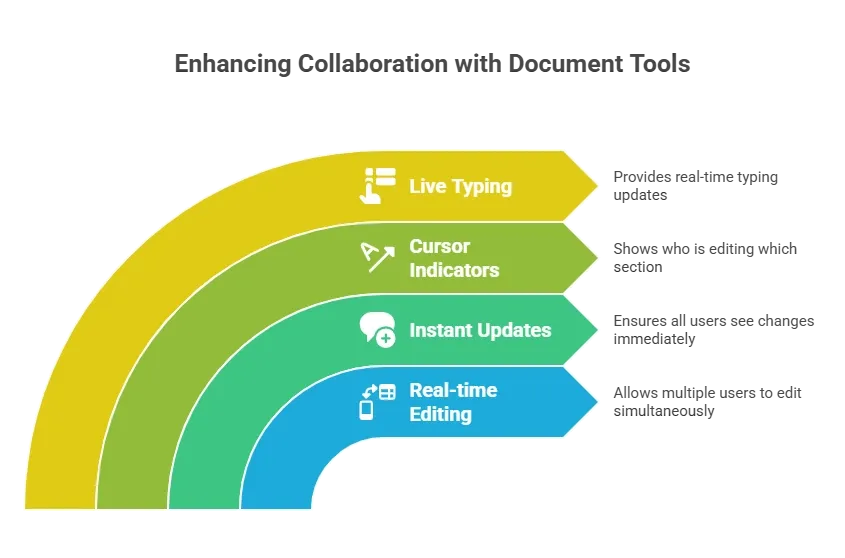
Platforms like Google Docs and Dropbox Paper demonstrate how powerful real-time collaboration can be for teams.
Version Control and Version History
Editing documents without history often leads to confusion. Teams may overwrite changes or lose important content.
A good collaboration platform should include version control and version history to help teams easily track updates.
Important capabilities include:
- Track changes across edits
- Restore previous versions when needed
- Access detailed version history
- Identify who edited the document and when
These features prevent common version control issues and keep the document creation process organized.
Comments and Suggestions
Documents often require reviews before they are finalized. That’s why collaboration platforms should allow users to comment and suggest edits directly inside the file.
Helpful capabilities include:
- Highlighting text to suggest edits
- Adding comments for discussion
- Tagging teammates for quick responses
- Allowing various team members to provide feedback
These features support smoother collaborative workflows and improve the overall document collaboration experience.
Access Permissions
Many organizations store private files in their documentation systems. Some of these files may contain sensitive information.
A collaboration tool should support strong access control so only the right people can view or edit documents.
Common access features include:
- Setting access permissions for users or teams
- Restricting editing rights to authorized users
- Allowing view-only access when needed
- Managing document visibility across departments
These controls help maintain organized and secure document collaboration.
Offline Editing
Connectivity problems can interrupt work, especially for distributed teams. That’s why many document collaboration tools support offline editing.
Useful capabilities include:
- Allowing users to continue creating documents without an internet connection
- Saving edits locally until the connection returns
- Syncing updates automatically once online
This feature helps remote teams continue their work without delays.
When these features work together, teams get a smooth and reliable document collaboration environment. Writers, managers, and editors can work on the same document, review updates quickly, and keep projects moving without confusion.
The Basic Architecture of a Collaboration Tool
A collaboration system includes several core components.
| Component | Purpose |
|---|---|
| Editing engine | Handles real time editing and updates |
| Database | Stores documents and version history |
| File storage | Keeps images and other media formats |
| Authentication | Manages access control |
| User interface | Provides an intuitive interface |
A clean user friendly interface helps teams adopt the system quickly.
Building the Tool Using Rocket.new
Rocket.new makes building internal tools much faster. Instead of writing long blocks of code, teams can generate applications using prompts, templates, and visual configuration. This allows companies to create systems for document collaboration, document management, and project management in a structured workspace.
Rocket.new works well for teams that want to build internal software quickly. Users can start with a prompt or template, customize screens and features, test the workflow, and then launch a working document collaboration tool tailored to the team's specific needs.
Step 1: Sign Up
Start by creating an account on Rocket.new.
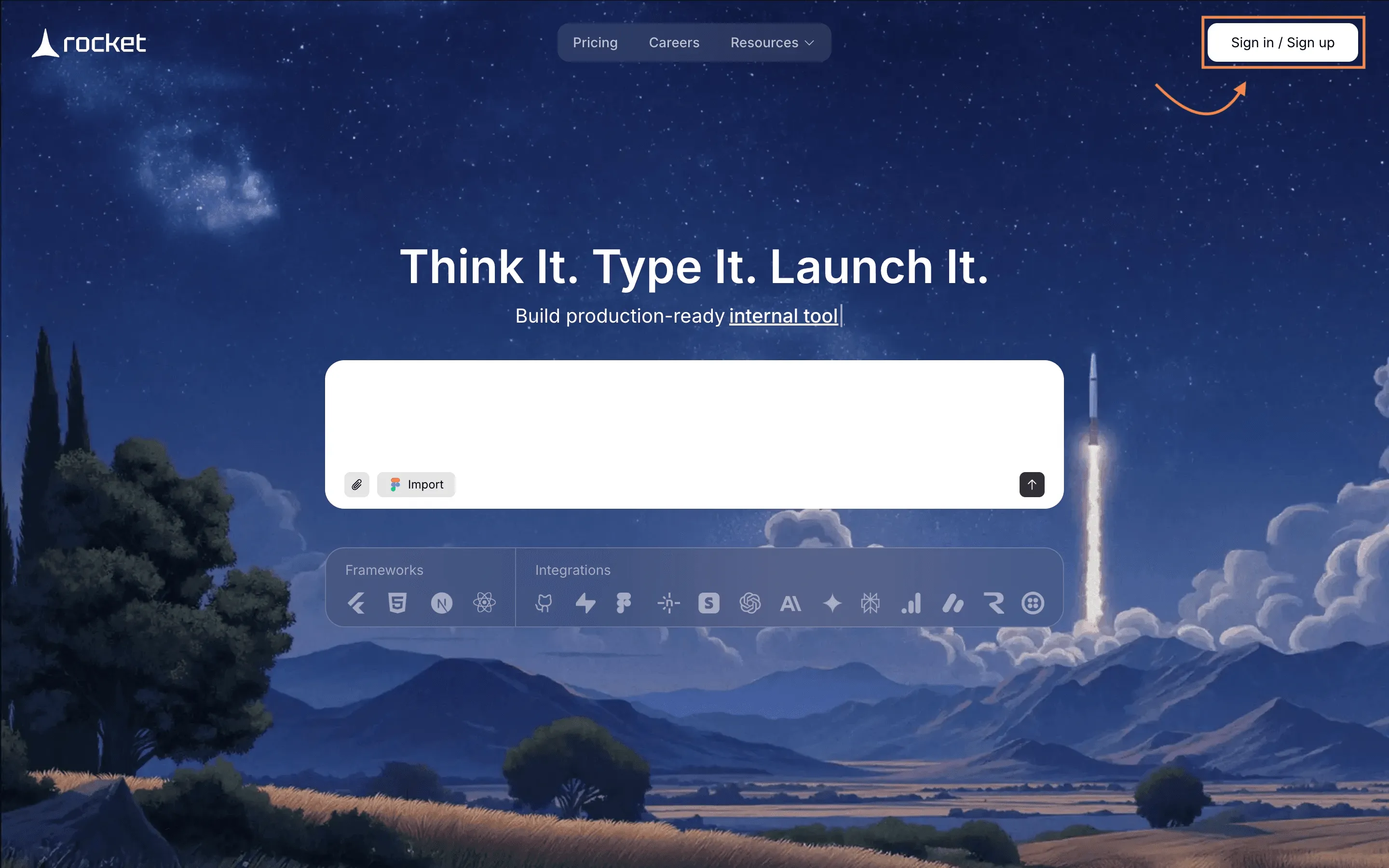
After signing in, users access the main workspace dashboard. This serves as an all-in-one workspace for managing apps and project management tasks.
Step 2: Choose the Use Case
Next, decide what type of system you want to build.
For example:
- internal documentation platform
- shared writing workspace
- project documentation hub
Many companies build internal knowledge bases using document collaboration tools.
Step 3: Enter a Prompt or Select a Template
Rocket.new allows two ways to begin.
Users can:
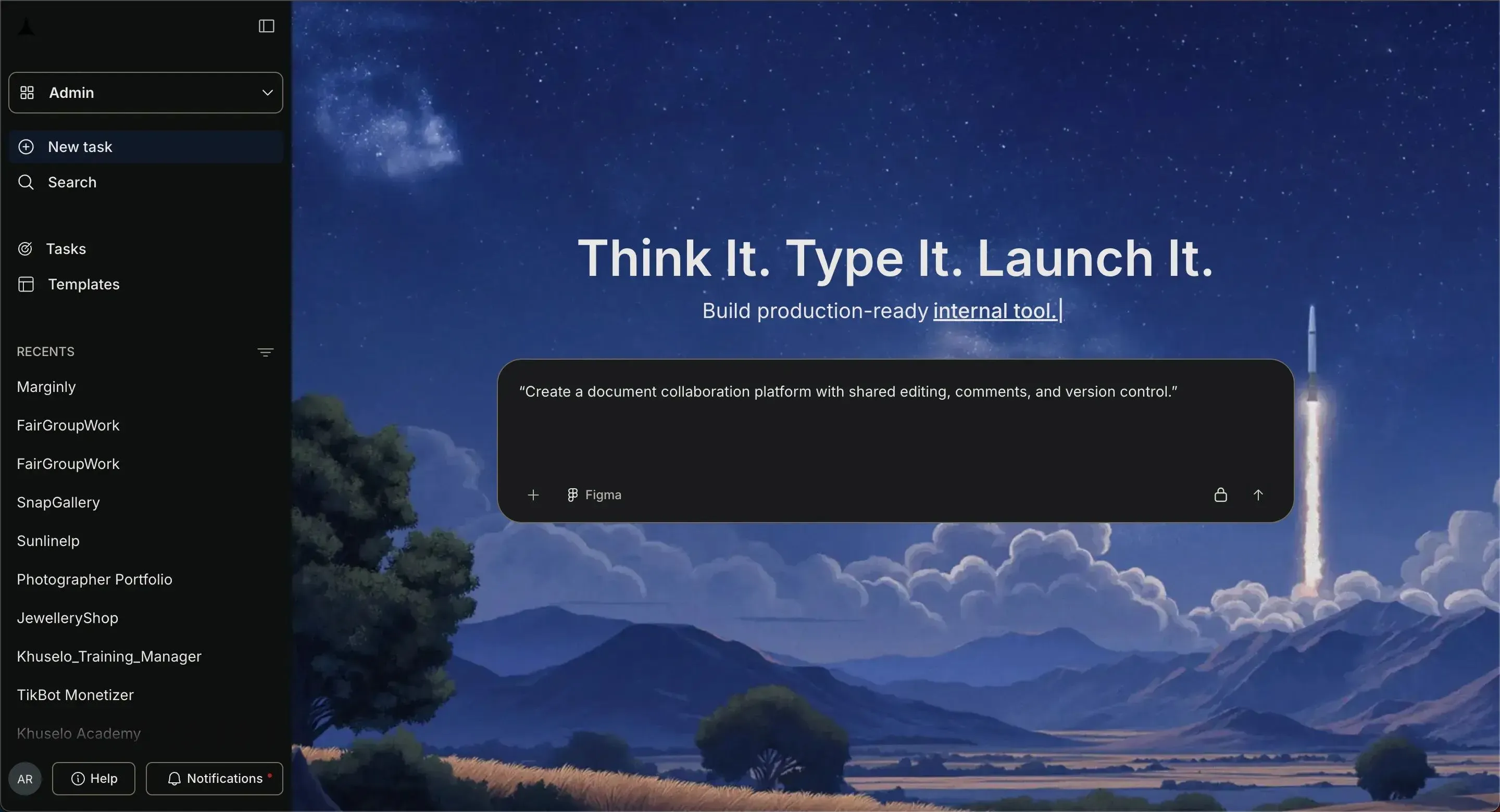
Option (A): Type a prompt describing the tool
“Create a document collaboration platform with shared editing, comments, and version control.”
Option (B): choose an existing template
Rocket.new has introduced 25,000+ ready-to-use templates that, with just one click, you can make yours. Go on and check it here.
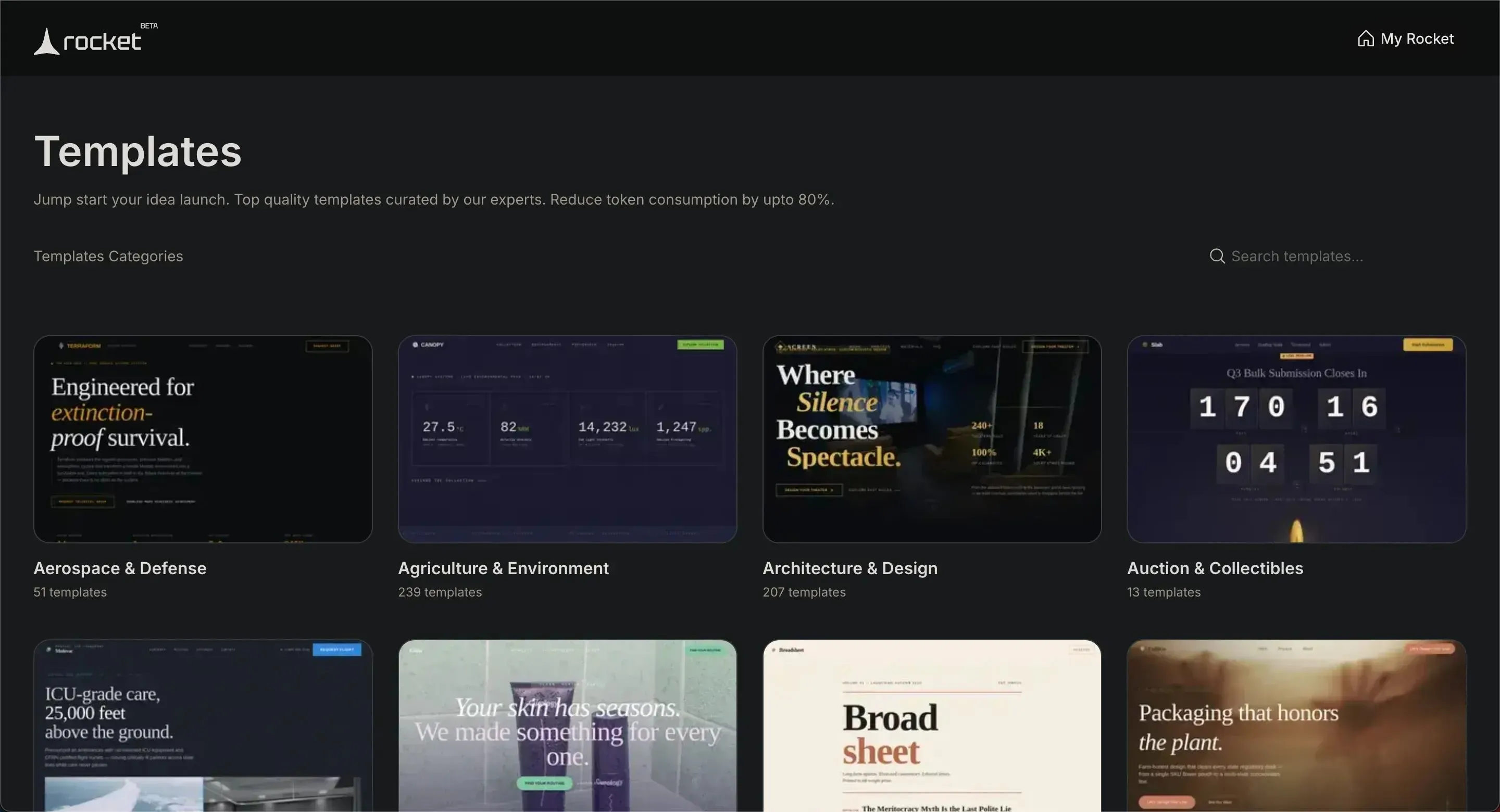
Templates can also include ready dashboards for project management.
Step 4: Select Screens and Components
After generating the app, Rocket.new suggests screens such as:
- document editor
- document list
- team workspace
- dashboard
These screens help teams collaborate inside a structured workspace and by just doing these steps your tool is already getting built.
Step 5: Modify the Tool With Commands
Once after getting the results, Users can adjust the system with simple instructions, features and commands.
Commands
- "add auth"
- "change app name"
- "change app theme", To know more about the commands, check here!
Rocket.new updates the system automatically.
Step 7: Connect Other Tools
Teams often rely on Google Workspace and other tools. Rocket allows connections with these systems.
Using APIs you can easily do 3rd party integrations:
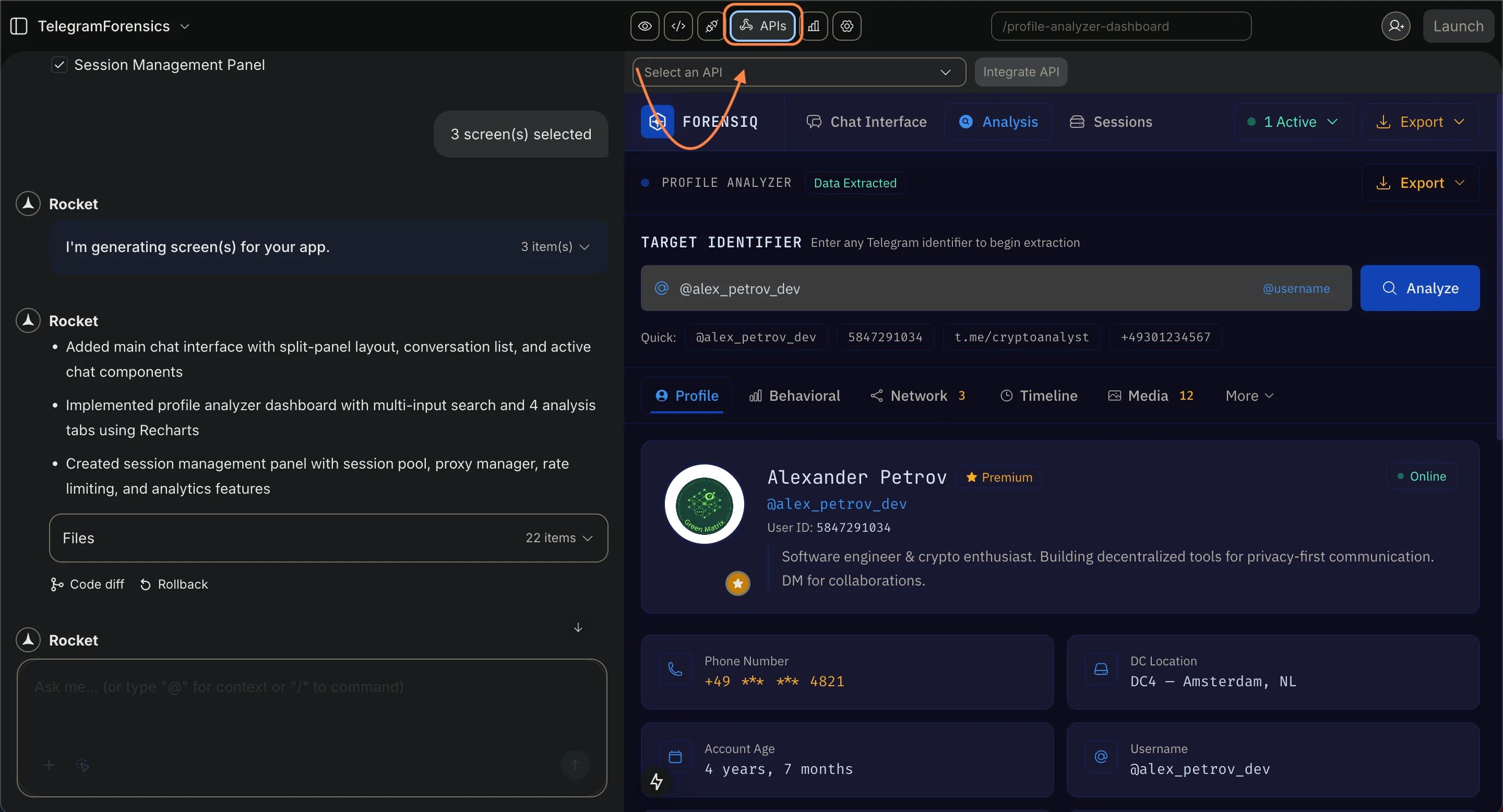
This helps teams share documents between platforms like Google Workspace or task platforms. This type of seamless integration allows documents to move easily across systems.
Step 8: Test the Collaboration Features
Before launching, teams should test the workflow.
Check if users can:
- edit document simultaneously
- comment on text
- track changes
- restore old version history
Testing also confirms that access control works properly.
Step 9: Launch the Tool
After testing, teams can deploy the platform.
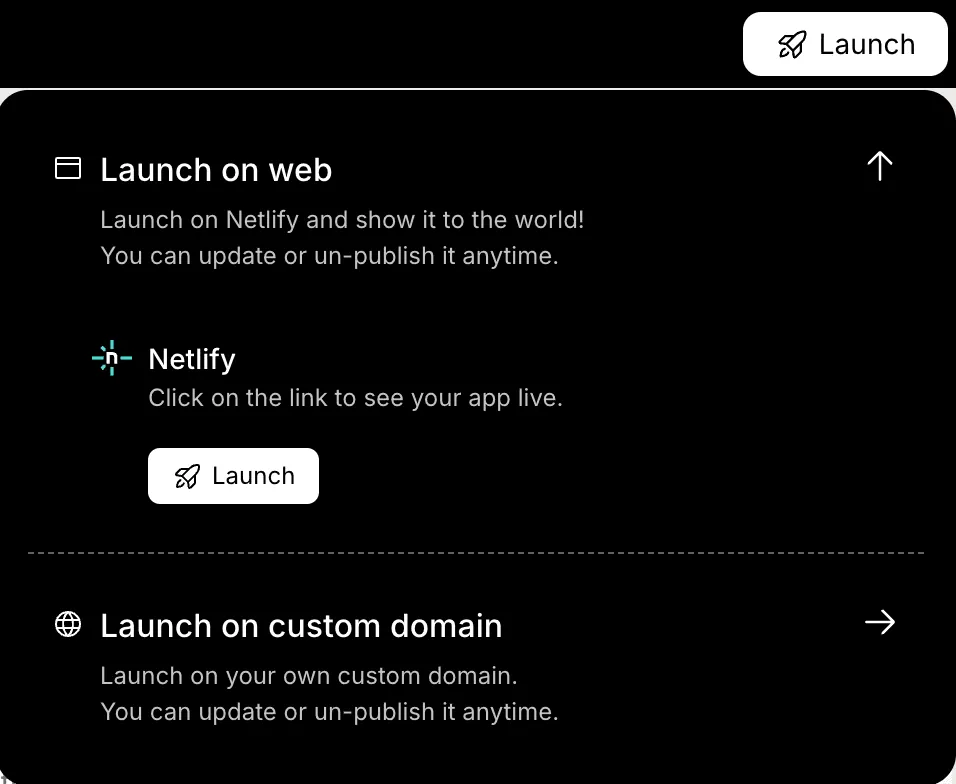
Once launched, employees can begin creating documents, managing files, and updating internal knowledge bases.
This improves team productivity and helps teams collaborate more smoothly.
Real-World Community Insight
One LinkedIn contributor explained the common issue many teams experience:
“We’ve all been there juggling multiple document versions, endless review comments, and confusion over which file is truly final.”
This insight underscores why real-time collaboration and version control are so important in document collaboration tools. When teams work together in a shared system, they avoid confusion caused by scattered files, lost edits, and unclear document updates.
Why Knowledge Bases Matter in Collaboration Tools
Many companies build knowledge bases alongside document editors. These structured libraries store company knowledge.
Examples include:
- onboarding guides
- product documentation
- training material
- troubleshooting articles
With strong knowledge management, teams can maintain organized knowledge bases that support internal operations. This system helps staff find answers quickly.
It also helps support teams maintain productivity while handling customer questions.
Building a Document Collaboration Tool
Teams often deal with scattered files, email attachments, and confusion caused by version control issues. Documents get duplicated, and tracking updates becomes difficult. A structured platform with real-time collaboration, organized knowledge bases, clear version control, and appropriate permissions helps teams manage documents in a single shared workspace.
Learning how to build a document collaboration tool becomes much simpler with platforms like Rocket.new. By using prompts, templates, and visual building steps, teams can create and launch a collaboration system quickly while keeping their documentation organized.
Table of contents
- -Understanding Document Collaboration
- -Why Teams Need Document Collaboration Tools
- -Key Features a Document Collaboration Tool Should Include
- -Real Time Editing
- -Version Control and Version History
- -Comments and Suggestions
- -Access Permissions
- -Offline Editing
- -The Basic Architecture of a Collaboration Tool
- -Building the Tool Using Rocket.new
- -Step 1: Sign Up
- -Step 2: Choose the Use Case
- -Step 3: Enter a Prompt or Select a Template
- -Step 4: Select Screens and Components
- -Step 5: Modify the Tool With Commands
- -Step 7: Connect Other Tools
- -Step 8: Test the Collaboration Features
- -Step 9: Launch the Tool
- -Real-World Community Insight
- -Why Knowledge Bases Matter in Collaboration Tools
- -Building a Document Collaboration Tool