
Add fingerprint and face login to your Flutter app without platform-specific code. Rocket.new generates a complete biometric gate, PIN fallback, and re-auth flow from one prompt, ready for Android and iOS.
You can add fingerprint and face recognition login to your Flutter app without writing platform-specific code. Rocket.new generates a complete biometric authentication Flutter app gate, PIN fallback, and re-authentication flow from a single prompt, ready for Android and iOS.
Why Does Your Mobile App Need Biometric Security in 2026?
Biometric authentication is the process of verifying a user's identity using a physical characteristic, fingerprint, face geometry, or iris pattern, stored and processed entirely on the device, never transmitted to a server.
Why are passwords still the default login method for most mobile apps when they cause the majority of security breaches? The global biometric identity verification market is projected to grow from USD 8.88 billion in 2025 to USD 17.81 billion by 2030, according to MarketsandMarkets. That growth signals a clear shift in how users expect to authenticate.
Biometrics have become the baseline for any app that handles sensitive data, financial transactions, or personal records. The IBM Cost of a Data Breach Report 2026 found that credential-based attacks continue to drive record-high breach costs, with AI-driven attacks increasing by double digits year over year. A fingerprint or face scan eliminates the weakest link in your security chain: the password itself.
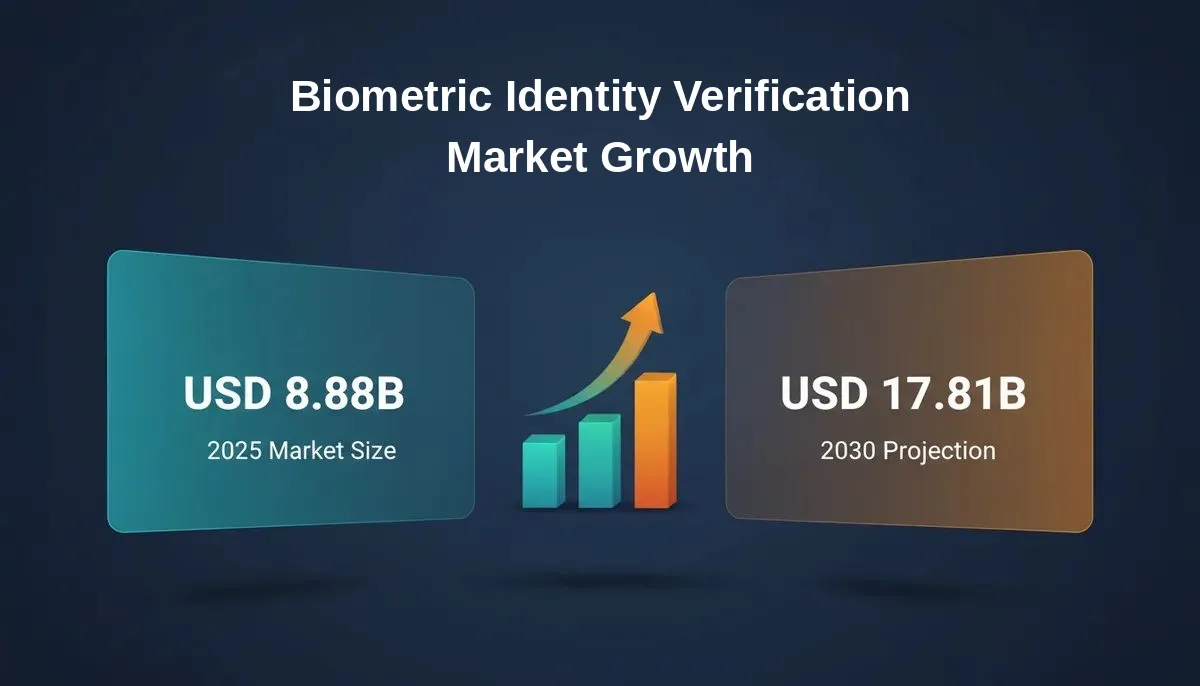
Biometric identity verification market projected to more than double by 2030
| Method | Security Level | User Friction | Phishing Resistant |
|---|---|---|---|
| Password only | Low | High | No |
| PIN or pattern | Medium | Medium | No |
| Biometrics (fingerprint or face) | High | Low | Yes |
| Biometrics + PIN fallback | High | Low | Yes |
The combination of strong security and low user friction makes biometrics the clear winner for login screens, payment confirmations, and sensitive data access.
How Does Flutter Handle Fingerprint and Face Recognition?
Flutter uses the local_auth plugin to bridge Dart code to Android's BiometricPrompt API and iOS's LocalAuthentication framework, giving you a single cross-platform authenticate call that routes to native hardware.
Flutter does not ship with biometric authentication built into the core framework. Instead, it relies on the local_auth plugin that bridges your Dart code to the platform-specific biometric APIs on Android and iOS. The architecture works through platform channels: your Flutter app sends an authentication request through a method channel, which routes to the native layer.
On Android, it triggers the BiometricPrompt API that communicates with the device hardware, either the Trusted Execution Environment (TEE) or StrongBox secure enclave. On iOS, it calls the LocalAuthentication framework that talks directly to the Secure Enclave chip.
- Android support: Fingerprint sensors, face recognition cameras, and iris scanners on devices running SDK 24 and above
- iOS support: Touch ID and Face ID on devices running iOS 13.0 and above
- macOS and Windows: The
local_authplugin also supports desktop biometrics on macOS10.15+and Windows10+
Your Flutter code stays platform-agnostic. You write one authenticate call, and the plugin handles all platform-specific differences between Android and iOS under the hood. Rocket.new generates Flutter code that wraps this standard plugin, it does not have custom biometric infrastructure. What it saves you is the hours of wiring.
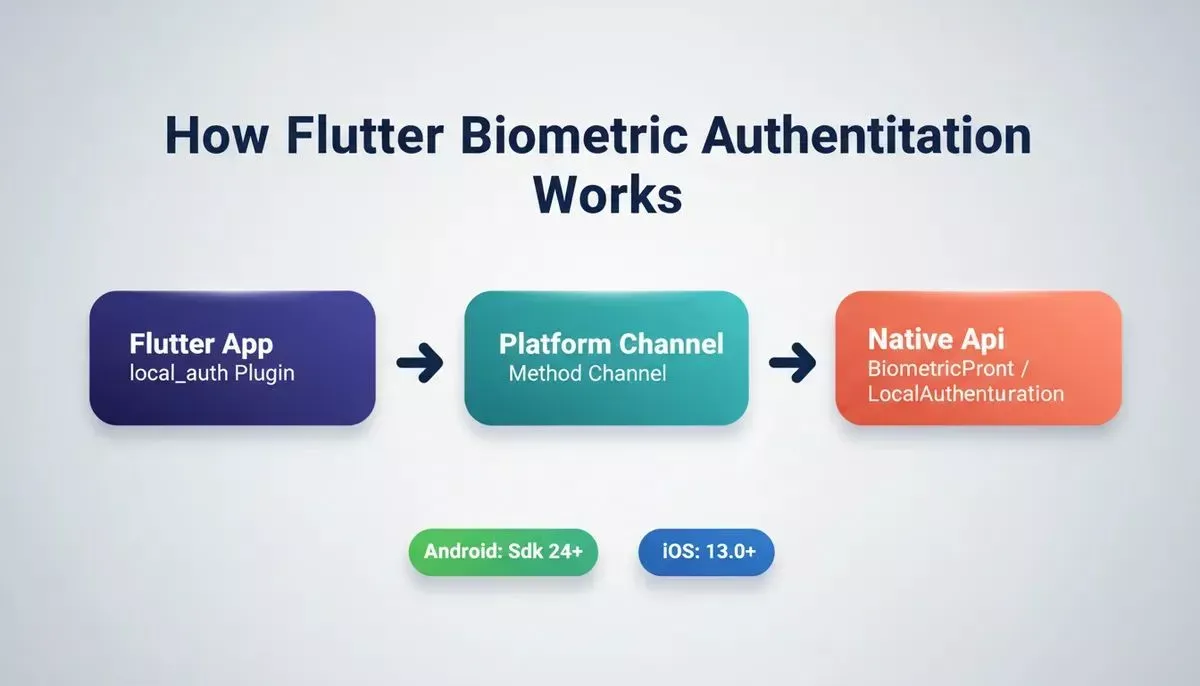
Flutter routes biometric requests through platform channels to native Android and iOS APIs
What Does the local_auth Plugin Do Under the Hood?
The local_auth package on pub.dev has been downloaded over 1.19 million times by the Flutter developer community, with 3.37k likes as of last check. That adoption speaks to its reliability for production apps.
At its core, the plugin provides three capabilities:
- Biometric availability check: Calling
canCheckBiometricsandisDeviceSupported()tells you whether the device has the required hardware before attempting authentication - Enrolled biometrics detection:
getAvailableBiometrics()returns a list ofBiometricTypevalues (face, fingerprint, weak, strong) so you know what the user has configured - Authentication trigger: The
authenticatemethod displays the system biometric prompt and returns a boolean result
1import 'package:local_auth/local_auth.dart';
2
3final LocalAuthentication auth = LocalAuthentication();
4
5Future<bool> authenticateUser(BuildContext context) async {
6 final bool canAuthenticateWithBiometrics = await auth.canCheckBiometrics;
7 final bool canAuthenticate =
8 canAuthenticateWithBiometrics || await auth.isDeviceSupported();
9
10 if (!canAuthenticate) return false;
11
12 try {
13 final bool didAuthenticate = await auth.authenticate(
14 localizedReason: 'Please authenticate to access your account',
15 options: const AuthenticationOptions(
16 biometricOnly: false,
17 stickyAuth: true,
18 ),
19 );
20 return didAuthenticate;
21 } on PlatformException catch (e) {
22 print('Authentication error: ${e.message}');
23 return false;
24 }
25}Setting biometricOnly to false allows the user to fall back to their device PIN or passcode when biometrics fail. Setting stickyAuth to true keeps the authentication dialog active if the app goes to background.
Rocket.new's Build prompt guide covers how to describe these exact requirements in natural language so the AI generates the correct implementation on the first attempt.
When Should You Use Biometrics as Primary vs Secondary Auth?
Use biometrics as primary auth for app launch and passive data views; use secondary re-authentication for high-stakes actions like payments or data exports.
Not every screen in your app needs the same level of protection. The decision between primary and secondary biometric authentication depends on what the user is trying to access.
| Use Case | Auth Type | Why |
|---|---|---|
| App open / login | Primary | Replace password entirely for returning users |
| View account balance | Primary | Sensitive data behind a single biometric gate |
| Send payment | Secondary (re-auth) | Confirm identity before high-stakes action |
| Export personal data | Secondary (re-auth) | Extra verification for irreversible operations |
| Change security settings | Secondary (re-auth) | Prevent unauthorized changes if device is unlocked |
Primary authentication gates the entire app state on launch. The user scans their fingerprint or face once, and they are in. If biometrics are unavailable or the user has not enrolled any, you fall back to PIN or passcode.
Secondary authentication adds a re-verification step before specific sensitive actions inside an already-authenticated session. This protects against scenarios where someone picks up an already-unlocked device, a threat that password-only login cannot address.
Most production apps use both patterns together. The app opens with biometric login, then prompts again for payments or data exports. If you are building a finance app and want to validate the market before committing to this architecture, Rocket.new's Solve research tool can generate a structured market analysis report first.
How Rocket.new Generates a Complete Biometric Gate for Your App
Building all of this manually means configuring platform-specific permissions, handling error states across Android and iOS, managing enrollment changes, and writing fallback logic, hours of work even for experienced Flutter developers.
With Rocket.new, you describe what you want in plain language, and the AI generates the complete implementation. Here is an example prompt that produces a fully working biometric-secured app:
Build a Flutter finance tracker app with biometric authentication on app open using fingerprint or face recognition. Include a fallback PIN screen for devices without biometrics. Add re-authentication before any payment or data export action. Support both Android and iOS with proper error handling for failed attempts.
Rocket.new generates:
- Biometric gate on launch: A login screen that calls local authentication with proper biometric availability checks and graceful fallback
- PIN fallback screen: A custom PIN entry for devices where biometrics are unavailable or when the user exceeds failed attempts
- Re-authentication prompts: Secondary auth calls placed before sensitive actions like payments, with user-facing messages explaining why verification is needed
- Platform configurations: The required permissions for Android and iOS
Info.plistentries for Face ID usage descriptions - Error handling:
PlatformExceptioncatch blocks covering lockout states, hardware unavailability, and enrollment changes
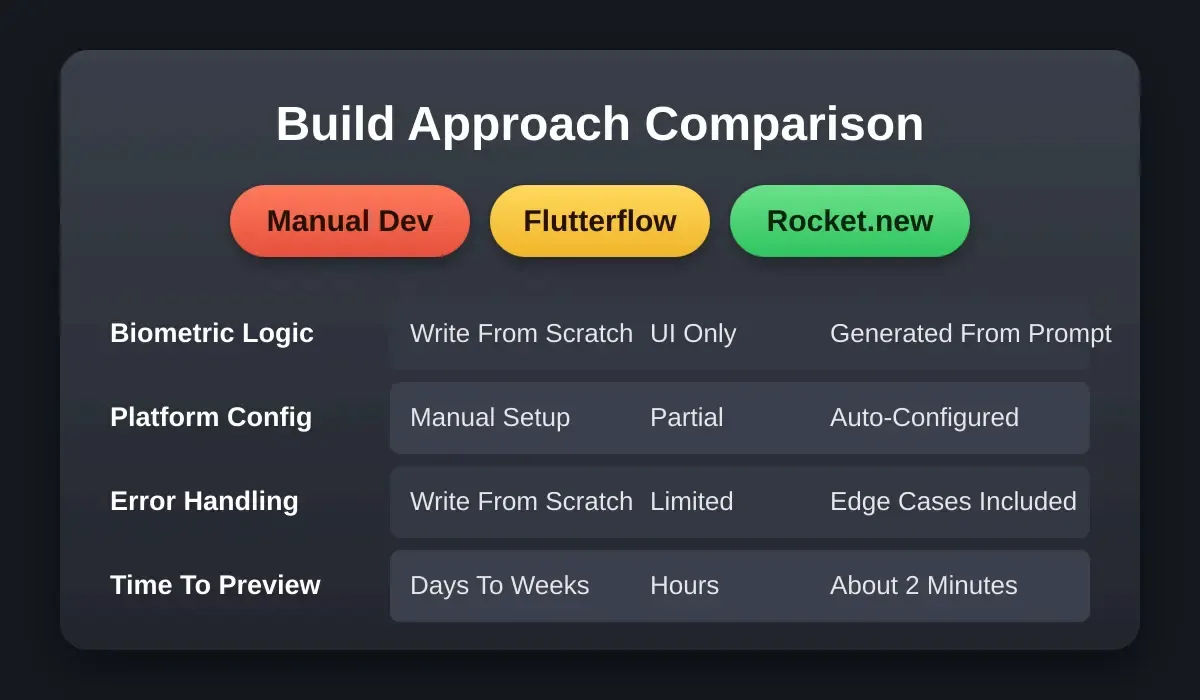
Rocket.new generates complete biometric logic in about 2 minutes versus days of manual development
| Approach | Biometric Logic | Platform Config | Error Handling | Time to Preview |
|---|---|---|---|---|
| Manual Flutter dev | Write from scratch | Manual setup | Write from scratch | Days to weeks |
| FlutterFlow | UI only | Partial | Limited | Hours |
| Rocket.new (Build) | Generated from prompt | Auto-configured | Edge cases included | ~2 minutes |
Traditional Flutter development tools like FlutterFlow give you drag-and-drop UI components, but they do not generate the native platform integration code or the security logic that biometrics demand. Rocket.new writes the same production-grade code a senior Flutter developer would, including the edge cases that tutorials skip.
The entire process takes about two minutes from prompt to working preview. You can iterate through chat until the authentication flow matches your exact requirements. Rocket.new also supports building directly from a Figma design if you already have screens mocked up.
Rocket.new is the Build pillar of a three-part vibe solutioning platform: Solve for market and competitive research, Build for generating production-ready web and mobile apps, and Intelligence for monitoring competitors. If you are deciding whether to build a biometric finance app, Solve can validate the market before you write a single prompt in Build.
What About Fallback PIN Screens and Error Handling?
A production-ready biometric flow needs at least three fallback paths: a PIN screen for unenrolled or unavailable hardware, a retry limit before redirecting to PIN, and a clear message when the OS-level lockout triggers.
Biometric authentication will not work in every scenario. The user might have a cracked screen that disrupts the fingerprint sensor, be wearing a mask that blocks face recognition, or be using an older device without biometric hardware at all.
Biometric authentication flow with PIN fallback and re-authentication logic:
- App Launch checks if biometrics are available on the device
- If biometrics available: Show Biometric Prompt to the user
- If biometrics not available: Show PIN Screen directly
- On successful biometric authentication: Grant Access
- After 3 failed biometric attempts: Fall back to PIN Screen
- On correct PIN entry: Grant Access
- On incorrect PIN: Show Error message and allow Retry
Flow: App checks biometric availability on launch. Three consecutive failures redirect to PIN. A correct PIN grants access.
- Failed attempts handling: After three consecutive biometric failures, redirect to PIN entry rather than locking the user out completely
- Temporary lockout: If the device OS locks biometrics, show a clear message and offer PIN as an alternative
- Hardware errors: Catch
PlatformExceptionerrors and log them for debugging while showing a user-friendly fallback - Enrollment changes: If the user adds or removes a fingerprint in device settings, prompt re-enrollment in your app on next login
The PIN screen itself should use secure storage to store the hashed PIN value. Never store PINs in plain text or in shared preferences without encryption. On iOS, the Keychain provides hardware-backed secure storage. On Android, the EncryptedSharedPreferences or Keystore system handles this securely.
You can download a signed APK directly from Rocket.new to test the full biometric flow on a real Android device before submitting to any app store.
Best Practices for Secure Biometric Implementation
Getting biometrics working is one thing. Getting them working securely is another. These best practices come from real-world production apps shipping on Android and iOS:
- Always check biometric availability before prompting. Call
canCheckBiometricsfirst. Showing a biometric dialog on a device without the hardware creates a confusing user experience. - Use strong biometrics when possible. The
BiometricType.strongclassification on Android means hardware-backed authentication that can create cryptographic signatures. Prefer this overBiometricType.weak. - Test on real devices, not just emulators. Emulators can simulate biometric events, but they do not replicate the timing, error states, or hardware quirks of real devices. Always validate on physical Android and iOS hardware before submitting to app stores.
- Handle the
FlutterFragmentActivityrequirement. On Android, yourMainActivitymust extendFlutterFragmentActivityinstead ofFlutterActivityfor biometric prompts to display correctly. - Set
stickyAuthto true for better UX. Without it, the biometric prompt cancels if the app briefly goes to background, forcing the user to restart the flow. - Configure platform-specific permissions correctly. Android needs USE_BIOMETRIC permission in the manifest. iOS needs the
NSFaceIDUsageDescriptionkey in theplistfile with a clear reason string. - Implement biometric verification for sensitive operations, not just login. Re-authentication before payments, data exports, or security setting changes protects against stolen-but-unlocked device scenarios.
Following these practices means your users get fast, frictionless login while your app maintains the security standards that app store reviewers and enterprise customers expect. Review the Rocket.new security checklist before each release to cover API key management, authentication, and row-level security alongside your biometric implementation.
Publishing to Google Play requires building your app with Flutter command-line tools on a computer. The workflow is: build in Rocket.new, download the project as a zip file (paid plan required), extract it locally, then follow Flutter's standard build and release steps to generate a signed .aab and upload it to the Play Console.
Your App Deserves Better Than Passwords Alone
Biometrics on Flutter have matured from a novelty into the expected standard. The local_auth plugin handles the platform complexity, and the patterns above cover every scenario from first-time setup to failed attempt recovery.
Your users already authenticate with their face or fingerprint dozens of times daily. Your app should meet them where they are.
The fastest path from idea to a biometric-secured Flutter app is a single, well-crafted prompt. Rocket.new handles the local authentication setup, PIN fallback screens, re-auth flows, and all platform configurations. The generated Flutter code is yours to download, build, and ship.
Ready to add biometric login to your app? Describe your app idea at Rocket.new and get a working Flutter app with fingerprint and face authentication in minutes, no code required.
Table of contents
- -Why Does Your Mobile App Need Biometric Security in 2026?
- -How Does Flutter Handle Fingerprint and Face Recognition?
- -What Does the local_auth Plugin Do Under the Hood?
- -When Should You Use Biometrics as Primary vs Secondary Auth?
- -How Rocket.new Generates a Complete Biometric Gate for Your App
- -What About Fallback PIN Screens and Error Handling?
- -Best Practices for Secure Biometric Implementation
- -Your App Deserves Better Than Passwords Alone