
The best AI prompts for login and signup flows generate complete auth screens with social login, password validation, and error states in seconds. Use the 16 prompt templates in this guide to ship production-ready authentication pages fast.
According to Authgear's 2025 UX research, 88% of users won't return to a site after a bad UX encounter, and a bad login experience is the top reason users drop off before they even create an account. That statistic alone shows why your signup flow design matters more than almost any other screen in your app.
So how do you get it right without spending weeks on wireframes and code?
You write a strong prompt and let AI generate the signup screens, form fields, error messages, and password logic for you. This guide walks through the prompts that actually work, the best practices behind writing effective prompts, and how to test and refine until your sign up form converts.
What Makes a Good Sign Up Flow Prompt?
A well-structured prompt gives AI the context it needs to produce a signup flow that looks and feels production-ready. Vague instructions lead to generic screens with missing field labels, no error state coverage, and default password rules that frustrate users.
-
Name the screen type clearly. Tell the AI whether you need a login page, a signup page, or a combined login-signup screen. Each requires different form fields, copy, and layout logic.
-
Specify every form field in logical order. List the email field, username field, password field, and any extra fields like phone number. Stating the order matters because users expect a signup form to flow from top to bottom without jumping around.
-
Define password rules upfront. Mention minimum length, character requirements, and whether you want a strength meter or plain-language hints. If you skip this, the AI will either generate overly strict password rules or none at all.
-
Describe error messages and feedback behavior. The prompt should specify inline validation, provide instant feedback on each field, and explain what happens when users type an incorrect email or a mismatched password.
-
Include brand tone and on-brand color direction. A quick note like "use friendly microcopy" or "keep messaging casual and reassuring" helps the AI match your signup experience to your product voice.
-
State accessibility requirements. Mention screen readers, keyboard navigation support, and contrast ratios. These details shape how the AI structures labels, focus states, and ARIA attributes.
When your prompt covers these six elements, the output is closer to a shippable sign-up form rather than a throwaway prototype.
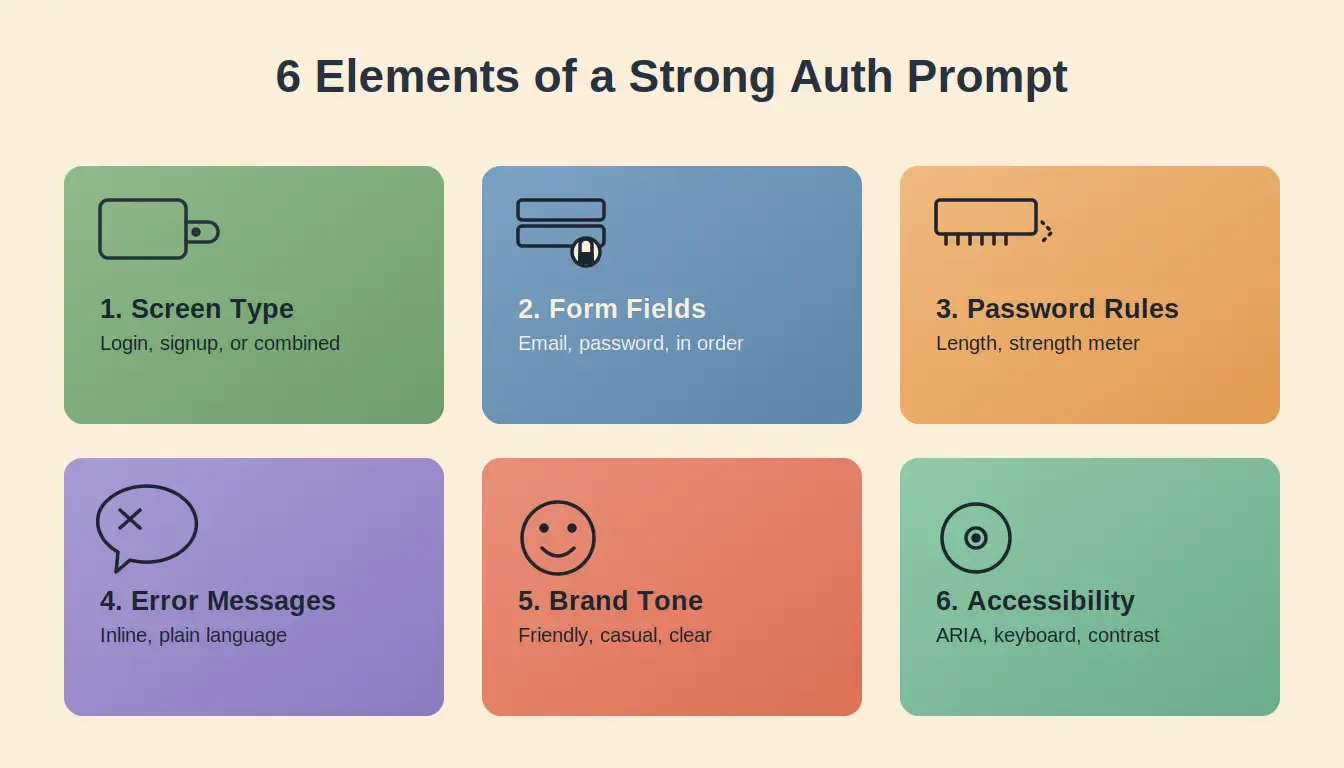
Six essential elements every AI prompt for authentication screens should include
Prompt Component Reference Table
| Prompt Component | What It Tells the AI | Why It Matters |
|---|---|---|
| Screen type | "Create a multi-step signup flow" | Prevents a single-page form that asks too much at once |
| Form fields | "Step 1: email. Step 2: password with strength meter. Step 3: profile name." | Gives the user journey a clear path and logical order |
| Social login | "Add Google and Apple buttons above the email input" | Let users sign up with one click if they prefer |
| Error handling | "Red border on invalid input. Success checkmark on valid input." | Users get instant feedback without waiting for form submission |
| Accessibility | "ARIA labels, visible focus states, full keyboard navigation." | Signup works for screen reader and keyboard-only users |
| Password rules | "Min 8 characters, 1 number, 1 uppercase. Show checklist below field." | Users know the rules before they fail validation |
| Progress indicator | "Show a step indicator: Step 1 of 3, Step 2 of 3, Step 3 of 3" | Reduces abandonment by showing completion progress |
| Post-signup action | "Auto-login and redirect to dashboard. Send email verification in the background." | No dead ends. User logs in immediately and sees value. |
How Should You Prompt for Password Fields and Error States?
The password field is one of the most error-prone parts of any signup form. Users forget requirements, mistype entries, and abandon the signup process when error messages are unclear. Your prompt needs to address all of these scenarios explicitly.
Good web application security starts at the form level, and the prompts below make sure every validation rule, error state, and password pattern is covered from the first generation.
Prompt 1: Password Rules Checklist Prompt
Tell the AI exactly how to display password requirements so users know what is expected before they fail.
"Show password rules below the password field as a checklist. Mark each rule green when satisfied. Require at least 8 characters, one uppercase letter, and one number."
How it is used:
-
Generates a live-updating checklist beneath the password input
-
Each rule turns green as the user satisfies it
-
Eliminates post-submit validation surprises that cause form abandonment
Prompt 2: Inline Error State Prompt
Defines exactly what happens when a user submits an empty or invalid field, so every error state is covered from the first generation.
"If the email field is left blank, display a red border and the message 'Email address is required' directly below the input. If the format is invalid, show 'Please enter a valid email address."
How it is used:
-
Generates field-level error messages that appear inline, not in a banner
-
Applies red border styling to invalid inputs automatically
-
Covers empty submission, invalid format, and duplicate account scenarios
Prompt 3: Real-Time Strength Indicator Prompt
Requests instant password feedback as the user types, cutting abandonment at the most friction-heavy field.
"Provide instant feedback as the user types in the password field. Show a strength indicator that updates in real time with labels: Weak, Fair, Strong."
How it is used:
-
Generates a live strength bar beneath the password field
-
Updates label and color (red, amber, green) as the user types each character
-
Replaces the confirm password field pattern that causes user confusion
Prompt 4: Show/Hide Toggle Prompt
Replaces the confirm password field with a visibility toggle, reducing friction without sacrificing security.
"Skip the confirm password field. Instead, add a show/hide toggle on the password field so users can verify their input before submitting."
How it is used:
-
Generates an eye icon toggle on the password input
-
Removes the second password field that causes mismatches and frustration
-
Keeps the form shorter and faster to complete on mobile
Prompt 5: Loading and Success State Prompt
Covers the full submit cycle, spinner, success redirect, and failure recovery, so no state is left unhandled.
"After the user clicks the submit button, show a spinner. On success, redirect to the dashboard. On failure, show an error message above the form without clearing the data users have already entered."
How it is used:
-
Generates a loading spinner on the submit button during the API call
-
Adds a success redirect to the dashboard on account creation
-
Preserves form data on failure so users do not have to retype everything
Try these password and error state prompts now: Paste any of Prompts 1–5 into Rocket and get a signup form with real-time validation, a strength meter, and complete error coverage in a single generation.
Prompting for Real-Time Validation and Friendly Messages
Error messages are where most signup screens fail. The default output from many AI tools produces messages like "Invalid input" or "Error 422," which mean nothing to the average person.
-
Prompt the AI to use plain language messages: "That email address doesn't look right. Can you double-check it?"
-
Ask for contextual help text that appears before the user makes a mistake, not after.
-
Specify that error messages should be read aloud by screen reader users so the experience is accessible.
This approach reduces frustration and helps most users complete the signup flow on their first attempt.
Which Social Login and Authentication Methods Should Prompts Cover?
Modern signup screens rarely rely on email and password alone. Users expect social login options, magic link sign-in, and sometimes enterprise SSO for work accounts. Your prompt should specify exactly which authentication methods to include and how they appear on screen.
If you are building the backend auth layer alongside the UI, Supabase auth setup and best practices covers how to wire up providers, sessions, and redirect URLs correctly.
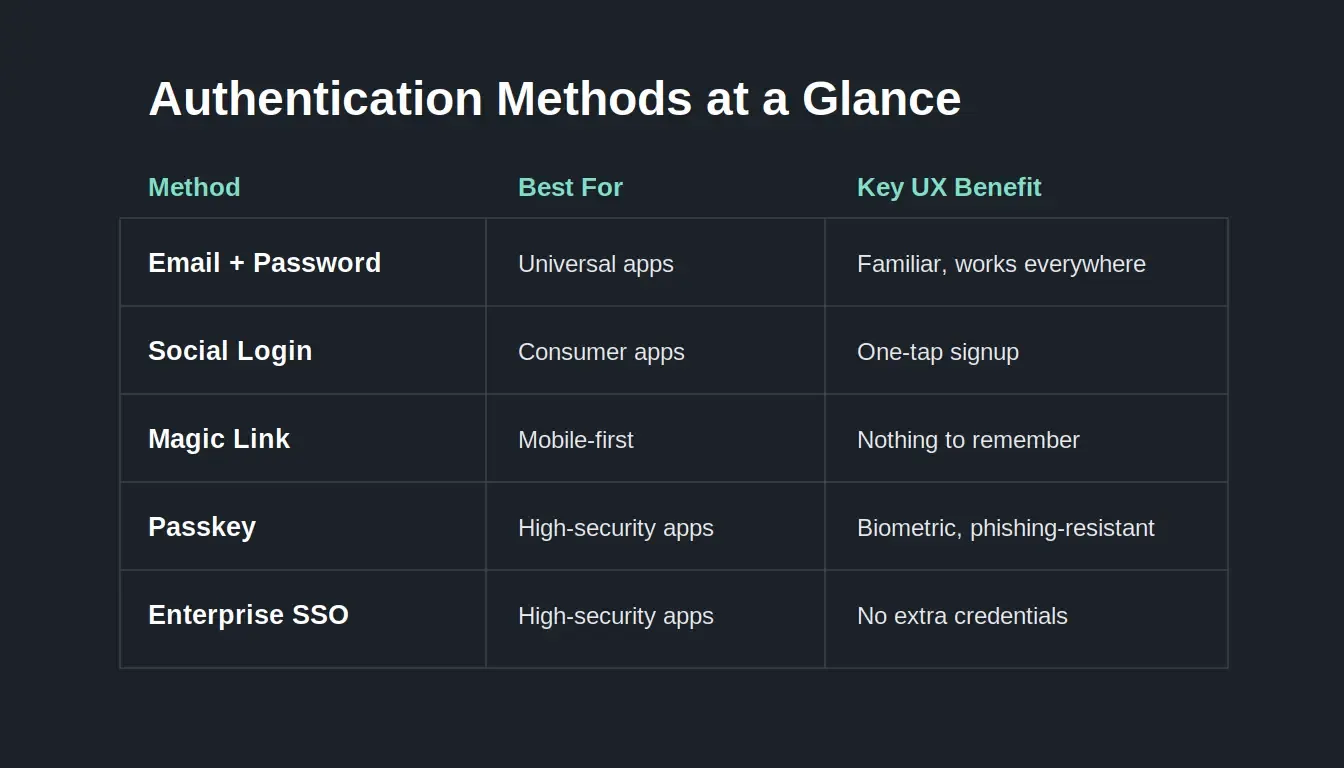
Authentication methods at a glance: choose the right method based on your users and security needs
Prompt 6: Social Login Placement Prompt
Position social login buttons above the form with correct brand styling and a visual divider between methods.
"Add Continue with Google and Sign in with Apple buttons above the email/password form. Use official brand colors and logos. Separate social login from the manual form with a divider labeled 'or'."
How it is used:
-
Generates Google and Apple OAuth buttons with correct brand colors and icons
-
Places them above the email field so one-click signup is the first option users see
-
Adds an "or" divider between social and manual login paths
Prompt 7: Magic Link Flow Prompt
Builds a complete passwordless login path with its own confirmation screen, resend button, and countdown timer.
"Add a magic link option. When users choose it, show a screen that says 'Check your inbox for a sign-in link' with a resend button and a countdown timer."
How it is used:
-
Generates a separate magic link screen that appears after the user enters their email
-
Adds a resend button with a 60-second countdown to prevent spam clicks
-
Gives users a passwordless path that works alongside the standard form
Prompt 8: Enterprise SSO Detection Prompt
Detects corporate email domains and redirects enterprise users to their company SSO provider automatically.
"If the user enters a corporate email domain, redirect them to their company SSO provider. Show a message: 'Your organization uses single sign-on. Redirecting you now.'"
How it is used:
-
Generates domain detection logic for the email field
-
Triggers an SSO redirect when a corporate domain is recognized
-
Displays a clear message so enterprise users understand what is happening
Prompt 9: Email Verification Screen Prompt
Adds a post-signup verification flow with a resend option and limited-access mode before the user confirms their email.
"After account creation, send an email verification link. Show a confirmation screen with the option to resend. Allow users to access the app in a limited mode before verification completes."
How it is used:
-
Generates a post-signup confirmation screen with a resend verification button
-
Allows users to enter the app immediately in a limited mode so they see value before verifying
-
Reduces drop-off caused by forcing users to verify before accessing anything
Prompt 10: Passkey Registration Prompt
Offers biometric login after first sign-in with a plain-language explanation that does not require technical knowledge.
"Offer a passkey registration prompt after first login. Show a brief explanation: 'Use your fingerprint or face to log in next time. No password needed.'"
How it is used:
-
Generates a post-login modal that prompts users to register a passkey
-
Uses plain language so non-technical users understand the benefit immediately
-
Positions biometric login as an optional upgrade, not a required step
Try these authentication method prompts now: Use Prompts 6–10 in Rocket to generate a signup screen with social login, magic link, SSO detection, and passkey support, all wired up and ready to test.
Specifying these authentication methods up front means the AI generates the full user journey, not just a single sign-up form in isolation. For a deeper look at how vibe coding user authentication workflows come together in practice, the patterns there map directly to the prompts above.
Can AI Generate Accessible Signup Screens for All Users?
Yes, but only if your prompt tells it to. Default AI output often skips accessibility because the model prioritizes visual appearance over semantic structure. You need to explicitly request accessible patterns.
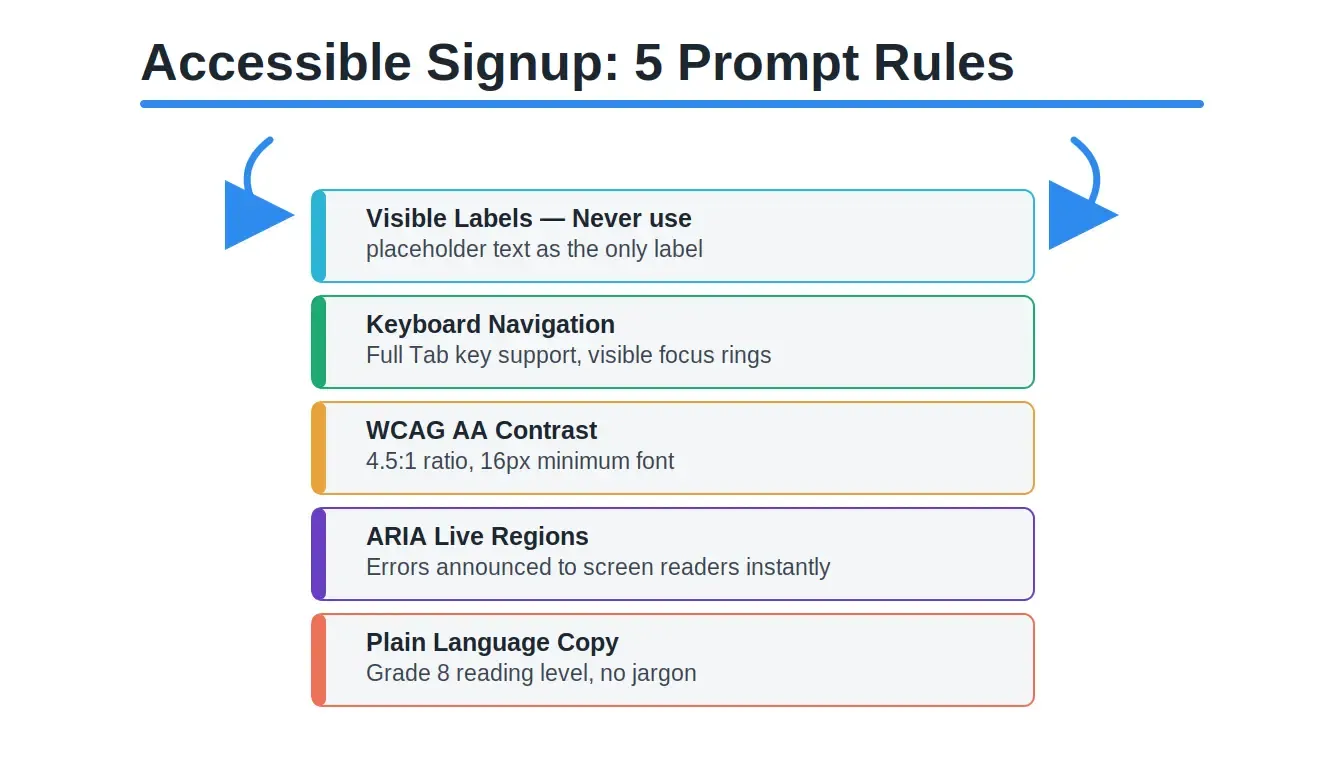
Five prompt rules that make your signup screen accessible to every user from the first generation
Bonus Prompts: Accessibility Essentials (11–15)
Prompt 11: Visible Label Prompt "Every form field must have a visible label element. Do not use placeholder text as the only label." Ensure labels are properly linked to inputs via for/id, so screen readers announce field names and labels don't vanish when typing starts.
Prompt 12: Keyboard Navigation Prompt "The form must be fully navigable with the Tab key, in logical top-to-bottom order, with visible focus rings on every interactive element." Produces correct tab order and WCAG-AA-compliant focus indicators so the form is usable without a mouse.
Prompt 13: WCAG Contrast and Font Size Prompt "All text must meet WCAG AA contrast ratio of 4.5:1. Use a minimum font size of 16px for inputs." Ensures compliant color contrast and prevents mobile auto-zoom, applied across labels, placeholders, errors, and buttons.
Prompt 14: ARIA Live Region Prompt "Errors must be announced via aria-live regions immediately, without requiring navigation to them." Adds aria-live="polite/assertive" to dynamic content (errors, loading, success states) for automatic screen reader announcements.
Prompt 15: Plain Language Microcopy Prompt "Write all copy at a Grade 8 reading level, avoiding technical terms." Keeps button labels, hints, and error messages (e.g., replacing "Error 422" with plain language) clear for all users.
Prompts 11–15 cover labeling, navigation, contrast, dynamic announcements, and plain language microcopy, the core pieces of an accessible signup form.
Try these accessibility prompts now. Build accessible signup screens→
When you give users clear labels, logical order, and proper screen reader support, your signup experience becomes accessible to everyone, not just the majority. This is also a legal requirement in many markets. If you want to go further, securing your app covers the full security and compliance layer that sits beneath the auth UI.
How Rocket Ships Production-Ready Auth Pages from a Single Prompt
Most AI tools generate a static mockup of a signup page. You still need to wire up the backend, connect a database, handle session tokens, and deploy. Rocket works differently because it is a full-stack AI app generator with built-in user authentication. Describe your login/signup requirements in one prompt, and Rocket produces working code with auth logic included.
-
Full signup flow generator, not just a UI layer. Rocket handles the frontend signup screens, the backend user creation, password hashing, session management, and email verification. No separate tools needed.
-
AI signup flow generator with social login pre-wired. Google, Apple, and GitHub OAuth are available as defaults. You type "add social login with Google and Apple" and the AI signup flow generator connects the providers, handles tokens, and redirects users after successful login.
-
Vibe coding makes iteration instant. Need to move the password field above the username, or swap the submit button color? Describe the change in natural language, and Rocket updates the code in real time. Other platforms require manual code edits for these signup flow changes.
-
Error handling ships by default. Every signup flow generated on Rocket includes inline validation, loading states, and error recovery paths. Many AI builders require manual setup for each error state, adding hours to the process.
-
One-click deployment for every signup screen. After you refine the flow, publish it live to a custom domain directly from Rocket. No server setup, no CI/CD pipeline configuration. The app is live and serving real users within minutes.
If you want a signup flow generator that handles the full stack from prompt to production, Rocket generates complete authentication systems in a way other tools simply do not match.
What Does a Complete Sign Up Flow Prompt Look Like?
All the principles above come together in a single, detailed prompt. When you give AI this level of detail, the output is a production-ready signup flow, not a wireframe that needs weeks of refinement.
Full Multi-Step Signup Flow Prompt
Notice how this single prompt combines techniques from Prompts 1, 3, 6, 11, and 13 above, password rules checklist, real-time strength indicator, social login placement, visible labels, and WCAG contrast into one complete instruction that covers the entire registration experience.
"Create a three-step signup flow for a SaaS dashboard app. Step 1 collects the user email with inline format validation and offers Google and Apple social login above the form. Step 2 asks for a password with a real-time strength meter showing plain language hints. Step 3 collects display name and optional avatar. Include a progress bar at the top. Show inline error messages below each field in red. Add a show/hide toggle on the password field. After completion, auto-login the user and redirect to the main dashboard. Send email verification in the background. Style: clean, minimal, white background, blue accent buttons. Accessible: full keyboard navigation, ARIA labels on all inputs, visible focus rings."
How it is used:
-
Generates a complete three-step registration screen with a progress bar and step transitions
-
Wires up Google and Apple social login on Step 1 with the correct OAuth flow
-
Produces inline error messages, a password strength meter, and a show/hide toggle in a single generation
-
Includes post-signup auto-login and background email verification with no extra prompting
Try Prompt 16 now: Paste this into Rocket and get a production-ready three-step signup flow with social login, accessibility, and error handling, all from one prompt.
How Do You Test and Refine Login Screen Prompts?
Writing the first prompt is just the start. Real results come from testing the generated signup screens with actual users and iterating on the prompt based on what you find.
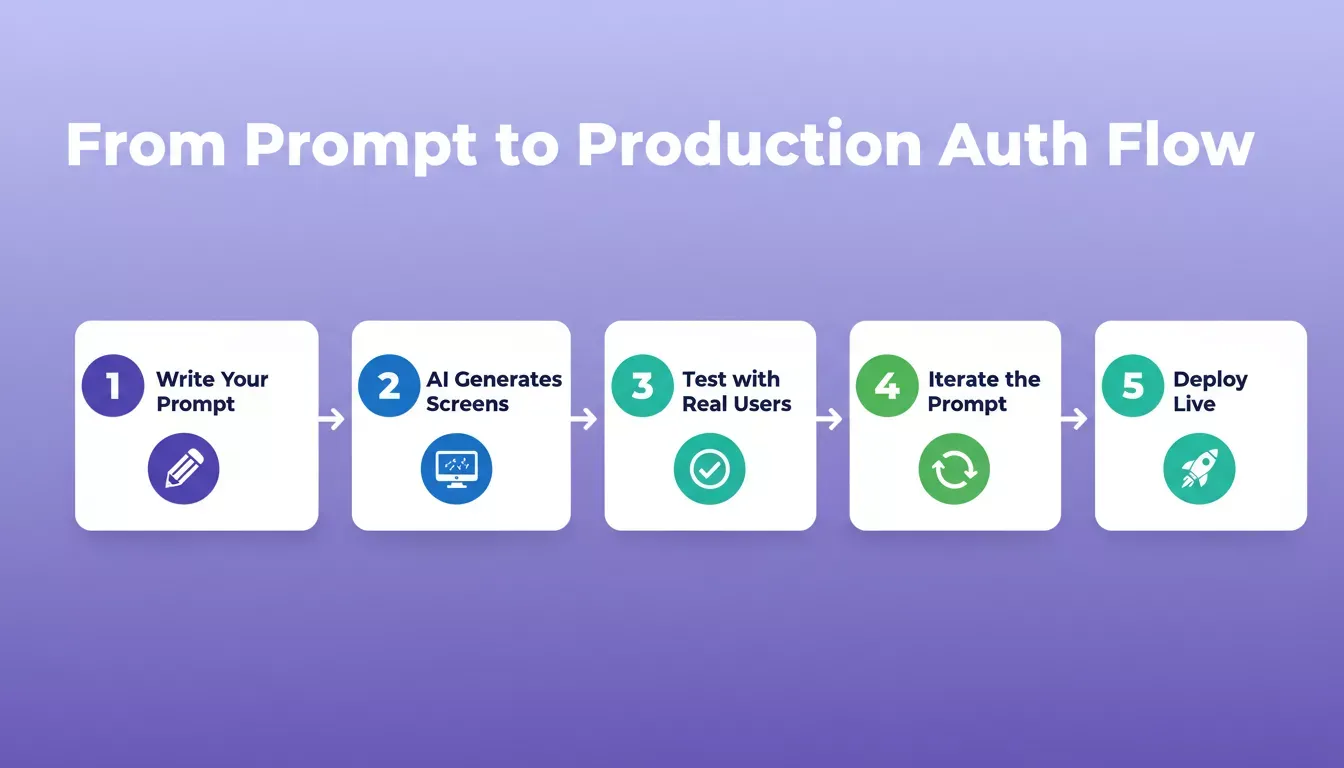
From prompt to production: the five-step iteration cycle that turns a first draft into a converting auth flow
-
Run the generated flow yourself first. Try to create an account using the signup form. Note where you hesitate, where the error messages confuse you, and where the pages load slowly. Each friction point becomes a prompt refinement.
-
Check login experience for returning users. After signing up, close the app and try logging back in. Does the login screen remember your email? Does the password manager autofill? If not, add "support autocomplete attributes on email and password inputs" to your prompt.
-
Test with screen readers. Use VoiceOver or NVDA to navigate the signup form. If labels are missing or error messages are not announced, refine the prompt to specify ARIA attributes more explicitly.
-
Track where users drop off. Add analytics to each step. If most users abandon at the password field, simplify your password rules or add a magic link alternative.
-
Collect community feedback. Post your signup flow on design communities for honest opinions. As one SaaS founder shared on Reddit: "The biggest win was adding social login above the form. Sign up completion jumped from 34% to 51% overnight."
Every iteration of your prompt should be informed by real test data. The full-stack prompt-to-app workflow on Rocket makes this loop fast because you can update the prompt, see the change instantly, and deploy without a build step.
Login UX: The Numbers That Matter
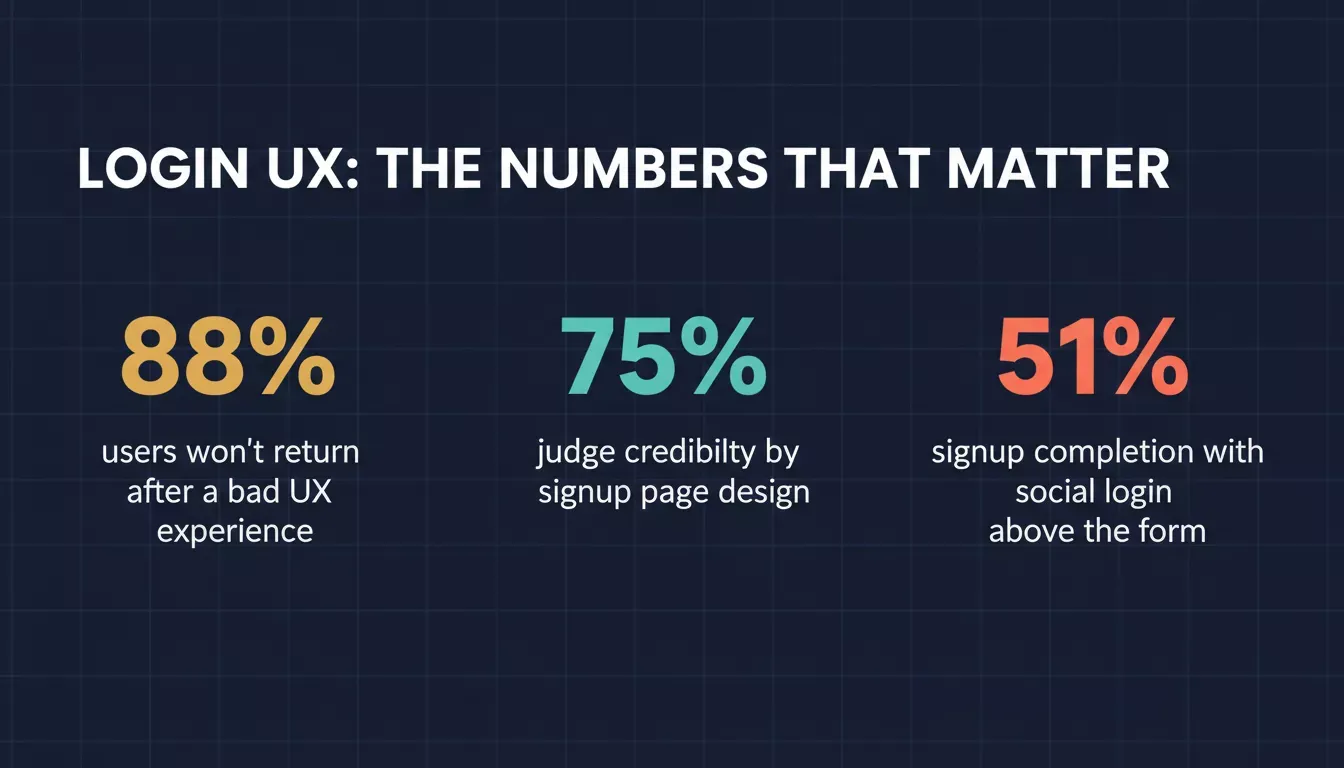
The data behind signup flow design is clear. These three statistics should inform every prompt you write.
Key login UX statistics that show why prompt quality directly affects conversion and retention
The 88% return-rate figure comes from Authgear's research on bad UX encounters. The 75% credibility stat comes from Maze's 2026 UX research. The 51% signup completion figure is an anecdotal result from a SaaS founder who added social login above the form, a reminder that even one prompt change can move the needle significantly.
Your Auth Flow Starts with the Right Prompt
Getting login and signup screens right is not about writing code line by line. It is about describing the experience you want clearly enough that AI can build it for you. The best AI prompts for login and signup flows cover form structure, password handling, social login, accessibility, and multi-step registration, giving you everything needed to ship a complete auth flow.
The difference between a generic screen and a converting signup page comes down to how specific your prompt is. Start with the templates above, test with real users, and refine until every field, error message, and interaction feels right for your audience.
Ready to ship your login and signup pages?
Start building on Rocket and go live in minutes, not weeks. Describe your auth flow once and get production-ready code with authentication, error handling, and one-click deployment included.
Table of contents
- -What Makes a Good Sign Up Flow Prompt?
- -Prompt Component Reference Table
- -How Should You Prompt for Password Fields and Error States?
- -Prompt 1: Password Rules Checklist Prompt
- -Prompt 2: Inline Error State Prompt
- -Prompt 3: Real-Time Strength Indicator Prompt
- -
- -Prompt 5: Loading and Success State Prompt
- -
- -Which Social Login and Authentication Methods Should Prompts Cover?
- -Prompt 6: Social Login Placement Prompt
- -Prompt 7: Magic Link Flow Prompt
- -Prompt 8: Enterprise SSO Detection Prompt
- -Prompt 9: Email Verification Screen Prompt
- -Prompt 10: Passkey Registration Prompt
- -Can AI Generate Accessible Signup Screens for All Users?
- -Bonus Prompts: Accessibility Essentials (11–15)
- -How Rocket Ships Production-Ready Auth Pages from a Single Prompt
- -What Does a Complete Sign Up Flow Prompt Look Like?
- -Full Multi-Step Signup Flow Prompt
- -How Do You Test and Refine Login Screen Prompts?
- -Login UX: The Numbers That Matter
- -Your Auth Flow Starts with the Right Prompt