
Upload any CSV or Excel file to Rocket and get a production-ready full-stack app back, complete with list views, form views, role-based access, and a real database. No developer, no schema writing, no manual setup. Clean files go live in under five minutes.
You can build a working app directly from an Excel or CSV file.
Rocket reads your spreadsheet, detects every column and data type, and generates a full-stack application around that structure.
No developer required. Teams with clean, well-structured source files typically go from upload to a live app in a single session.
Why Do So Many Apps Start With a Spreadsheet?
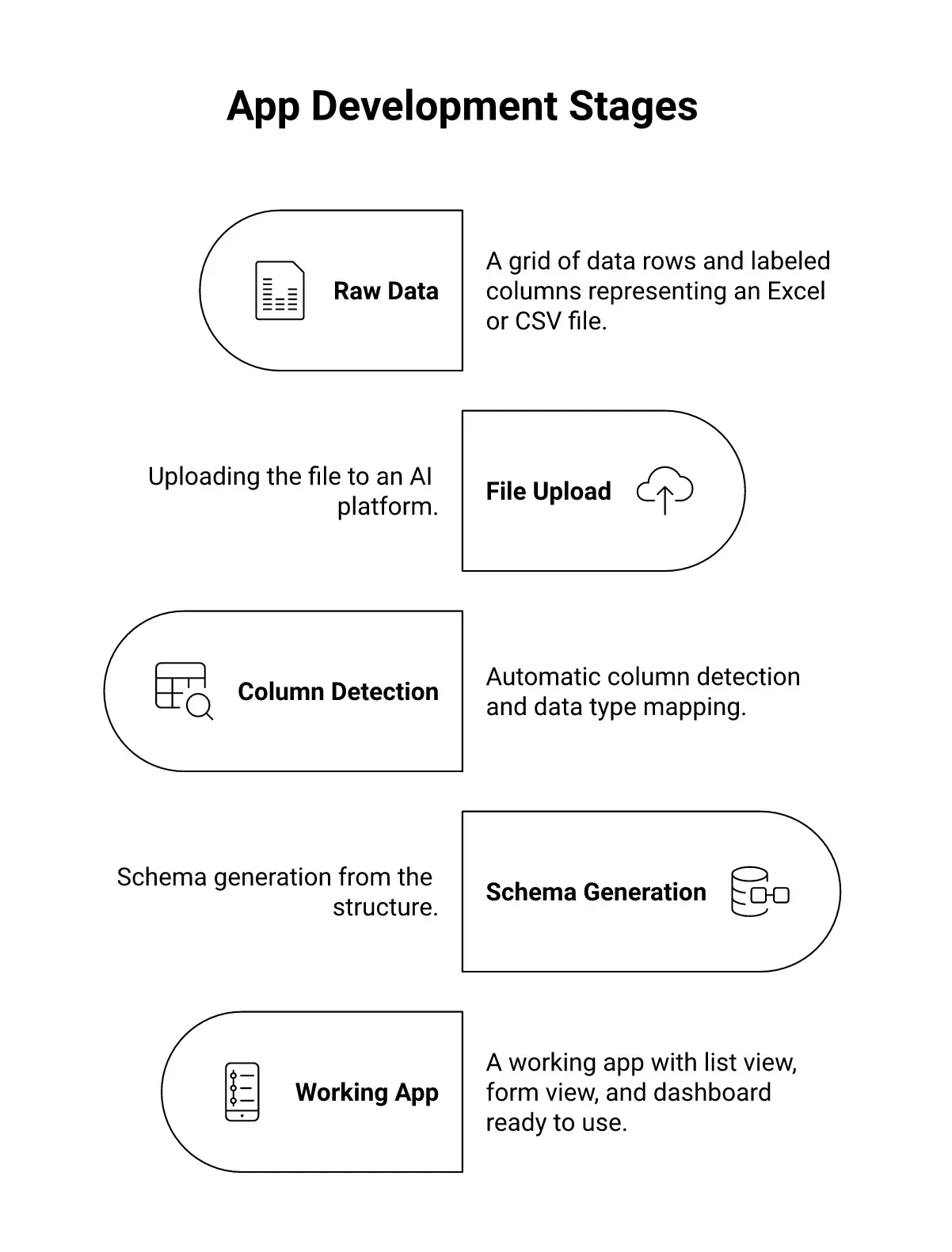
From raw spreadsheet to deployed app: upload, column detection, schema generation, and live output.
-
Spreadsheets are where work gets organised before it goes anywhere else. The shape is already right: rows of records, columns of attributes, and a value behind every cell.
-
Spreadsheets are the default first tool. When a new process kicks off, someone opens Excel, Google Sheets, or creates a data file. The work starts life there, and it rarely migrates anywhere better.
-
The structure is already relational. Each row is a record; each column is a field. That is exactly the shape a database needs, which means every workbook is a short step from becoming a full app.
-
You can build database-connected apps directly from this structure without writing schema definitions by hand.
-
Manual sharing breaks things fast. Emailing a workbook works until two people edit different versions at the same time. Converting a spreadsheet into an app means everyone works from a single source of truth.
-
The code barrier used to keep this gap open. Moving records from a source file into an app meant writing schemas, creating front-end views, and connecting everything manually. That is no longer the case.
So the spreadsheet is not the problem. It is the starting point most apps need, and it has been sitting right there all along.
| Situation | With a Spreadsheet | With an App |
|---|---|---|
| Multiple editors | File conflicts, version clashes | One source of truth |
| Finding records | Scroll and filter manually | Search and sort instantly |
| Sharing updates | Email a new file version | Share a link, live access |
| Adding a new row | Open file, scroll down | Submit a form, row saves automatically |
| Change history | No record | Full audit log by default |
What Makes a Spreadsheet App-Ready?
Not every source file works cleanly out of the box. Understanding what a data file needs to look like saves time and avoids cleanup later.
-
Clean column headers in the first row: Label each field clearly: "customer_name", "order_date", "status". Avoid merged cells, blank fields, or multi-row headers at the top.
-
Consistent types in each column: Text, numbers, and dates should not mix in the same field. Mixed types force the parser to guess, and that creates problems downstream.
-
One flat table per sheet: A workbook with multiple sheets works well, but each sheet should hold a clean, flat table. Remove pivot tables, charts, and any Power Query connections before you run the import.
-
A correct delimiter in your exported file: According to RFC 4180, the standard CSV format places each record on its own line and uses a comma as the default field separator. RFC 4180 - IETF Some programs export with semicolons or tabs instead: open the file in a text editor if your records look misaligned.
-
A sensible row count: Most tools handle files with tens of thousands of rows without issue. For very large datasets, check the platform documentation before you upload.
A well-structured file converts smoothly. A file full of merged headers and blank rows will need cleanup first.
Microsoft Excel natively supports importing and exporting from CSV and text files, which means the format your work lives in today is already compatible with tools built to read it. Microsoft Support
How Does the Attachment-to-App Pipeline Actually Work?
The process is shorter than most people expect. Upload your source file, and a series of automated steps turns that spreadsheet into a working product.
-
Upload CSV or Excel File
-
Column and Data Type Detection: The system reads every header and samples each column to assign the correct type
-
Schema Generation: A relational schema is built from the detected structure
-
UI Scaffold: List view, form view, and detail views are generated automatically
-
Live App Ready to Deploy: Publish to a shareable URL with one click
The full pipeline from file upload to deployed app. Each stage runs automatically.
Reading Your File: Columns, Rows, and Data Types
The first thing the system does when you upload a source file is read the header row. Each column name becomes a field in the data model. Each subsequent row populates that model with records.
-
Text fields become searchable string values displayed in your list view.
-
Number fields get assigned numeric types that support sorting and calculations.
-
Date fields are parsed as date objects, so you can filter by range immediately.
-
The entire row becomes one record in the generated database.
The parser checks consistency across rows: if a field holds numbers in most rows but text in a handful, it flags those cells for review. Depending on your file's structure, detection runs in a few seconds.
From Schema to Working App in Minutes
Once the schema is complete, the builder generates your app without a complex wizard to step through.
Select the view types you want: list view, form view, detail page, or a summary dashboard. Apply filters and sorting rules from the column list directly; no queries to write. Save the configuration, and the app is live on a shareable URL.
You can browse the generated tables, check that the values look correct, and open the app on any device. The full process from file upload to a live template takes under five minutes for a well-structured file. Rocket's build from an attachment feature handles images, PDFs, and spreadsheets using the same pipeline.
Upload to deployed: how column detection, schema generation, and UI scaffolding connect in sequence.
A Worked Example: 500-Row Inventory Sheet
To make this concrete: take a flat inventory workbook with columns for SKU, product name, category, stock count, unit cost, and last updated date. Upload it as a CSV file.
Rocket reads the six columns, assigns string types to SKU, product name, and category, numeric types to stock count and unit cost, and a date type to last updated.
It generates
-
A list view with sortable columns
-
A form view for adding new stock entries
-
A detail page per SKU
The whole process takes under three minutes for a clean file. Messy files (merged header rows, inconsistent date formats, mixed types in a single column) require cleanup first, which is normal.
What Gets Generated When You Upload Your Spreadsheet Data?
Uploading a data file does not just create a table. It generates a working product with several layers ready to use on day one.
-
A data layer matching your column structure: every row is stored, indexed, and searchable from the start.
-
A list view where records are displayed in a format that mirrors the structure of your original file.
-
A form view for creating and editing records without touching a spreadsheet directly.
-
Filters and search fields based on your columns, so users can find the information they need fast.
-
Role-based access controls so you decide who can view, edit, or delete records.
-
An API endpoint that makes your records available to other tools without manual exports.
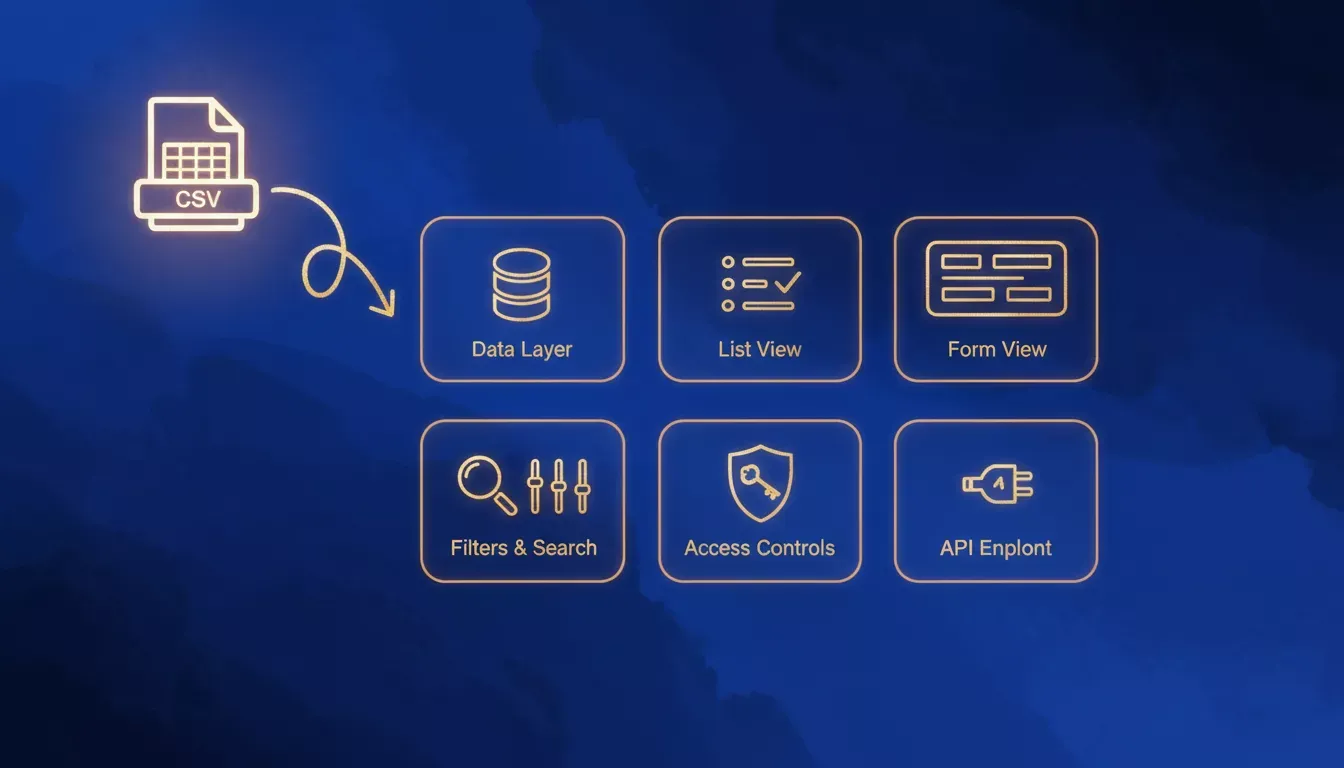
More help is built in by default: the generated app includes audit trails, field validation, and import options so your team can add more rows from a new source file at any point. The content becomes a live, queryable product rather than a static attachment.
Supported File Formats at a Glance
CSV and Excel get most of the attention, but there are more ways to bring records in. Google Sheets can be exported directly as a CSV or downloaded as an Excel workbook.
Text files with tab separators (.txt or .tsv) work exactly like a CSV: rows of records separated by a delimiter. TXT exports from legacy finance and operations systems are common; most platforms accept a .txt format with clear delimiters: comma, tab, or pipe.
| Format | Extension | Works directly? | Best use |
|---|---|---|---|
| CSV file | .csv | Yes | Universal; opens in any program |
| Excel workbook | .xlsx / .xls | Yes | Multiple sheets, richer structure |
| Text file (tab-separated) | .txt / .tsv | Yes | Check delimiter in text editor |
| Google Sheets | .csv or .xlsx | Export first | Download as .csv for cleanest import |
How Rocket.new Turns Any File Into a Full-Stack App
Rocket reads your source file and generates list, form, and dashboard views in one pass.
Most tools that accept a CSV or Excel workbook stop at the database layer. They import your records and leave you to build everything around them. Rocket goes further.
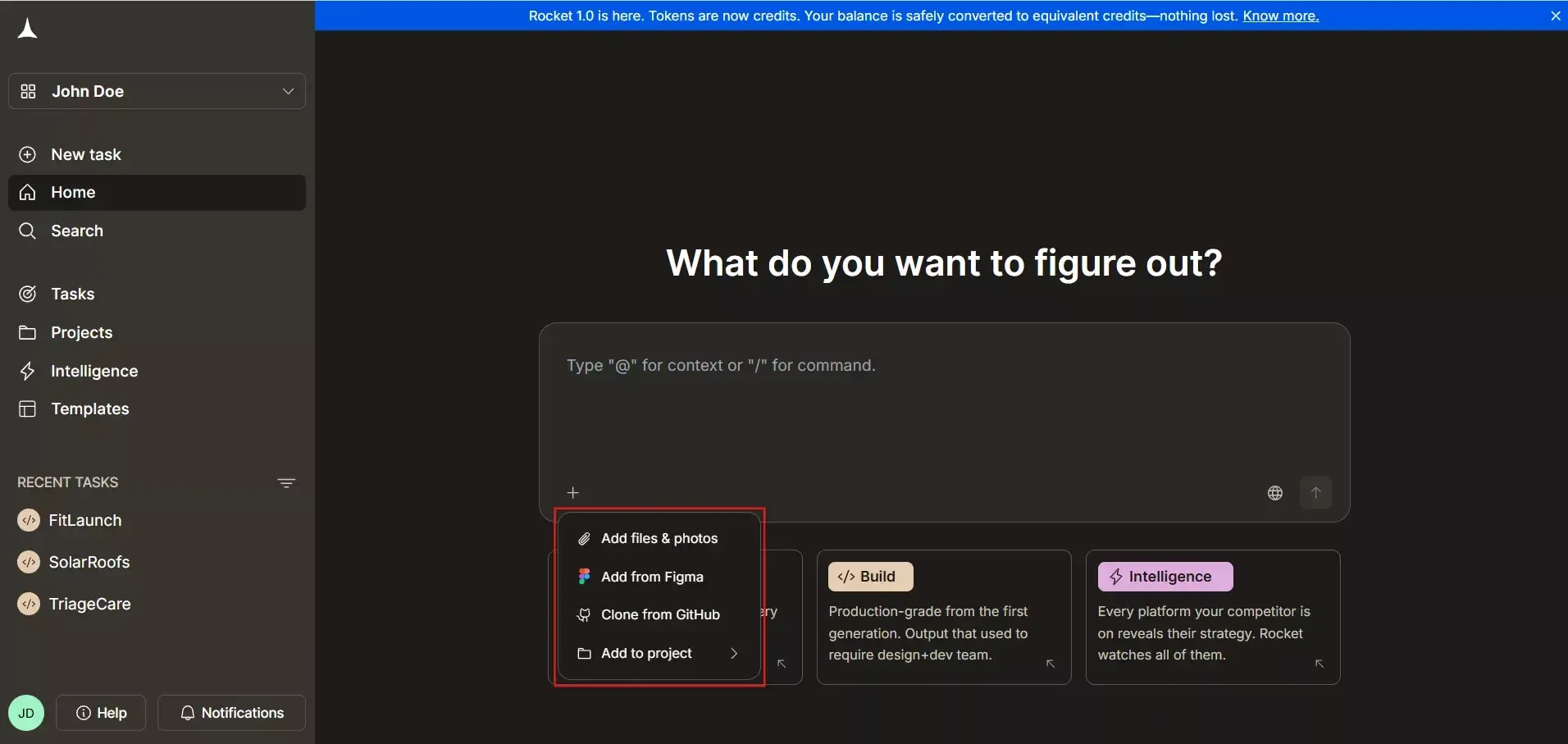
When you upload a source file to Rocket, the AI reads your spreadsheet and generates a complete, production-ready application. Here is what that looks like in practice:
-
Instant schema detection. Rocket reads every column, infers data types, and builds a relational schema. No wizard setup required, no manual field mapping needed.
-
Full-stack output. The generated app ships with a Next.js front-end, a working backend, and a real database, not a prototype or low-code mockup.
-
Multiple view types from the same file. List views, form views, detail pages, and dashboards: all built from the structure of your original file. One upload, complete coverage.
-
Direct Google Sheets connection. Connect a Google Sheets document and pull live records into your app so the spreadsheet and the app stay in sync without manual export cycles.
-
Text file and .txt support. If your team exports a .txt from a legacy system, Rocket handles it. Select the delimiter, confirm the column list, and the import runs cleanly.
-
One-click deployment. Once the app is generated, you deploy it to a live URL without touching infrastructure or writing a config file.
How Rocket Compares to Other CSV-to-App Tools
| Criteria | Rocket | AppSheet | Glide |
|---|---|---|---|
| Output type | Production Next.js code you own | Low-code interface, platform-locked | Low-code interface, platform-locked |
| Code ownership | Full: export and self-host | No | No |
| Hosting | One-click deploy or self-host | Google Cloud only | Glide platform only |
| Supported input formats | CSV, Excel, .txt, Google Sheets | Google Sheets, Excel | Google Sheets, Airtable |
| Backend generated | Yes: real database and API | Limited, managed by the platform | Limited, managed by the platform |
| Manual config after import | Minimal | Significant | Significant |
AppSheet and Glide are solid tools for teams that want a managed, no-code interface and are comfortable staying on those platforms. Rocket is the better fit when you need to own your code, deploy to your own infrastructure, or build something that goes beyond what a locked-in interface can support.
Data Security and What You Should Know Before Uploading
If you are considering uploading client rosters, budget tables, or inventory data, security is a reasonable thing to ask about before you start. Rocket builds apps with GDPR and WCAG compliance embedded by default. Generated apps include role-based access controls, so you decide who can read, edit, or delete records from day one.
A few honest notes on limitations:
-
File size. Very large datasets (hundreds of thousands of rows) may require splitting before upload or using a direct database connection instead of a flat file import.
-
Messy data still needs cleanup. Merged header rows, inconsistent date formats, and mixed types in a single column will cause detection errors. The pipeline is robust for clean, flat tables; it is not a data-cleaning tool.
-
Static exports vs. live sync. If you upload a CSV snapshot, the app holds that data at the time of import. Changes to the original workbook do not automatically flow through unless you use the direct Google Sheets connector or re-import an updated file.
-
Pricing. Building from a spreadsheet uses Rocket credits. Check the pricing page before starting a large project so there are no surprises.
Your Spreadsheet Already Knows What to Build
Every column you labeled and every row you filled in has always been the outline of something more useful. The structure was right all along. The container was just wrong.
The tools have caught up. Uploading a source file and getting a complete, deployable app back is not a workaround. It is the most direct path from records to product available right now.
Ready to turn your spreadsheet data into a live, production-ready app?
Sign up for Rocket and upload your first source file. Your data already has the structure, and Rocket builds everything around it.
Table of contents
- -Why Do So Many Apps Start With a Spreadsheet?
- -What Makes a Spreadsheet App-Ready?
- -How Does the Attachment-to-App Pipeline Actually Work?
- -Reading Your File: Columns, Rows, and Data Types
- -From Schema to Working App in Minutes
- -A Worked Example: 500-Row Inventory Sheet
- -What Gets Generated When You Upload Your Spreadsheet Data?
- -Supported File Formats at a Glance
- -How Rocket.new Turns Any File Into a Full-Stack App
- -How Rocket Compares to Other CSV-to-App Tools
- -Data Security and What You Should Know Before Uploading
- -Your Spreadsheet Already Knows What to Build