
Already have a production Next.js app? Connect your GitHub repo to Rocket, add features using plain language prompts, and push changes back, no rebuild required. Rocket's two-way GitHub sync lets your team continue an existing Next.js project without losing your Git history, deployment pipeline, or codebase.
Why Teams Don't Want to Start Over
When a development team has a working Next.js TypeScript app in production, the last thing they need is to rebuild it from scratch inside a new AI tool. The codebase has months of decisions baked in: authentication flows, database schemas, deployment configurations, and test suites. Throwing that away to get AI assistance is not a trade most teams are willing to make.
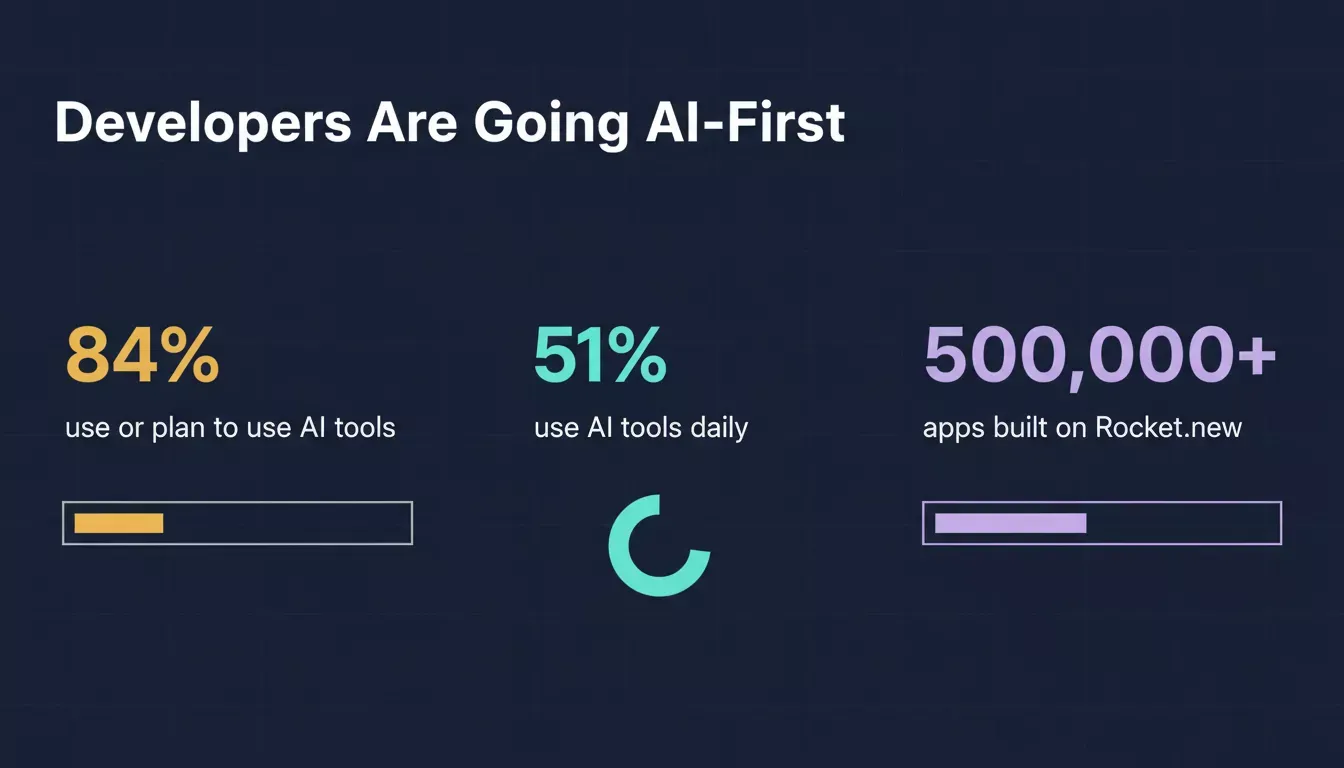 According to the 2025 Stack Overflow Developer Survey, 84% of developers now use or plan to use AI tools. The question is no longer whether to use AI, but how to use it without disrupting what already works.
Rocket answers that question directly. The platform offers two-way GitHub sync for Next.js TypeScript projects, so developers can connect a repository and create task after task on their current codebase.
How Rocket Works with Your Existing Next.js Project
Rocket integrates with GitHub for Next.js projects, allowing two-way sync where changes flow between the Rocket workspace and your repo.
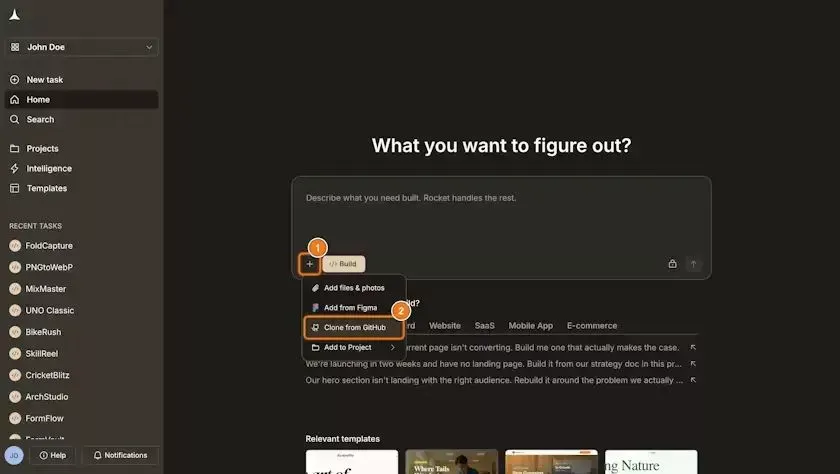 The Rocket editor shows the Clone from GitHub workflow for connecting an existing Next.js TypeScript repository.
- Select Clone from GitHub to import an existing Next.js TypeScript repo into a Rocket task
- Rocket pushes code to a rocket-update branch and opens a pull request to main
- The toolbar switches to Pull from GitHub, letting you pull changes back
- The platform is designed for Node.js and TypeScript, so the AI agent can parse and write code
- GitHub is a workspace-level connector that works across every task type
| Category | Status | Examples |
|---|---|---|
| Next.js TypeScript two-way sync | Active | Push and pull |
| Clone from GitHub | Active | Import a repo |
| Figma design templates | Active | Up to 40 screens |
| Full code download | On paid plans | Download .zip |
| Custom domain deployment | Live | Deploy to Netlify |
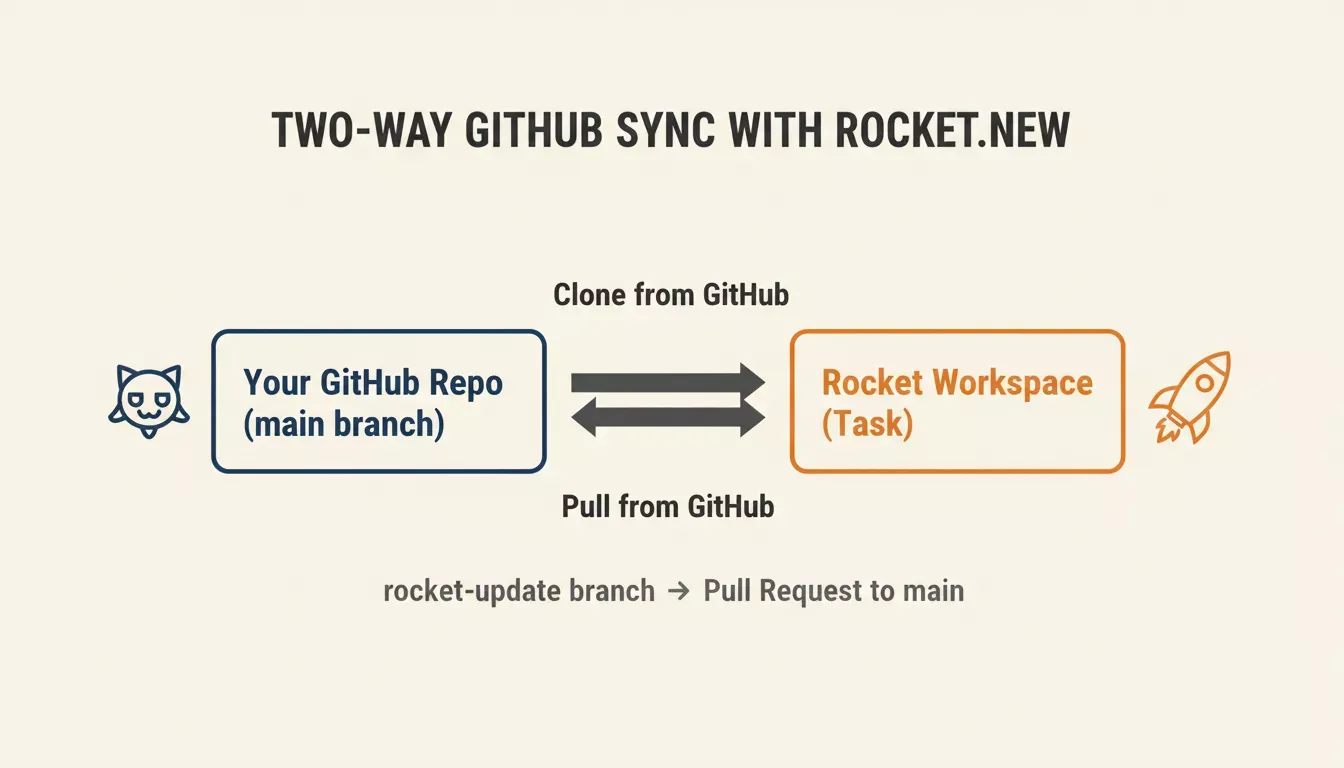 Tips for developers on an existing project: clone your repo, use natural language to create features, then push changes back. Your Git history and deployment pipeline stay intact. Each task you create maps to a unit of work, making progress tracking straightforward.
Step-by-Step: How to Continue an Existing Next.js Project with Rocket
Here is the exact workflow a developer follows to add features to a live Next.js codebase using Rocket.
Step 1: Connect Your GitHub Repository
Navigate to the Rocket home screen and select Clone from GitHub. Authorize your GitHub account when prompted. Rocket will list your repositories, select the Next.js TypeScript project you want to work on. The platform clones your repo into a new Rocket task and reads your existing file structure.
1# Your repo stays on GitHub — Rocket reads from your main branch
2# No local setup required; everything runs in the browserStep 2: Scope Your Prompt with ‘@’ Commands and Database Schema
Once your repo is loaded, use @ commands to scope your natural language prompts to specific files or folders. This gives the AI agent precise context rather than asking it to reason about the entire codebase at once.
1@components/dashboard Add a dashboard with charts showing monthly revenue
2@pages/api/auth Fix the session expiry bug in the token refresh handler
3@lib/db Add a new table for user_preferences with columns: user_id, key, valueUsing @ command is the single most effective way to get accurate, targeted output from natural language prompts on an existing project. Without scoping, the agent may make changes in the wrong files.
Step 3: Preview Changes Before Pushing
After the AI agent generates code, Rocket shows a live preview in the browser. Review the rendered output and inspect the code diff before committing anything to your repository. This step catches visual regressions and logic errors before they reach your main branch.
Step 4: Push Back to Your Branch
When the preview looks correct, click Push to GitHub. Rocket creates a rocket-update branch and opens a pull request to main. Your CI/CD pipeline, test suites, and deployment workflows run as normal. Your team reviews the PR just like any other contribution.
1# Rocket creates: rocket-update branch → PR to main
2# Your existing CI/CD, tests, and deployment run automatically
3# Merge when ready — no special steps requiredStep 5: Pull Future Changes Back
If your team makes changes directly in the codebase between Rocket sessions, use Pull from GitHub to sync the latest state back into your Rocket task. The two-way sync keeps Rocket and your repository in alignment across multiple development cycles.
What the AI Agent Does When You Connect a Project
Rocket uses specialized AI agents for different task types during stages of app development, including a backend agent that manages routes, logic, data, and integrations.
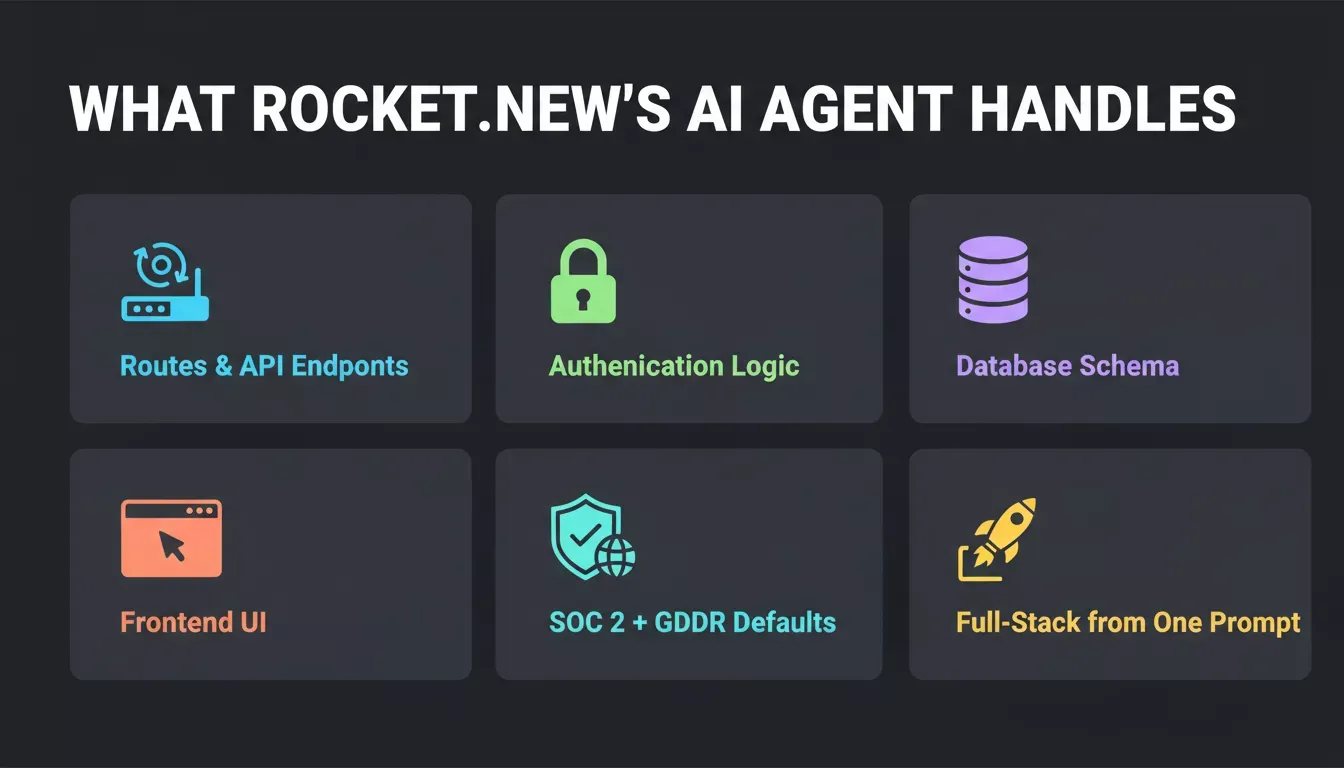
- The backend agent can turn natural language prompts into routes, API endpoints, and authentication logic
- The database schema adjusts as features change
- Using
@commands lets you scope prompts to specific files or folders, giving the AI agent context - Write prompts like "Add a dashboard with charts showing monthly revenue" to move from prompt to app changes without writing backend code
- Rocket maintains enterprise-grade default settings, including SOC 2 and GDPR compliance, suitable for production-ready apps
- Rocket generates both frontend and backend logic from a single prompt, producing a more complete build and handling the ui as well as the server side
Rocket can create Next.js web apps quickly without extensive coding knowledge. Next.js supports server-side rendering and static site generation, which can improve performance and SEO.
The full workflow for continuing an existing Next.js project with Rocket: from GitHub connection to merged PR.
You describe what you want, the tool writes code, and you check the result in the browser before pushing. This helps fix bugs before you deploy.
5 Rocket vs Other AI Tools for Developers: Code Generation Comparison
Most AI coding assistants like Windsurf AI and Cursor help you write code in your editor. Rocket offers a more complete answer for teams that want app changes generated from prompts rather than only inline coding help, taking a different path as a purpose-built vibe solutioning platform that converts natural language into deployable web apps and mobile apps.
- Rocket converts natural language into a deployable app, while inline assistants focus on helping you write code in-line
- Rocket deploys live apps from the browser, letting real users access them within hours
- Web apps built with Rocket are hosted on Netlify, with custom domain support
- Rocket creates both frontend and backend from a single prompt, handling requests that would need manual coding elsewhere
The 2025 Stack Overflow Developer Survey shows 51% of professional developers use AI daily. That signals a shift toward automated workflows in every category.
Picking between an inline assistant and a full-stack app builder depends on whether you need to write code or, importantly, create a feature from a prompt.
Community Post
"Rocket.new is shifting the way we think about software. One prompt is all it takes to launch a full-stack app, production-ready from the start." — Priyank Ahuja on LinkedIn
Over 400,000 creators in 180 countries have used the platform to create more than 500,000 apps. That shows the tool handles more than test projects.
How Rocket Supports Existing Next.js Projects at Scale
Rocket gives developers an AI-powered path to create, test, and validate app features on a codebase they maintain.
- Ready-to-use templates covering landing pages, SaaS dashboards, and internal tools
- Supports Flutter for mobile apps and Next.js for web, so you can rapidly create web apps without extensive coding knowledge and build across platforms
- Collaboration features let multiple user accounts work on the same task
- 3 Products, One platform: Solve, Build, and Intelligence for research, app creation, and competitor monitoring without a tool switch
Here are examples of task types where this matters:
- Agencies managing client projects clone each client repo into Rocket, create features like a dashboard or authentication flow, then push code back
- Startups adding features to a live app skip the full app rebuild, saving money and keeping deployment safe
- Enterprise post-MVP teams test AI-generated features in isolated task types before merging to the main
- Solo developers creating internal tools describe what they need, let the AI handle the backend logic and database schema, then deploy the app
Teams can also use Rocket resources like templates and platform guidance to speed delivery across client and internal projects.
Rocket is the simpler option for anyone who wants to create app features fast without writing every line by hand.
Your Next.js Project Does Not Need a Fresh Start
Two-way GitHub sync for Next.js TypeScript projects is live today, and full repository support for other framework types is on the roadmap. Developers can connect a repo to Rocket, create features with natural language, and push changes back. The focus stays on building, not rebuilding, at every point.
Every task type in the platform works within your existing project structure. That is the development model Rocket is built around.
If you have an existing Next.js project and want to add features without starting over, Rocket is the fastest path from idea to merged PR. Connect your GitHub repo, scope your first prompt with @ commands, and push production-ready code back to your branch in one session.
Start building with Rocket today and keep everything your team has already built.
Table of contents
- -Why Teams Don't Want to Start Over
- -How Rocket Works with Your Existing Next.js Project
- -Step-by-Step: How to Continue an Existing Next.js Project with Rocket
- -Step 1: Connect Your GitHub Repository
- -Step 2: Scope Your Prompt with ‘@’ Commands and Database Schema
- -Step 3: Preview Changes Before Pushing
- -Step 4: Push Back to Your Branch
- -Step 5: Pull Future Changes Back
- -What the AI Agent Does When You Connect a Project
- -5 Rocket vs Other AI Tools for Developers: Code Generation Comparison
- -Community Post
- -How Rocket Supports Existing Next.js Projects at Scale
- -Your Next.js Project Does Not Need a Fresh Start