
Your Figma file already contains the data model. AI reads the layers, maps the relationships, and generates a production-ready database schema with tables, foreign keys, and SQL in minutes, not weeks.
How much time does your team lose translating Figma mockups into database tables?
For most product teams, the design-to-backend handoff takes days of back-and-forth. Designers create the interface. Developers then guess which components need which tables, columns, and relationships.
According to Figma's 2025 AI Report, 78% of designers and developers say AI significantly improves their workflow. Yet only 32% trust the output enough to rely on it directly. The tools exist, but connecting a Figma file to a structured backend still feels fragmented for most teams.
AI-powered schema generation changes this. Modern AI reads your Figma layers, components, and page structures. It then proposes a database schema that mirrors your UI logic, complete with tables, foreign keys, and query-ready relationships.
What Does "Figma to Database" Actually Mean?
"Figma to Database" is the process of reading a Figma design file and automatically generating a relational database schema. The output includes tables, columns, data types, foreign keys, and indexes.
This differs from Figma-to-code tools, which only generate frontend components. The Figma-to-database workflow goes deeper. It reads the data relationships implied by your UI and produces the backend structure your application needs to function.
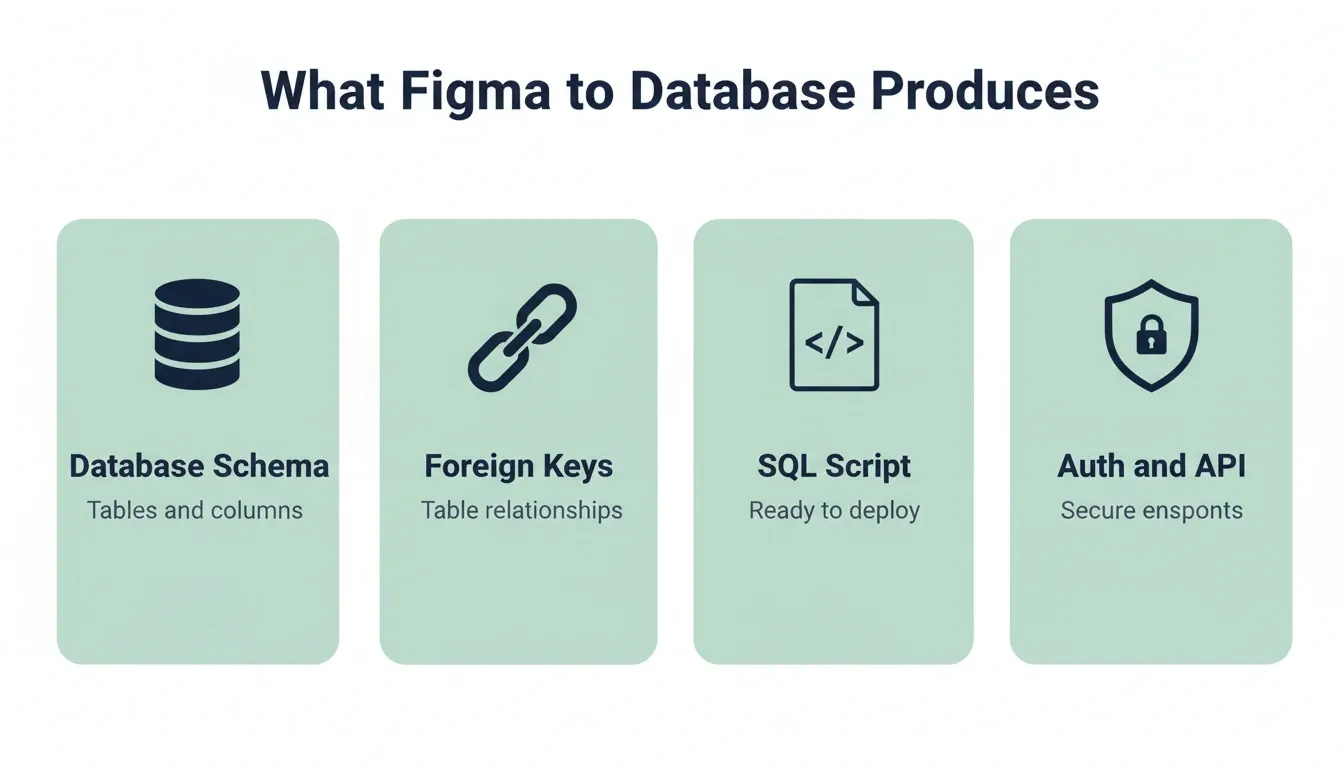
What you get at the end:
-
A complete database schema with tables and columns matching your UI screens
-
Foreign key relationships between tables, such as users to posts and projects to tasks
-
A SQL script ready to deploy to Supabase or any Postgres-compatible backend
-
Authentication setup, file storage, and a secure auto-generated API
This is the missing link that most Figma-to-code tools skip entirely.
Why Do Design Teams Struggle with Data Modeling?
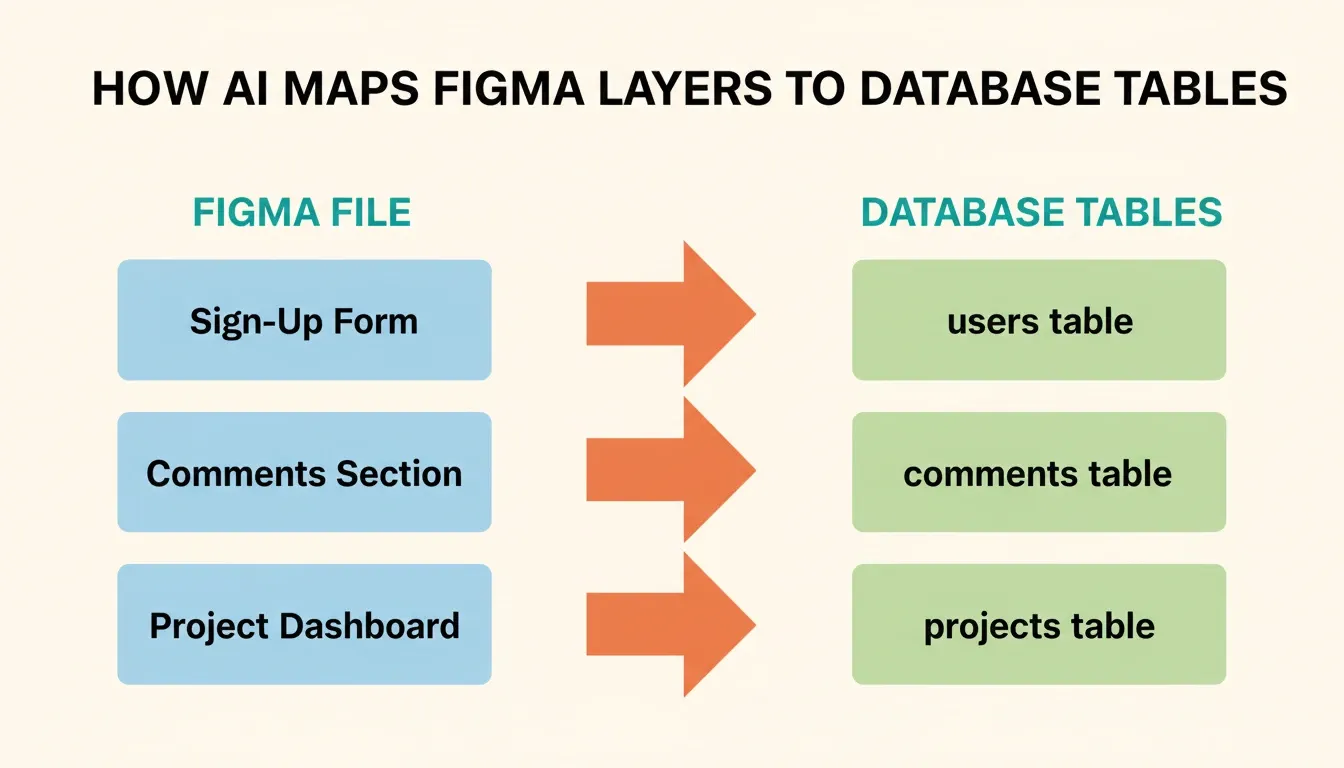
Every Figma file holds clues about the data behind it. A user profile page implies a users table. A comments section means a comments table with foreign keys back to users and posts. A project dashboard suggests tables for projects, tasks, and activity logs.
Translating those clues into a working relational database has always been a manual process. Teams look at the Figma file and try to figure out tables, relationships, and data types by hand.
-
Designers think in components and frames, not in tables and columns
-
Developers re-interpret Figma annotations into a schema with tables and foreign keys
-
Misalignment between the visual file and the backend causes rework and slow timelines
-
Complex applications with dozens of screens create hundreds of data points that need careful organization
This is why so many organizations spend weeks going from an approved Figma file to a working database design. Comments go back and forth, developers file tickets, and the schema changes three or four times before anyone can write a single query.
How Does AI Read a Figma File and Map It to Tables?
AI treats your Figma file like a structured object. It parses every layer, frame, and component to understand what data lives behind each UI element. Think of the Figma file as a diagram of your entire application. The AI reads that diagram and creates database tables from it.
Here is how the process works in practice:
-
Layer scanning: AI reads every frame, identifying form fields, lists, cards, and navigation components on each page
-
Pattern recognition: It groups related components. A sign-up form with name, email, and password fields maps to a users table. A comments widget maps to a comments table.
-
Schema generation: The AI creates database tables with proper columns, data types, and foreign keys. It uses the properties of each Figma component to determine column types.
-
Query planning: For each table, the AI suggests indexes and query patterns based on how the data connects to other tables
The 2025 Stack Overflow Developer Survey found that 84% of developers now use AI tools in their workflows, up from 76% the prior year. And 69% of developers using AI agents report increased productivity. Schema generation from design files is one example of how this shift plays out in practice.
Mapping UI Components to a Relational Database Structure
Every Figma component type has a corresponding database concept. The table below shows how common UI patterns translate to relational database tables with columns, data types, and relationships.
| Figma UI Element | Database Table | Key Columns | Relationships |
|---|---|---|---|
| User Profile Card | users | id, name, email, avatar_url, created_at | Primary, links to many tables |
| Comments Section | comments | id, user_id, post_id, body, created_at | Foreign keys to users and posts |
| Project Dashboard | projects | id, name, owner_id, status, deadline | Foreign keys to users, links to tasks |
| Task List | tasks | id, project_id, assignee_id, title, done | Foreign keys to projects and users |
| Chat Messages | messages | id, sender_id, channel_id, body, sent_at | Foreign keys to users and channels |
| Settings Page | user_settings | id, user_id, theme, notifications, locale | Foreign key to users |
| File Upload Area | files | id, user_id, url, mime_type, size | Foreign key to users, storage link |
| Organization Switcher | organizations | id, name, logo_url, plan, owner_id | Links to users through memberships |
When your Figma file contains a sign-up form, AI recognizes this as a users table. When it finds a comments section below a post, it creates a comments table with foreign keys pointing back to both users and posts. The key values in this mapping process are:
-
Primary keys on every table for unique identification of each row
-
Foreign keys that create relationships between tables, including one-to-many and many-to-many
-
Indexes on frequently queried columns so your database performs well at scale
-
Data types that match the Figma input: text fields become VARCHAR, toggles become BOOLEAN, and date pickers become TIMESTAMP
Understanding AI-powered schema design prompts can make this mapping even more precise. The better your prompt, the better the generated tables and relationships.
Figma to Database vs. Figma to Code: What Is the Difference?
This is one of the most common points of confusion for product teams starting this workflow.
| Feature | Figma to Code | Figma to Database |
|---|---|---|
| What it generates | Frontend components (HTML, CSS, React) | Database tables, columns, foreign keys, SQL |
| Backend included | No | Yes |
| Authentication | No | Yes, via Supabase |
| API generated | No | Yes, auto-generated REST |
| Deployable app | Partial, frontend only | Full-stack, frontend and backend |
| Best for | Design handoff, UI prototyping | Production-ready applications |
Most Figma-to-code tools stop at the frontend. They give you components but not a working application. The Figma-to-database workflow produces a complete deployable product. When powered by a platform that generates both frontend and backend together, the gap between design and production closes entirely.
Connecting Figma Designs to a Supabase Project Step by Step
Once you have a schema, you need somewhere to deploy it. Supabase is a strong choice for AI-generated backends. It gives you a complete Postgres database with authentication, storage, and a secure API out of the box.
Here is how to connect your Figma-derived schema to a Supabase project:
-
Create a Supabase project. Sign up at supabase.com, pick a region, and create a new project. You get a full Postgres database instance immediately.
-
Generate your SQL script. Take the AI-generated schema and export it as a SQL script. This includes CREATE TABLE statements, foreign keys, indexes, and constraints.
-
Run the script in the Supabase SQL editor. Open your Supabase project dashboard, go to the SQL editor, and paste your SQL script. Click run to create all your tables at once.
-
Add authentication. Supabase includes built-in auth: email/password, Google, GitHub, and magic links. This connects your auth system to the users table automatically.
-
Connect storage for file uploads. If your Figma design includes file upload areas, connect Supabase storage. Users can upload files that link back to your database tables through foreign keys.
-
Set up a secure API. Supabase auto-generates a REST API for every table. Your frontend can query any table through REST or receive real-time updates via WebSocket subscriptions.
Figma holds roughly 40.65% of the design software market according to WPDean's analysis, and with more than 4 million users working in Figma files daily, the demand for tools that connect these designs to Supabase projects and Postgres databases is growing fast.
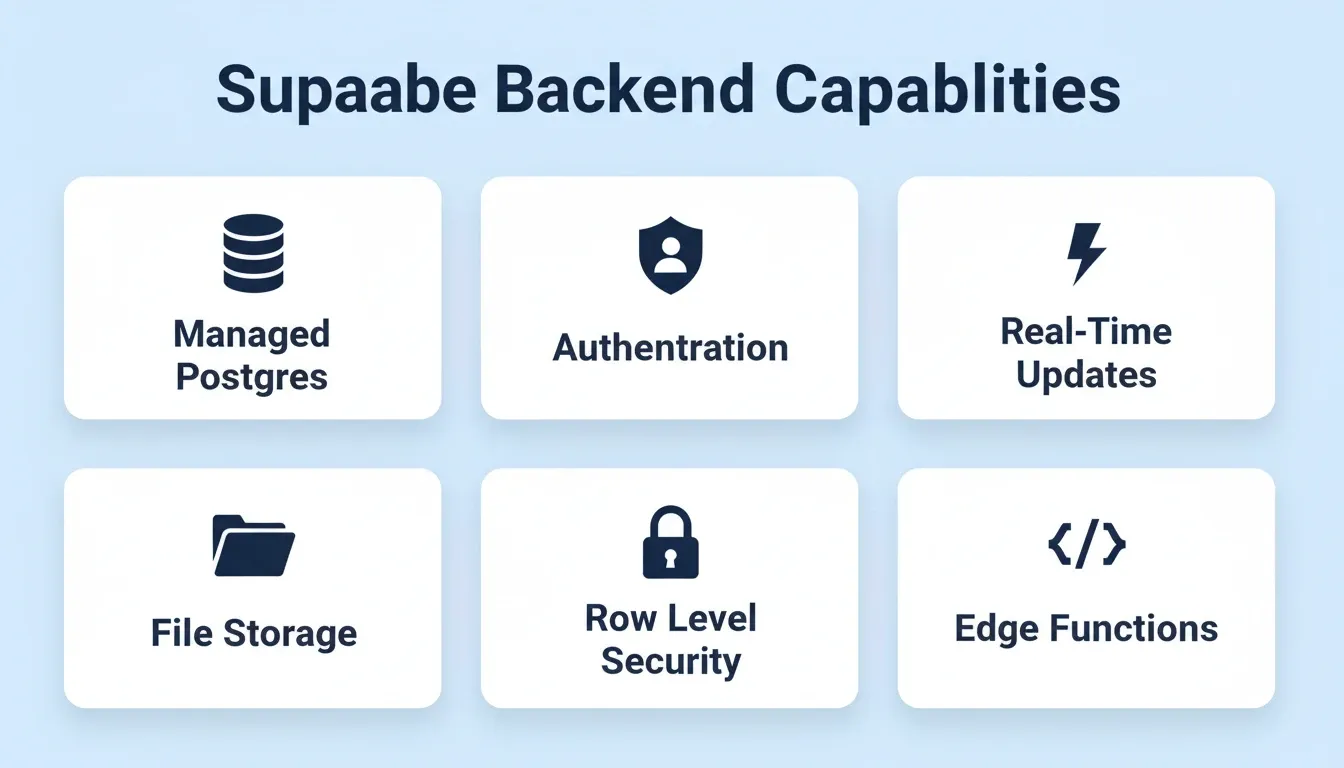
What makes Supabase a strong fit for this workflow:
-
Managed Postgres: Fully managed database with automatic backups and replicas
-
Row Level Security: Control who can read or write to each table at the database level
-
Real-time subscriptions: Live updates for features like comments, messages, and notifications
-
Edge Functions: Custom backend logic without managing separate infrastructure
-
OAuth connection: When using Rocket, Supabase connects via OAuth with no manual API key management required
How Rocket Turns Your Figma File into a Full-Stack Application
Most tools stop at generating front-end code from a Figma file. They hand you HTML and CSS, but the backend, the database tables, the schema, and the query logic, is still your problem.
Rocket is a vibe solutioning platform with three pillars: Solve for research and validation, Build for AI app generation, and Intelligence for competitor monitoring. For the Figma-to-database workflow, the Build pillar does the heavy lifting.
How Rocket's Figma Import Works
Rocket's Build feature includes a dedicated "From Figma" starting point. Here is exactly how it works, based on the official documentation:
-
Import your Figma design. Open a new Build task in Rocket and select "From Figma." Rocket reads your Figma file directly.
-
Rocket plans the architecture. It generates a fully functional app with UI, navigation, logic, and production-ready code. This includes both the Next.js frontend and the backend structure.
-
Connect Supabase via OAuth. Open Connectors in the preview toolbar, select Supabase, and authorize via OAuth. Rocket generates the complete feature: UI, backend logic, API calls, and error handling, all at generation time, not after.
-
Refine through chat or Visual edit. Iterate using Rocket's chat interface, Visual edit mode, or direct code view until the app matches your design exactly.
-
Launch. Click Launch when ready. Rocket supports one-click deployment via Netlify with custom domain support.
What Rocket Generates
-
Frontend: Production-ready Next.js code for web apps or Flutter code for mobile apps
-
Backend: Supabase tables, foreign keys, authentication, file storage, and edge functions
-
API: Auto-generated REST endpoints for every table, with real-time subscription support
-
Auth: Email, Google, GitHub, and magic link sign-in connected to your users table from the start
-
Deployment: One-click launch via Netlify with custom domain support
The critical difference: When Supabase is connected, Rocket generates the app from the database schema, not the other way around. Auth-aware pages, Row-Level Security policies, and schema-accurate queries are all generated together as one coherent unit. There is no retrofitting, no broken auth guards, and no forgotten security policies.
"Design and code are starting to merge in a very real way... teams can convert working UI code into structured components without rebuilding everything manually." LinkedIn
Can AI-Generated Schemas Handle Complex Multi-Table Relations?
The short answer is yes, but you need to guide the process. Let AI create the base tables first, then iterate on complex relationships with follow-up prompts.
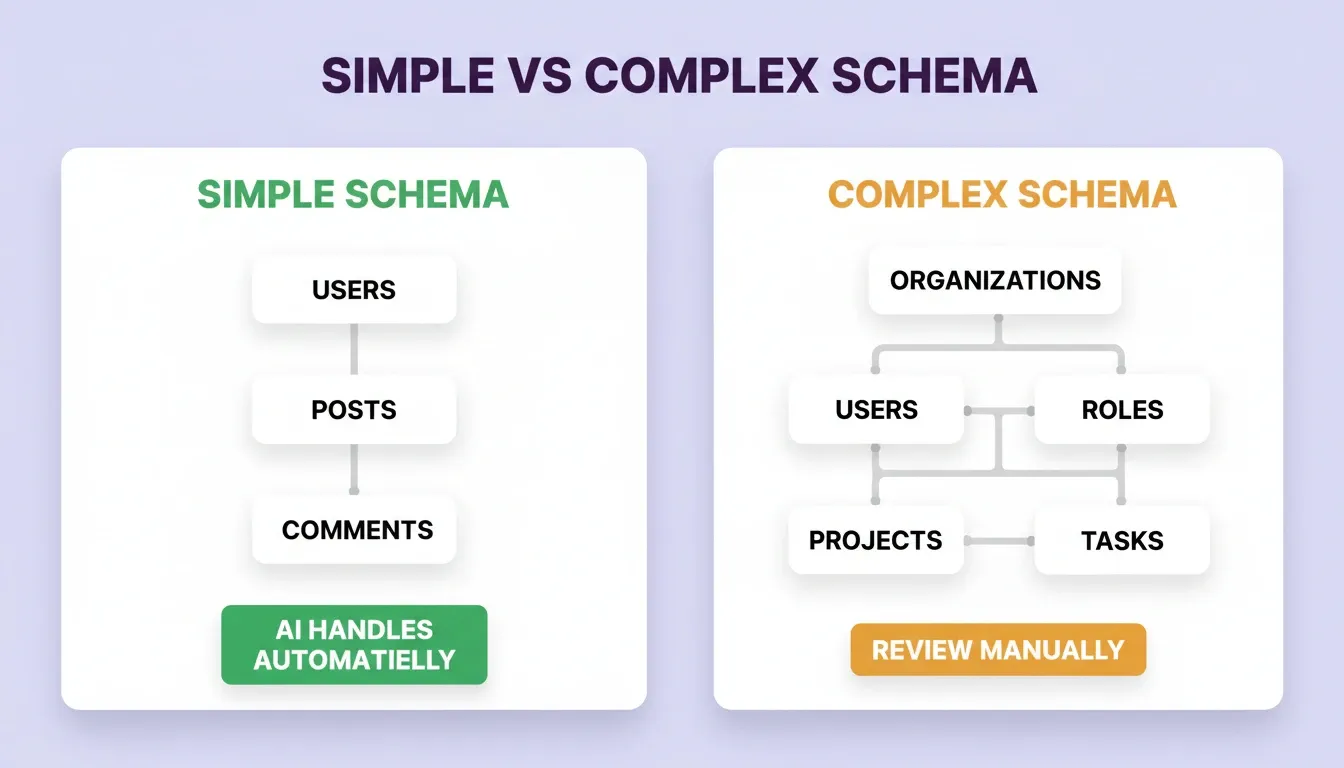
A simple application might use three or four tables, such as users, posts, comments, and files. AI handles these cases with almost no manual input.
Complex applications are different. Think about a SaaS platform where multiple organizations share the same system, each with their own users, roles, and permissions tables. Concurrent users within one organization need different levels of access control. Tables reference other tables through join tables for many-to-many relationships, and query patterns involve nested joins across five or six related tables.
In these cases, AI still generates the initial schema. You should review it carefully. Check whether the AI split tables correctly, whether the foreign keys point in the right direction, and whether the indexes support your most common query patterns.
Best practices for complex schemas:
-
Start simple, then iterate. Let AI create the base tables, then add complexity through follow-up prompts.
-
Validate foreign keys manually. AI sometimes misses many-to-many relations and creates a single table where a join table is needed.
-
Test query performance early. Run sample queries on your Supabase project to verify indexes work at scale.
-
Map organizations carefully. If your system supports multiple organizations, the schema needs proper tenant isolation with Row-Level Security controls.
-
Use Rocket's Advisor Agent. Rocket's built-in Advisor Agent can review your schema and flag potential issues before you deploy.
Building Your First AI-Powered Schema from a Figma Design
Ready to try it? Here is a practical walkthrough to create your first schema from a Figma file using Rocket.
Step 1: Open your Figma file and look at the main pages, including sign-up, dashboard, profile, settings, project view, messages, and comments. Each page tells you which tables and data your backend needs.
Step 2: Open Rocket and create a new Build task. Select "From Figma" as your starting point and import your design file.
Step 3: Write a prompt that describes your application. For example: "Create a project management tool with users, organizations, projects, tasks, comments, messages, and file storage. Users belong to organizations. Projects belong to organizations. Tasks belong to projects."
Step 4: Let Rocket generate your app. Review the tables, columns, foreign keys, and relationships it creates. Make sure every Figma page connects to at least one table in the schema.
Step 5: Connect Supabase via OAuth in the Connectors panel. Rocket creates all your Postgres tables, sets up authentication, and configures storage automatically.
Step 6: Test the functionality. Add sample data, run queries, and confirm that relationships between tables work correctly. Use Rocket's Visual edit mode to adjust the UI without touching code.
Step 7: Click Launch. Rocket deploys your app via Netlify with one click. Add a custom domain when ready.
The whole process takes minutes, not weeks. If something is off, adjust your prompt and regenerate. The AI creates a new version of your tables without you writing a single line of SQL by hand.
Your Figma Designs Already Hold the Data Model
Every Figma file contains more than pixels and colors. It holds a map of your data, the tables, the relationships, and the query logic that your backend needs. AI reads what your design already tells it and turns that into a working schema you can deploy to a Supabase project in minutes.
The tools to do this are here now, and they keep getting better. If your team is still spending days on manual schema planning, it is time to let your Figma designs do the talking.
The Gap Between Design and Production Is Closing
The Figma-to-database workflow is where product teams will ship next. As AI gets better at reading design intent, the distance between a finished Figma file and a deployed, database-backed application will keep shrinking. Teams that build this skill now, using AI to generate schemas, connect backends, and iterate from a single prompt, will move faster than teams still doing it by hand.
You described the product in Figma. Rocket reads that description, generates the database schema, connects Supabase, and deploys the full-stack application. Start building on Rocket.new and go from design to production database in minutes.
Table of contents
- -What Does "Figma to Database" Actually Mean?
- -Why Do Design Teams Struggle with Data Modeling?
- -How Does AI Read a Figma File and Map It to Tables?
- -Mapping UI Components to a Relational Database Structure
- -Figma to Database vs. Figma to Code: What Is the Difference?
- -Connecting Figma Designs to a Supabase Project Step by Step
- -How Rocket Turns Your Figma File into a Full-Stack Application
- -How Rocket's Figma Import Works
- -What Rocket Generates
- -Can AI-Generated Schemas Handle Complex Multi-Table Relations?
- -Building Your First AI-Powered Schema from a Figma Design
- -Your Figma Designs Already Hold the Data Model
- -The Gap Between Design and Production Is Closing