The difference between a generic AI screen and a production-ready UI is prompt structure. This guide covers 20 prompts across layout, style, dashboards, mobile, accessibility, and components with copy-paste examples for each.
The difference between a generic AI output and a production-ready interface lies entirely in how you frame the task. A vague prompt produces a generic screen. A structured prompt, one that names the screen, defines the grid, specifies the visual mood, and maps the user flow, produces something you can ship.
According to Figma's 2025 research, 78% of designers say AI tools speed up their workflow significantly, but only 58% say the quality improves. That gap is the prompt skill gap. This guide closes it.
-
A good UI prompt needs: screen type, layout structure, key components, target users, visual style, and constraints.
-
The most common prompt failure is missing context; AI cannot infer who the users are or what the screen must accomplish.
-
Once your prompt produces a solid first generation, Rocket's Build editor lets you refine it through Chat, Visual Edit, or direct Code access, then deploy to a live Netlify URL in one click.
What Makes a Good Prompt for UI Generation?
Not all design prompts produce the same results. The structure of your request shapes everything the AI returns.
-
Context comes first. Tell the AI what kind of project this is, who the users are, and which platform you're targeting.
-
Specificity beats length. Describe the exact sections, component types, and hierarchy you need. Mention spacing, padding, and content structure.
-
Constraints create quality. Define what the AI should NOT do. Constraints narrow the output space.
-
Format the output. State whether you want wireframes, high-fidelity mockups, or responsive layouts.
-
Include references where helpful. Specify font family, size scale, and brand personality.
When you approach prompt engineering best practices rather than a single-shot request, the AI starts producing screens that need refinement rather than a full restart.
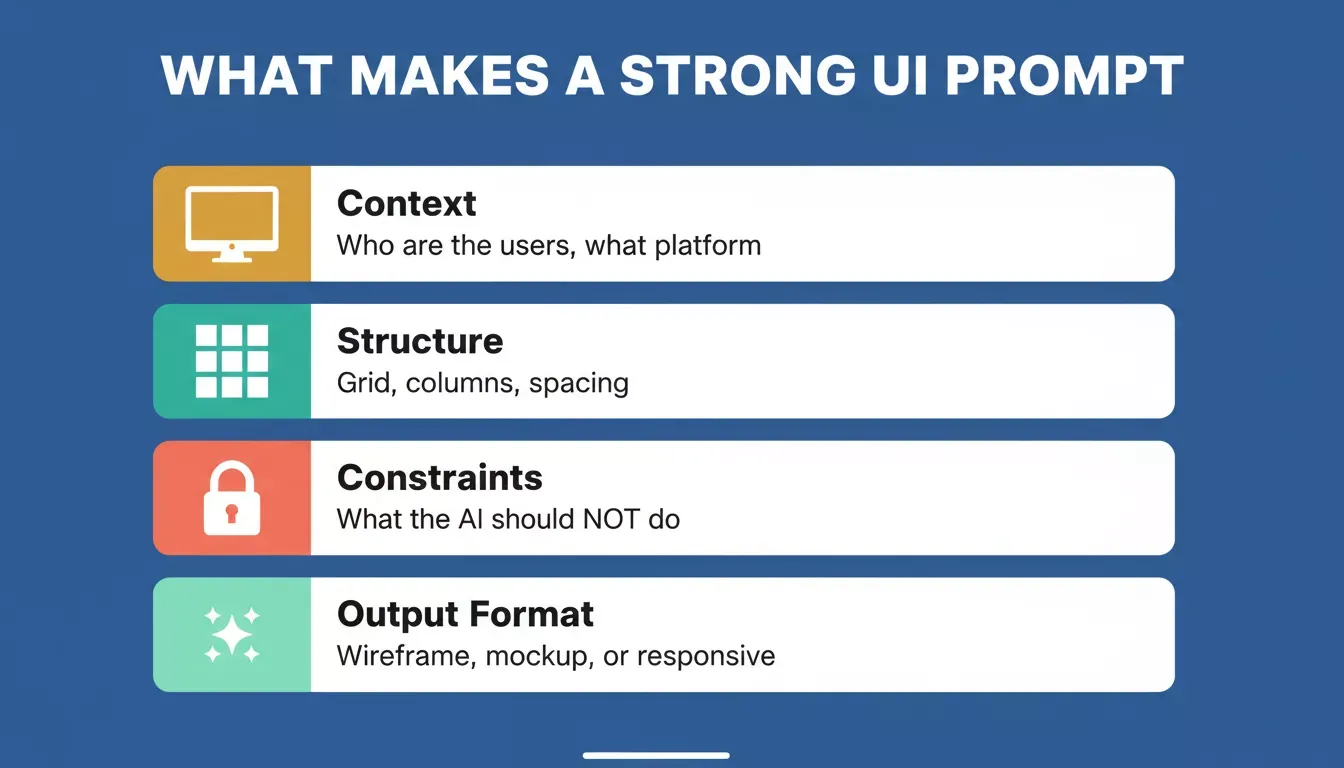
Four layers every strong UI prompt needs: context, structure, constraints, and output format.
As Jakob Nielsen noted in his 2026 predictions, "UX will replace Model Intelligence as the primary sustainable differentiator," meaning the designers who learn to direct AI with precision will consistently outship those who do not.
Quick reference: what to specify per prompt type
| Prompt Category | What to Specify | Example Detail |
|---|---|---|
| Layout | Grid, columns, spacing | 12-column grid, 24px gutter, max-width 1200px |
| Navigation | Pattern, items, icons | Bottom tab bar with Home, Search, Profile, Settings |
| User Flows | Screens, transitions, states | Log in to Dashboard to Settings; include error and loading states |
| Responsiveness | Breakpoints, stacking | Desktop 3-column, tablet 2-column, mobile single stack |
| Visual Style | Mood, color tokens, typography | Muted navy, Inter font, 1.5 line height |
| Accessibility | Contrast, labels, focus | WCAG AA contrast, visible focus rings, ARIA labels on icons |
| Dark Mode | Background, surface, text tokens | Dark background, layered surfaces, high-contrast text |
| Components | Library, variant, state | Card component, hover, and active states |
Why Rocket.new Is the Right Place to Use These Prompts
Most AI design tools stop at the mockup. Rocket.new removes that entire gap.
Rocket.new is the world's first Vibe Solutioning platform, combining three connected pillars: Solve (decision intelligence that validates your idea, runs market research across multiple sources, and produces a structured PRD), Build (production-grade generation of Next.js web apps and Flutter mobile apps), and Intelligence (continuous competitive monitoring).
Each pillar shares context with the others.
-
Start from validated thinking. Solve validates your idea and maps your market before Build begins. The AI builds context before writing a single component.
-
Full-stack output from one prompt. Rocket's Build pillar generates a working Next.js web app or Flutter mobile app, UI, navigation, logic, and production-ready code.
-
Three ways to refine after generation. Chat (natural language), Visual Edit (click any element in the live preview), and Code (full source access). Slash commands (/) and @ context mentions for precision edits.
-
Ship the same day. One click to Netlify staging. Custom domain with automatic DNS config and HTTPS.
Where vibe coding builders like Bolt, Lovable, and v0 build what you tell them to build, Rocket.new figures out what is worth building, then builds it.
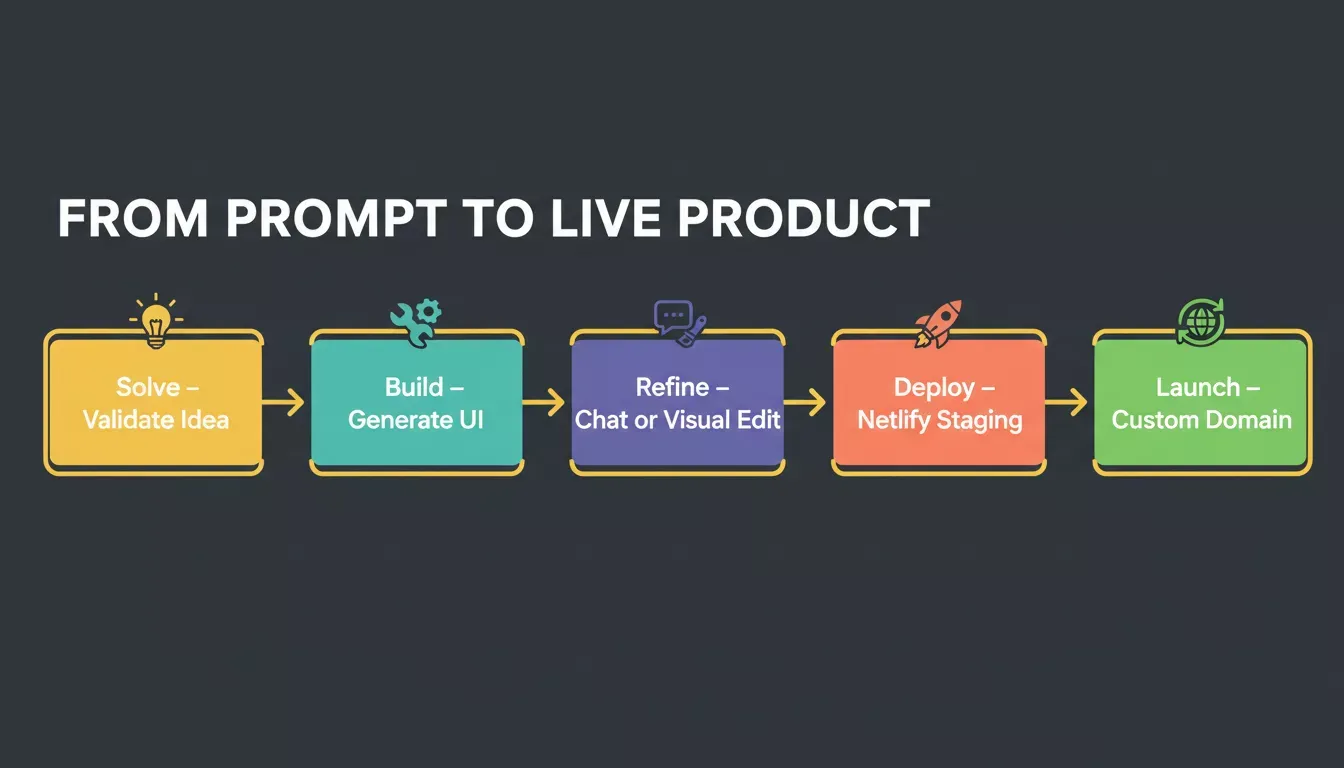
From idea to live product: Solve validates, Build generates, you refine, Netlify deploys, and your custom domain goes live with automatic HTTPS.
How to Write AI Prompts for UI Layout and Navigation
Layout is the foundation. Get the grid, navigation pattern, and screen names right in your prompt, and every subsequent iteration becomes faster.
-
Name every screen. "Generate a four-screen onboarding flow," not "create an app with onboarding."
-
Define navigation patterns. Bottom tabs, sidebar, or hamburger, specify which pages connect where.
-
Set the grid. Column counts, max content width, and alignment preferences.
-
Map user flows explicitly. Describe the step-by-step journey from entry to exit.
Tools like Figma's prototyping features help you test these flows. Designers who want to skip the handoff entirely can import Figma files directly into Rocket.new and generate a live, deployable product that preserves every spacing decision.
Prompt 1: Onboarding Flow Prompt
Use this prompt to generate a multi-screen onboarding sequence with named screens, transitions, and clear entry and exit states.
Example prompt:
"Generate a four-screen onboarding flow: welcome screen with brand illustration, feature highlight carousel, notification permission request, and account creation form. Use a clean sans-serif font, 16px body text, and a primary CTA button on every screen."
The AI will often produce:
-
Welcome screen with branded hero illustration and headline
-
Swipeable carousel with three feature highlights and progress dots
-
Permission request screen with allow and skip options
-
Account creation form with email, password, and social sign-in
Try this prompt now: Copy it, open Rocket.new, paste it in, and watch a complete onboarding flow appear screen by screen.
Prompt 2: Navigation and Grid Layout Prompt
Use this prompt to lock in your app's navigation pattern and grid system before generating any content screens.
Example prompt:
"Design a mobile app layout with a bottom tab bar containing Home, Search, Profile, and Settings. Use a 4-column grid, 16px gutter, max content width 375px. Include a sticky header with a back arrow and page title on inner screens."
The AI will often produce:
-
Bottom tab bar with icon and label for each destination
-
Consistent header component reusable across all inner screens
-
Grid-aligned content blocks that stack cleanly on smaller viewports
Try this prompt now: Describe your navigation structure in Rocket.new and get a grid-ready layout generated in under two minutes.
Prompt 3: User Flow Mapping Prompt
Use this prompt to describe a complete user journey, so AI generates every screen in the correct sequence with the right states.
Example prompt:
"Map a checkout user flow: pricing page, plan selection, payment form, order confirmation screen. Include loading state, error state for failed payment, and a success screen with order summary and next steps."
The AI will often produce:
-
Pricing page with plan cards and a highlighted recommended tier
-
Payment form with card input, billing address, and submit button
-
Error state with inline validation messages and a retry option
-
Success confirmation screen with order number and CTA to the dashboard
Try this prompt now: Map your user flow in Rocket.new and get every screen, including edge cases, generated in one pass.
Prompt 4: Responsive Breakpoint Prompt
Use this prompt to generate a layout that adapts correctly across desktop, tablet, and mobile without requiring separate mobile-specific work later.
Example prompt:
"Create a responsive marketing page for a SaaS product. Desktop: 3-column feature grid, horizontal navigation. Tablet: 2-column grid, same navigation. Mobile: single-column stack, hamburger menu. Use 24px gutter on desktop, 16px on mobile. Ensure all CTAs remain above the fold on every breakpoint."
The AI will often produce:
-
Three distinct layout states with correct column counts per breakpoint
-
Navigation that collapses to a hamburger menu with a slide-out drawer on mobile
-
CTA buttons repositioned to stay visible without scrolling on all screen sizes
Try this prompt now: Paste your breakpoint spec into Rocket.new and get a fully responsive layout that works on every device from the first generation.
Build your responsive UI layout and navigation
How to Write AI Prompts for UI Visual Style
Visual style is where many designers get frustrated. AI can produce a clean layout but miss the brand tone entirely. The difference between telling AI "make it look good" and giving it a visual brief is the difference between three iterations and thirty.
-
Describe mood, not just color. "Calm, professional mood with muted navy accents," not "use blue."
-
Reference design systems. "Follow Material Design 3 guidelines for typography scale."
-
Specify hierarchy explicitly. "H1 at 32px bold, H2 at 24px semi-bold, body at 16px regular."
-
Control imagery direction. "Geometric shapes as section dividers, no stock photography."
Rapid prototyping workflows depend on this kind of clarity from the start.
Specific prompts produce polished visual output. Vague prompts produce generic results that need three more rounds of iteration.
Prompt 5: Brand Mood and Color Prompt
Use this prompt to translate a brand personality into a concrete visual direction AI can apply consistently across every screen.
Example prompt:
"Apply a calm, professional visual style to a SaaS dashboard. Use muted navy as the primary accent, white background, subtle box shadows, and generous whitespace. No stock photography. Use abstract geometric shapes as section dividers."
The AI will often produce:
-
Consistent color tokens applied across buttons, links, and borders
-
Section dividers using geometric shapes instead of horizontal rules
-
Card components with subtle shadows that feel elevated without being heavy
Try this prompt now: Give Rocket.new your brand tokens and watch them applied consistently across every component from the first generation.
Prompt 6: Typography Hierarchy Prompt
Use this prompt to remove all ambiguity from font decisions, so AI applies a consistent type scale across every heading and body element.
Example prompt:
"Set the typography for a B2B SaaS product: H1 at 32px bold, H2 at 24px semi-bold, H3 at 20px medium, body at 16px regular, 1.5 line height, caption at 12px. Use the Inter font family. Apply 8px letter spacing to all-caps labels."
The AI will often produce:
-
A complete type scale is applied to all heading levels
-
Body text with correct line height for comfortable reading
-
Label and caption styles are distinct from body copy
Try this prompt now: Specify your type scale in Rocket.new and get a production-ready font system applied to your entire UI in one pass.
Prompt 7: Dark Mode Variant Prompt
Use this prompt to generate a dark mode version of your UI with correct surface layering and text contrast, not just an inverted color palette.
Example prompt:
"Generate a dark mode variant of a SaaS dashboard. Use a deep dark background, layered surface colors for depth, high-contrast primary text, muted secondary text, and an indigo primary accent. Remove box shadows, use 1px borders instead. Ensure all text meets WCAG AA contrast ratio."
The AI will often produce:
-
Three-layer surface system that creates depth without shadows
-
Text colors with verified contrast ratios against each surface layer
-
Accent color adjusted for visibility on dark backgrounds without appearing washed out
Try this prompt now: Generate a dark mode variant in Rocket.new that uses proper surface layering, not just an inverted palette.
Prompt 8: Imagery and Visual Direction Prompt
Use this prompt to control what AI generates for illustrations, icons, and section visuals so the output matches your brand rather than defaulting to stock imagery.
Example prompt:
"Generate section visuals for a fintech app. Use abstract line-art illustrations in navy and gold, no human photography, soft gradient backgrounds between sections, and an outlined icon set at 24px. Each illustration should represent a concept: security, growth, and speed."
The AI will often produce:
-
Custom abstract illustrations for each feature section
-
Consistent icon set with uniform stroke weight and sizing
-
Gradient section breaks that guide the eye down the page
Try this prompt now: Tell Rocket.new what each section visual should represent and get concept-matched illustrations generated automatically.
Generate your UI styles with great visuals
Can AI Handle Dashboard and Data-Heavy Screens?
Dashboards require information architecture thinking, data hierarchy, and smart use of space. Define the data model and interaction states in your prompt; most AI tools skip edge cases unless you ask explicitly.
-
Define the data model first. "Monthly revenue (line chart), top customers (sortable table), active subscriptions (KPI cards)."
-
Assign visual weight. "Revenue chart takes 60% width. Customer table fills the remaining 40%."
-
Include interaction patterns. "Date range picker in the header filters all widgets."
-
Mention empty and loading states. "Show skeleton loaders while data fetches."
You can see how this structured approach applies directly to building a financial reporting dashboard — where data hierarchy and interaction patterns are the difference between a useful tool and a confusing one.
Dashboard prompt flow: each layer builds on the previous one. Skip a step, and the AI fills the gap with a generic default.
Prompt 9: KPI Dashboard Layout Prompt
Use this prompt to generate a data-rich dashboard with correct visual weight, widget sizing, and full-width KPI cards at the top.
Example prompt:
"Create an analytics dashboard. KPI cards (total revenue, active users, churn rate) span the full width at the top. Below: a line chart for monthly revenue at 60% width, and a sortable customer table at 40% width. Add a date range picker in the header that filters all widgets."
The AI will often produce:
-
Full-width KPI card row with metric labels, values, and trend indicators
-
Responsive two-column widget area with a chart and a table side by side
-
Date range picker component wired to filter state across all widgets
Try this prompt now: Paste your data model into Rocket.new and get a fully structured analytics dashboard ready to connect to real data.
Prompt 10: Empty and Loading States Prompt
Use this prompt to make AI generate the edge-case screens most tools skip, so your UI feels complete and production-ready from day one.
Example prompt:
"For each dashboard widget, generate three states: loading state with skeleton loaders, empty state with an illustration and helper text saying No data for this period, and error state with a retry button. Match the skeleton color to the background."
The AI will often produce:
-
Skeleton loader components that match the exact shape of each widget
-
Empty state illustrations with contextual helper text per widget type
-
Error state with a clear message and a one-click retry action
Try this prompt now: Get all three states for every widget generated in a single pass — no manual edge-case design required.
Prompt 11: Dashboard Interaction Pattern Prompt
Use this prompt to define hover, click, and filter behaviors so AI generates an interactive dashboard rather than a static mockup.
Example prompt:
"Add interaction patterns to a revenue dashboard: hover tooltip on every chart data point showing exact value and date, click-to-drill-down on customer rows opening a side panel, and a global date range picker in the sticky header that updates all widgets simultaneously."
The AI will often produce:
-
Tooltip component appearing on chart hover with formatted value and date
-
Side panel component triggered by table row click with customer detail view
-
Sticky header with date range picker and real-time widget update logic
Try this prompt now: Add your interaction spec to Rocket.new and get hover tooltips, drill-down panels, and a live filter header built into your dashboard in one prompt.
Prompt 12: Empty State and Onboarding Checklist Prompt
Use this prompt to generate the first-run experience for a new user — the screens most products treat as an afterthought but that have the highest impact on activation rates.
Example prompt:
"Design a first-run empty state experience for a project management SaaS. When a user has no projects, show an illustrated empty state with a headline ('Your workspace is ready'), a subheading explaining the next step, and a single primary CTA ('Create your first project'). Below the empty state, include a horizontal onboarding checklist with five steps: Create a project, Invite a teammate, Add your first task, Set a due date, and Connect an integration. Show each step with a checkbox, a short label, and a completion percentage bar at the top. Completed steps use a muted green check. Incomplete steps use an outlined circle."
The AI will often produce:
-
Illustrated empty state with a clear value-reinforcing headline and single-focused CTA
-
Horizontal progress checklist with step-by-step completion tracking
-
Visual distinction between completed and pending steps using color and iconography
-
Overall progress bar that updates as steps are checked off
Try this prompt now: Paste your empty state spec into Rocket.new and get a first-run experience that actually drives activation, not just a blank screen with placeholder text.
Build your onboarding experience
Mobile-Specific UI Prompts
Mobile UI generation fails most often because designers treat it as a scaled-down desktop layout. The prompts below treat mobile as a first-class design surface with its own constraints. If you are building a native mobile app, Rocket.new generates Flutter apps with production-ready mobile architecture, dark/light theming, fluid navigation, and staggered animations included by default.
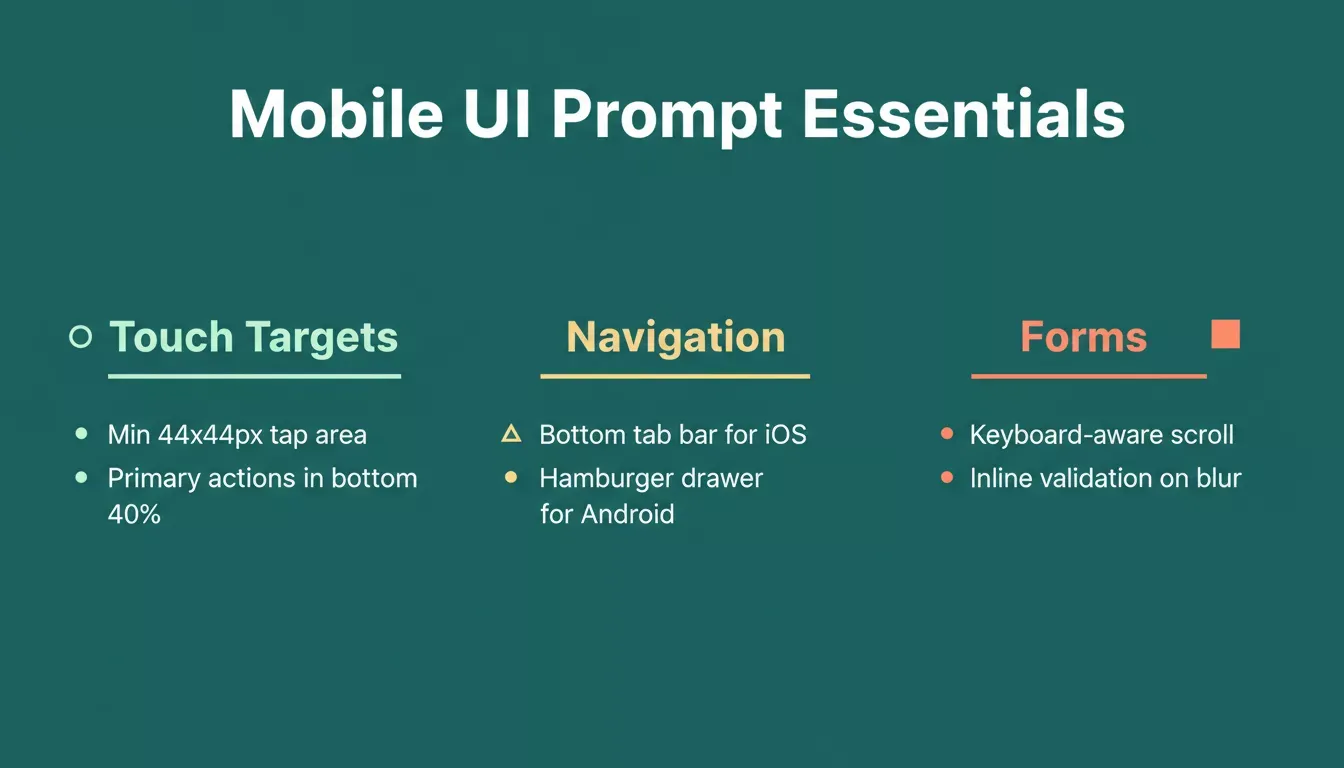
Three mobile prompt essentials: touch targets sized for real thumbs, platform-correct navigation, and keyboard-aware forms.
Prompt 13: Mobile Touch Target and Thumb Zone Prompt
Use this prompt to ensure every interactive element is sized and positioned for one-handed use, not just visually correct at a small scale.
Example prompt:
"Design a mobile task management app for one-handed use. All tap targets are at least 44x44px. Primary actions (add task, complete task) are placed in the bottom 40% of the screen within thumb reach. Secondary actions (edit, delete) are accessible via swipe gesture or long press, not visible by default. Use 16px minimum body text."
The AI will often produce:
-
Bottom-anchored primary action button sized for thumb reach
-
Swipe-to-reveal secondary actions on list items
-
Touch-target padding applied to all interactive elements, including icons
Try this prompt now: Specify your touch constraints in Rocket.new and get a mobile layout built for real hands, not just a small screen.
Prompt 14: Mobile Navigation Pattern Prompt
Use this prompt to generate the correct native navigation pattern for iOS or Android rather than a web-style navigation adapted for mobile.
Example prompt:
"Generate an iOS-style navigation structure for a fitness tracking app. Use a bottom tab bar with five items: Home, Workouts, Progress, Nutrition, Profile. Each tab has its own navigation stack with a large title header. Include a modal sheet pattern for adding new workouts triggered by a floating action button above the tab bar."
The AI will often produce:
-
Bottom tab bar with SF Symbols-style icons and active state highlighting
-
Large title navigation headers that collapse on scroll per iOS convention
-
Modal bottom sheet for the add-new-workout flow with handle indicator and dismiss gesture
Try this prompt now: Define your native navigation pattern in Rocket.new and get a platform-correct mobile structure generated from the first build.
Prompt 15: Mobile Form and Input Prompt
Use this prompt to generate mobile forms that handle keyboard appearance, input validation, and error states correctly, the most commonly broken part of mobile UI.
Example prompt:
"Create a mobile sign-up form for a fintech app. Fields: full name, email, phone number with country code picker, password with strength indicator. In focus, the keyboard should push the form up and ensure the active field is always visible above the keyboard. Show inline validation on blur. Disable the submit button until all fields pass validation."
The AI will often produce:
-
Form layout with keyboard-aware scroll behavior
-
Country code picker component with search functionality
-
Password strength indicator with color-coded feedback
-
Submit button with disabled state and active state correctly differentiated
Try this prompt now: Paste your form spec into Rocket.new and get a mobile form that handles keyboard, validation, and error states correctly from the first generation.
Accessibility-Focused UI Prompts
Accessibility is not a post-production fix; it is a prompt-level decision. The prompts below bake WCAG compliance into the generation rather than auditing for it afterward. According to WebAIM's 2025 accessibility report, approximately 95% of websites fail basic accessibility checks, making this one of the highest-impact areas where structured prompts deliver immediate, measurable improvement.
Four accessibility requirements every UI prompt should include: contrast ratios, focus rings, ARIA labels, and skip-to-content links.
Prompt 16: WCAG AA Contrast and Focus Prompt
Use this prompt to generate a UI where every color combination meets WCAG AA contrast requirements and keyboard navigation is fully visible.
Example prompt:
"Design a SaaS settings page that meets WCAG 2.1 AA standards. All text on colored backgrounds must achieve a minimum 4.5:1 contrast ratio. All interactive elements must have a visible focus ring (2px solid, 2px offset). Include a skip-to-content link as the first focusable element. Form labels must be visible with no placeholder-only labels."
The AI will often produce:
-
Color pairings verified against WCAG AA contrast thresholds
-
Visible focus rings on all buttons, links, and form inputs
-
Skip-to-content link positioned before the main navigation
-
Form fields with persistent visible labels above each input
Try this prompt now: Add your accessibility requirements to Rocket.new and get a WCAG AA-compliant UI generated without a separate audit step.
Prompt 17: Screen Reader and ARIA Prompt
Use this prompt to generate UI that works correctly for screen reader users, not just visually accessible, but semantically correct.
Example prompt:
"Generate a data table for a project management dashboard. Include ARIA labels on all icon-only buttons. Use role status for live update notifications. Add aria-sort attributes to sortable column headers. Ensure the table caption describes the data. All images must have descriptive alt text, not just image or filename."
The AI will often produce:
-
Icon buttons with aria-label attributes describing the action
-
Live region announcements for status updates
-
Sortable column headers with correct aria-sort state management
-
Table caption and descriptive alt text on all visual elements
Try this prompt now: Specify your ARIA requirements in Rocket.new and get a semantically correct UI that works for every user, not just sighted ones.
Component Library Prompts
Component-level prompts are the most reusable in a designer's toolkit. A well-specified component prompt generates something you can drop into any screen rather than rebuilding it each time. Rocket.new's AI app builder generates components with real design systems, not template cards, so the output looks like a senior designer touched it from the first generation.
Prompt 18: Design System Component Prompt
Use this prompt to generate a reusable component with all variants and states defined, ready to use across your entire product.
Example prompt:
"Generate a button component with four variants: primary (filled indigo), secondary (outlined indigo), ghost (transparent with indigo text), and destructive (filled red). Each variant needs five states: default, hover, active, disabled, and loading with a spinner. Use 8px border radius, 16px horizontal padding, 10px vertical padding. Export as a Shadcn/ui-compatible component."
The AI will often produce:
-
Four button variants with distinct visual treatment
-
Five interaction states per variant with correct opacity and color shifts
-
Loading state with an inline spinner that matches button height
-
Component structure compatible with Shadcn/ui conventions
Try this prompt now: Define your component spec in Rocket.new and get a complete, multi-variant component with every state built and ready to reuse.
Prompt 19: Notification and Alert System Prompt
Use this prompt to generate a complete in-app notification system with multiple severity levels, dismiss behaviors, and a notification tray, the component most teams bolt on late and end up rebuilding.
Example prompt:
"Generate a full in-app notification system for a B2B SaaS dashboard. Include four toast alert variants: success (green), warning (amber), error (red), and info (blue). Each toast appears in the top-right corner, stacks when multiple fire at once, and auto-dismisses after 5 seconds with a visible countdown progress bar. Include a manual close button on every toast. Also, generate a notification bell icon in the header with an unread badge count. Clicking it opens a slide-in notification tray from the right showing the last 20 notifications with timestamp, message, read/unread state, and a Mark all as read action at the top."
The AI will often produce:
-
Four toast variants with correct semantic color coding and accessible contrast ratios
-
Toast stacking logic with enter and exit animations
-
Auto-dismiss countdown bar visible inside each toast
-
Notification bell with dynamic unread badge
-
Slide-in tray with read/unread visual differentiation, relative timestamps, and bulk-clear action
Try this prompt now: Define your alert system in Rocket.new and get a complete, production-ready notification layer, toasts, tray, and badge logic, generated without building each piece separately.
Build your notification system
Prompt 20: Full-Stack UI Generation Prompt
Use this prompt to go beyond a static mockup and generate a deployable full-stack interface — Next.js web app or Flutter mobile app, with both frontend and backend logic in one pass.
Example prompt:
"Build a SaaS project management web app in Next.js. Include sidebar navigation with Projects, Tasks, and Settings. Connect Supabase for user authentication and project data. Use a clean, minimal design with indigo as the primary color. Deploy to a live URL."
The AI will often produce:
-
Sidebar navigation with active state highlighting and collapsible sections
-
Task board with drag-and-drop columns and assignee avatars
-
Supabase-connected authentication flow with login, signup, and protected routes
-
Live staging URL on Netlify is ready to share with stakeholders
Try this prompt now: Describe your product to Rocket.new and get a fully deployed full-stack app — not just a mockup, live in minutes.
What Do Experienced Designers Say About Prompt-Based UI?
The design community is split on AI-generated interfaces, but the data points in one direction.
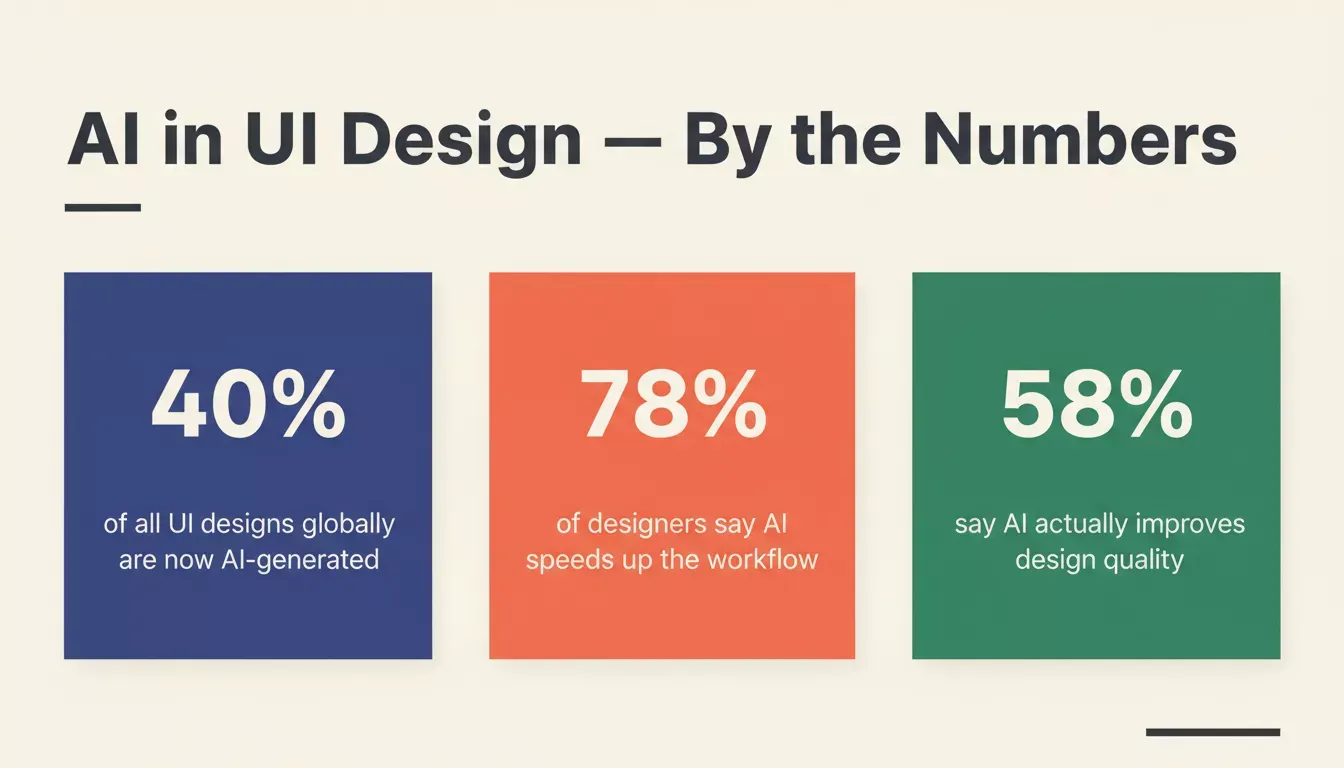
AI now generates 40% of all UI designs globally, yet only 58% of designers report quality improvements; the gap is prompt skill.
-
Speed is undeniable. Figma's 2025 research found that 78% of designers say AI tools speed up their workflow significantly. Only 58% say it improves quality, which means prompt skill is the bottleneck.
-
Judgment still matters. Jakob Nielsen noted in his 2026 predictions that "UX will replace Model Intelligence as the primary sustainable differentiator" and that the winners are vertical AI platforms with defensible workflows.
-
Iteration replaces perfection. A junior designer on LinkedIn shared: "I stopped trying to write the one perfect prompt. Now I write five fast ones, compare outputs, and refine from there. My design process cut from days to hours."
Designers now focus on defining constraints, reviewing outputs, and making decisions about user experience rather than pushing pixels into place manually. When designers convert Figma work into production code, the prompt quality at the start determines how much cleanup is needed at the end.
Your Next Interface is One Prompt Away
Writing good prompts for UI generation is not about memorizing templates. It is about understanding what AI needs to produce something useful: context, structure, constraints, and clear intent.
The tools keep getting faster. The designers who learn to work with them, rather than fight them, will ship better products in less time and with fewer handoff headaches.
Ready to skip the prompt guessing game? Rocket.new takes your product idea, validates it with Solve, and generates a fully deployed Next.js or Flutter app with Build, no design-to-dev handoff, no separate deployment step.
Start building on Rocket.new and ship your first AI-generated UI today.
Table of contents
- -What Makes a Good Prompt for UI Generation?
- -Quick reference: what to specify per prompt type
- -Why Rocket.new Is the Right Place to Use These Prompts
- -How to Write AI Prompts for UI Layout and Navigation
- -Prompt 1: Onboarding Flow Prompt
- -Prompt 2: Navigation and Grid Layout Prompt
- -Prompt 3: User Flow Mapping Prompt
- -Prompt 4: Responsive Breakpoint Prompt
- -How to Write AI Prompts for UI Visual Style
- -Prompt 5: Brand Mood and Color Prompt
- -Prompt 6: Typography Hierarchy Prompt
- -Prompt 7: Dark Mode Variant Prompt
- -Prompt 8: Imagery and Visual Direction Prompt
- -Can AI Handle Dashboard and Data-Heavy Screens?
- -Prompt 9: KPI Dashboard Layout Prompt
- -Prompt 10: Empty and Loading States Prompt
- -Prompt 11: Dashboard Interaction Pattern Prompt
- -Prompt 12: Empty State and Onboarding Checklist Prompt
- -Mobile-Specific UI Prompts
- -Prompt 13: Mobile Touch Target and Thumb Zone Prompt
- -Prompt 14: Mobile Navigation Pattern Prompt
- -Prompt 15: Mobile Form and Input Prompt
- -Accessibility-Focused UI Prompts
- -Prompt 16: WCAG AA Contrast and Focus Prompt
- -Prompt 17: Screen Reader and ARIA Prompt
- -Component Library Prompts
- -Prompt 18: Design System Component Prompt
- -Prompt 19: Notification and Alert System Prompt
- -Prompt 20: Full-Stack UI Generation Prompt
- -What Do Experienced Designers Say About Prompt-Based UI?
- -Your Next Interface is One Prompt Away