AI tools now read your Figma file directly, map every design system token, and generate a production-ready Next.js or Flutter app, turning weeks of manual handoff into minutes of automated code generation.
Does Converting Figma Designs into Working Apps Still Take Weeks?
Not anymore. AI tools have changed how teams move from design to deployed product. You paste a Figma URL, select your platform, and Rocket generates a working app. Front end, backend logic, and integrations are all included. The manual translation layer is gone.
This blog covers how the design-to-code workflow operates, what to look for in a platform, and how to build apps from Figma using AI that ships production-grade output on the first generation.
Why Does the Design-to-Code Gap Still Exist?
The problem is not new, and the numbers tell a clear story. Most teams still struggle at the point where design meets development.
-
Figma has 13 million monthly active users and holds a 41% share of the design tools market. Designers are creating screens in Figma at massive scale.
-
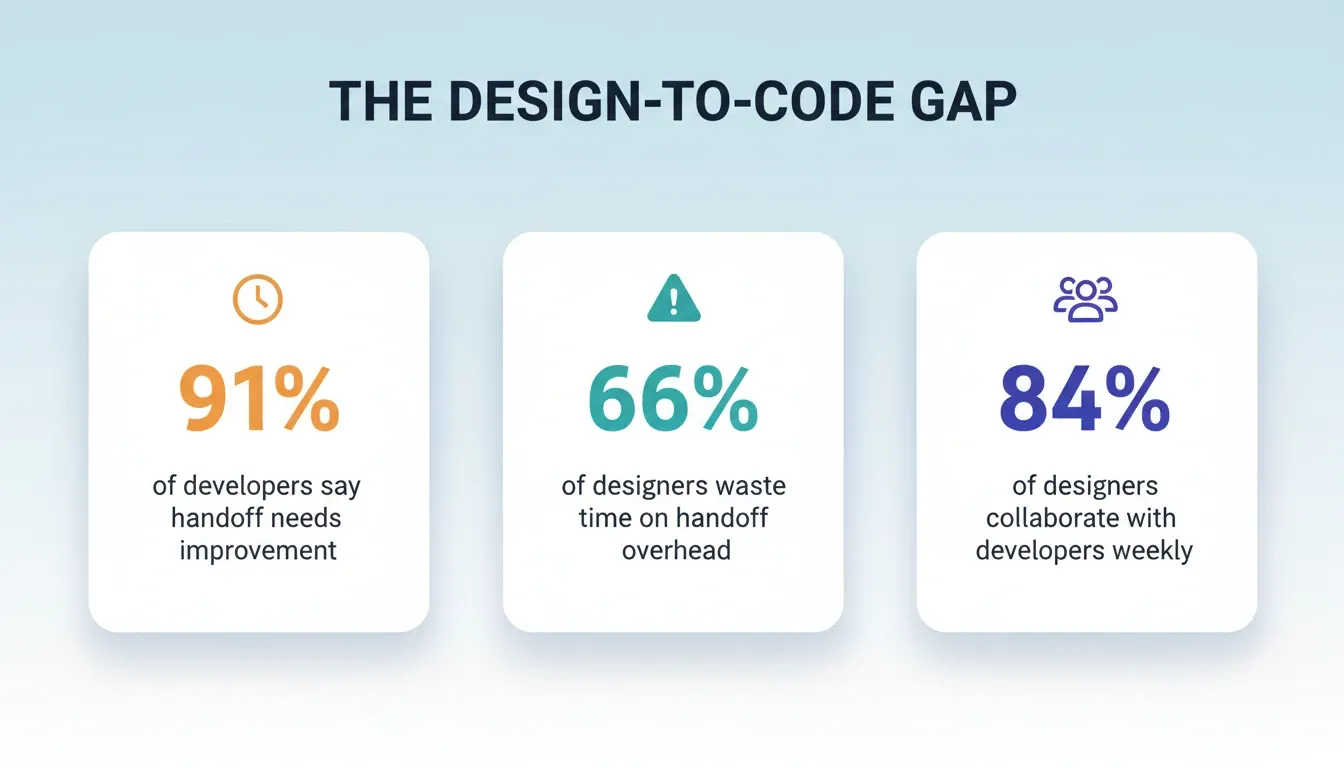
66% of designers waste 25 to 50% of their working time on handoff overhead, not actual design work. That means screenshotting, documenting specs, and answering developer questions about spacing values.
-
Static designs lose critical context during handoff. Design system tokens, component variants, and responsive rules exist as visual decisions in Figma. They are not structured code that developers can use directly.
-
Developers receive flat screens and rebuild layout logic from scratch. They guess at padding values, reconstruct component hierarchies, and introduce subtle differences the designer catches weeks later in QA.
According to a 2026 study, 91% of developers say the design handoff process needs improvement (Figma to Azure). That number has barely moved in three years.
These pain points add up: context loss, duplicated effort, and a design process that turns every update into a mini-project. For a detailed breakdown of tools that address this, see this comparison of Figma-to-code AI tools.
How Do AI Tools Turn Figma Designs into Real Apps?
The shift from manual handoff to AI-powered conversion follows a clear pattern. Understanding how these tools work helps you pick the right one.
Most AI tools connect to the Figma API and read the full layer tree. They parse frames, components, auto-layout settings, typography, spacing, and color tokens. They read the design system structure, not just the pixels on screen.
The key step is intent extraction. A good tool recognizes that 24px padding is a spacing token, not a random number. It maps Figma components to code components and auto-layout frames to flex containers with proper CSS values. The output is structured and maintainable, not hardcoded coordinates.
From there, the tool generates code in frameworks like Next.js or Flutter. The output includes structured components, responsive layout logic, and production-ready CSS. Some platforms generate a working app directly from the Figma file with a single import action.
According to Figma's 2025 State of the Designer report, 84% of designers collaborate with developers at least weekly. The closer designers and developers work together, the more they feel the friction of translating static designs into real apps.
Here is a simplified view of how most AI-powered design-to-code workflows operate:
What Should You Look for in a Design-to-App Platform?
Not all tools deliver the same quality. The wrong choice costs more time than it saves. Here are the factors that separate a platform that ships production apps from one that stops at front-end code.
| Feature | Why It Matters |
|---|---|
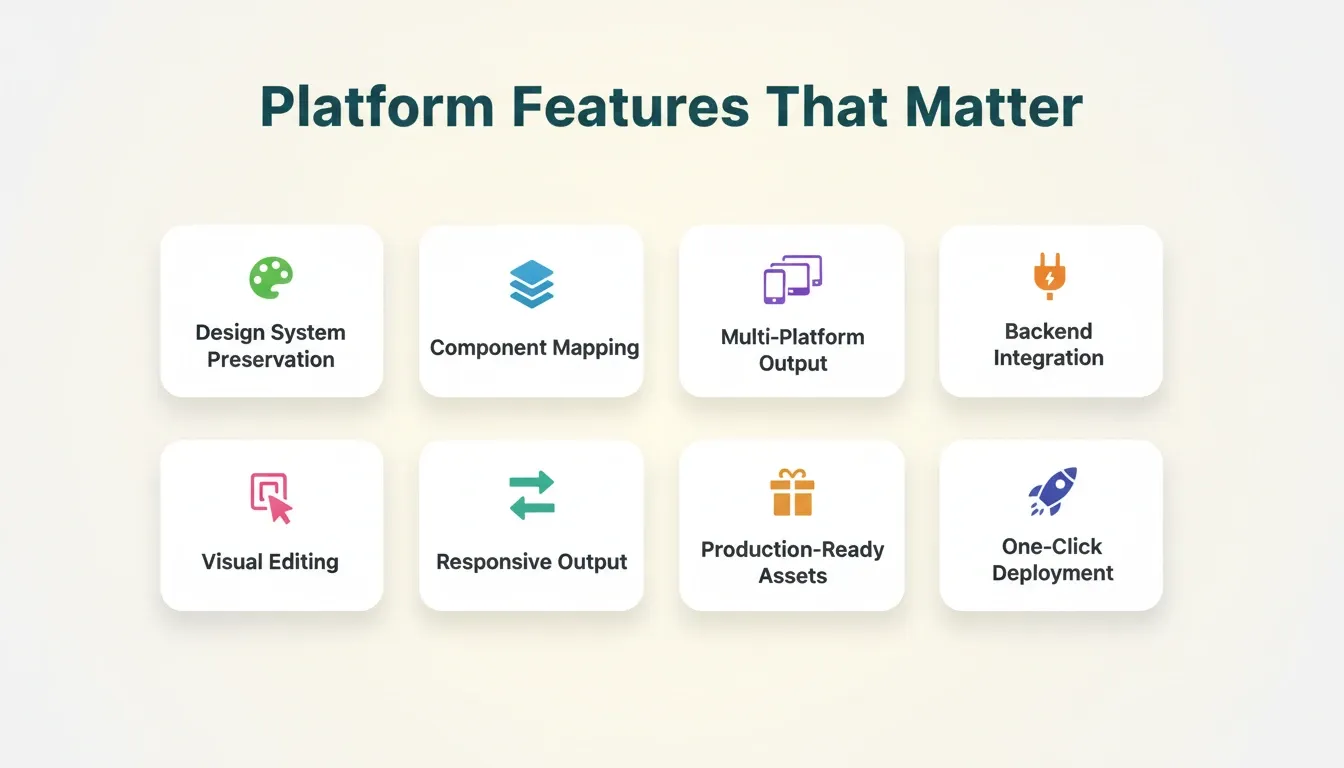
| Design system preservation | The tool should read tokens, not just colors and font sizes. A preserved design system means consistent, production-ready code output. |
| Component mapping | Figma components should map to reusable code components. Flattening the hierarchy loses the structure that makes code maintainable. |
| Multi-platform output | Support for Flutter (iOS and Android) and Next.js (web) covers more use cases from a single Figma file. |
| Backend and integration support | Front-end code alone is not a product. The platform should connect authentication, databases, and payment services during generation. |
| Visual editing after generation | Pixel-level adjustments should be possible without rewriting prompts. |
| Responsive output | If the generated code only works at one viewport width, it is not ready for production. |
| Production-ready assets | Optimized images, icons, and SVGs should be exported alongside the generated code. |
Tools that focus on mobile prototyping from Figma files often lack full code generation. Others generate front-end code without touching backend logic, databases, or authentication. The right choice depends on whether you need a prototype or a shipped product.
For a deeper look at how spacing and design decisions carry through to production code, read about preserving every spacing decision from your Figma file.
How to Build Apps from Figma with Rocket: Step-by-Step
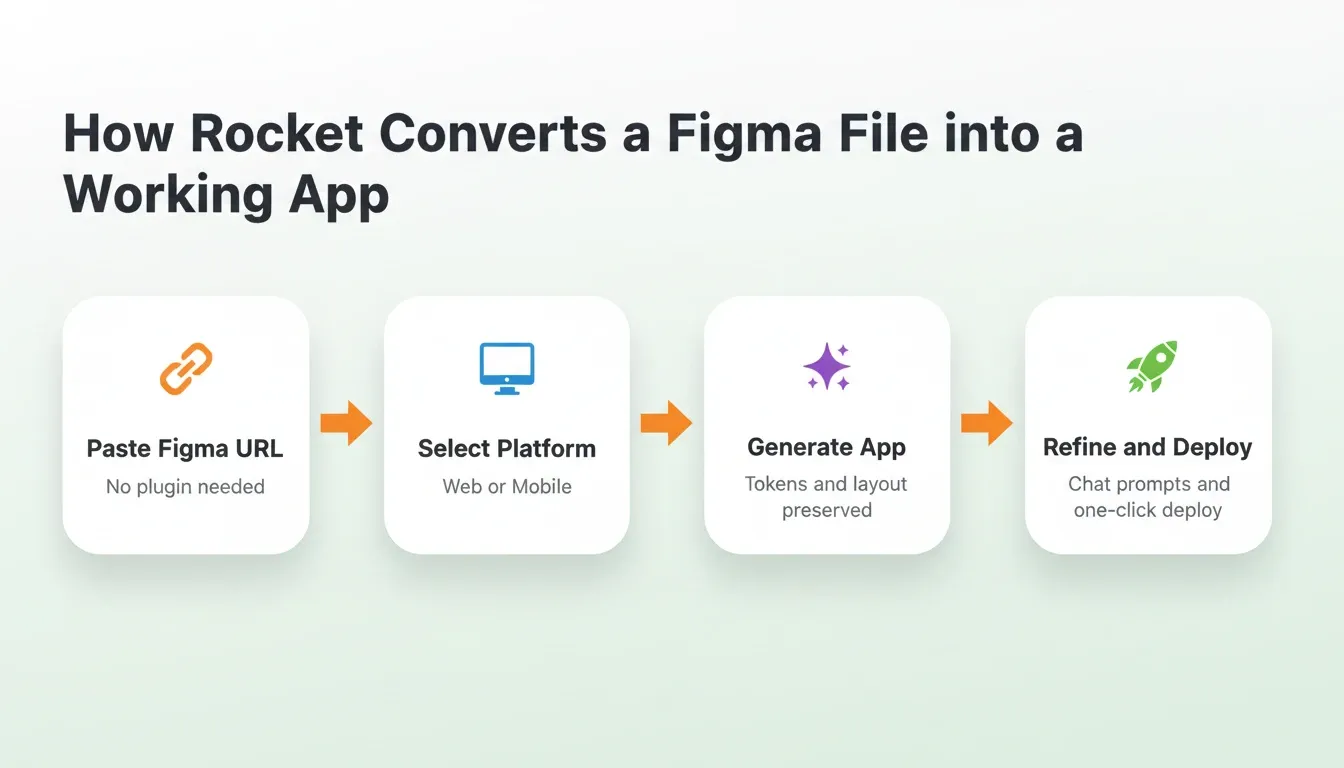
Rocket is a vibe solutioning platform that combines strategic research, AI app building, and competitive intelligence in one system. Its Build pillar takes Figma designs and turns them into production-grade, deployable apps. The Figma import flow is URL-based and requires no plugin.
Step 1: Get Your Figma URL
Copy your Figma file or frame URL. You need view or edit access to the file. Individual frames and full files both work.
Step 2: Paste the URL into Rocket
Go to Rocket and paste the Figma URL directly into a new Build task. No export, no plugin installation, and no manual asset transfer is needed.
Step 3: Select Your Platform
Choose Web to generate a Next.js app, or Mobile to generate a Flutter app for iOS and Android. Flutter output is ready for App Store and Google Play submission.
Step 4: Generate, Then Refine
Rocket reads your layout, auto-layout settings, component structure, spacing tokens, and color system. It then generates a full working app. After the initial generation, refine using natural language prompts in chat:
For pixel-level adjustments, use Rocket's visual editor to click any element and update it directly. You do not need to write a new prompt.
What Rocket Preserves from Your Figma File
Design system fidelity is exact. Rocket's parser extracts intent, not just appearance. A 24px padding value becomesp-6in Tailwind, mapped to the correct spacing token. Typography, border radius, and interface colors match the Figma file exactly.
Component hierarchy is maintained. Figma components map to reusable code components, not flattened divs. The structure that makes your design maintainable carries through to the codebase.
Responsive layout logic is generated. Auto-layout frames become flex containers with proper CSS. The output works across screen sizes, not just at the viewport width you designed for.
Integrations That Connect During Generation
Rocket includes 26+ connectors that wire into the codebase during generation. Say "add Stripe payments" or "connect Supabase authentication" in chat, and Rocket builds it into the existing codebase with full context. Stripe, Supabase, Mailchimp, Notion, and 20+ other services connect at the platform level.
Rocket's Three Pillars: Beyond Just Building
Rocket is not only a building tool. It covers the full arc from thinking to building to operating. Each pillar feeds into the others.
Solve runs market research, validates ideas, and produces structured reports before you write a single line of code. You type a business problem. Rocket researches it, maps the landscape, and delivers findings with a recommendation ready to act on.
Build generates production-ready Next.js web apps and Flutter mobile apps from natural language or a Figma URL. The output includes routing, screens, reusable components, responsive layout, and backend logic. You deploy to a live URL with one click.
Intelligence monitors competitors continuously. Pricing changes, messaging shifts, and hiring spikes get surfaced in a live dashboard. Rocket tells you what they mean together, not just that they happened.
Each pillar works independently. Use one, two, or all three depending on what you need.
Rocket Plans at a Glance
Rocket runs on a credit-based system. One credit balance powers Build, Solve, and Intelligence. All paid plans include unlimited team members.
| Plan | Price | Credits | What's Included |
|---|---|---|---|
| Free | USD 0 | 20 (one-time) | Build production-ready apps + Light Solve |
| Pro | USD 25/mo | 100/month | Build + Light Solve |
| Rocket | USD 50/mo | 250/month | Build + Full Solve (auto-routed) + Intelligence |
| Booster | USD 250/mo | 1,500/month | Build + Full Solve (auto-routed) + Intelligence + premium support |
Annual billing saves 20%. Credits can be added on top of any active subscription.
How Does AI Compare to Manual Coding from Figma?
The question is not whether AI replaces developers. It is about which parts of the workflow AI should handle and which still need a human.
Speed difference is dramatic. Manual coding from Figma designs typically takes days to weeks for a single set of screens. AI tools produce a working app in minutes. Raw speed only matters if the output is clean enough to build on.
Iteration cycles shrink significantly. With manual coding, updating a color token or adjusting spacing across all components means tracking down every instance. AI regeneration handles these updates in seconds.
Backend logic is still the dividing line. Most Figma-to-code tools handle the interface layer, not data models, authentication, or API connections. This is where the gap between a prototype and production software appears. Platforms that close this gap wire backend logic alongside the UI during generation.
"Design and code are starting to merge in a very real way... teams can convert working UI code into structured components without rebuilding everything manually." — LinkedIn
For a detailed look at why Next.js and Flutter produce the cleanest AI-generated output from Figma, see why Rocket generates Next.js and Flutter.
| Dimension | Manual Coding | AI-Powered |
|---|---|---|
| Initial build time | Days to weeks per screen set | Minutes from Figma import |
| Design fidelity | Depends on developer interpretation | Exact token and component mapping |
| Iteration speed | Track down every instance manually | Regenerate in seconds from a prompt |
| Backend integration | Separate work, separate tools | Wired in during generation |
| Deployment | Separate CI/CD setup required | One-click deploy from the platform |
Who is This Workflow For?
The Figma-to-app workflow with AI is not limited to one role. Here is who benefits most:
-
Designers who want to validate their work as a real, interactive product rather than a static prototype. Import your Figma file, generate the app, and share a live URL with stakeholders in minutes.
-
Founders and product managers who have a designed MVP ready and want to ship it without waiting on a development team. Rocket generates the full stack from the design file.
-
Developers who want to skip the tedious layout translation work and focus on logic, integrations, and edge cases. Start from a pixel-accurate base rather than rebuilding from scratch.
-
Agencies and freelancers who need to turn client Figma files into working products quickly. The URL-based import means no back-and-forth over export formats or plugin compatibility.
Common Mistakes When Converting Figma Designs to Code
Even with AI handling the heavy lifting, a few avoidable mistakes slow teams down:
Unorganized Figma files produce messy output. Unnamed layers, ungrouped elements, and missing auto-layout settings reduce the quality of the generated code. Clean, well-structured Figma files produce the best results.
Treating the first generation as final. The initial import is a starting point. Use chat prompts to refine interactions, add backend logic, and connect integrations. The best output comes from iteration.
Designing for one screen size only. If your Figma file only has desktop frames, responsive behavior will be inferred. Add mobile frames to your Figma file for more accurate responsive output.
Skipping the integration step. A front-end app without authentication, a database, or payment handling is a prototype, not a product. Connect Supabase and Stripe during the generation step, not as an afterthought.
Your Figma Designs Belong in Production
The distance between a finished Figma file and a shipped product used to be measured in weeks and developer hours. AI-powered tools have compressed that gap to minutes for the initial conversion, with real design fidelity that holds up in production.
The teams getting the most value treat Figma as a build input, not a handoff artifact. If you have Figma designs ready and a product to ship, the workflow is clear: paste the URL, select your platform, generate, refine, and deploy. The design decisions your team already made are the hardest part. The code translation no longer needs to be.
The Gap Between Design and Deployment Is Closing
The ability to build apps from Figma using AI is no longer experimental. It is the fastest path from a finished design to a deployed product. As AI code generation matures, the quality of first-generation output will keep improving, and the gap between what a designer envisions and what ships will continue to narrow.
1.5 million people have tried Rocket across 180 countries. The ones moving fastest are the ones who stopped treating design and development as separate phases. You have the Figma file. Paste it into Rocket and ship the product.
Table of contents
- -Why Does the Design-to-Code Gap Still Exist?
- -How Do AI Tools Turn Figma Designs into Real Apps?
- -What Should You Look for in a Design-to-App Platform?
- -How to Build Apps from Figma with Rocket: Step-by-Step
- -Step 1: Get Your Figma URL
- -Step 2: Paste the URL into Rocket
- -Step 3: Select Your Platform
- -Step 4: Generate, Then Refine
- -What Rocket Preserves from Your Figma File
- -Integrations That Connect During Generation
- -Rocket's Three Pillars: Beyond Just Building
- -Rocket Plans at a Glance
- -How Does AI Compare to Manual Coding from Figma?
- -Who is This Workflow For?
- -Common Mistakes When Converting Figma Designs to Code
- -Your Figma Designs Belong in Production
- -The Gap Between Design and Deployment Is Closing