The Linear MCP server lets AI clients like Claude and Cursor read, create, and update your issues via OAuth. Set it up in minutes, automate sprint summaries and bug triage, then use Rocket.new's separate OAuth connector to turn tickets into shipped Next.js or Flutter apps.
Linear's MCP server is a hosted endpoint athttps://mcp.linear.app/mcpthat lets AI clients read, create, and update Linear issues, projects, and comments. Connect with OAuth in minutes; no API key required.
Use the /mcp/readonly endpoint for read-only access. Once connected, AI agents can summarize sprints, triage bugs, and generate structured issues from a planning document.
What is The Linear MCP Server?
The Model Context Protocol (MCP) is an open standard for connecting AI applications to external systems. It acts as a shared connector: one interface for AI clients to query tools, read data sources, and trigger actions across services.
MCP is hosted under the Linux Foundation's Agentic AI Foundation (established December 2025) and is supported by Anthropic, OpenAI, Google, and Microsoft.
Linear's MCP server follows the authenticated remote MCP spec, using Streamable HTTP as its primary transport. The server is centrally hosted and managed by Linear, so there is nothing to install or maintain on your end.
MCP adoption has grown rapidly, with over 97 million monthly SDK downloads recorded in official figures, and Linear was among the first project management tools to ship a hosted MCP server.
To understand how MCP fits into broader AI agent workflows, see how MCP powers full-stack app development across different tools and platforms.
What Can The Linear MCP Server Read, Write, And Search?
Linear's MCP server gives AI clients direct access to your workspace data across four action types.
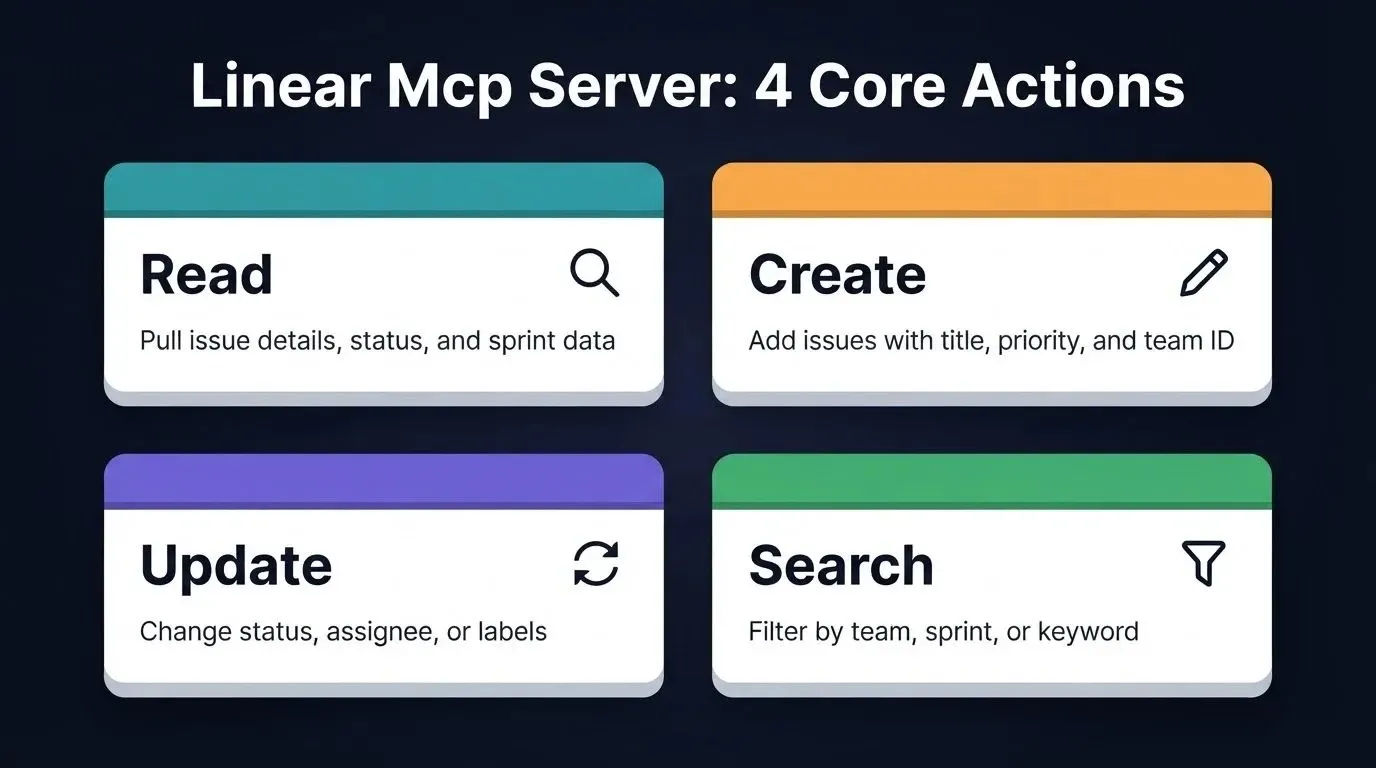
The four action types available through the Linear MCP server to any compatible AI client.
| Action | What The Server Provides | Example Prompt |
|---|---|---|
| Read | Issue details, project status, comments, descriptions, sprint data | "Show all P1 bugs from this sprint" |
| Create | New issues with title, priority, team ID, and default status | "File a bug for the broken login flow" |
| Update | Change status, assignee, labels, or issue description | "Move LIN-342 to Done" |
| Search | Filter by team, sprint, label, keyword, or workflow states | "List blocked items in the Backend team" |
Reading from your workspace
-
Pull issue details including title, description, status, assignee, priority level, and labels
-
Read full project briefs, milestones, and dependencies
-
Fetch current sprint data for any team using team ID
-
View comments and activity logs on existing issues
Creating and updating work
-
Create issues with title, description, priority, initial status, and team ID
-
Add comments with Markdown-formatted text
-
Update status, priority, assign new owners, or change labels on any issue
Filtering and searching
-
Search across issues by keyword, label, assignee, or query terms
-
Filter by team ID, project status, priority, or specific workflow states
-
Scope results to a current sprint or list items for the current user
These four action types cover the majority of day-to-day project management interactions. Teams using AI agents for issue management report significant reductions in manual sprint prep and triage time.
How To Set Up The Linear MCP Server In Your AI Client
Linear hosts the MCP server at https://mcp.linear.app/mcp. No local install is required. The interactive setup uses OAuth 2.1 with dynamic client registration. You can also authenticate with a bearer token or Linear API key. See the FAQ for details.
Read-only access: connect tohttps://mcp.linear.app/mcp/readonly, or use the standard/mcp endpointand request only the read OAuth scope. Either approach blocks all write operations at the token level.
| Client | Method | Setup Step |
|---|---|---|
| Claude.ai (Team/Enterprise) | Native | Connectors page, connect Linear |
| Claude Desktop (Free/Pro) | Native | Settings, Connectors, add Linear |
| Claude Code | Native | claude mcp add--transport http linear-serverhttps://mcp.linear.app/mcp, then run/mcp |
| Codex | Native | codex mcp add linear--url https://mcp.linear.app/mcp, then codex mcp login linear |
| Cursor | Native | Click install link or search Linear in Cursor's MCP tools directory |
| v0 by Vercel | Native | Add from the connections page |
| Jules (Google) | API Key | Generate a Linear API key in Settings, Security and Access, then paste in Jules MCP Settings |
| VS Code | mcp-remote | Add config below |
| Windsurf | mcp-remote | Add config below |
| Zed | mcp-remote | Add config below |
For VS Code, Windsurf, and other mcp-remote clients:
1{
2 "mcpServers": {
3 "linear": {
4 "command": "npx",
5 "args": ["-y", "mcp-remote", "https://mcp.linear.app/mcp"]
6 }
7 }
8}
Enterprise-managed auth: if your organization uses Okta, configure SAML for Linear via Okta's OIN, then enable MCP enterprise-managed authentication in your Linear Okta identity provider settings. This lets supported clients like Claude authenticate users automatically using your Okta-managed access policies.
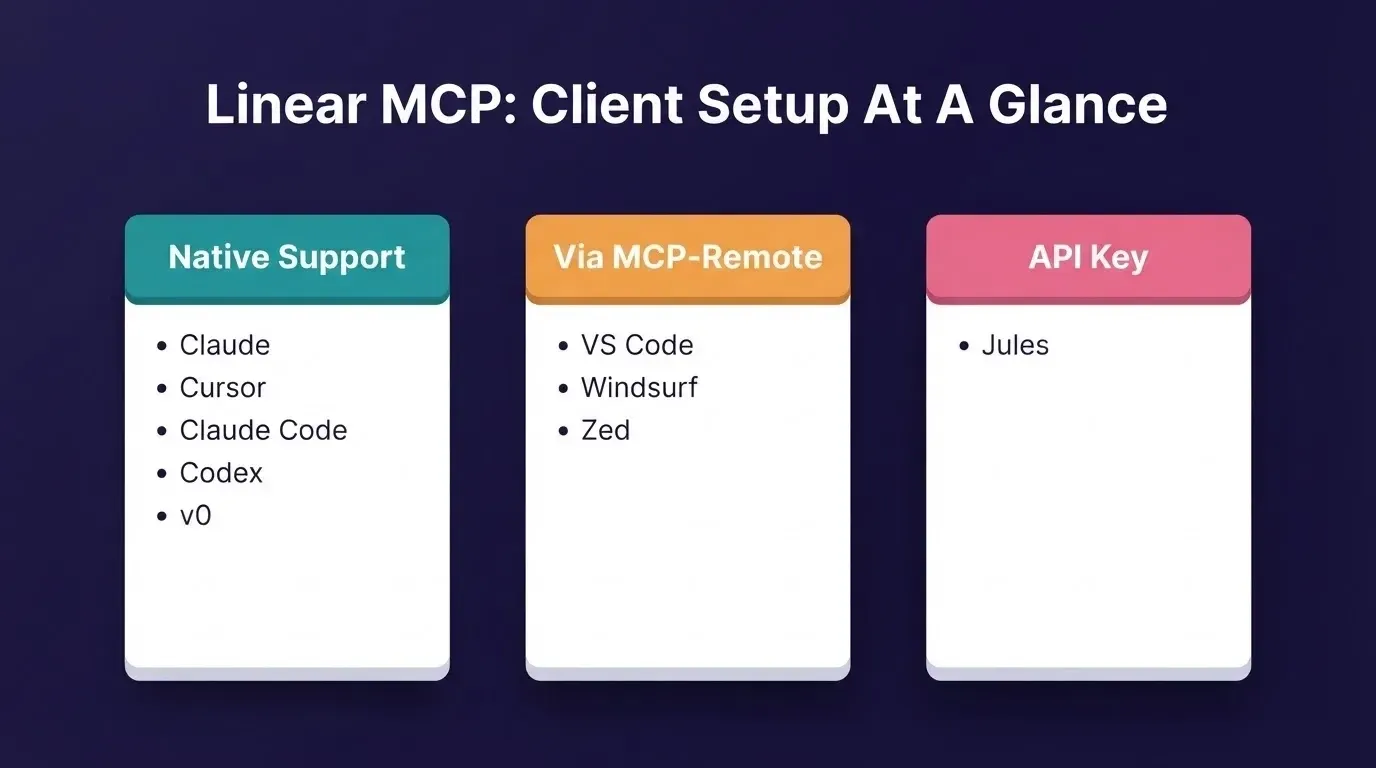
Which clients connect natively, which need mcp-remote, and which use an API key.
Note on Rocket.new's Linear connector: Rocket.new connects to Linear through its own OAuth connector, which is a separate integration from Linear's MCP server. You do not need to configure the MCP server to use Rocket.new with Linear. See the Rocket.new Linear connector docs for setup.
What Can Development Teams Actually Automate?
Once connected, the practical use cases go well past reading a single ticket. Linear's own documentation includes copy-paste example prompts for each of these patterns. For teams already using AI agents for sprint planning, the Linear MCP server slots directly into existing workflows.
Summarize A Sprint Or Cycle
Ask your AI client to identify the most recently completed cycle for a team, gather the relevant issues, and produce a summary of what was accomplished. The server pulls status, priority, and assignment data for a summary that would otherwise take fifteen minutes of manual filtering.
Example prompt from Linear's docs:
Identify the most recently completed cycle for the [LIN, FEA] teams, gather the relevant issues, and produce a concise summary of what was accomplished.
Turn Rough Ideas Into Structured Issues
Paste a planning document and ask the agent to create a project with issues, milestones, and relationships. Before creating anything, the agent shows the proposed structure for review, so you stay in control of what lands on your board.
Example prompt from Linear's docs:
Read the document, create a project that reflects its objective, scope, and timeline, then create the issues needed. Before creating anything, show the proposed project, milestones, issues, and any decisions that need review.
Triage And Investigate Incoming Bugs
Point the agent at a bug ticket. It reads the description and linked context, searches for the most likely root cause, and posts a concise findings summary as a comment on the issue. The server handles listing, searching, and updating in a single session.
Update Issues From Standup Notes
Paste raw standup notes. The agent matches each note to an existing issue by ID, title, or context, then posts a concise comment capturing what changed, the current status or blocker, and the next step. Ambiguous notes are flagged rather than guessed.
Token note:* Linear's MCP server is context-rich by design. Complex queries that pull many issues at once can consume significant tokens. Scope requests to a specific project or issue where possible, rather than asking the agent to read the full workspace backlog.*
Teams building with Rocket.new can take this further. For a deeper look at how MCP servers connect to AI agents, the pattern applies across Linear, Notion, GitHub, and other tools.
MCP Adoption: Why Development Teams Are Moving Fast
The Model Context Protocol has seen rapid adoption since Anthropic open-sourced it in late 2024. Over 97 million monthly SDK downloads were recorded in official figures, and the number of registered MCP servers has grown into the thousands. Linear, Notion, GitHub, and Stripe are among the services that now offer hosted MCP endpoints.
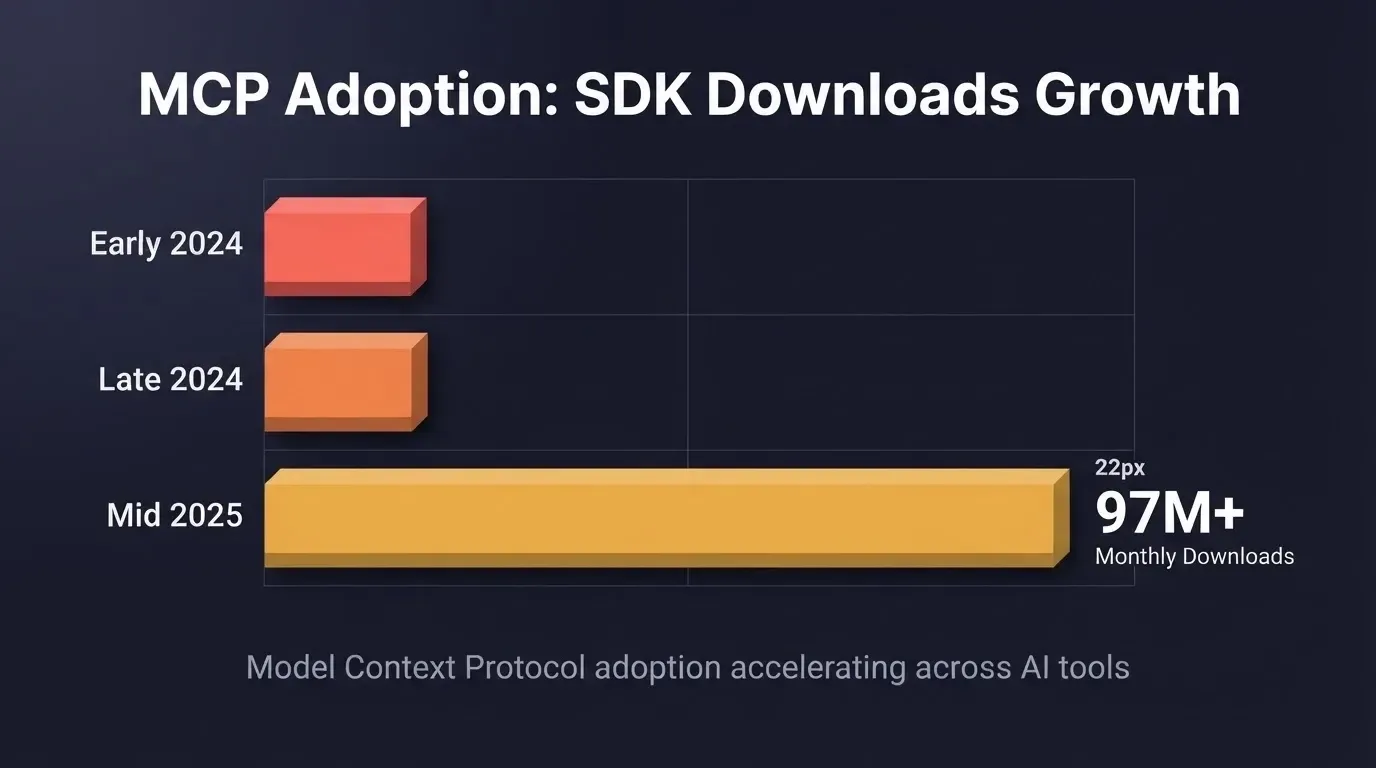
MCP adoption has accelerated sharply since the protocol's open-source release.
For development teams, this means the tooling is mature enough to rely on in production workflows. The ecosystem around MCP is growing faster than any previous integration standard in the AI tooling space. Teams that connect their issue trackers now are building habits and workflows that compound over every sprint.
If you are evaluating whether to build your own MCP server or use hosted ones, the MCP vs API comparison covers the tradeoffs in detail.
How Rocket.new Turns Your Linear Issues Into Shipped Products
The Linear MCP server lets AI agents read and manage your issues. But reading a ticket and building what the ticket describes are two different steps, and they use two different systems.
Rocket.new connects to Linear through its own OAuth connector, separate from the MCP server. Paste a Linear issue URL into Rocket.new's chat, and Rocket.new reads the title, description, and acceptance criteria directly. Then it generates a working Next.js web app or Flutter mobile app with real UI, navigation, and production-ready code.
What Rocket.new Linear connector supports:
-
Build from a ticket. Paste an issue URL. Rocket.new reads the full requirements, edge cases, and acceptance criteria, then generates the implementation.
-
Build from a project. Paste a project URL. Rocket.new reads all child issues and the project brief, then builds the full scope.
-
Fix bugs from reports. Paste a bug ticket URL. Rocket.new reads the screen name, expected vs. actual behavior, and generates a targeted fix.
-
Apply requirement changes. When a ticket is updated, paste the URL and ask Rocket.new to modify the relevant parts of the app.
-
Write back to Linear. After building, ask Rocket.new to create QA tickets, edge case tickets, and testing tasks. Ask it to move the original ticket to Done and leave an implementation comment. Ask it to create a Linear document describing what was built, linked to the original ticket.
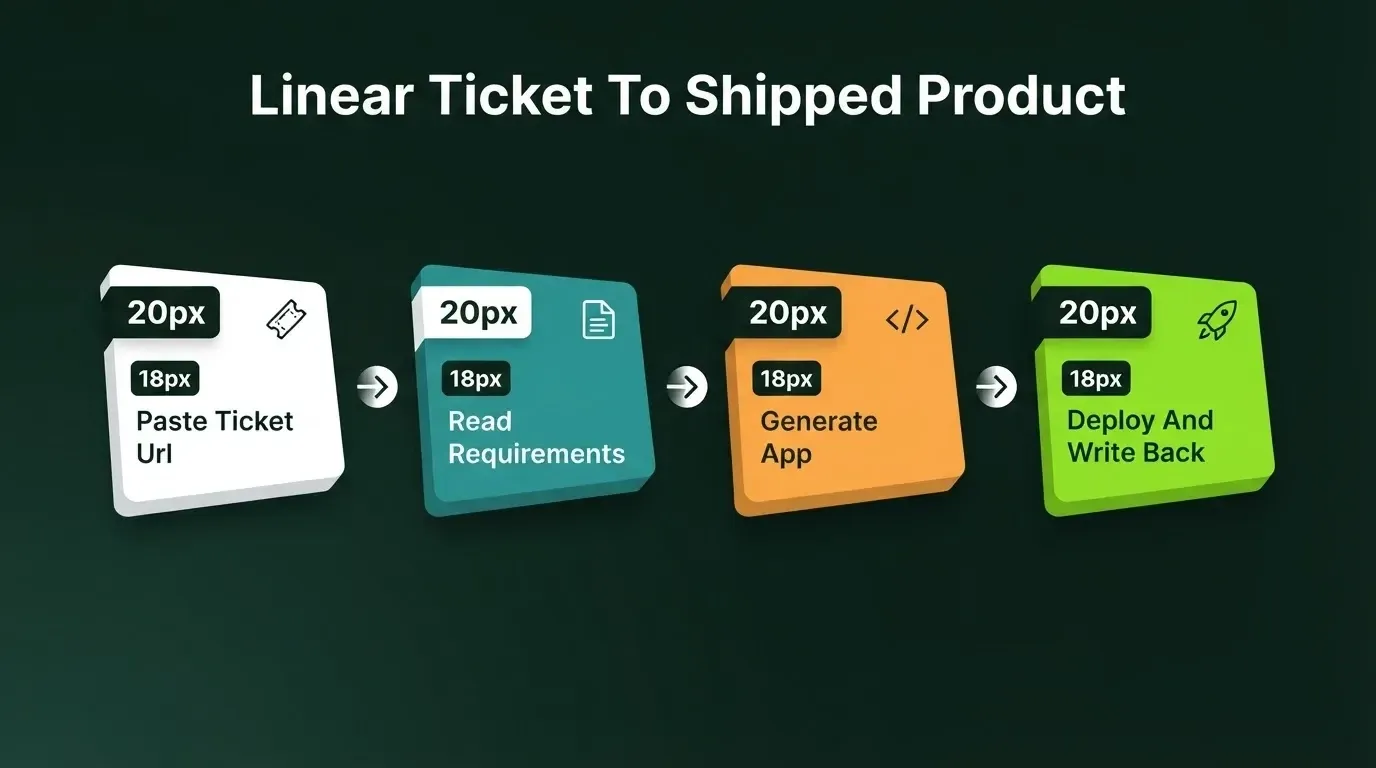
Paste a ticket URL, Rocket.new reads the requirements, generates the app, and writes back to Linear.
Shared project context. Rocket.new's project workspace stores uploaded files, connected services, and prior task outputs. The Linear ticket is one input among many. Rocket.new builds with the full picture.
One-click deployment. Rocket.new deploys your app directly to the web. No separate deployment step required.
Rocket.new supports 26+ service connectors, including Stripe, Supabase, GitHub, and Notion, all available from the same workspace. For teams starting from scratch, you can also build directly from an idea without a ticket, using plain-language prompts to generate a full Next.js or Flutter app.
Permissions, Security, And What Still Needs A Human Review
Permissions and scope
-
The MCP server respects your Linear account access controls. If the connected account cannot read a private team's data, the agent cannot either.
-
Rocket.new's OAuth connector requests read and write access to your Linear workspace. Review the permissions on the authorization screen before connecting.
-
For tighter MCP security, use the read-only endpoint (/mcp/readonly) or request only the read OAuth scope.
Accuracy and edge cases
-
AI agents can misinterpret vague issue descriptions or assign incorrect priority levels.
-
Any issue creation or status update appears on your board immediately with no staging layer. Review AI-generated work before sharing with the broader team.
-
Write-back actions in Rocket.new (creating tickets, updating status) happen when you explicitly ask for them. They are not automatic.
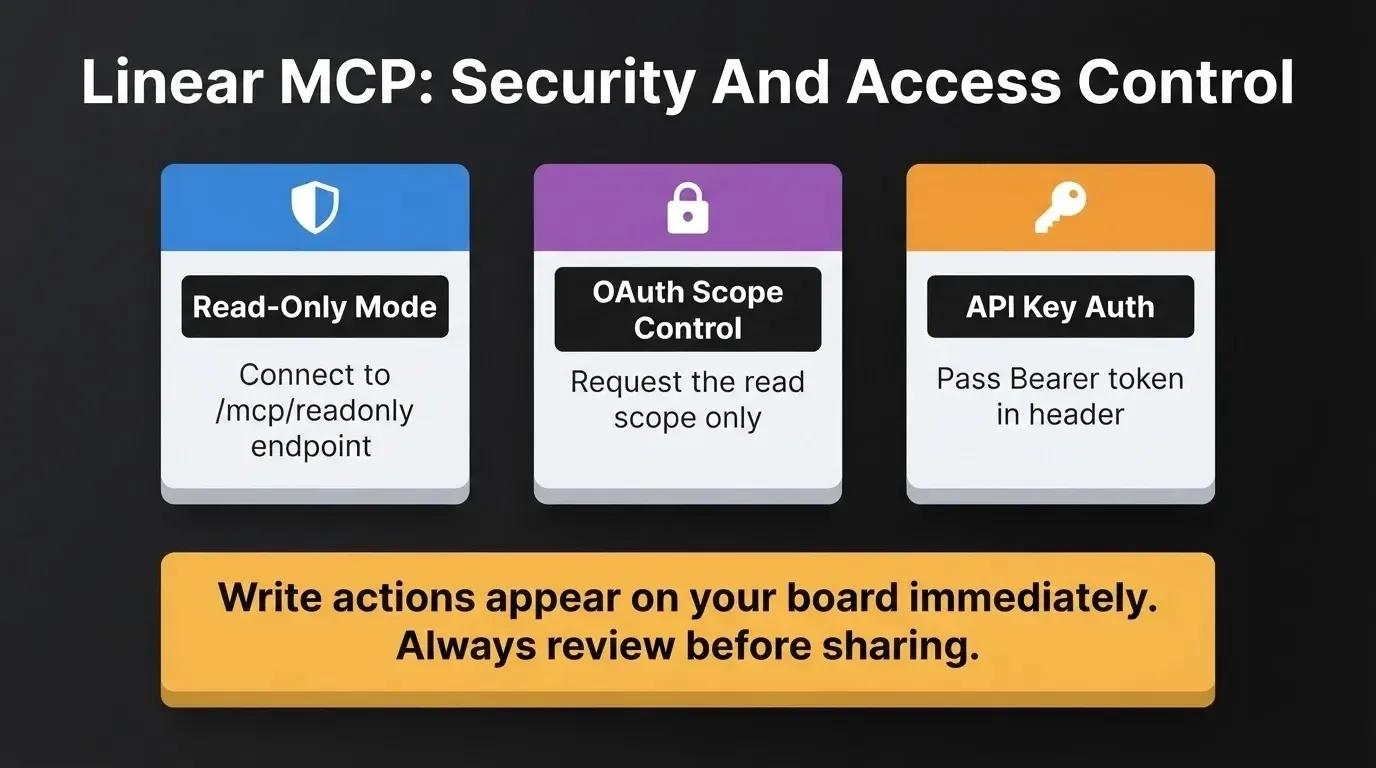
Three ways to control what the Linear MCP server can access in your workspace.
For teams building internal tools with connected services, the Rocket.new connectors overview explains how permissions flow across all 26+ integrations.
Troubleshooting Common Issues
Internal server error when connecting
Runrm -rf ~/.mcp-authin your terminal to clear saved auth info, then reconnect. You may also need to update to a newer version of Node.
Connection dropped or not responding
Try disconnecting and reconnecting the server from your client's MCP settings. This is a routine client-side reset and does not affect your Linear data or authentication session.
WSL on Windows
The default Streamable HTTP connection may not work in WSL. Use the SSE fallback instead:
1{"mcpServers": {"linear": {"command": "wsl","args": ["npx","-y","mcp-remote","https://mcp.linear.app/sse","--transport sse-only"]}}}
Note: /sse is a legacy path for clients that do not support Streamable HTTP. Use/mcpfor all other setups.
Your Ticket Backlog Is Already A Build Plan
Every team accumulates hundreds of issues describing what needs to be built. Connecting your issue tracker to AI agents through the Linear MCP server turns that backlog from a static list into an active source of truth your tools can act on.
The setup takes minutes and the payoff compounds with every sprint. When you are ready to go from spec to shipped product, the same issues that organize your work can generate it.
Ready to go from Linear ticket to live product? Paste a ticket URL into Rocket.new and watch Rocket.new read the requirements and generate the feature. Your backlog already has the blueprint.
Table of contents
- -What is The Linear MCP Server?
- -What Can The Linear MCP Server Read, Write, And Search?
- -How To Set Up The Linear MCP Server In Your AI Client
- -What Can Development Teams Actually Automate?
- -Summarize A Sprint Or Cycle
- -Turn Rough Ideas Into Structured Issues
- -Triage And Investigate Incoming Bugs
- -Update Issues From Standup Notes
- -MCP Adoption: Why Development Teams Are Moving Fast
- -How Rocket.new Turns Your Linear Issues Into Shipped Products
- -Permissions, Security, And What Still Needs A Human Review
- -Troubleshooting Common Issues
- -Your Ticket Backlog Is Already A Build Plan