
Static page not updating? Check browser cache first, then CDN purge, then your build pipeline. Each layer holds old files for different reasons. This guide fixes all three in order, plus shows how smarter deployment workflows prevent the problem from recurring.
When your static page is not updating, the fix is almost always one of three things: clear your browser cache, purge your CDN, or check whether your build pipeline deployed the right branch. This guide walks each layer in order so you can diagnose and resolve stale content in minutes.
How Does Browser Caching Cause Stale Content?
Your browser is designed to save bandwidth and speed up page load times. It does this by storing copies of files locally on your computer or phone.
When you visit a static website, your browser downloads HTML, CSS, JavaScript, and cached images. On your next visit, it serves these saved files from local storage instead of fetching them from the server again.
If you update your site's code but the browser already has old files saved in its cache, visitors see the previous version. The browser does not check for changes until the cached copies expire based on cache-control headers or cookie settings.
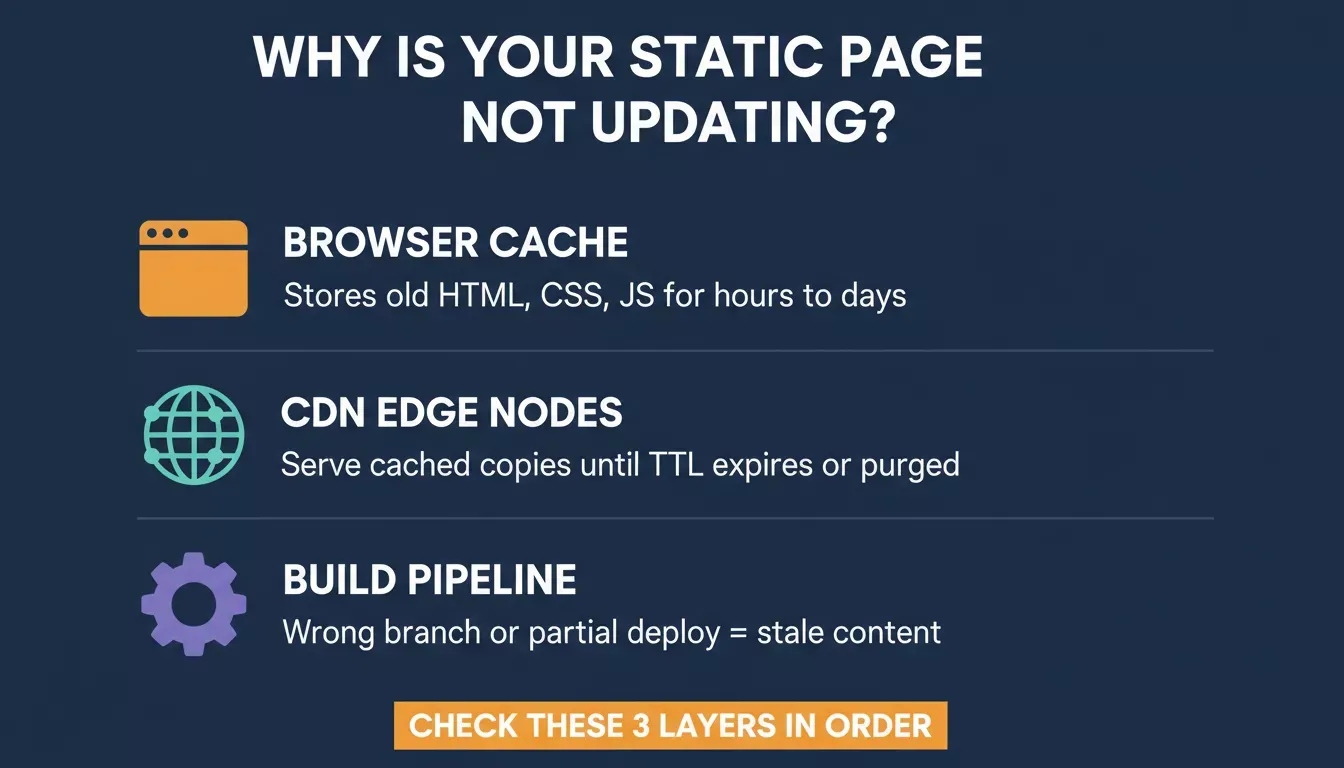
The three layers that cause a static page not to update the browser cache are the CDN edge nodes and the build pipeline
Here is a quick reference for the types of data browsers store:
| Cache Type | What It Stores | Typical TTL | Clear Method |
|---|---|---|---|
| Browser cache | HTML, CSS, JS, cached images | Hours to days | Clear browsing data in settings |
| Cookies | Session data, preferences, privacy choices | Days to years | Select cookies in the privacy settings |
| Service Worker | Offline page shells, scripts | Until manually updated | Unregister in DevTools |
| DNS cache | Domain-to-IP mappings | Minutes to hours | Flush DNS on the desktop |
Your browser cache is the first place to check when changes are not appearing. Clearing it resolves the issue for your machine, but every visitor with saved copies faces the same problem until their cache expires.
What Triggers a CDN to Serve Outdated Files?
Content delivery networks sit between your server and your visitors. They hold copies of your site at edge locations around the world to reduce load times and save bandwidth for users on every device.
When you deploy new files, your origin server updates immediately. But CDN edge nodes still serve their cached version until they receive a purge signal or their TTL expires.
Modern CDNs support instant purge by URL, tag, hostname, or prefix. Cloudflare's engineering team reports global purge propagation under 150 milliseconds for tag-based invalidation. Not every hosting provider offers this speed.
If your domain's DNS configuration points to an old server or an intermediate proxy, the CDN may never see your updated files. Check your domain settings to confirm the correct origin is connected.
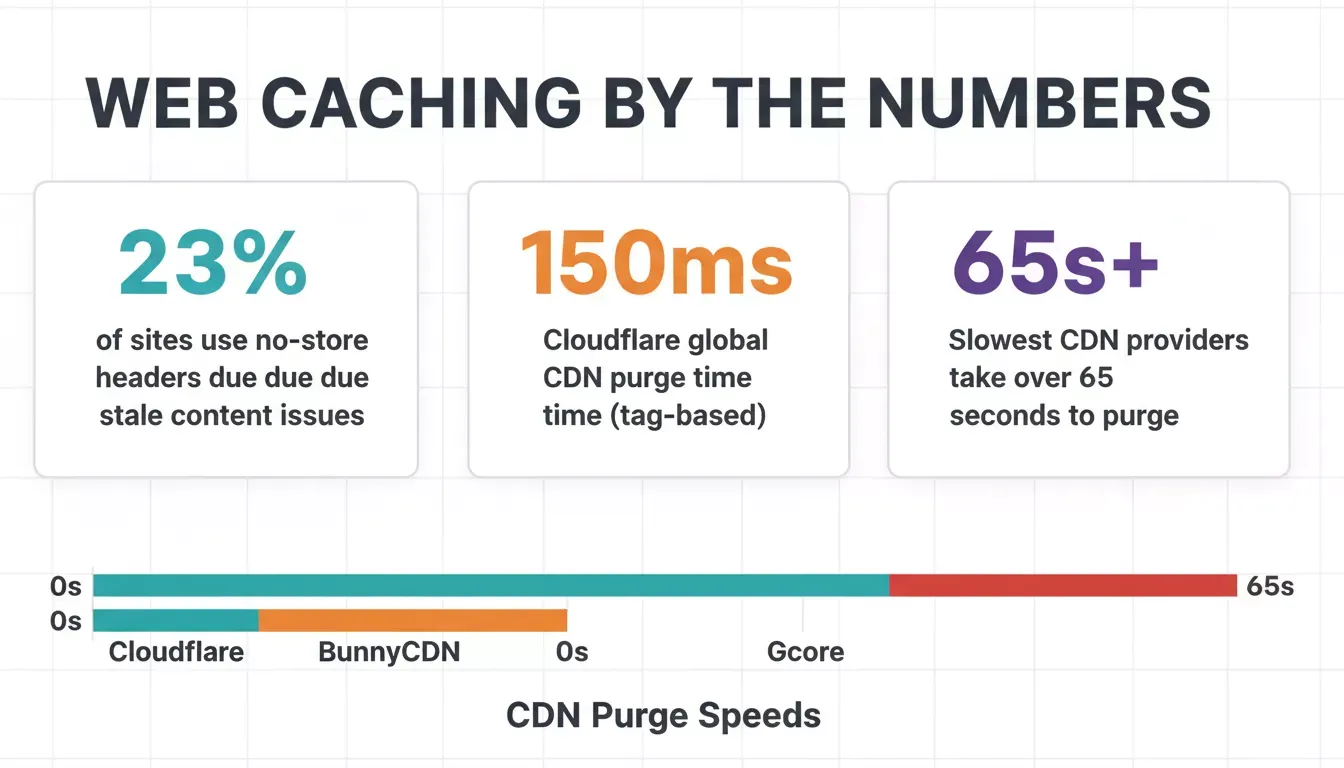
Key caching statistics that show why stale content is one of the web's most persistent deployment problems
The real frustration hits when you have verified your deploy succeeded, but users across different regions still see old content because CDN nodes in those locations have not yet received the purge signal. Choosing a deployment tool with fast CDN propagation makes a measurable difference when your static page is not updating for remote users.
Can Build Pipelines Fail Silently After Deploy?
Sometimes the problem is not caching at all. Your build pipeline may have failed without making it obvious.
Partial deploys are common on some platforms, HTML publishes before CSS and JavaScript finish uploading. Users see broken layouts or old stylesheets for a brief window, and the issue appears as stale content.
Publishing from the wrong branch is surprisingly common. If your build system pulls from main but your changes are on a feature branch, the live site never receives your updates. Check your build log to confirm which commit was deployed correctly.
Frameworks like Next.js add their own caching through Incremental Static Regeneration. A web developer on Dev.to shared this after hitting seven silent caching bugs in production:
"The problem was placement. 'use cache' was on the wrapper function, not inside the actual data function. That one mistake makes Next.js ignore the directive entirely." — Shubhra Pokhariya, Dev.to
Verifying your build log and checking the deployed file timestamps help you figure out whether the problem is caching or a pipeline failure.
Which Fixes Work When Hard Refresh Fails?
A hard refresh bypasses your browser cache and fetches fresh content directly from the server. Here is how to do it across platforms:
-
Chrome on Windows: Hold Ctrl + Shift + R or click Ctrl + F5
-
Chrome on Mac: Hold Cmd + Shift + R
-
Firefox on Windows: Hold Ctrl + Shift + R
-
Firefox on Mac: Hold Cmd + Shift + R
-
Safari on Mac: Hold Cmd + Option + E to clear the cache, then reload
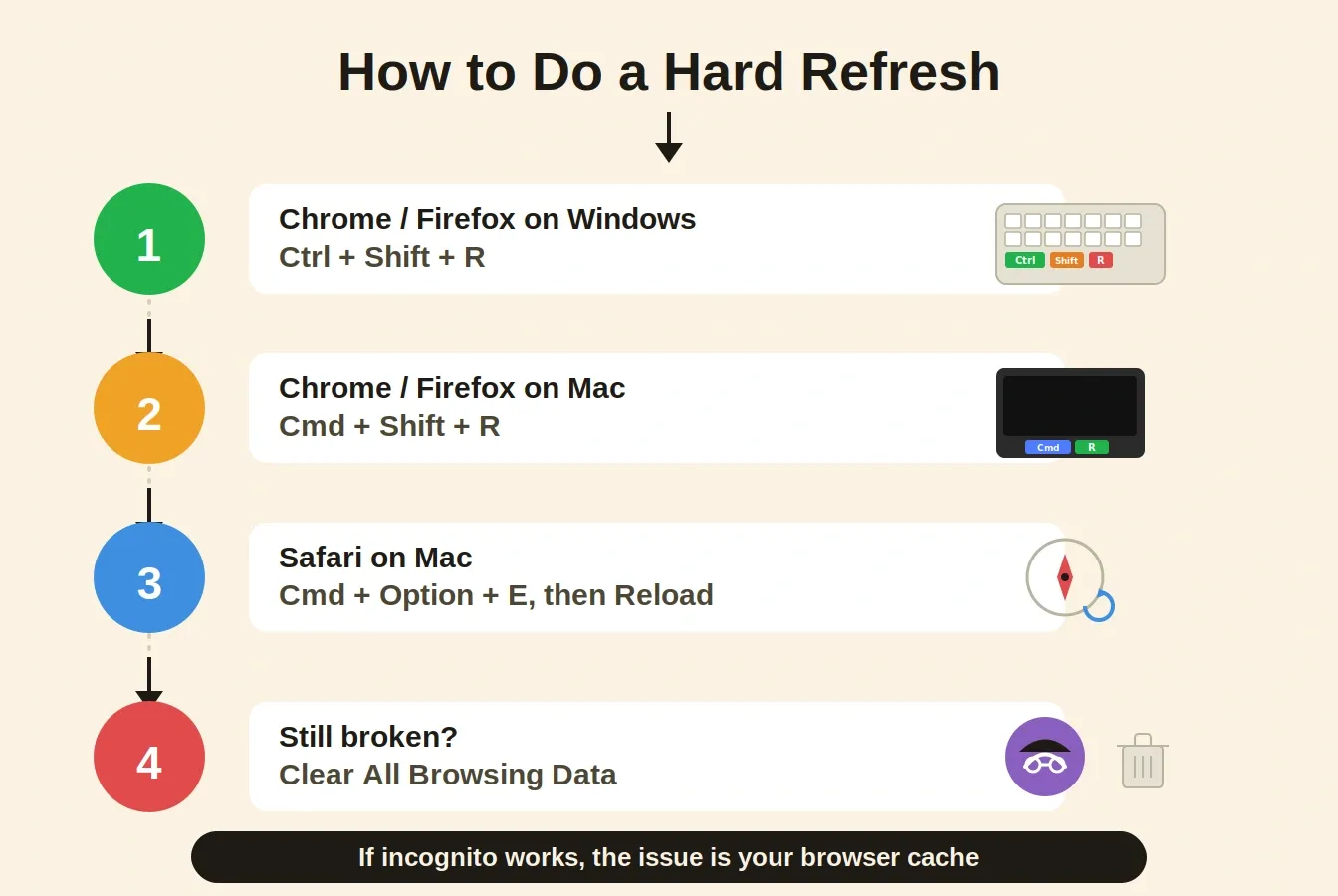
Hard refresh keyboard shortcuts across browsers, and what to try when they still do not work
If a hard refresh does not work, open the site in incognito mode. This rules out browser cache, cookies, and extensions as the cause. If the site shows correctly in incognito mode but not in your regular browser, follow these steps to clear browsing data:
-
Open Chrome or Firefox settings
-
Select "Privacy and Security"
-
Click "Clear browsing data"
-
Select "Cached images and files" plus "Cookies and other site data"
-
Choose a time range and confirm
When the problem persists even in incognito mode, the issue lives on the server side or at the CDN level.
Text decision tree: Site not updating → hard refresh → if fixed: browser cache. If not: incognito → if fixed: clear browsing data. If not: check build log → if failed: fix and redeploy. If passed, purge CDN cache.
Should You Purge Your CDN or Adjust Cache Headers?
When browser-level fixes do not resolve the problem, you need to address the server-side caching configuration.
Most hosting services and CDN platforms offer a "Purge Everything" button in their dashboard settings. Cloudflare, Netlify, and Vercel all provide this. After purging, CDN nodes fetch fresh copies from your origin server on the next request.
If your server sends max-age=86400, browsers and CDNs hold old files for a full day. Set shorter TTLs for HTML files while keeping longer cache durations for versioned static assets like CSS and JavaScript with file hashes.
If you run WordPress, deactivated or misconfigured caching plugins frequently cause this issue. Choose one caching plugin, deactivate the rest, and verify your server-level cache settings are not conflicting.
Appending ?v=2 to file URLs forces browsers to treat the file as new content. This is a quick workaround when you cannot control cache headers directly.
The key insight: always separate your caching strategy for HTML (short TTL, must-revalidate) from static assets (long TTL with content hashing). This provides the best balance between performance and freshness. You can learn more about how vibe coding tools handle deployment differently from traditional setups.
Why Do Mobile Devices Show Older Versions Longer?
Mobile browsers cache content more aggressively than desktop browsers to save bandwidth and reduce data usage for people on limited plans.
Mobile Chrome and Safari prioritize saving bandwidth over freshness. Cached images and page assets persist longer because mobile browsers assume network connections are expensive. This means mobile users often see older versions of your site compared to desktop users.
If your site is accessed through an in-app browser (LinkedIn, X, Facebook), those apps maintain their own cache that you cannot clear from your end. Users need to close and reopen the app or clear the app data from their device settings.
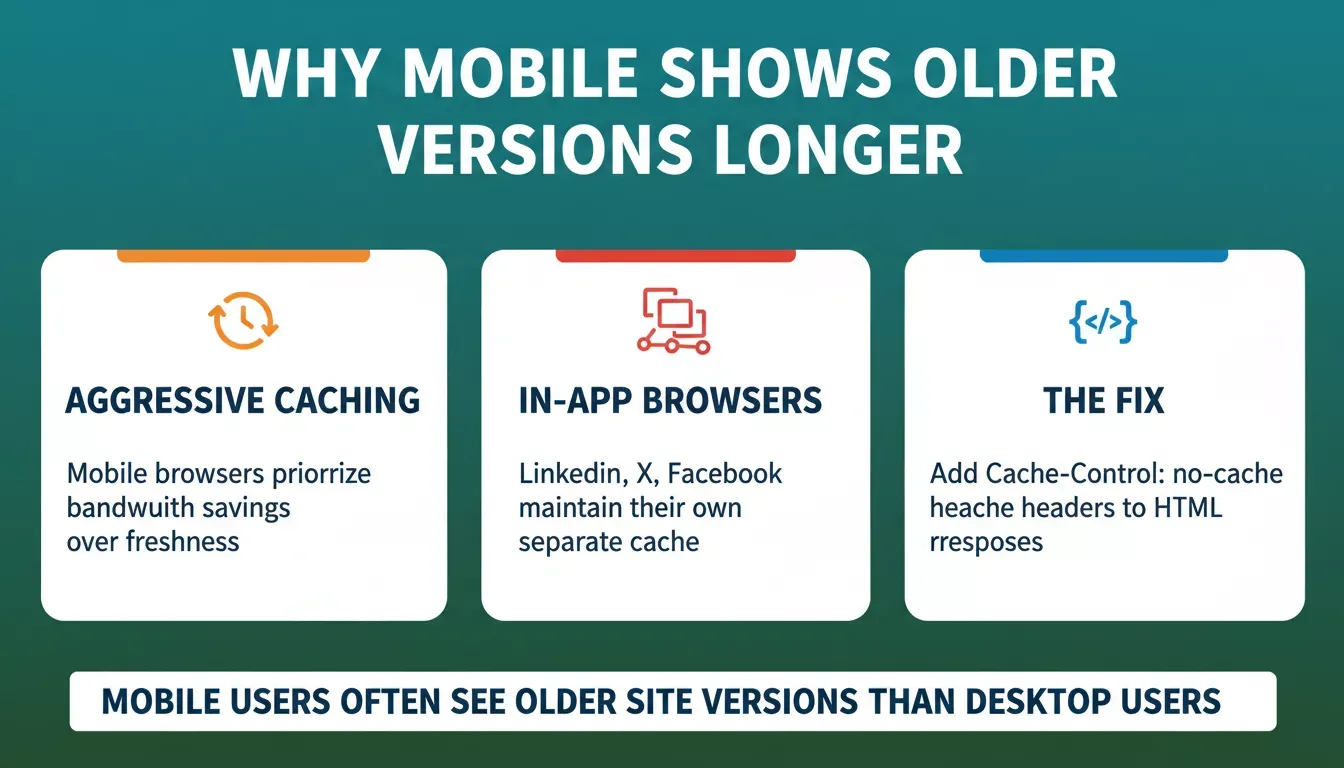
Why mobile devices show older site versions longer, and the three fixes that address each cause
Adding Cache-Control: no-cache, must-revalidate headers to your HTML responses forces mobile browsers to check for the latest version on every visit. For images and CSS, use content-based file names so mobile browsers recognize new files automatically without clearing old cached copies.
Mobile caching issues frustrate both developers and users. When people report "the site looks different on my phone," aggressive mobile caching is usually the explanation. Platforms that handle progressive web app builds bake correct cache headers in from the start, avoiding this problem entirely.
How Rocket Reduces Cache-Related Deployment Friction
Every platform has some version of the static page not updating problem, including Rocket. What Rocket does differently is make the fix faster and the workflow less error-prone.
Staging and production separation: Rocket deploys to a staging URL first. You test there, then promote to production from the Launch dialog. This separation means you catch stale-content issues before they reach real users. Rocket uses Netlify's global CDN under the hood (your own Netlify account or a Rocket-managed one), so you get fast edge delivery without configuring it yourself.
Version history and one-click rollback: Every time Rocket responds to a build message, it saves a new version automatically. You can compare code diffs, roll back to any previous version instantly, or deploy any specific version to staging or production directly from chat, not just the most recent one.
Deliberate publish, not silent auto-deploy: Publishing is a deliberate action; you click Launch, then Update or Relaunch from the Launch panel. This means your live site only changes when you intend it to, and you always know exactly which version is live.
Performance dashboard with cache header detection: Rocket includes a built-in Core Web Vitals dashboard, graded A to F, that you can run on demand for both staging and production environments across desktop and mobile. When it detects issues, including missing cache headers on generated images, it surfaces them with a "Try to fix" button that applies an automatic AI-powered code change.
This uses credits, but it means you do not need to diagnose cache header problems manually. You can also build and deploy a full-stack app without touching a single config file.
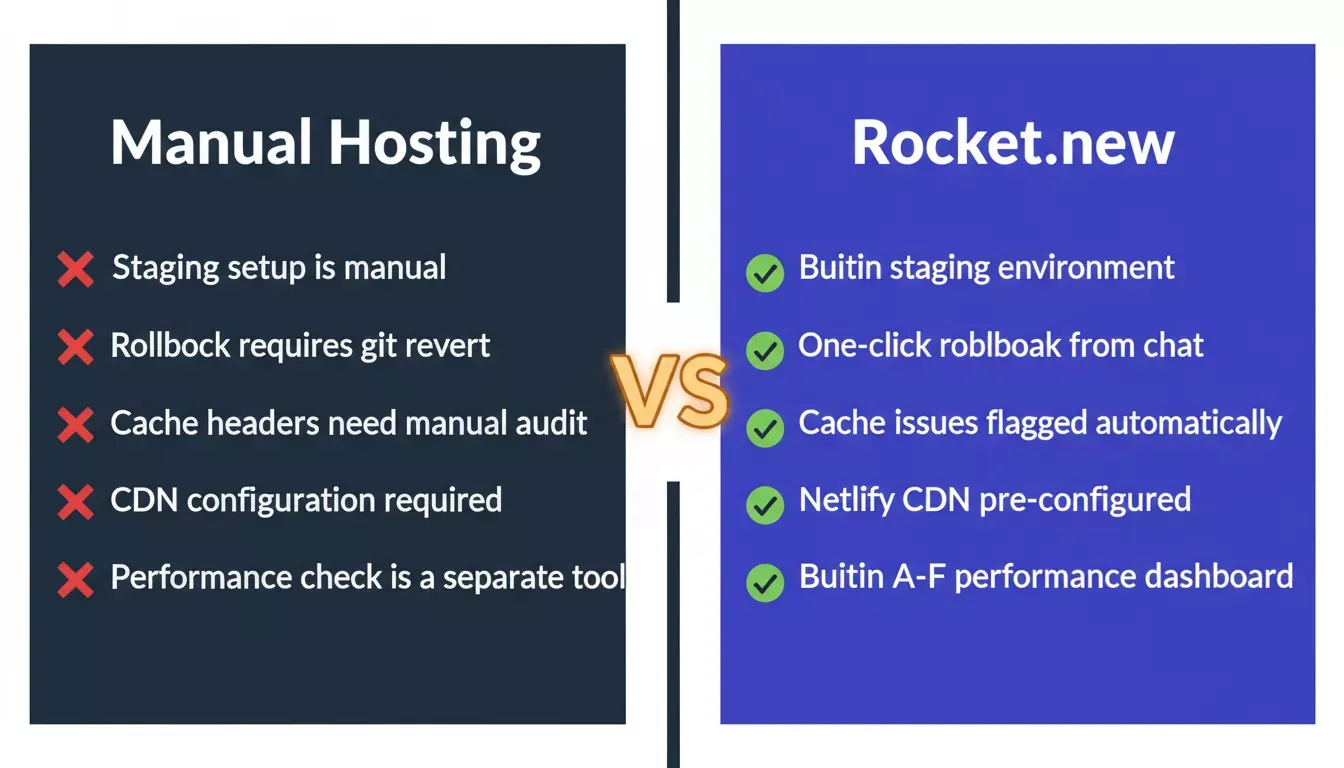
Manual hosting setup versus Rocket.new across five deployment dimensions
| Feature | Manual Hosting | Rocket.new |
|---|---|---|
| Staging environment | Configure separately | Built-in, one-click |
| Rollback | Git revert and redeploy | One click from chat |
| Deploy any version | Requires CI/CD config | Built-in per version |
| Cache header detection | Manual audit | Flagged in the Performance dashboard |
| CDN | Configure yourself | Netlify CDN, pre-configured |
| Performance grading | Separate tool (Lighthouse) | Built-in A to F dashboard |
The honest summary: Rocket does not eliminate the possibility of a stale page, but it eliminates most of the friction around detecting and fixing one. The SEO-ready builds Rocket generates include content hashing for scripts and stylesheets by default, which means browsers automatically treat updated assets as new files without any manual cache-busting.
Rocket also ships WCAG, GDPR, and SEO compliance as defaults, which include proper cache-control directives for static assets baked into every generated project.
Ship Fresh Content Without the Guesswork
Stale pages come down to one thing: something between your server and the visitor is holding onto old files. Whether that is a browser cache, a CDN edge node, or a misconfigured build pipeline, the solutions follow the same pattern. Identify which layer is stale and force it to fetch fresh content.
23% of sites now use Cache-Control: no-store headers specifically because stale content remains one of the web's most persistent frustrations. You are not alone in this, but with the right workflow, you do not have to keep debugging it manually.
Stop fighting cache layers one deploy at a time. Build and deploy your next project on Rocket.new where staging, rollback, version history, and performance monitoring are built into every project from day one.
Table of contents
- -How Does Browser Caching Cause Stale Content?
- -What Triggers a CDN to Serve Outdated Files?
- -Can Build Pipelines Fail Silently After Deploy?
- -Which Fixes Work When Hard Refresh Fails?
- -Should You Purge Your CDN or Adjust Cache Headers?
- -Why Do Mobile Devices Show Older Versions Longer?
- -How Rocket Reduces Cache-Related Deployment Friction
- -Ship Fresh Content Without the Guesswork