Let’s see how to convert a Figma design into a production mobile app using AI. It compares conversion methods, explains how to prepare your Figma file, and shows how Rocket generates Flutter code ready for the App Store and Google Play.
How to turn a Figma design into a mobile app?
Connect your Figma file to an AI builder. It reads your layers, maps your components, and generates Flutter code for iOS and Android, complete with backend and authentication. Most teams go from design file to testable app in hours, not weeks.
That shift is already happening at scale.
The pressure to ship faster is real, and the tools have finally caught up. The old path asked designers to hand off a file and wait for a developer to recreate it line by line. The new path reads the design directly and builds from it.
This blog covers every conversion method, shows how to prepare your Figma file, and explains how Rocket generates production-ready Flutter code straight from your designs.
Why the Gap Between Figma and a Live App is Still a Problem
Most design teams know this pain. You create a polished prototype in Figma, share it with the dev team, and watch weeks disappear as developers recreate every spacing decision by hand. The Figma file becomes a reference document rather than a source of truth.
Developers inspect each screen, check spacing tokens, and manually write code for every component. Comments pile up. Revisions follow. The prototype you were proud of ends up looking different in the actual app on a real device.
The Real Cost of Manual Handoff
This is not a minor inconvenience. The design-to-development handoff gap creates measurable business damage:
- Time loss: A typical mobile screen takes 4 to 8 hours to hand-code from a Figma spec. A 20-screen app equals weeks of developer time before a single user can test it.
- Fidelity loss: Manually coded UIs deviate from design specs in the majority of cases, introducing spacing errors, font mismatches, and broken interactions.
- Iteration drag: Every design change triggers a new round of developer rework, slowing product cycles from days to weeks.
- Team friction: Designers and developers spend more time in comment threads than building, creating frustration on both sides.
Leaving teams stuck in this loop is a workflow problem, not a people problem. The handoff process is where good Figma designs go to lose their precision.
How Figma to Mobile App Conversion Actually Works
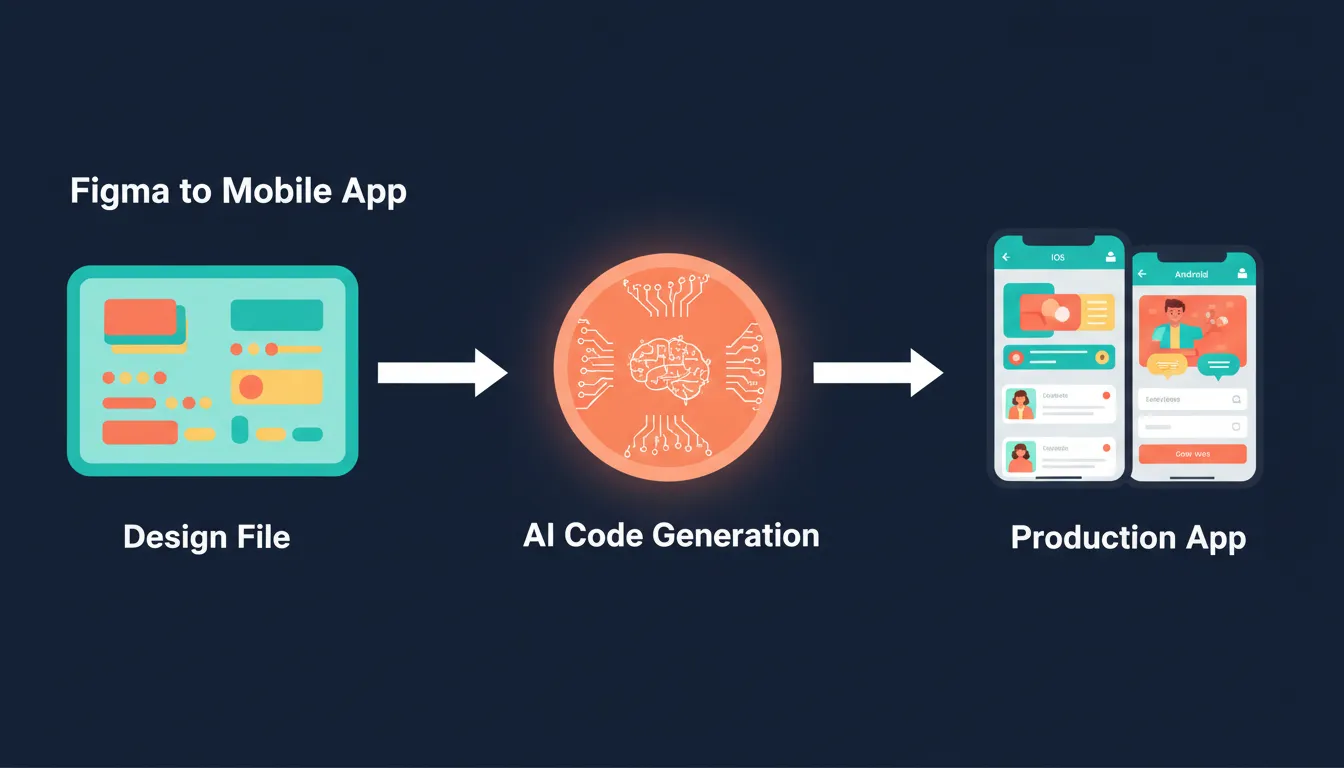
There are four main approaches teams use to convert Figma designs into mobile apps. Understanding each helps you choose the right method for your project type, timeline, and technical requirements.
The Four Conversion Methods Explained
1. Manual handoff with Figma Dev Mode Figma's built-in Dev Mode lets developers inspect specs and copy values. Developers still write all the code by hand. This approach preserves full control but is the slowest path. Best for large enterprise teams with dedicated mobile developers and no time pressure.
2. Figma plugin tools (e.g., Bravo Vision, Supernova) Plugins connect a Figma file to a no-code backend and publish a prototype as a basic native app. These work for simple use cases like content apps and directories. Control over business logic, custom interactions, and backend architecture is limited. You cannot easily export the code or customize beyond the plugin's constraints.
3. AI code generation tools AI tools read the Figma file structure and translate it into Flutter code. The AI interprets component hierarchy, maps design tokens to code variables, and outputs a structured file system a developer can refine and ship. This is the fastest path to production-quality code.
4. Prompt-based AI app builders Full-stack platforms accept your Figma designs alongside natural language prompts to build complete apps. UI, backend, authentication, and database are generated in a single workflow. No separate backend setup. No handoff at all. This is the most complete approach for teams that want to go from design to deployed app without a traditional development team.
Comparing Figma-to-App Approaches
| Approach | Code Quality | Speed | Backend Included | Best For |
|---|---|---|---|---|
| Manual handoff + Dev Mode | High | Slow (weeks) | No | Large dev teams |
| Figma plugin (Bravo Vision) | Low | Fast | Partial | Simple prototypes |
| Supernova / Locofy | Medium | Medium | No | UI-only handoff |
| AI code generation | High | Fast (days) | No | Dev-led projects |
| Prompt-based AI builder | High | Fastest (hours) | Yes | Full-stack production apps |
Preparing Your Figma File for AI Code Generation
The quality of your generated code depends directly on the quality of your Figma file. A well-structured file produces clean, scalable code. A messy file produces messy output.
Follow these steps before connecting your design to any AI builder.
Figma File Best Practices
Layer naming and organization
Name every layer descriptively. Button/Primary/Active is better than Rectangle 47. Group related layers into named frames, since the AI uses frame names to identify screens and components. Delete hidden layers and unused components before exporting.
Auto-layout and constraints Use auto-layout for all containers. This is the single most important step. Auto-layout frames translate directly into responsive flexbox code. Set constraints on every element so the AI understands how components should scale across screen sizes.
Design system tokens Apply consistent color styles, text styles, and effect styles across your entire file. Tokens become variables in the generated code, making the output maintainable. Avoid one-off hex values or font sizes. Every inconsistency becomes a hardcoded value in the code.
Component structure
Build reusable components with variants. A Button component with size and state variants generates a single, reusable code component instead of multiple duplicates. Use Figma's component properties to define interactive states.
For a detailed checklist, see Rocket's official Figma design guidelines.
What Good Figma-to-Code Translation Looks Like
When a tool properly reads a Figma file, it does more than copy colors and fonts. It interprets the component hierarchy, maps layers to UI elements, and outputs clean code that a developer can actually work with.
The best tools produce a file structure that scales. They handle iOS and Android targets separately, respect design system tokens, and generate code a developer can open, refine, and ship without rewriting everything.
A good translation also handles interactions, so taps and swipes work correctly on every phone and tablet. Share the prototype with stakeholders, share a video walkthrough with your team, and share the final build link with early users, all from one place.
"82.6% of designers use Figma every week, and 71.1% have added AI to their workflow or gone AI-central in the last six months." — UX Tools State of Prototyping Survey, Spring 2026
What Gets Generated: A Technical Breakdown
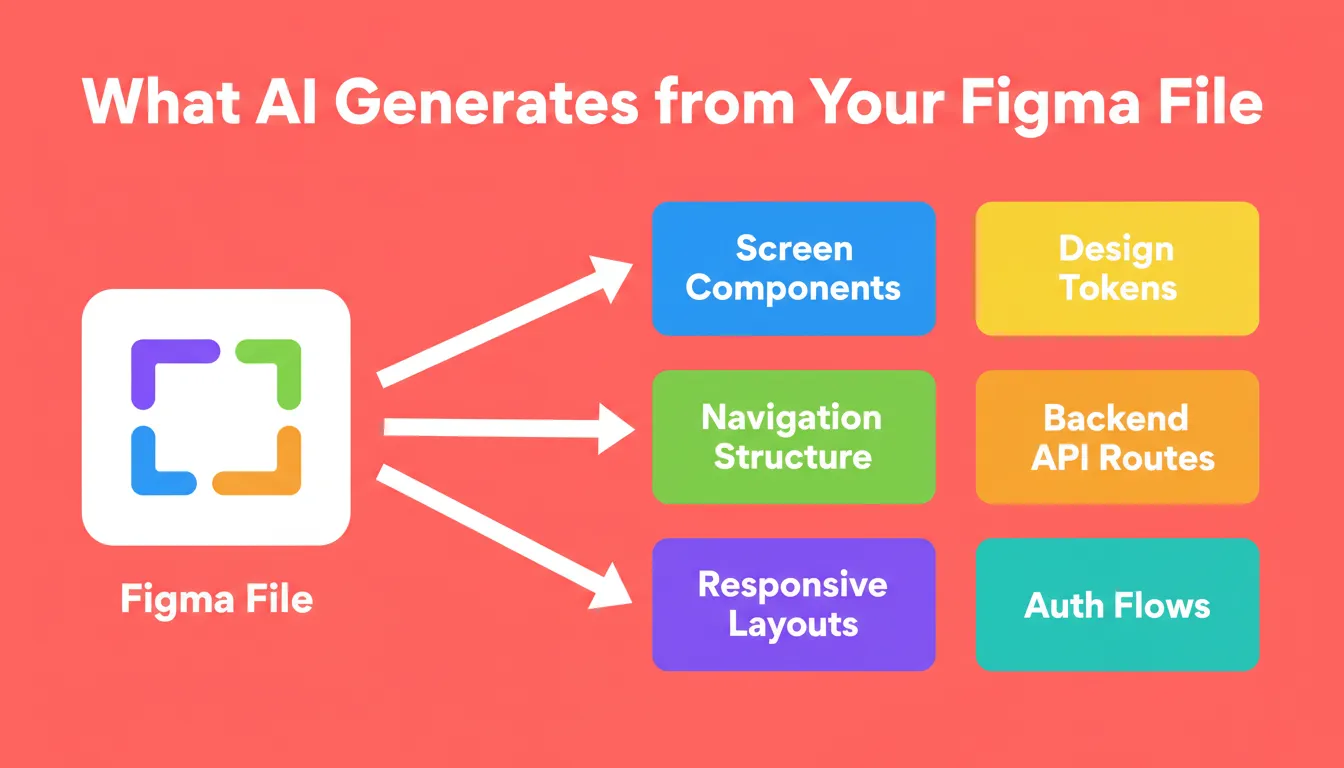
When Rocket reads your Figma file, here is what the output actually contains:
| Generated Element | What It Means for Your Team |
|---|---|
| Screen components | Each Figma frame becomes a typed Flutter screen |
| Navigation structure | Tab bars, stack navigators, and drawer menus from your design |
| Design tokens | Colors, typography, and spacing as reusable constants |
| Responsive layouts | Auto-layout frames become flexbox containers |
| Backend API routes | CRUD endpoints connected to your data model |
| Authentication flows | Sign-up, login, password reset, and social auth |
Rocket: From Figma File to Production Mobile App
Rocket reads your Figma file and generates production-ready code that matches your design — layout, colors, typography, spacing, and components. No manual frontend work. Your designs run as real apps.
1.5 million people have tried Rocket across 180 countries, from solo designers shipping their first app to product teams at scale.
When to Use Figma Import
| Your situation | Best starting method |
|---|---|
| You have completed Figma designs | From Figma import |
| You have a rough idea but no designs | From an idea |
| You have a screenshot, PDF, or spreadsheet | From an attachment |
| You have an existing live website | Redesign |
What You Can Build
- Pixel-perfect web apps. Rocket generates React or Next.js code that matches your Figma design exactly, including layout, spacing, and typography.
- Native mobile apps. Rocket generates Flutter code for iOS and Android from your Figma mobile screens.
- Design system to production. Your Figma components, tokens, and styles become reusable code components, not hardcoded values.
How to Build a Mobile App from Figma Using Rocket
Step 1. Get your Figma link.
Copy the URL of your Figma file, or select a specific frame to copy its URL. You need view or edit access to the file. Prototype links are not valid — use the file or frame URL instead.
Step 2. Open the import menu.
Click the + button at the lower left of the input box and select "Add from Figma."
Step 3. Paste your link and import.
Paste your Figma link into the dialog and click Start Import. Select your frames, choose Flutter as your framework, and Rocket builds your app.
Step 4. Refine with chat.
After import, use natural language prompts to add functionality, connect integrations, fix visual differences, or add screens. The full project context carries through every iteration.
Step 5. Publish.
Follow Rocket's guided flow to submit to the Apple App Store or publish to Google Play.
What Makes Rocket Different
- Production-ready output. Rocket generates code that matches your design exactly — layout, colors, typography, spacing, and components. Not a prototype. Not a template. Working code.
- Full-stack included. Add a backend, authentication, and database connections after import using slash commands or chat prompts.
- Clean code you own. Export the entire codebase to your own repository. Not locked into a proprietary format.
- Visual edit after import. Click any element to tweak colors, text, spacing, and layout without touching code.
- Connectors built in. Add payments, databases, AI, and more directly to your Figma-generated app from the same workspace.
You can read more about how Rocket handles Figma files to production code while preserving every spacing decision and how it approaches building a mobile-native app for cross-platform targets.
Real-World Use Cases
Startup MVPs. A founder with a polished Figma prototype can have a working, testable mobile app in hours. No developer hire required for the initial build.
Design agency handoffs. Agencies can deliver a working app alongside design files, increasing the value of their deliverable and reducing client revision cycles.
Enterprise prototyping. Product teams can validate new features with real users on real devices before committing engineering resources to a full build.
Solo designers shipping products. Designers who previously needed a developer partner can now take their own Figma designs all the way to the App Store independently.
Rocket's vibe coding for mobile app development guide covers how product teams are using this workflow to ship faster without sacrificing code quality.
AI Is Changing What Designers Can Ship
According to Business of Apps, 142.2 billion apps and games were downloaded in 2025. The mobile app market has never been more competitive, and shipping fast matters. Teams that ship faster and iterate more quickly have a real advantage.
The old model asked designers to hand off Figma designs and wait. The new model asks designers to stay involved, use prompts to refine, and watch their work come to life on a device in hours rather than weeks.
The Designer's New Role in Mobile App Development
The shift from handoff to direct shipping is redefining what it means to be a product designer. Designers who understand the figma to mobile app pipeline can now:
- Own the full product experience from wireframe to App Store listing
- Validate design decisions with real user data faster than ever before
- Reduce dependency on engineering backlogs for design changes
- Build and ship side projects and SaaS products independently
This is not about replacing developers. It is about removing the bottleneck between a great design and a working product.
For a broader look at how AI is reshaping the build process, see how to build a mobile app with AI and the best mobile app development AI tools.
Figma to Mobile App: Common Mistakes to Avoid
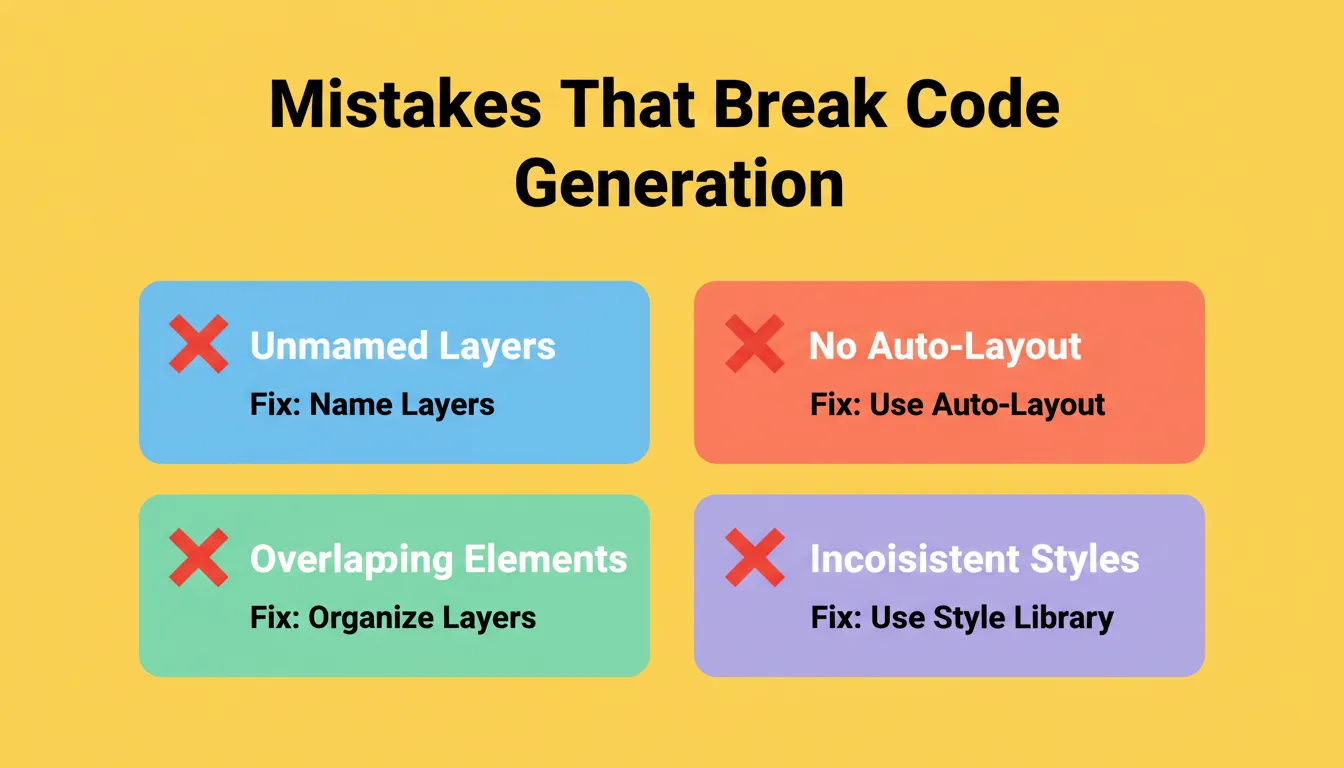
Even with the best tools, certain Figma file issues consistently cause problems in the conversion process. Avoid these before you start:
| Mistake | Why It Causes Problems | Fix |
|---|---|---|
| Unnamed layers | AI cannot identify components or screens | Name all frames and key layers |
| No auto-layout | Layouts become static and non-responsive | Apply auto-layout to all containers |
| Overlapping elements | AI misreads component boundaries | Use proper grouping and stacking |
| Inconsistent styles | Generates hardcoded values instead of tokens | Apply global color and text styles |
| Missing component variants | Generates duplicate code for each state | Build components with Figma variants |
Figma File Preparation: The Pre-Build Checklist
Before you connect your Figma file to any AI builder, run through this checklist. A clean file takes 30 minutes to prepare. A messy file costs days of debugging generated code.
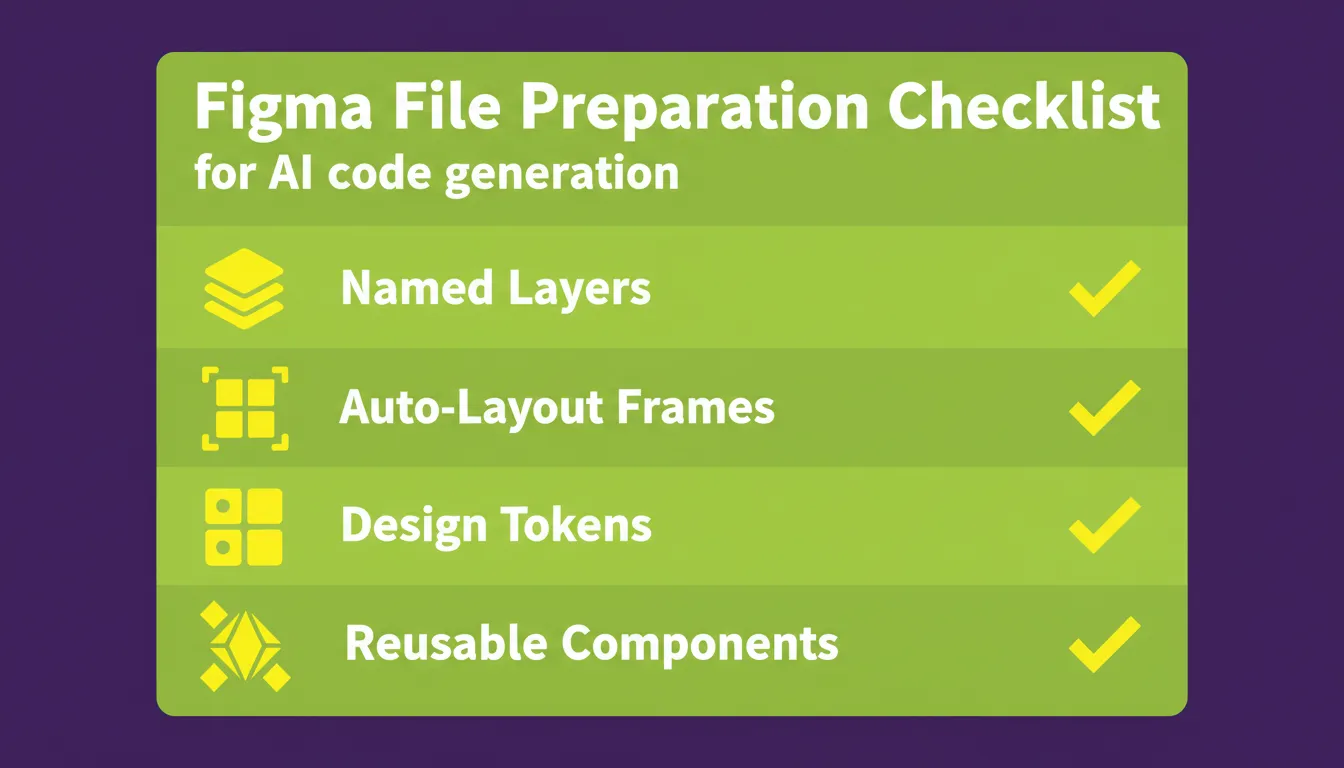
- All frames and key layers are named descriptively
- Auto-layout is applied to every container
- Color, text, and effect styles are applied consistently
- Components are built with variants for interactive states
- Hidden layers and unused components are deleted
- Screens are sized to standard mobile dimensions (390x844 for iPhone, 360x800 for Android)
- Assets are grouped and ready for export at correct resolutions
For the complete technical checklist, see the Figma design guidelines in Rocket's documentation.
The Future of Figma to Mobile App Development
The figma to mobile app pipeline is not a trend. It is a permanent shift in how software gets built. As AI models improve at reading design intent, the gap between a Figma file and a production app will continue to shrink.
Several developments are accelerating this shift. Multimodal AI is improving the ability of models to understand visual design context beyond layer names and properties. Design system standardization means more Figma files are structured in ways AI can reliably interpret. App Store automation is reducing the friction of publishing. AI iteration loops mean post-launch refinements can be made in minutes rather than sprint cycles.
Teams that build their workflow around the figma to mobile app pipeline today will have a compounding speed advantage over teams that still rely on manual handoff tomorrow.
Ship Your Figma Design as a Production Mobile App
The figma to mobile app gap used to require a full development team and months of work. Today, the timeline is hours.
The key is choosing a tool that produces clean Flutter code, handles responsive layouts, includes a backend, and gives your team full control over the output. Rocket delivers all of that from a single Figma file, with Flutter code for iOS and Android, a connected backend, authentication, and direct App Store and Google Play publishing in one workflow.
Whether you are a solo designer, a startup founder, or a product team at scale, Rocket removes the bottleneck between your best design and a live app in users' hands.
Start building with Rocket.new and ship your first Figma-to-mobile build today.
Table of contents
- -Why the Gap Between Figma and a Live App is Still a Problem
- -The Real Cost of Manual Handoff
- -How Figma to Mobile App Conversion Actually Works
- -The Four Conversion Methods Explained
- -Comparing Figma-to-App Approaches
- -Preparing Your Figma File for AI Code Generation
- -Figma File Best Practices
- -What Good Figma-to-Code Translation Looks Like
- -What Gets Generated: A Technical Breakdown
- -Rocket: From Figma File to Production Mobile App
- -When to Use Figma Import
- -What You Can Build
- -How to Build a Mobile App from Figma Using Rocket
- -What Makes Rocket Different
- -Real-World Use Cases
- -AI Is Changing What Designers Can Ship
- -The Designer's New Role in Mobile App Development
- -Figma to Mobile App: Common Mistakes to Avoid
- -Figma File Preparation: The Pre-Build Checklist
- -The Future of Figma to Mobile App Development
- -Ship Your Figma Design as a Production Mobile App