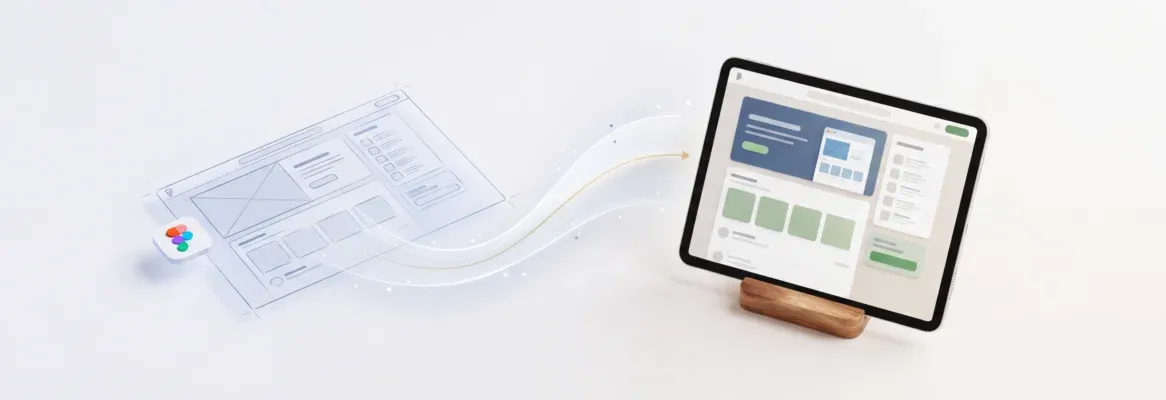
AI platforms now turn Figma files into live, deployed apps in minutes, preserving every spacing decision, typography choice, and color system, without developer handoff or weeks of back-and-forth.
Your Figma file is finished. The design is done.
So why does a live app still feel weeks away?
The problem is not the design or the code. It is the translation layer between them. That layer eats time, introduces errors, and forces both sides to re-explain what should already be clear.
According to Figma's 2025 research, 91% of developers and 92% of designers agree the handoff process needs serious improvement.
This guide covers the complete figma to production deployment workflow: what it involves, what to look for in a platform, and how to evaluate your options.
The Real Cost of the Design-to-Code Gap
The handoff between design and engineering has been a recurring pain point for over a decade. Here is what the data shows.
- Developers spend nearly 50% of their time translating designs into code rather than building features or solving technical problems
- Only 21% of designers say developers deliver pixel-perfect results from their designs, while 52% describe the output as just "good enough"
- 84% of designers collaborate with developers at least weekly, yet both sides still struggle with different tools, different workflows, and different objectives
- Developer rework drops by 40% when teams adopt centralized design operations, but most organizations lack these systems
Design files get misinterpreted because static mockups lack context about interaction states, responsive behavior, and edge cases. The gap is structural, not a people problem.
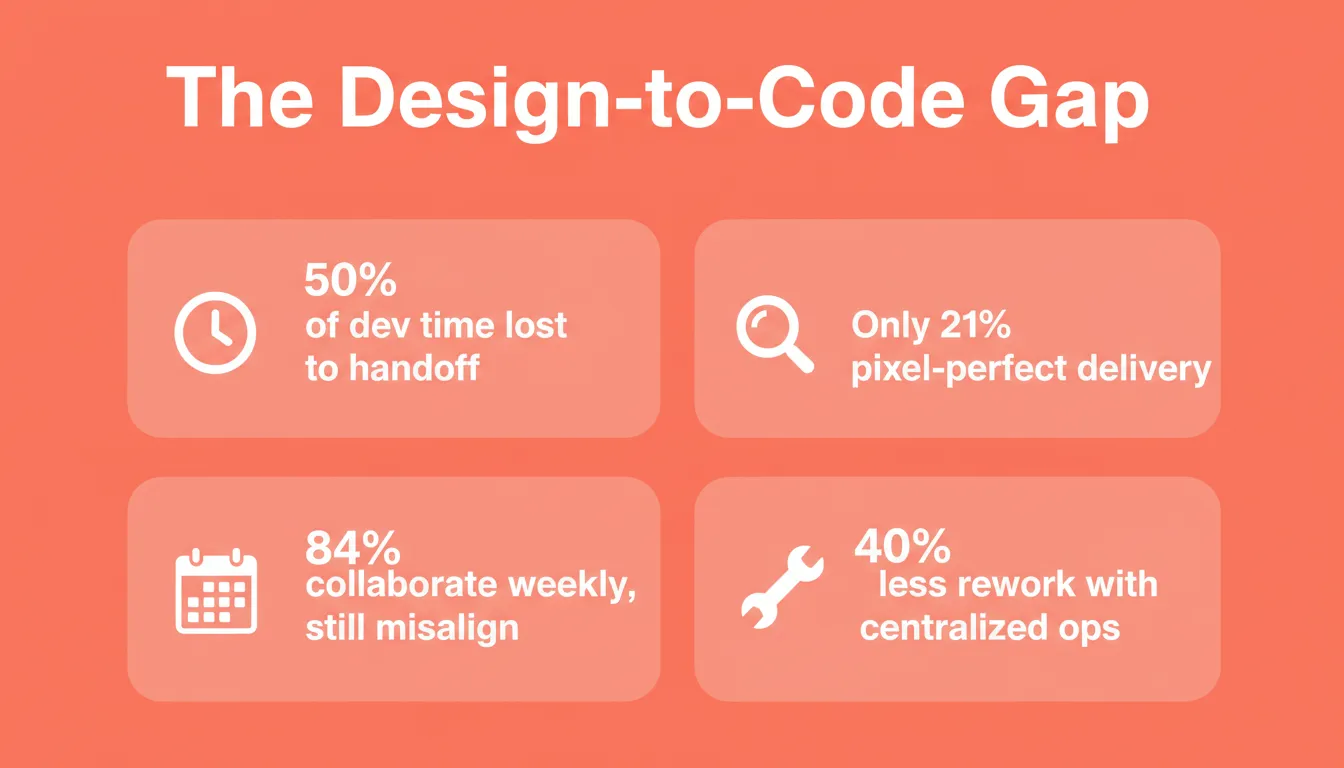
The design-to-code gap by the numbers: four statistics that define the handoff problem
| Traditional Handoff | AI-Powered Flow |
|---|---|
| Designer exports specs manually | AI reads design file directly |
| Developer interprets visual intent | Code generated from exact values |
| Multiple revision rounds | Single-pass accuracy |
| Weeks to reach production | Minutes to staging |
| Design intent lost in translation | Typography, spacing, hierarchy preserved |
| Separate hosting, CI/CD, domain setup | One-click deployment with automatic HTTPS |
How AI Changes the Design-to-Deployment Workflow
AI tools now sit between your design file and your production environment, handling the translation that used to consume weeks. As a result, figma to production deployment becomes a single, continuous workflow rather than a multi-team relay.
- Teams using AI design-to-code tools report shipping features 3x faster with pixel-perfect precision compared to traditional handoff methods (UXPin, 2025)
- AI extracts design details like spacing, color schemes, typography, and component hierarchy, then generates production-ready HTML, CSS, or React components in a single pass
- 78% of designers and developers say AI tools speed up their workflows significantly, though only 58% say it improves quality without human review
- Design systems become a shared language between teams: AI maps components to existing code libraries, reducing rework and maintaining consistency across builds
Code review shifts from writing from scratch to refining AI output. That frees developers to focus on business logic, architecture, and performance. The shift is not just about speed. It is about accuracy. When AI reads a Figma file, it captures exact padding values, font weights, and color tokens. No guesswork.
What "Production-Ready" Actually Means
This phrase gets used loosely. A production-ready output from a figma to production deployment pipeline should include all of the following, without manual configuration:
- Real framework code. Next.js for web apps, Flutter for mobile. Not generic HTML that breaks under load.
- Responsive layouts. Breakpoints, layout constraints, and spacing tokens read directly from your design file, so the app adapts to mobile, tablet, and desktop automatically.
- SEO-ready structure. Meta tags, semantic HTML, and Open Graph properties baked in from generation.
- Accessibility compliance. WCAG standards met by default, not retrofitted after launch.
- GDPR coverage. Privacy-compliant structure without separate configuration.
- Core Web Vitals performance. Optimized for Google's page experience signals from day one.
- Dark and light theming. Design tokens applied globally, switchable without rebuilding.
- Version history and rollback. Every generation creates a snapshot you can restore in one click.
If a platform requires manual configuration for any of these after generation, it is adding work, not removing it.
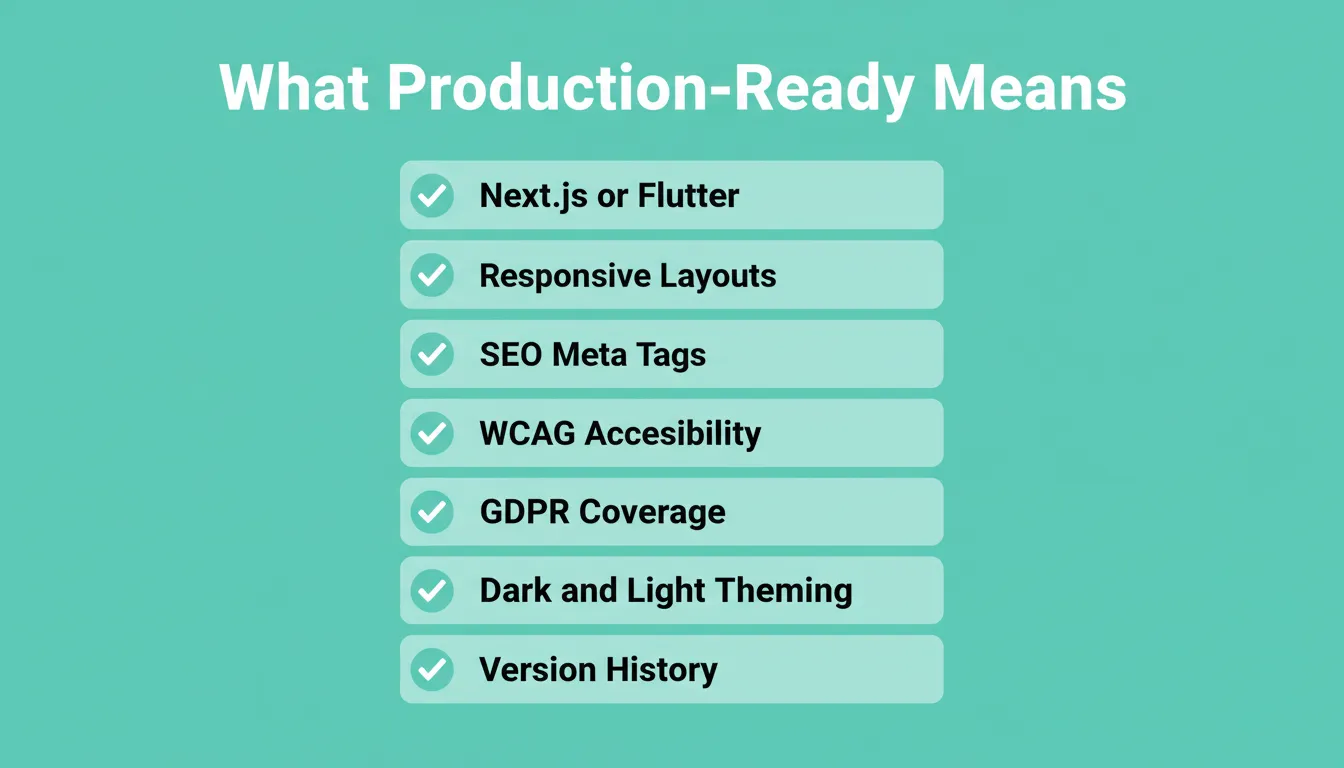
Eight non-negotiable outputs that define a production-ready Figma-to-code platform
Key Steps: From Figma Designs to Live App
The path from a completed Figma design to a live production URL follows a clear sequence.
- Step 1: Import. Paste your Figma file or frame URL into the AI builder. You can import up to 40 screens at a time. The platform reads design structure (layers, tokens, components), not just a screenshot.
- Step 2: Select frames and tech stack. Choose which screens to build first and pick your framework. Start with your 5 to 10 most important screens, then add more incrementally.
- Step 3: Generate. The platform creates production-ready code with real components, routing, theming, and responsive behavior. Most apps generate in one to three minutes.
- Step 4: Preview and iterate. Interact with the working app in a live environment. Use chat to fix visual mismatches, add functionality, or connect integrations, without going back to Figma.
- Step 5: Deploy to staging. Publish to a staging URL for team review. Share with stakeholders before going live.
- Step 6: Launch to production. Connect a custom domain. The platform handles DNS configuration, HTTPS provisioning, and version control automatically.
The entire sequence, from file upload to live production URL, can complete in a single sitting.
How Rocket Handles Figma to Production Deployment
Most AI builders generate code from text prompts. Rocket starts from your actual Figma file and produces a deployed product. Here is exactly how the pipeline works, verified against the official Rocket documentation.
Figma Import: What Gets Preserved
When you import a Figma file into Rocket's Build pipeline, the platform reads your design structurally, not as a screenshot. According to the official Figma import documentation, the following are preserved in the generated code:
- Layout. Frame dimensions, auto-layout rules, padding, gaps.
- Colors. Exact hex values, gradients, opacity.
- Typography. Font family, weight, size, line height, letter spacing.
- Spacing. Margin, padding, and gap values from your design tokens.
- Components. Grouped layers and component instances mapped to code components.
You can import up to 40 screens per task. After import, the Figma preview panel stays open inside Rocket so you can compare your source design against the generated output side by side.
Note: Figma import is only available on the web browser at rocket.new. It is not available in the Rocket mobile app.
Three Ways to Iterate After Import
Once Rocket generates your app from Figma, three editing modes are available. All of them work in context, without re-explaining what was already built:
- Chat with Rocket. Natural language instructions such as "Make the hero section background dark," "Add a settings page," or "Fix the mobile layout." There is no change limit.
- Visual Edit. Click any element in the live preview to change text, style, spacing, or layout directly. WYSIWYG editing on the running app.
- Code Editor. Browse and modify the generated Next.js or Flutter source files directly. Download the full codebase for local development.
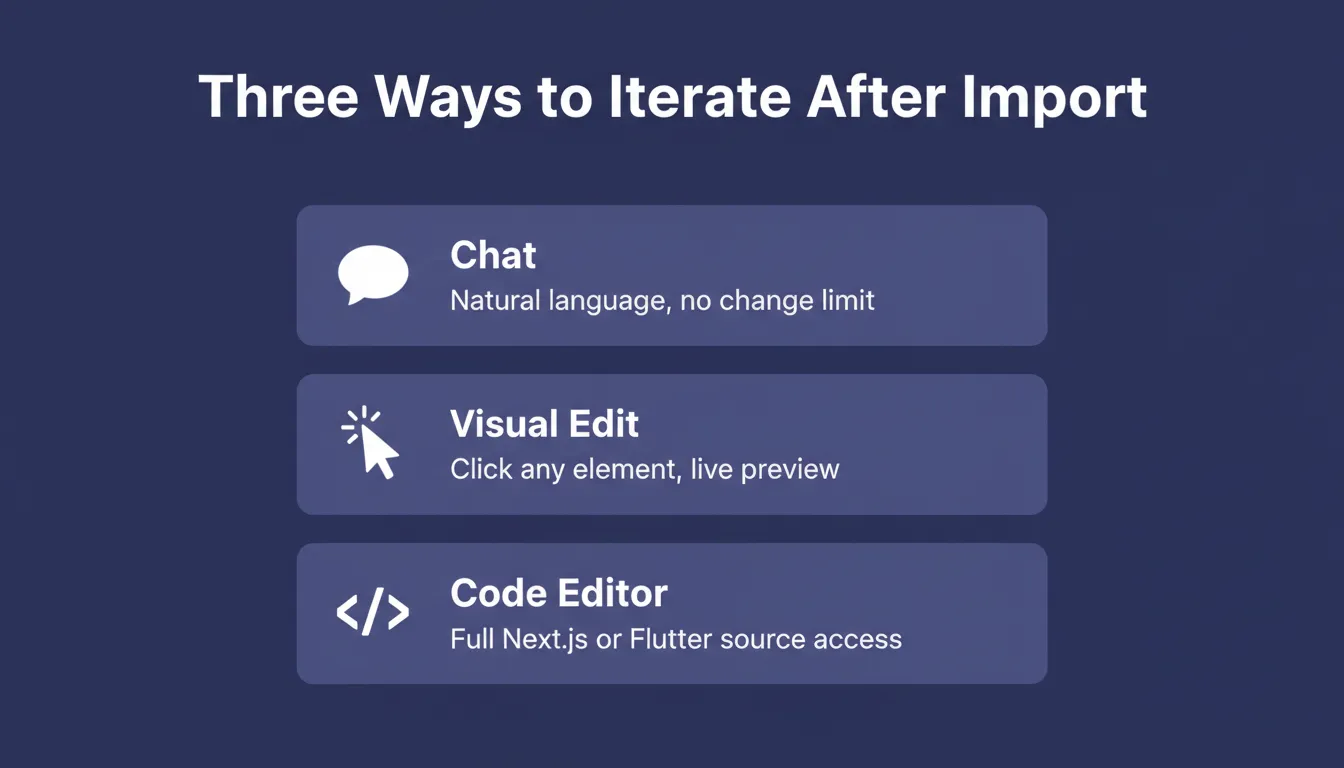
Rocket's three editing modes after Figma import: chat, visual edit, and direct code access
Connecting Integrations During Generation
Rocket's 25+ connectors authenticate once and flow into every build. They connect during generation, not after deployment.
| Category | Integrations |
|---|---|
| Payments | Stripe, PayPal, Razorpay |
| Databases | Supabase, Airtable, Directus, Strapi |
| Analytics | Google Analytics, Mixpanel, AdSense |
| AI Providers | OpenAI, Anthropic, Gemini, Perplexity |
| Mailchimp, Brevo, MailerLite, SendGrid, Resend | |
| Productivity | Notion, Linear, Jira, Confluence |
| Forms | Typeform, Tally, Calendly, Cal.com |
| Communication | Twilio |
Deployment: Staging to Production
Rocket's deployment pipeline handles the infrastructure so you do not have to:
- Staging. Click Launch, then Staging, then Publish. Get a shareable URL instantly.
- Production (automatic). Rocket configures DNS automatically with one-time permission from your domain provider. Propagation takes up to 48 hours.
- Production (manual fallback). Rocket shows the exact DNS records to add. Copy and paste them into your domain provider dashboard.
- Buy a domain. Purchase directly through Rocket from the Launch panel. No external registrar needed.
- HTTPS. Automatic for all custom domains.
- Version control. Full version history. Browse and restore any previous version.
What Ships by Default
Every Rocket build ships with these as the baseline, not optional extras:
- SEO-ready structure with meta tags and semantic HTML
- WCAG accessibility compliance
- GDPR coverage
- Core Web Vitals performance optimization
- Dark and light theming with global design token controls
- Staging and production environments
- Full version history with one-click rollback
- Built-in analytics covering visitors, conversions, accessibility scores, and Core Web Vitals
Teams reported 90% work quality improvements and 1.5 hours saved per week when design context flows directly into the build pipeline.
What to Look for in a Design-to-Deploy Platform
Not every AI builder handles the full pipeline from design file to live URL. Here is what separates production-ready platforms from prototype generators when evaluating figma to production deployment tools.
The Six-Point Evaluation Checklist
1. Structural Figma reading, not screenshot-based. Does the platform read your design file structurally (tokens, layers, components) or does it screenshot it and approximate? Structural reading preserves design intent. Screenshot-based tools lose spacing precision, font weights, and component boundaries.
2. Framework quality. Production apps need real frameworks. Next.js for web delivers server-side rendering, SEO optimization, and performance at scale. Flutter for mobile produces native iOS and Android apps from a single codebase, ready for App Store and Google Play submission.
3. Deployment included. If you need a separate hosting provider, CI/CD pipeline, and domain registrar after generation, the platform just added work. A complete pipeline handles staging, production, custom domains, HTTPS, and version control as part of the same workflow.
4. Compliance and performance by default. SEO meta tags, WCAG compliance, GDPR coverage, and Core Web Vitals performance should ship with every build. They should not require manual configuration after launch.
5. Iteration without re-explaining. After the first generation, you should be able to change data models, adjust visual hierarchy, add features, and connect integrations through conversation, all in context. If the platform forgets what it built, every iteration becomes a new project.
6. Post-launch observability. Built-in analytics for visitors, conversions, accessibility scores, and performance metrics mean you can measure what you shipped without adding a separate tool stack.
| Evaluation Criterion | What to Check |
|---|---|
| Figma reading method | Structural (tokens and layers) vs. screenshot |
| Output framework | Next.js or Flutter vs. generic HTML |
| Deployment included | Staging, production, HTTPS, domains |
| Compliance defaults | WCAG, GDPR, SEO, Core Web Vitals |
| Iteration model | In-context chat vs. re-prompt from scratch |
| Post-launch analytics | Built-in vs. requires third-party setup |
The best AI builders with one-click deployment check every item on this list because deployment is not an afterthought. It is the point.
Who Benefits Most From Figma-to-Production Workflows?
Designers and UX Leads
Designers who think in visual systems and interaction patterns have historically depended on developers for every implementation change. With a figma to production deployment pipeline, a designer can upload a completed file and ship a live, production-grade product without a handoff. The output matches the Figma file, not a generic approximation.
Before importing, it helps to create a high-fidelity Figma prototype with properly grouped layers and clean vectors. This preparation step produces significantly better import results.
Founders and Solopreneurs
Founders validating ideas need to move from concept to live product without assembling a development team. Figma to production deployment compresses what used to be a multi-week sprint into a single session. The product is live and measurable before the first sprint planning meeting would have started.
Product Teams at SMBs
Small to medium businesses with product teams often have design resources but limited engineering bandwidth. AI-powered deployment pipelines let product managers and designers ship features, landing pages, and internal tools without waiting in an engineering queue.
Agencies
Agencies delivering client work face constant pressure on delivery timelines. A figma to production workflow lets agencies import client designs, generate production-ready code, iterate through chat, and hand off a live URL, all within a single platform.
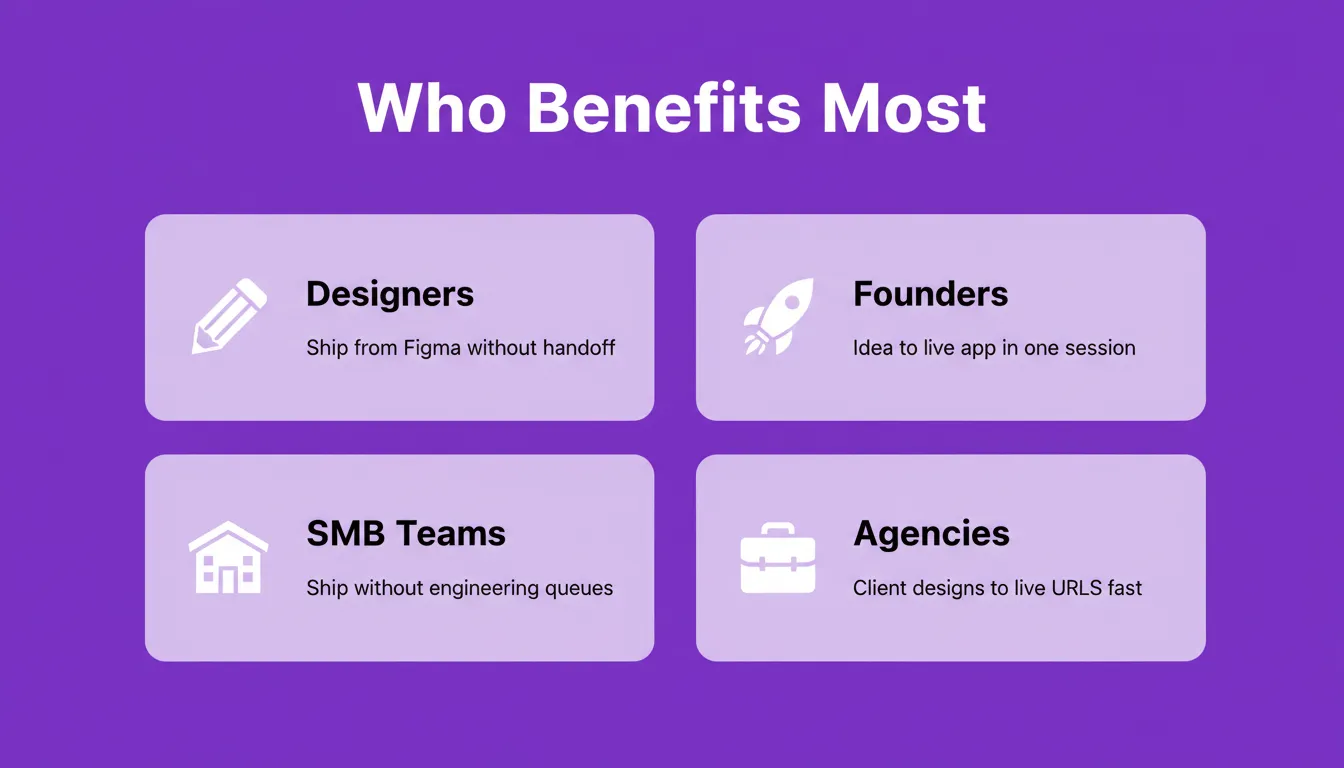 Four teams that gain the most from a Figma-to-production deployment workflow
Common Figma-to-Production Mistakes and How to Avoid Them
Even with the right platform, certain preparation and workflow habits slow down the pipeline. Here are the most common ones.
Importing unfinished designs. The AI reads what is in the file. Placeholder text, unresolved components, and missing states produce incomplete output. Finish the design before importing, especially the 5 to 10 most important screens.
Using prototype links instead of file or frame URLs. Prototype links are not valid for import. Use the file URL or copy the URL of a specific frame. Prototype links simply do not work.
Importing all screens at once. Start with your most important 5 to 10 screens. Import incrementally and iterate after each batch. Importing 40 screens before reviewing the first generation leads to compounded mismatches that are harder to fix.
Skipping design guidelines. Properly grouped layers, correct frame sizes, clean vectors, and no invisible or off-screen components produce significantly better import results.
Treating generation as the final step. Generation is the starting point, not the finish line. Use chat to add interactivity, connect databases, fix visual mismatches, and add authentication. The first generation gives you a working foundation. Iteration makes it production-ready.
Ignoring mobile until the end. If your app needs to work on mobile, design for it in Figma first and import mobile frames alongside desktop. Retrofitting responsive behavior after the fact takes longer than building it in from the start.
The Gap Between Design and Deployment Is Closing
Figma to production deployment used to mean weeks of handoff work, revision cycles, and context lost between tools. AI platforms have compressed that into a single session, from file import to live URL, with production-grade code, built-in compliance, and deployment infrastructure included.
As AI design-to-code tools continue to improve, the gap between what a designer creates and what ships to users will narrow further. The teams that close this gap fastest are the ones that treat design and deployment as one continuous workflow, not two separate handoffs.
Your design file already contains everything needed to build. Start building on Rocket.new and go from Figma to a live production app in a single session.
Table of contents
- -The Real Cost of the Design-to-Code Gap
- -How AI Changes the Design-to-Deployment Workflow
- -What "Production-Ready" Actually Means
- -Key Steps: From Figma Designs to Live App
- -How Rocket Handles Figma to Production Deployment
- -Figma Import: What Gets Preserved
- -Three Ways to Iterate After Import
- -Connecting Integrations During Generation
- -Deployment: Staging to Production
- -What Ships by Default
- -What to Look for in a Design-to-Deploy Platform
- -The Six-Point Evaluation Checklist
- -Who Benefits Most From Figma-to-Production Workflows?
- -Designers and UX Leads
- -Founders and Solopreneurs
- -Product Teams at SMBs
- -Agencies
- -Common Figma-to-Production Mistakes and How to Avoid Them
- -The Gap Between Design and Deployment Is Closing