Building a SaaS dashboard from Figma designs requires structured components, proper token handoff, and auto layout consistency. Rocket makes this faster by converting Figma files directly into production-ready Next.js and Flutter code without manual rebuilding.
Why does a dashboard that looks perfect in Figma end up looking completely different in the browser?
The global SaaS market hit $375.57 billion in 2026, and companies racing to ship their SaaS product often lose weeks fixing the gap between design and code. A well-structured Figma file can cut onboarding time by 25-35% when built with development constraints in mind from the start.
So the question becomes: where exactly does the breakdown happen? The answer is almost always in how dashboard UI components are structured, named, and handed off. This post walks through the full workflow for getting your dashboard design from Figma into a working SaaS product without losing fidelity along the way.
Of course, the right approach depends on your project scope, team size, and how much progress you need to make before launch. But the fundamentals remain the same whether you are building a simple analytics overview or a complex multi-screen dashboard.
Why Does the Design-to-Code Gap Still Exist?
The gap between a polished Figma prototype and a shipped dashboard is not a talent problem. It is a process and structure problem that compounds over each version of the project. Teams that understand this can improve their workflow and start shipping dashboard UI faster.
Here are the main reasons teams lose fidelity during handoff:
| Gap Cause | What Happens | Impact on Dashboard UI |
|---|---|---|
| Inconsistent naming | Developers cannot map components to code | Sidebar icons misaligned, button states missing |
| No auto layout | Fixed positioning breaks on different screen sizes | Layout collapses on smaller screens |
| Missing design tokens | Colors and spacing get approximated | White space inconsistencies, wrong hover states |
| Detached components | Changes do not propagate across the dashboard | Version drift between design and production |
| No interaction specs | Developers guess click behavior and transitions | Notifications panel and dropdown menus feel off |
The cost is real. Teams report spending 30-40% of their development cycle fixing dashboard UI inconsistencies that could have been prevented with better Figma structure. Every time a developer needs to open Figma, interpret spacing visually, and then write code from that interpretation, the project loses a bit of precision.
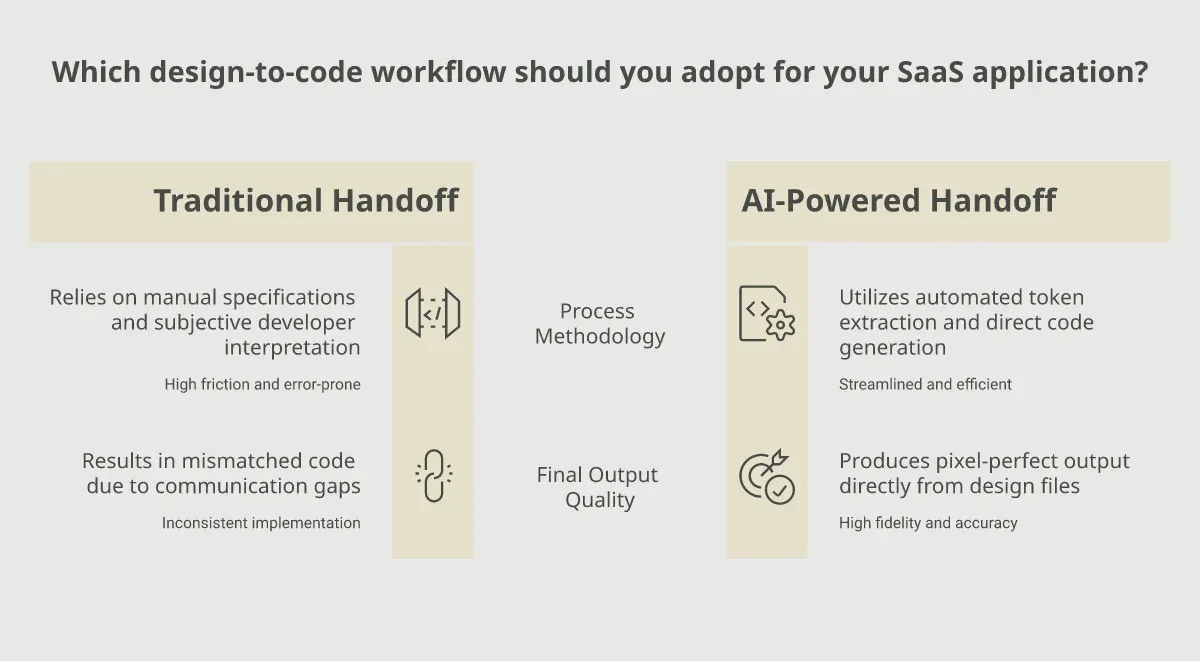
The good news: this is a solvable problem. Teams that structure their Figma files for production from day one ship faster and iterate with fewer regressions. It makes sense to invest the time upfront rather than fix things later.
What Breaks When Designers and Developers Work in Silos?
When a designer creates a dashboard screen in isolation, they often make choices that look right but cannot translate cleanly into code. A sidebar with manually positioned icons rather than an auto layout frame means the developer needs to guess gap values. Button components built without proper variants leave the developer wondering what the hover, active, and disabled states should look like.
The notifications panel is a common failure point. In Figma, it might sit as a static overlay. In code, it needs scroll behavior, real-time data binding, empty states, and dismiss interactions. None of that gets communicated through a flat design file unless the designer builds those states explicitly.
This is why the concept of development-ready Figma files matters. It is not about restricting creativity. It is about making sure every sidebar item, every header element, and every screen transition has a clear path to code. Personally, I think this is the right way to look at dashboard design in general.
How Does Auto Layout Change the Handoff Experience?
Auto layout is the single most impactful Figma feature for dashboard development. When you apply auto layout to every frame in your dashboard UI, you create predictable spacing that maps directly to flexbox or column layouts in code. No fixed positioning, no guessing.
Here is what auto layout gives you in terms of dashboard design progress:
-
Consistent spacing that developers can read as padding and gap values
-
Responsive behavior built into the design from the start
-
Easier component updates since adding or removing elements does not break the layout
-
Smaller file sizes because auto layout reduces the number of manual overrides
Without auto layout, your dashboard design is just a picture. With it, the design becomes a blueprint that developers can implement with confidence. This is especially true for complex dashboard layouts with sidebars, headers, and nested content areas.
How Should You Structure a Dashboard UI Kit in Figma?
The right structure separates dashboard UI into layers that mirror how a developer thinks about components. This is where auto layout, consistent naming, and a proper component hierarchy make the difference between a smooth build and weeks of back-and-forth on your project.
A production-ready dashboard design should be organized with an App Shell at the top level, containing a Sidebar Navigation section with nav items, icons, and a collapse toggle. The Header Bar includes search input, notifications bell, and user avatar menu. The Main Content Area holds widget cards for KPI metrics and chart components, data tables with sortable columns and pagination controls, and action panels with buttons and filters.
-
Use auto layout on every frame. This creates predictable spacing that maps directly to flexbox or column layouts in code. No fixed positioning anywhere in the dashboard layout.
-
Create a UI kit page with all components: buttons (primary, secondary, ghost), input fields, dropdown menus, data table rows, chart containers, and sidebar navigation items.
-
Name layers using developer-friendly conventions. Instead of naming something "Frame 47," use "sidebar/nav-item/active." Developers scanning the component list should immediately understand what they are building.
-
Group by function, not by page. The header, sidebar, and main content area should be separate component sets that teams can compose into different dashboard views.
When you create a high-fidelity prototype with this structure, developers can inspect any element and immediately understand its purpose, spacing, and relationship to other components in the dashboard UI.
Which Components Make Up a Production-Ready UI Kit?
A SaaS dashboard UI kit needs to cover every interaction state a user will encounter.
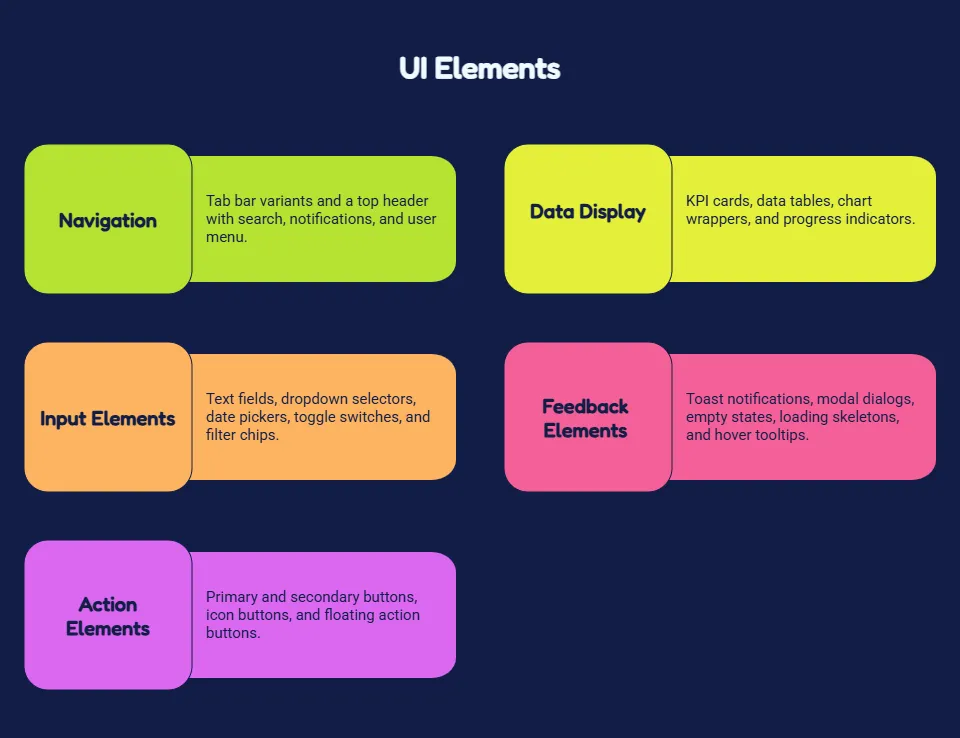
Here is the minimum component list for a production-quality design file that makes sense for most dashboard projects:
-
Navigation components: Sidebar with collapsed and expanded states, breadcrumbs, tab bar variants, and a top header with search, notifications bell, and user avatar menu
-
Data display: KPI cards with trend indicators, data tables with sortable column headers, chart wrappers including line, bar, and donut types, and progress indicators
-
Input elements: Text fields with validation states, dropdown selectors, date pickers, toggle switches, and filter chips
-
Feedback elements: Toast notifications, modal dialogs, empty states, loading skeletons, and hover tooltips
-
Action elements: Primary and secondary buttons with click, hover, disabled, and loading states, icon buttons, and floating action buttons
Each component in your UI kit should include variants for every state. A button is not one layer. It is a component set with at least four variants. The same applies to every sidebar item, every notification card, and every table row in your dashboard. This level of detail separates dashboard design files that ship from those that stall in revision cycles.
How Do You Organize Icons and Visual Elements?
Icons deserve their own component page in any dashboard UI kit. A typical SaaS dashboard needs 40-80 icons covering navigation, status indicators, action triggers, and data visualization helpers. Organize them by category and make sure each icon sits on a consistent grid size.
For dashboard elements like progress bars, status badges, and chart legends, create a separate section in your UI kit. These smaller elements often get scattered across the file, which makes version control harder and slows down the build process. A nice, organized icon library makes a lot of difference in how fast developers can find what they need.
What Does the Design-to-Development Workflow Look Like?
Once the design system and dashboard screens are ready in Figma, the handoff workflow determines whether you ship in days or spend weeks in revision cycles. A good workflow is not just about sharing a link. It is about making every design decision inspectable, testable, and implementable for the development team working on your dashboard project.
-
Phase 1: Design review with developers. Walk through the main dashboard screens together. Identify any components that look simple but hide complexity, like a notification dropdown that needs real-time data updates or a chart widget that needs to resize across screen breakpoints.
-
Phase 2: Token extraction and documentation. Export your spacing scale, color palette, typography scale, border radius values, and shadow definitions. These become CSS variables or theme constants in your codebase.
-
Phase 3: Component-by-component build. Developers start with the smallest components like buttons, icons, and text styles and work upward toward composed dashboard layouts. Each component gets compared against the Figma source before moving on.
-
Phase 4: Integration and validation. Connect the dashboard UI to real data sources. Check that auto layout behavior in Figma matches responsive behavior in the browser. Look for edge cases: long text in sidebar labels, overflow in data tables, and empty states when no data exists.
"Most dashboard trends look stunning on Dribbble but fail in production. Here's how to use them intelligently for real products that users depend on daily." - Zirva Z., Product Designer
This sentiment captures the core challenge of dashboard design. A dashboard design needs to be built for the constraints of real users, real data, and real screen sizes from the start of the project. It makes a lot of sense when you look at it from the user perspective.
How Do You Hand Off Spacing, Colors, and Tokens Correctly?
Token handoff is where most teams drop the ball. The designer picks a nice white background and a left-aligned sidebar, but those choices need to translate into exact values that persist across every screen of the dashboard UI.
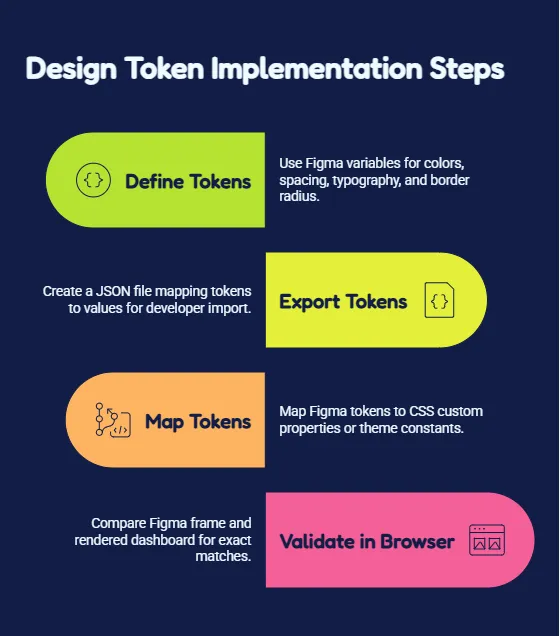
Here is the right approach:
-
Define tokens as Figma variables. Use Figma native variables for colors, spacing on a 4px grid, typography scale, and border radius. This creates a single source of truth that auto layout references directly.
-
Export tokens in a structured format. Use a plugin or manual export to create a JSON file mapping every token to its value. Developers import this into their theme configuration for the dashboard project.
-
Map tokens to code variables. Each Figma token maps to a CSS custom property or a theme constant. The "surface-primary" color in Figma becomes a matching variable in code. No guessing, no approximation.
-
Validate in the browser. Open the Figma frame and the rendered dashboard side by side. Check that spacing, colors, and typography match exactly. Flag any element where the right side looks even slightly different from the design.
This process is simpler than it sounds. Teams that invest an hour in token setup save dozens of hours in revision cycles. The easier path is always the structured one, and it makes the most sense for dashboard projects at any scale.
What Role Does Prototyping Play Before Development?
A clickable prototype in Figma serves two purposes for dashboard development. First, it lets you validate user flows before writing any code. Can the user navigate from the overview screen to detailed data without confusion? Does the sidebar navigation make sense for the information architecture?
Second, prototypes give developers a clear picture of expected interactions. When a user clicks a notification bell, does a dropdown appear? When they hover over a chart data point, does a tooltip show? These interaction patterns need to be prototyped so developers build the right behavior from the start of the project.
From Figma File to Live App Without Rewriting Anything
Here is where the workflow changes dramatically. Traditional handoff assumes a developer looks at a dashboard design and then rewrites it from scratch. That model is slow, error-prone, and increasingly outdated for teams building SaaS products. Rocket eliminates the rewrite entirely.
-
Direct Figma import. Upload your Figma design file and Rocket reads every layer, every auto layout constraint, and every component relationship. It does not approximate. It preserves your spacing decisions pixel by pixel across every screen in your dashboard.
-
Production-grade code output. The result is clean Next.js or Flutter code, not a throwaway prototype. Your dashboard sidebar, header, notification panels, and data widgets all come through as structured, maintainable components.
-
Built-in responsiveness. Because Rocket understands auto layout semantics, your dashboard adapts to different screen sizes without additional configuration. The same design works on desktop, tablet, and mobile views.
-
Integrated backend connections. Beyond the dashboard UI, Rocket connects your project to Supabase for real-time data, authentication, and API routes. You go from a Figma file to a live SaaS product, not just a static frontend.
Traditional tools like Anima or Locofy generate code that often needs heavy cleanup. Builder.io focuses on content sites rather than complex dashboard interfaces. Zeplin gives developers specs but still requires them to write every line of code manually.
Rocket is different because it starts from your design and builds the full stack. Your dashboard UI kit, your component hierarchy, your token system - all of it carries through to production without a rebuild. The project goes from design to live application in the same workflow, which makes a lot more sense for teams that need to ship fast.
Ready to ship your dashboard design as a live product? Try Rocket.new to convert your Figma file into a production-ready SaaS application with built-in backend, authentication, and deployment.
What Mistakes Should Teams Avoid During Dashboard Handoff?
Even with the right tools and workflow, teams still make avoidable mistakes that slow progress on their dashboard project. Here are the most common ones:
-
Skipping the component audit. Before handoff, check that every component in your dashboard UI kit has proper naming, variants for all states, and auto layout applied. Missing this step creates confusion during the build phase.
-
Handing off pages instead of systems. Developers need a component library, not just flat screen images. Give them the UI kit first, then the composed pages. This makes the build order logical and the version control cleaner for the dashboard project.
-
Ignoring edge cases in the design. What happens when a user has zero notifications? What does the data table look like with 500 rows? How does the sidebar behave when labels are longer than expected? Design for these cases or developers will improvise.
-
Not testing with real data early enough. Static placeholder content in Figma looks nice and clean. Real user data often breaks dashboard layouts. Integrate actual API responses as early as possible and validate that your design holds up.
-
Treating handoff as a one-time event. Dashboard designs evolve with each version. New features get added. A good handoff process is continuous, with shared version history, regular sync meetings, and a component changelog that both teams reference.
The option that saves the most time is converting your Figma designs directly into code rather than maintaining separate design and development tracks that change and drift apart over each iteration.
How Do You Handle Dashboard Responsiveness from Figma?
Responsive dashboard design in Figma requires thinking about layout constraints before you start adding components to the screen. The right approach uses auto layout with fill and hug properties rather than fixed widths anywhere in the dashboard.
-
Design at your primary breakpoint first. For most SaaS dashboards, this is 1440px width with a sidebar visible on the left side
-
Use fill width on main content areas so they expand naturally when the screen gets wider
-
Create breakpoint variants showing how the dashboard layout changes at 1024px for tablet and 768px for mobile where the sidebar might collapse
-
Test with real data at each breakpoint to make sure nothing overflows or gets cut off on any screen
When developers see these breakpoint frames in your Figma file, they know exactly how to implement media queries. The dashboard adapts correctly because the design showed them the right behavior at every screen size. This makes a nice difference in how smooth the build process goes.
What About Dashboard Performance and Data Loading States?
A dashboard design in Figma shows the ideal state, but production dashboards need to handle loading states, error states, and partial data. Good dashboard UI design includes these states as separate frames or component variants that developers can reference.
-
Loading skeletons for every widget card, data table, and chart component in the dashboard
-
Empty states with helpful messages when a user has no data yet
-
Error states that tell the user what went wrong and what to do next
-
Partial data states showing how the dashboard looks when only some widgets have loaded
These states are easy to skip in Figma but critical for the user experience. A dashboard that shows a white screen while data loads feels broken. One that shows elegant loading skeletons feels professional and builds user trust. It makes a lot of sense to design these states early in your project.
How Do You Test a Dashboard Before Launch?
Before shipping your dashboard to production, run through this validation checklist that covers both the design fidelity and the user experience:
-
Compare every screen against the original Figma design at 100% zoom
-
Click through all navigation paths in the sidebar and header
-
Test every button state including hover, active, disabled, and loading
-
Verify notifications panel behavior with zero, one, and many items
-
Check data table sorting, filtering, and pagination work correctly
-
Validate that dashboard widgets resize correctly on smaller screens
-
Test with real user data including edge cases like very long names or empty fields
This testing phase catches the remaining inconsistencies between your Figma design and the built dashboard. It is the final check before your SaaS product goes live and real users start interacting with the dashboard UI every day.
Your Dashboard Deserves Better Than a Broken Handoff
The gap between a beautiful Figma dashboard and a shipped SaaS product does not need to exist. When you structure your components with auto layout, name your layers with intent, and hand off tokens as code-ready variables, the build process becomes predictable and fast.
The tools have caught up to the workflow that teams actually need. Whether you are building your first dashboard or scaling an existing one, the path from design file to live dashboard application is shorter than it has been in years. Start with the right Figma structure and the rest follows naturally.
Stop rebuilding your Figma designs from scratch. Rocket.new turns your dashboard files into production apps with one upload backend, frontend, and deployment included.
Table of contents
- -Why Does the Design-to-Code Gap Still Exist?
- -What Breaks When Designers and Developers Work in Silos?
- -How Does Auto Layout Change the Handoff Experience?
- -How Should You Structure a Dashboard UI Kit in Figma?
- -Which Components Make Up a Production-Ready UI Kit?
- -How Do You Organize Icons and Visual Elements?
- -What Does the Design-to-Development Workflow Look Like?
- -How Do You Hand Off Spacing, Colors, and Tokens Correctly?
- -What Role Does Prototyping Play Before Development?
- -From Figma File to Live App Without Rewriting Anything
- -What Mistakes Should Teams Avoid During Dashboard Handoff?
- -How Do You Handle Dashboard Responsiveness from Figma?
- -What About Dashboard Performance and Data Loading States?
- -How Do You Test a Dashboard Before Launch?
- -Your Dashboard Deserves Better Than a Broken Handoff