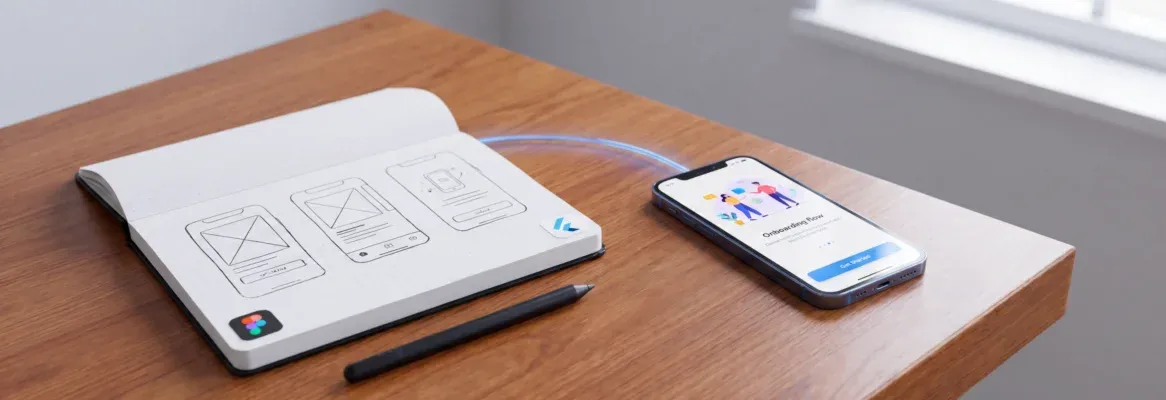
Rocket.new converts your Figma onboarding design into a production-ready Flutter app with swipe navigation, skip logic, and "get started" routing. No Dart required. Import your file, get working flutter onboarding screens in minutes.
How long does it take for someone to decide your app is worth keeping?
According to research from Pushwoosh, roughly 77% of mobile app users leave within the first three days after install. That means your onboarding experience has about 72 hours to prove value, and most of that window closes in the first session.
A well-structured onboarding flow can increase Day 1 retention by up to 50%. So the real question is not whether your Flutter app needs a proper onboarding UI; it is how quickly you can ship one that looks good, responds to swipes, and routes users to the right place after they tap "get started."
Why Does Your Flutter Onboarding Screens UI Decide Day-One Retention?
Flutter onboarding screens are the first swipeable pages a user sees in a Flutter app, and they shape whether that user reaches your core features or drops before Day 1 ends.
If your onboarding is slow, confusing, or skipped entirely, you lose that person before they ever see your key features. For Flutter developers, product teams, and designers building for iOS and Android, getting that onboarding UI right once can improve retention everywhere.
-
Day 1 retention across mobile applications averages just 26%, meaning three out of four new users never come back after the first day
-
Productivity apps with strong onboarding flows reach 32.86% Day 1 retention, the highest of any category
-
A 2026 study shows that apps with personalized onboarding experiences retain 50% more users at the Day 7 mark
-
Adding progress indicators (dot navigation, numbered steps) to onboarding screens reduces user anxiety during setup
Here is what those retention numbers look like across categories:
| App Category | Day 1 | Day 7 | Day 30 |
|---|---|---|---|
| Productivity | 32.86% | 24.23% | 9.63% |
| Games | 32.22% | 18.08% | 7.67% |
| Health & Fitness | 28.00% | 18.13% | 8.48% |
| Shopping | 29.09% | 18.26% | 7.20% |
| Lifestyle | 25.00% | 13.13% | 5.94% |
The pattern is clear: every category bleeds users fast. Your onboarding screen is the single highest-leverage fix for Day 1 numbers.
When you are building with Flutter for both iOS and Android, the next step is structuring onboarding frames in Figma, deciding when code generation beats manual coding, and using tools such as turning Figma files into mobile apps to generate polished onboarding flows faster without losing the design details that improve retention.
How Should You Structure Onboarding Frames in Figma?
Before any code runs, your Figma file needs a specific structure that translates cleanly into a swipeable Flutter layout. Getting this right saves hours of back-and-forth later.
-
Name each frame as a separate onboarding page, use a convention like onboarding_slide_1, onboarding_slide_2, so any tool or developer can identify the slide order
-
Keep each frame at the same device width and height; consistency here means your container sizing in Flutter stays predictable
-
Place your title text, description text, and image asset in a vertical column layout within each frame. This maps directly to Flutter's Column widget
-
Add a separate frame for your navigation bar (dots plus buttons) that sits below the main content area
-
Mobile frames should be between 200px and 800px wide for accurate import into Rocket.new's Figma-to-code pipeline
-
The spacing between elements should be explicit; preserving spacing from Figma into production code is what makes the final app look like the design, not a rough approximation
This structure matters because every onboarding builder, including Rocket, reads your Figma layer names, auto-layout directions, and frame dimensions to understand what your onboarding screen sequence is supposed to do.
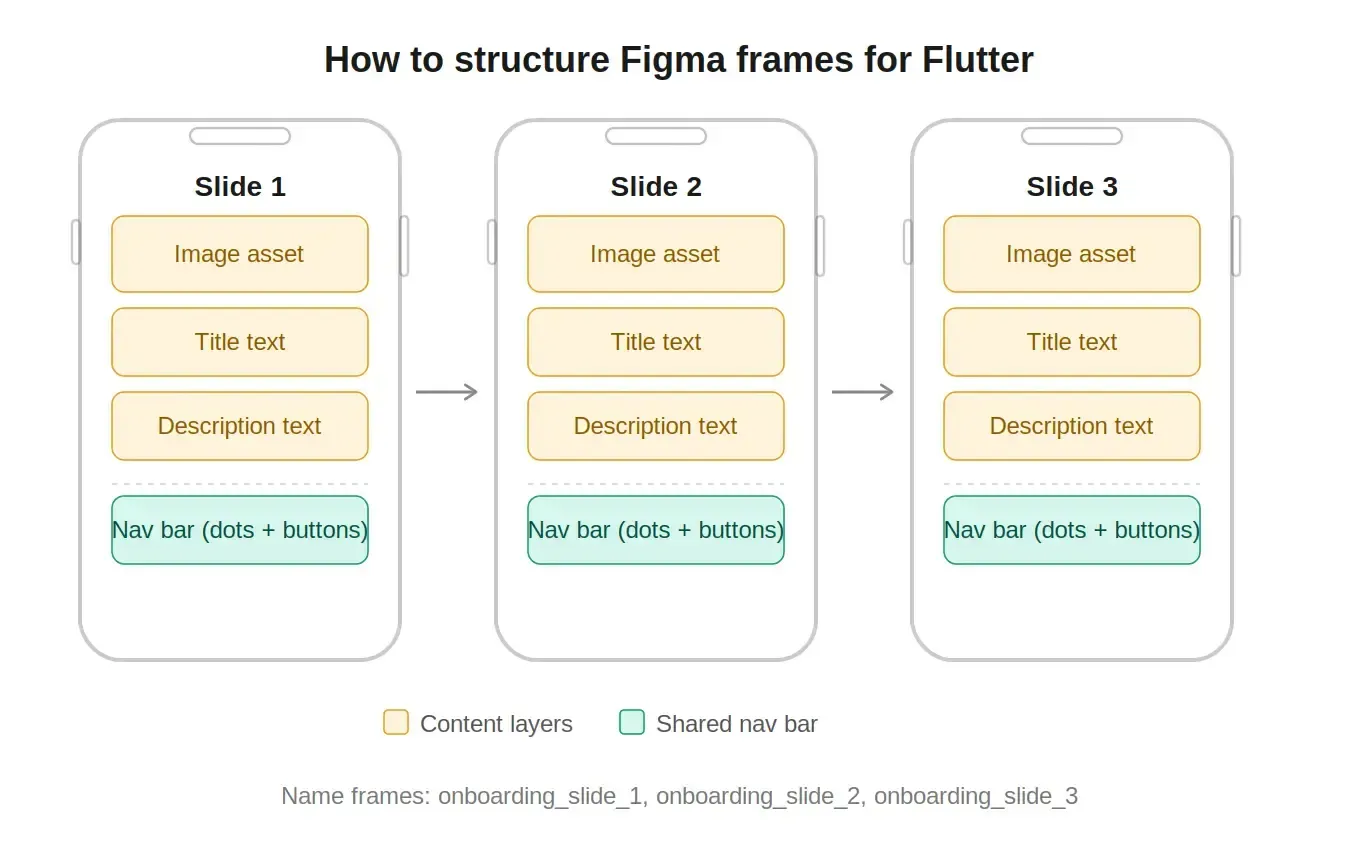
Three named Figma frames with a shared nav bar frame below, the minimum structure for clean Flutter generation.
Setting Up the Prototype Connection Flow
Your Figma prototype flow tells the generation engine how pages connect and what each button does. Use file or frame URLs when importing; prototype links are not supported.
Each slide connects horizontally to the next via a swipe gesture. The skip button from any slide jumps directly to the login or home screen. When your prototype connections are set up this way, the resulting Flutter PageView controller, index tracking, and navigation logic generate correctly.
How Rocket Generates Your Onboarding Flow Automatically
So you have set up your Figma file with the right frame structure. Now what? This is where most teams hit a wall. Traditionally, you would hand off the Figma to a developer, wait days or weeks, then iterate on mismatched spacing and broken animations.
Rocket removes that entire cycle. Here is how it works for creating Flutter onboarding screens from your design:
-
Import your Figma file directly: Click the “+” button, select "Add from Figma," paste your frame URL, and click Start import
-
Select Screens: Select up to 40 screens at a time, then choose Flutter as your framework
-
Pick your state management: BLoC for complex logic, GetX for fast builds, Provider for most apps, Riverpod for scaling, or no state management for prototypes
-
Generate Dart Code: Rocket parses your file and generates clean Dart code with native navigation, styled components, and correct image sizing
-
Every spacing decision, font size, and color value from your Figma design transfers into the generated code with no manual adjustment needed
-
Preview your app directly in the Rocket editor, then compare side-by-side with your original Figma design using the built-in Figma preview panel
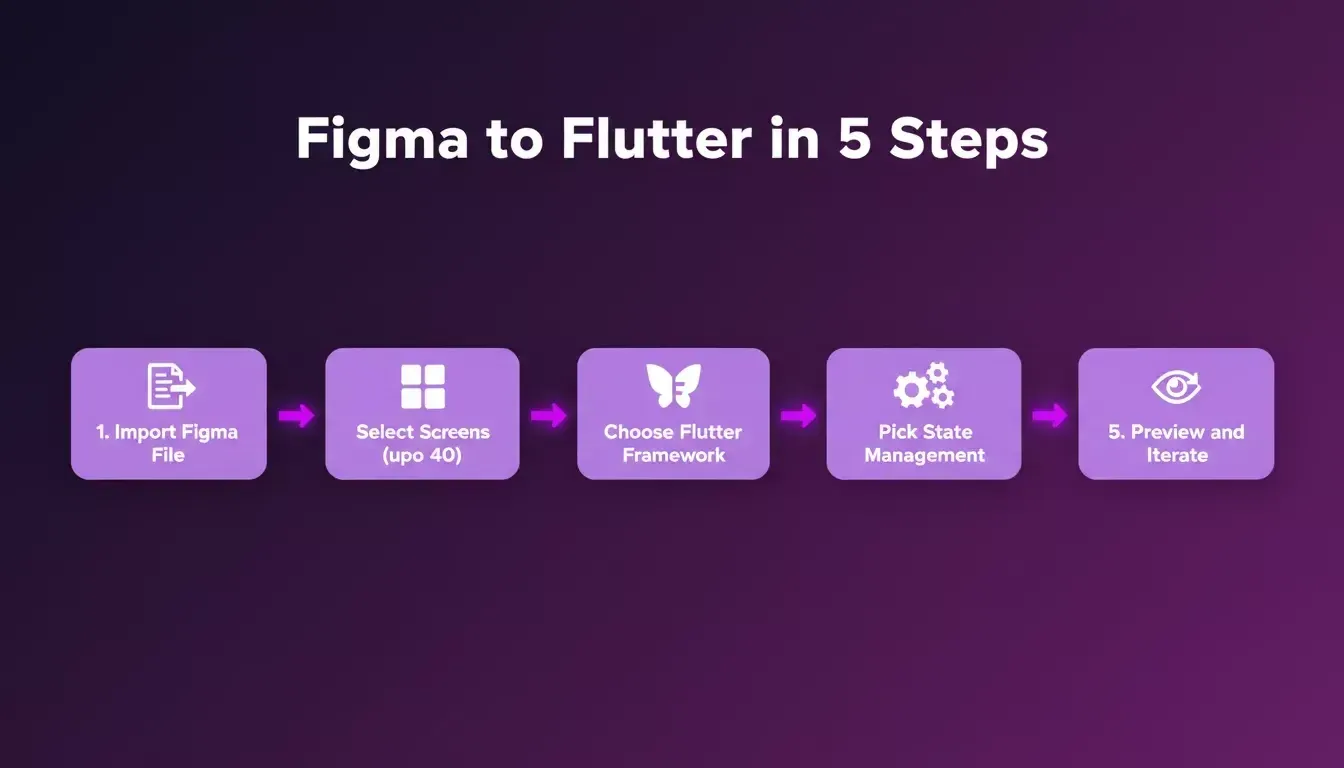
Import, select, choose framework, pick state management, preview; the complete Rocket.new Figma-to-Flutter flow.
Compared to FlutterFlow (which requires manual widget configuration) or writing Dart from scratch (which takes days for a polished onboarding), Rocket generates Flutter and Next.js production code from your actual design. You can ship a Flutter app without a dev team and still get clean, maintainable output.
Import your Figma onboarding design into Rocket and get a working Flutter app with swipe navigation and routing, ready to test on a real device in minutes.
What Does Rocket Handle That You Would Code Manually?
To appreciate what gets automated, look at what a typical onboarding PageView requires when written by hand. The following Dart snippet shows the full widget tree you would normally build and maintain for a three-slide onboarding with animations:
1import 'package:flutter/material.dart';
2
3void main() {
4 runApp(const MyApp());
5}
6
7class MyApp extends StatelessWidget {
8 const MyApp({super.key});
9
10 @override
11 Widget build(BuildContext context) {
12 return MaterialApp(
13 home: OnboardingPage(),
14 );
15 }
16}
17
18class OnboardingPage extends StatefulWidget {
19 @override
20 State< OnboardingPage> createState() => _OnboardingPageState();
21}
22
23class _OnboardingPageState extends State< OnboardingPage> {
24 final PageController controller = PageController();
25 int currentIndex = 0;
26
27 final List< Map< String, String>> slides = [
28 {
29 'title': 'Welcome to the App',
30 'description': 'Track your goals and stay focused',
31 'image': 'assets/onboarding_1.png',
32 },
33 {
34 'title': 'Stay Connected',
35 'description': 'Sync across every device you own',
36 'image': 'assets/onboarding_2.png',
37 },
38 {
39 'title': 'Get Started',
40 'description': 'Create your profile in seconds',
41 'image': 'assets/onboarding_3.png',
42 },
43 ];
44
45 @override
46 Widget build(BuildContext context) {
47 return Scaffold(
48 body: Column(
49 children: [
50 Expanded(
51 child: PageView.builder(
52 controller: controller,
53 itemCount: slides.length,
54 onPageChanged: (index) {
55 setState(() { currentIndex = index; });
56 },
57 itemBuilder: (BuildContext context, int index) {
58 return Column(
59 mainAxisAlignment: MainAxisAlignment.center,
60 children: [
61 Image.asset(slides[index]['image']!, width: 280, height: 280),
62 const SizedBox(height: 32),
63 Text(slides[index]['title']!, style: const TextStyle(fontSize: 24, fontWeight: FontWeight.bold, color: Color(0xFF1E293B))),
64 const SizedBox(height: 12),
65 Padding(
66 padding: const EdgeInsets.symmetric(horizontal: 40),
67 child: Text(slides[index]['description']!, textAlign: TextAlign.center, style: TextStyle(fontSize: 16, color: Colors.grey[600])),
68 ),
69 ],
70 );
71 },
72 ),
73 ),
74 Row(
75 mainAxisAlignment: MainAxisAlignment.center,
76 children: List.generate(slides.length, (index) => AnimatedContainer(
77 duration: const Duration(milliseconds: 300),
78 curve: Curves.easeIn,
79 margin: const EdgeInsets.symmetric(horizontal: 4),
80 width: currentIndex == index ? 24 : 8,
81 height: 8,
82 decoration: BoxDecoration(
83 color: currentIndex == index ? const Color(0xFF4F46E5) : Colors.grey[300],
84 borderRadius: BorderRadius.circular(4),
85 ),
86 )),
87 ),
88 const SizedBox(height: 32),
89 Padding(
90 padding: const EdgeInsets.symmetric(horizontal: 24),
91 child: Row(
92 mainAxisAlignment: MainAxisAlignment.spaceBetween,
93 children: [
94 TextButton(onPressed: () {}, child: const Text('Skip')),
95 ElevatedButton(
96 onPressed: () {
97 if (currentIndex == slides.length - 1) {
98 } else { controller.nextPage(duration: const Duration(milliseconds: 400), curve: Curves.easeInOut); }
99 },
100 child: Text(currentIndex == slides.length - 1 ? 'Get Started' : 'Next'),
101 ),
102 ],
103 ),
104 ),
105 const SizedBox(height: 40),
106 ],
107 ),
108 );
109 }
110}
That is over 100 lines of Dart for a basic three-screen onboarding. This does not include loading state, splash screen handling, shared preferences for "show only once" logic, or custom page transition animations with varied curve and duration values.
As one developer noted on a Flutter community thread:
"I spent two days getting my onboarding dots to animate smoothly with the right duration and curve. Then I found out my client wanted four slides instead of three, and I had to refactor the whole data model." - (community insight from Medium)
Rocket vs. Manual Flutter Development: What Gets Automated
| Feature | Manual Dart Code | Rocket Generated |
|---|---|---|
| PageView controller | Write from scratch | Auto-generated |
| Animated dot indicators | Manual AnimatedContainer | Pre-wired |
| Skip button routing | Custom Navigator logic | From Figma prototype |
| State management | Manual setState | BLoC, GetX, Provider, or Riverpod |
| Spacing and font fidelity | Approximate | Pixel-perfect from Figma |
| App Store submission | Separate manual process | Submit directly from Rocket |
| Time to work onboarding | 2 to 5 days | Minutes |
Rocket handles all of this because it generates code from your Figma structure directly. The widgets, container nesting, column alignment, image sizing, and color values all come from your design file. You can browse mobile app templates to see generated output before starting your own project.
After generation, you can continue iterating with chat, add a bottom navigation bar, connect Supabase for user profiles, or wire up push notifications, all without touching the Dart code directly. When you are ready, Rocket lets you submit your Flutter app to the Apple App Store and Google Play directly from the editor.
If you want to explore what else is possible beyond onboarding, Rocket also supports building full-stack mobile apps with AI, from authentication screens to payment flows. And for teams already using Figma as their design system, the Figma-to-code pipeline works across web and mobile targets, not just onboarding flows.
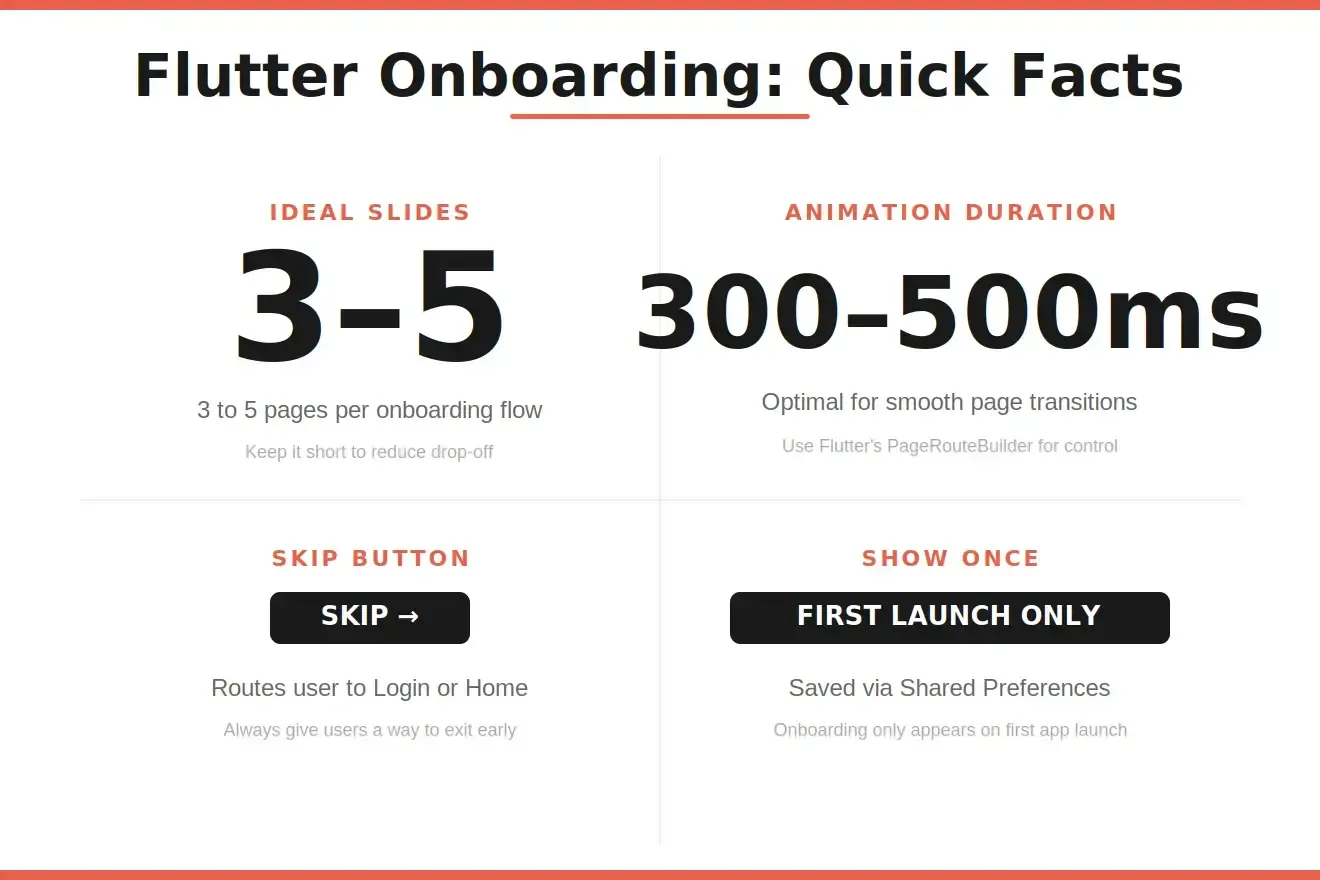
Key numbers every Flutter developer should know before building an onboarding flow.
Your Onboarding Flow Starts with the Right Figma File
Getting your Flutter onboarding screens right is less about writing perfect Dart and more about creating the right Figma structure from the start.
Name your frames clearly, set your frame dimensions between 200px and 800px wide, and let the generation handle the widgets, controllers, and routing logic that would otherwise take days of manual work.
If you have a Figma file ready, the fastest path to working Flutter onboarding screens is already open. Import it into Rocket, generate your app, and test on a real device today.
Ready to ship your Flutter onboarding screens without writing a single line of Dart?
Rocket.new turns your Figma design into a production-ready Flutter app, with swipe navigation, dot indicators, skip logic, and routing all included. Start building for free today.
Table of contents
- -Why Does Your Flutter Onboarding Screens UI Decide Day-One Retention?
- -How Should You Structure Onboarding Frames in Figma?
- -Setting Up the Prototype Connection Flow
- -How Rocket Generates Your Onboarding Flow Automatically
- -What Does Rocket Handle That You Would Code Manually?
- -Rocket vs. Manual Flutter Development: What Gets Automated
- -Your Onboarding Flow Starts with the Right Figma File