
Converting Figma designs to production code is a persistent challenge for developers. This blog covers AI workflows, MCP servers, design system prep, and how modern tools close the handoff gap entirely.
Why do 92% of designers and developers agree that the design-to-code handoff still needs improvement?
According to Figma's 2025 report, the gap between a polished Figma design and functional frontend code remains one of the most painful steps in product development. Developers spend hours recreating layouts by hand, cross-referencing spacing values, and debugging CSS that never quite matches the original.
This blog breaks down the modern workflow for converting Figma files into production-ready applications. It covers AI tools, MCP servers, and structured design systems that eliminate the tedious back-and-forth between teams.
Why Does the Design-to-Code Handoff Still Break?
The problem goes past pixel accuracy. When teams hand off Figma files without shared rules, the generated code reflects the tool's interpretation rather than the developer's intent.
-
Design system drift happens when Figma components fall out of sync with your codebase. Developers end up recreating elements from scratch instead of referencing established component patterns.
-
Dev Mode limitations surface when teams rely purely on native Figma specs. The CSS snippets it produces are a starting point, not production-ready code that handles responsive behavior across breakpoints.
-
Inconsistent Figma file structure makes automated Figma-to-code conversion unreliable. Without strict naming conventions and proper component hierarchy, even the best design-to-code tools produce messy output.
-
Missing workflow context remains the silent killer. A static design file cannot communicate business logic, accessibility rules, or interactive prototypes without extensive annotations.
| Approach | Effort | Code Quality | Best For |
|---|---|---|---|
| Manual handoff | High | Highest | Complex production apps |
| Figma Dev Mode | Medium | Variable | Design system-aligned teams |
| AI conversion tools | Low | Medium | Rapid prototyping and visual updates |
| MCP-connected AI agent | Low | High | Extending an existing codebase |
| Rocket Figma import | Very Low | Production-grade | Complete apps with backend and deployment |
The design-to-code workflow breaks because designers and developers operate in separate environments with different priorities. Fixing this requires both structural changes and better tooling.
How to Prepare Your Figma File for Clean Code Generation
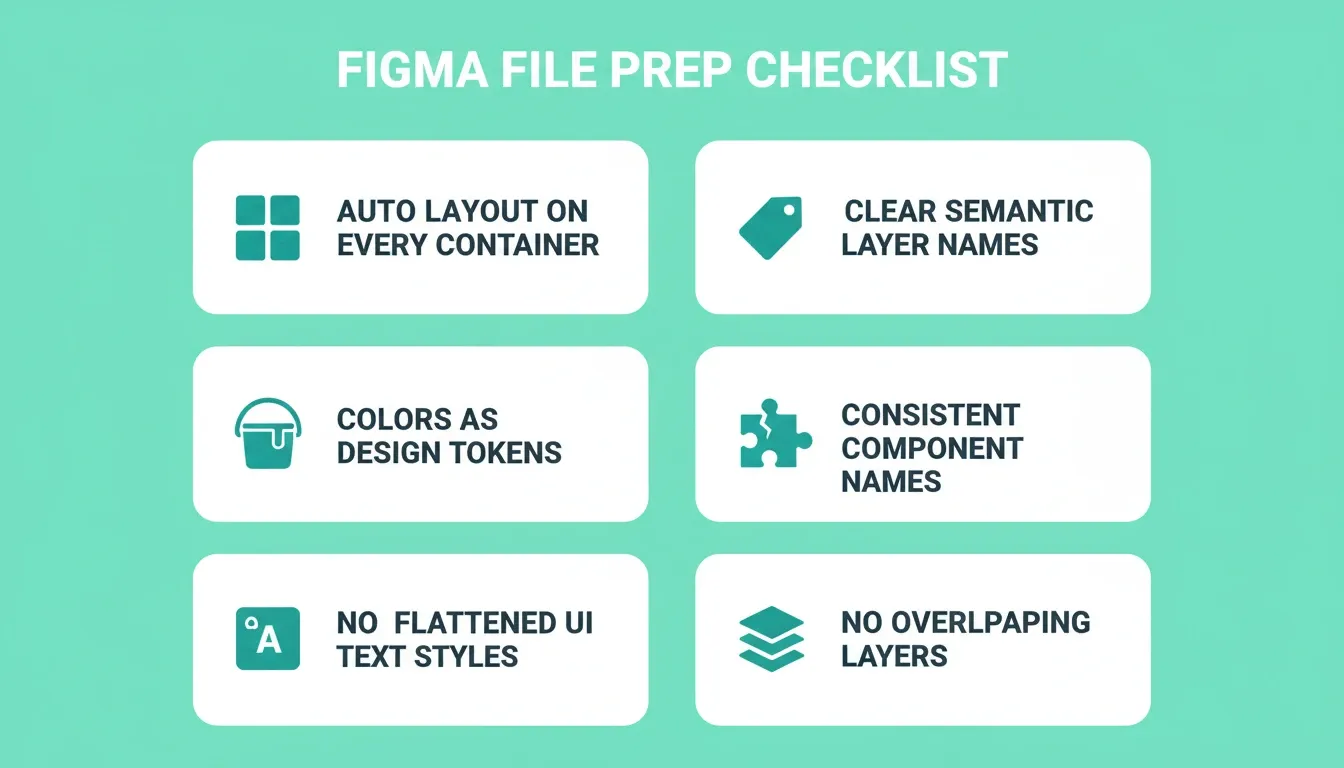
The quality of your generated code directly reflects your Figma file quality. Before importing into any design-to-code tool, apply these structural principles for consistently better output.
| Preparation Step | Why It Matters | Impact on Output |
|---|---|---|
| Apply auto layout to every container | Enables accurate CSS flexbox/grid translation | Responsive code without manual fixes |
| Name all layers clearly | AI reads layer names as component identifiers | Correct component naming in generated code |
| Define colors as design tokens or variables | Maps to CSS custom properties or Tailwind tokens | Maintainable, themeable code |
| Group related elements in labeled frames | Preserves component hierarchy | Accurate component tree structure |
| Avoid flattened images for UI elements | Flattened layers lose structural data | Prevents fallback to static image exports |
| Use consistent component naming conventions | Enables component reuse detection | Fewer duplicate components generated |
| Set typography as text styles | Maps to font tokens in the design system | Consistent typography across the codebase |
| Avoid overlapping layers | Overlaps require manual z-index fixes | Cleaner, more predictable CSS output |
Well-named layers, proper auto layout, and consistent spacing produce better code. Flattened images or ungrouped elements may need manual cleanup after import. For a deeper walkthrough on converting a structured Figma file into a full-stack app, see Figma to Full Stack App: Convert Designs With AI.
How Do AI Tools Change This Workflow Today?
AI-powered code tools have shifted from generating static HTML exports to producing functional code that respects your design system. The key difference is context.
-
Coding agents like Claude Code can now read Figma files through MCP server connections. They generate code directly from the design source rather than relying on screenshots or manual descriptions.
-
Figma Make (powered by Claude Sonnet) lets you generate React components and full TSX applications from text prompts and Figma frames. It reads your design system MCP setup to produce code that matches your existing component library.
-
The Model Context Protocol (MCP) provides a structured way for AI tools to access raw design data. Instead of pasting screenshots, a coding agent connected to an MCP server can read component properties, design tokens, auto layout rules, and text nodes directly from your Figma file.
-
According to research cited by AlterSquare's 2026 tools comparison, automated accessibility tools catch only about 30% of WCAG issues in AI-generated output. Engineering cleanup remains necessary regardless of tool choice.
The generated code quality depends heavily on how well your Figma file is structured. When you use Cursor or another AI code tool with MCP access, the output improves dramatically. The agent reads structured context rather than guessing from visuals.
What Makes a Good Design-to-Code Tool in Practice?
Not every Figma to code tool produces the same results. The right tool depends on how production-ready the output needs to be. For a detailed comparison of the leading options, see the best Figma to code AI tools breakdown.
-
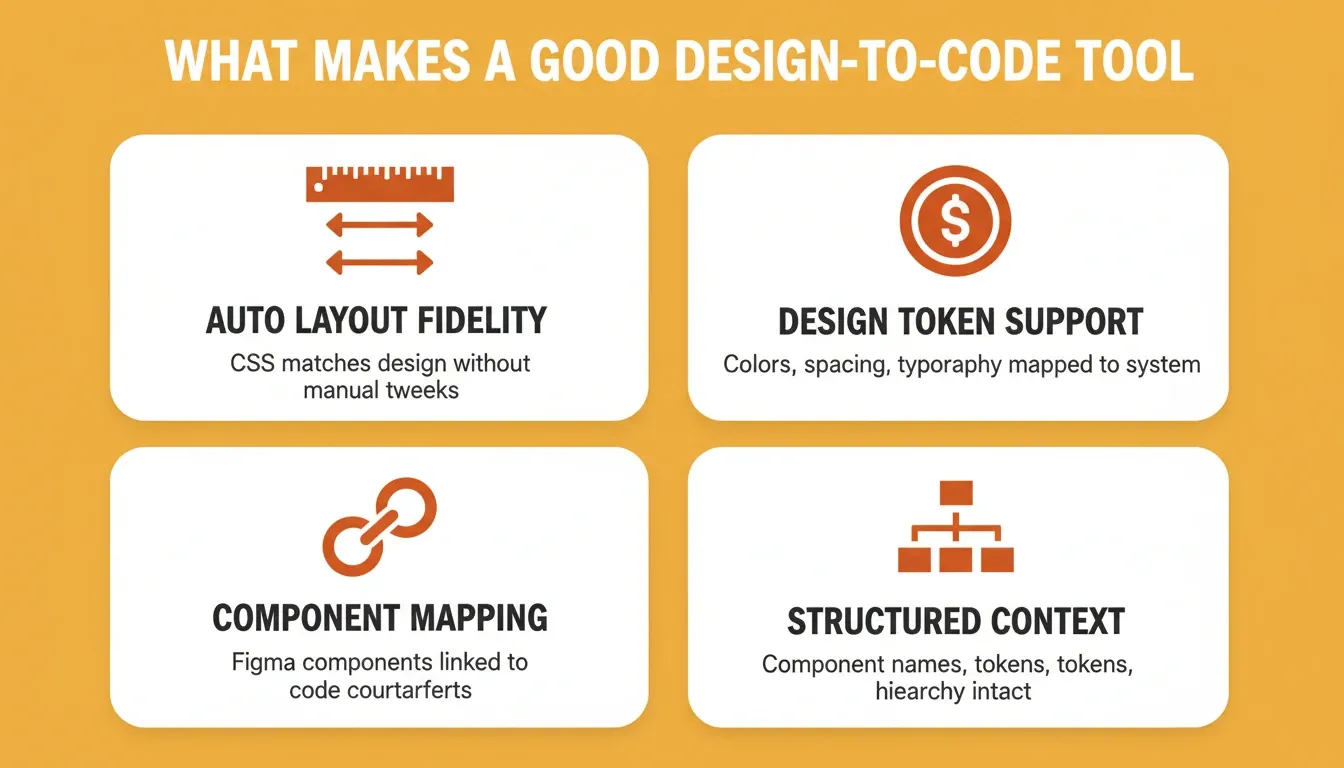
Auto layout fidelity matters most. Tools that correctly interpret Figma's auto layout rules produce CSS that matches the design without manual tweaks or pixel-perfect corrections.
-
Design token support separates prototype-grade output from production-ready code. The best tools map Figma variables directly to your design system token files, preserving colors, spacing, and typography across every component.
-
Component mapping should connect individual Figma components to their code counterparts. A Figma link between design and code components means the tool generates code using your existing library rather than creating duplicate elements.
-
Structured context delivery gives AI agents enough information to produce clean output. This includes component structure, naming conventions, and design tokens that the coding agent can reference without guessing.
When these criteria are met, the generated code requires minimal cleanup before shipping to production.
How Does the Figma MCP Server Connect Design Files to Agents?
The Figma MCP server makes modern design-to-code workflows feel smooth. It acts as a bridge between your Figma file and any AI coding agent that supports the Model Context Protocol.
-
Under the hood, the MCP server reads your Figma frame data. It extracts component properties, layout constraints, and design tokens, then delivers this as structured context to the AI. The agent does not need screenshots or manual descriptions.
-
Raw design data travels through the MCP tool in a format the coding agent understands. This includes JSON structures describing each element's position, style, text nodes, and component relationships within the Figma file.
-
Context window management matters for output quality. The Figma MCP server delivers only relevant data for the selected frame or page, not your entire design file. This makes the generated code more focused and reduces errors.
-
Component mapping at scale lets the MCP server connect individual components in Figma to their code counterparts in your repository. When the agent sees a Button/Primary in Figma, it generates code using your existing component rather than recreating one.
The 2026 tools comparison by AlterSquare confirms that engineering cleanup remains necessary regardless of tool choice. However, MCP-connected workflows cut this cleanup time significantly compared to screenshot-based approaches.
From Design File to Deployed App Without the Handoff Gap
You have a Figma file, an MCP connection, and an AI agent ready to write code. What if the tool could also handle the backend logic, database setup, and deployment in one step?
This is where Rocket.new stands apart from other Figma to code tools on the market. You can see the full picture of what this looks like in practice at Convert Figma Into a Deployed Product With Rocket.
-
Figma import with full-stack generation. Rocket takes your entire Figma design and produces a complete application with a Supabase connection, authentication, and API routes. You get production-ready code for both frontend and backend from a single Figma file.
-
Pixel-perfect fidelity without manual corrections. Rocket reads your Figma frame's auto layout rules, design tokens, and component structure. It generates code that matches your design system precisely, with no spacing values to tweak after export.
-
Turn Figma designs into live apps, not just code snippets. Traditional tools stop at generating React components or HTML and CSS. Rocket handles rapid prototyping through deployment, giving you a working URL instead of a folder of files to configure.
-
Design system awareness from the start. Rocket understands your design system components and maps them to a consistent code architecture using Next.js or Flutter with Tailwind CSS support.
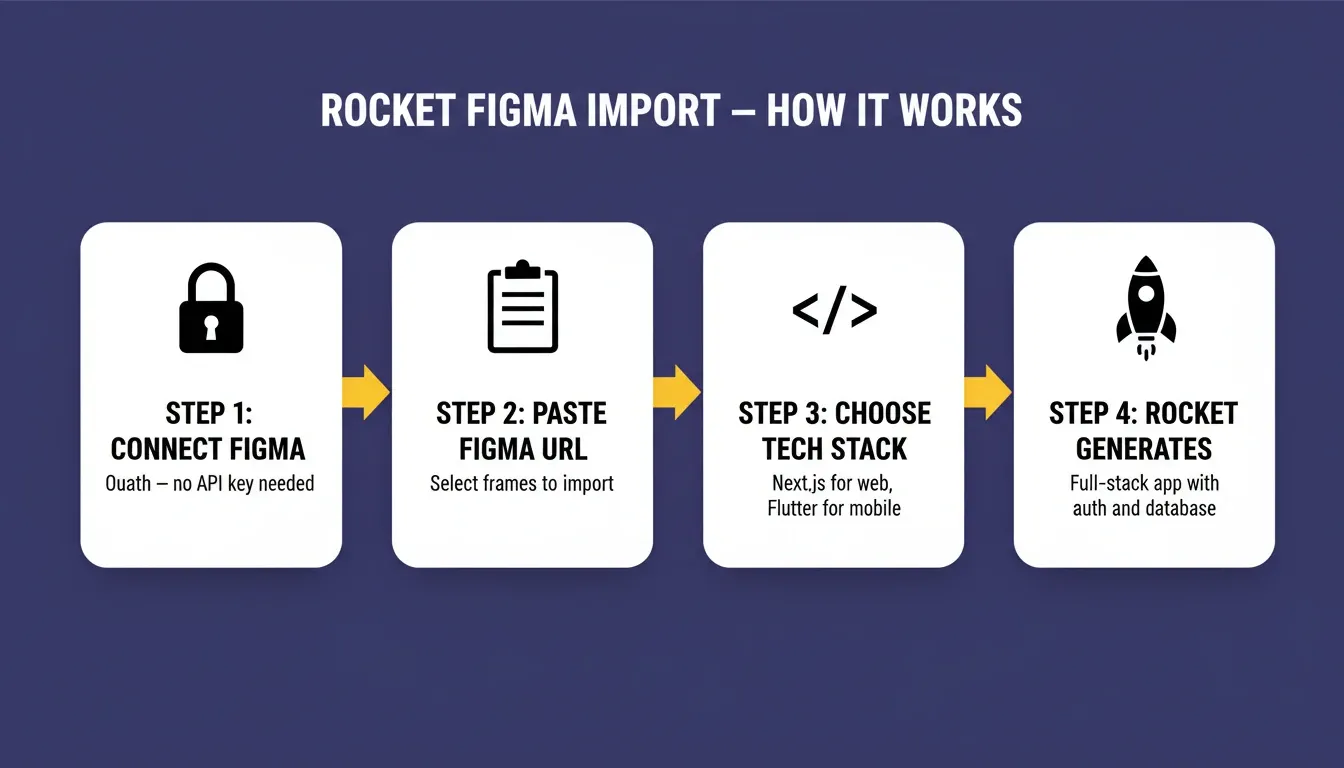
The time savings are concrete. What used to take a team weeks of converting designs to code, writing backend logic, and configuring deployment now happens in a single session on Rocket.
Figma to Production Code: Tool Comparison
| Tool | Output Type | Backend Support | Deployment | Best For |
|---|---|---|---|---|
| Rocket | Full-stack app (Next.js / Flutter) | Yes (Supabase, auth, APIs) | Yes (Netlify, one-click) | Complete production apps from Figma |
| Figma Make | React / TSX components | No | No | Frontend prototyping inside Figma |
| Cursor + Figma MCP | Code extending existing codebase | Manual | Manual | Teams with established codebases |
| Claude Code + MCP | Code extending existing codebase | Manual | Manual | Advanced developers with MCP setup |
| Figma Dev Mode | CSS specs and component references | No | No | Design handoff reference for developers |
What Steps Keep Code Quality High After Generation?
Even the best AI-generated code needs a human review pass before shipping. The goal is not to skip quality checks but to make them faster and more focused.
-
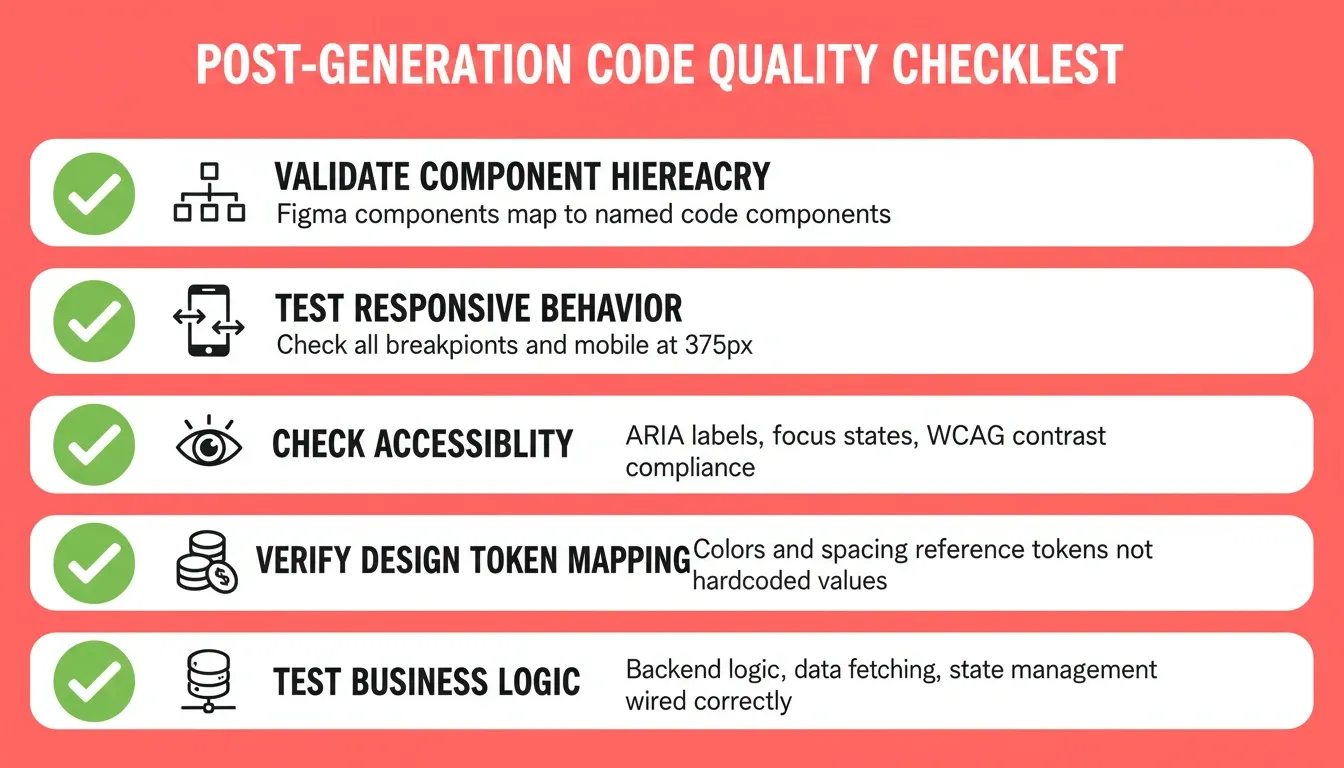
Validate component hierarchy. Check that the generated code mirrors your Figma file's structure. Each Figma component should map to a clearly named code component with the correct props and variants.
-
Test responsive behavior. Run the output across breakpoints. AI tools handle auto layout translation well, but complex responsive patterns still need manual verification. Resize the preview to mobile width (375px) and navigate every page.
-
Check accessibility rules. Generated code often misses ARIA labels, focus states, and contrast compliance. Use screen readers and automated accessibility scanners to catch issues early. Approximately 95% of websites fail basic accessibility checks (WebAIM 2025).
-
Verify design token mapping. Confirm that colors, typography, and spacing reference your design system tokens rather than hardcoded values. This keeps the code maintainable as your design system evolves.
-
Test business logic connections. AI generates clean frontend code, but backend logic, data fetching, and state management often need manual wiring. Review each data flow against your product requirements.
These steps apply whether you use Figma Make, a Figma plugin, or an MCP-connected code tool. For a broader look at how these principles apply to production apps, vibe coding best practices to build production-ready apps covers the full quality loop.
The Gap Between Figma Canvas and Live Product Is Now Minutes, Not Weeks
The design-to-code workflow has evolved from manual pixel recreation to AI-powered generation with full design system awareness. Developers who set up their Figma files with consistent structure, proper auto layout, and clear design tokens get dramatically better results from every tool in the pipeline.
As AI agents grow more capable of reading structured design data, the remaining gap will narrow further. The teams that invest in clean Figma file structure today will ship fastest tomorrow. Every improvement in AI tooling compounds on top of a well-organized design system.
Paste your Figma link into Rocket and get a complete, production-grade application — frontend, backend, and deployment — in a single session.
Table of contents
- -Why Does the Design-to-Code Handoff Still Break?
- -How to Prepare Your Figma File for Clean Code Generation
- -How Do AI Tools Change This Workflow Today?
- -What Makes a Good Design-to-Code Tool in Practice?
- -How Does the Figma MCP Server Connect Design Files to Agents?
- -From Design File to Deployed App Without the Handoff Gap
- -Figma to Production Code: Tool Comparison
- -What Steps Keep Code Quality High After Generation?
- -The Gap Between Figma Canvas and Live Product Is Now Minutes, Not Weeks