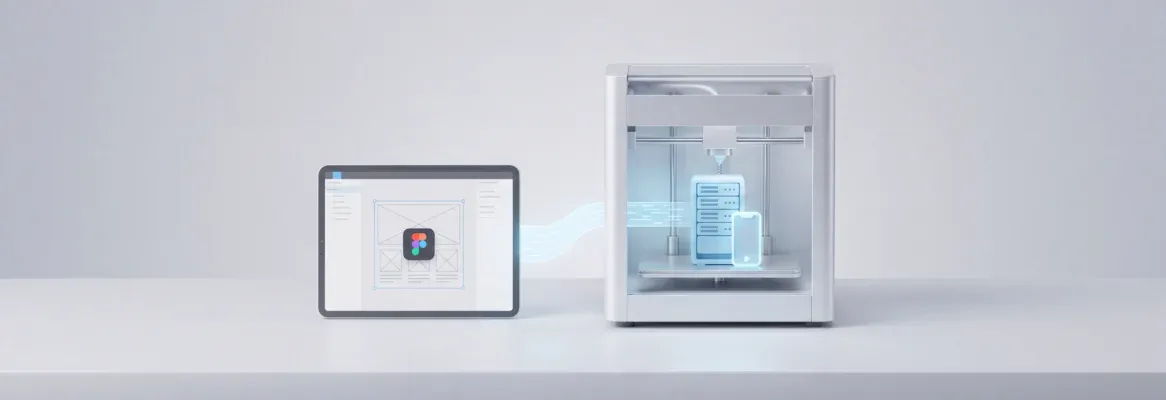
AI tools now convert Figma designs into complete, deployed applications with frontend, backend, and database layers. Rocket produces production-grade Next.js and Flutter apps directly from your design files, preserving every spacing and typography decision.
Why do designers and developers both agree the handoff process is broken?
According to Figma's 2025 research, 91% of both groups believe it could be better. That stat from a company based in San Francisco tells the full story of a collaboration gap that has refused to close, even years after Figma launched its cloud-based design tool and introduced features like Dev Mode and Figma Slides for team collaboration.
Teams spend weeks translating pixel-perfect prototypes into code, losing design intent somewhere between the Figma file and the final product. AI changes this equation by reading design files structurally and generating code that preserves your design system, typography, spacing, and visual hierarchy automatically.
This blog walks through every stage of the conversion process, compares the leading tools available today, covers practical file preparation techniques, and shows you the fastest path from static frame to live deployed application.
What is Figma-to-Code Conversion?
Figma-to-code conversion is the process of transforming a Figma design file into functional application code, such as HTML, CSS, React components, Flutter widgets, or a complete full stack application, using AI or automated tooling rather than manual developer implementation.
Full stack app means an application with a frontend (UI), backend (API logic), and database layer, all connected and deployable. Converting a Figma to full stack app means generating all three layers from your design file, not just the visual components.
Design-to-code is the broader category of tools and workflows that translate visual design specifications into executable code, ranging from single-component export to complete application generation.
Why the Design-to-Code Gap Still Exists in Most Teams
The problem is not that designers and developers lack skill. It is that the traditional design workflow forces a translation layer between what designers create and what developers build.
-
84% of designers collaborate with developers at least weekly, yet most handoffs still involve manual inspection of Figma files, copying CSS values one by one, and rebuilding UI layouts from scratch in code.
-
Design tools and code editors speak fundamentally different languages. One operates in frames, colors, spacing tokens, and auto layout constraints. The other thinks in DOM nodes, flexbox, CSS Grid, and component state management. Other design tools like Sketch and Adobe XD face the same translation problem.
-
Feedback and comments pile up across multiple programs. A single screen can pass through several review cycles before the final prototype matches what actually ships to users.
-
Teams lose 57% of creative work time to non-creative tasks like file management, writing specification documentation, organizing Figma Slides for stakeholder reviews, and coordinating across tools and platforms.
-
The gap creates technical debt before a single user touches the product. Designers end up creating the same components repeatedly while developers implement them from scratch each time.
This is why AI-powered design conversion has gained so much attention. When the collaboration between design and code breaks down at the handoff, everything downstream suffers. Building a high-fidelity Figma prototype represents only half the work if you cannot ship it intact to the web or to mobile apps.
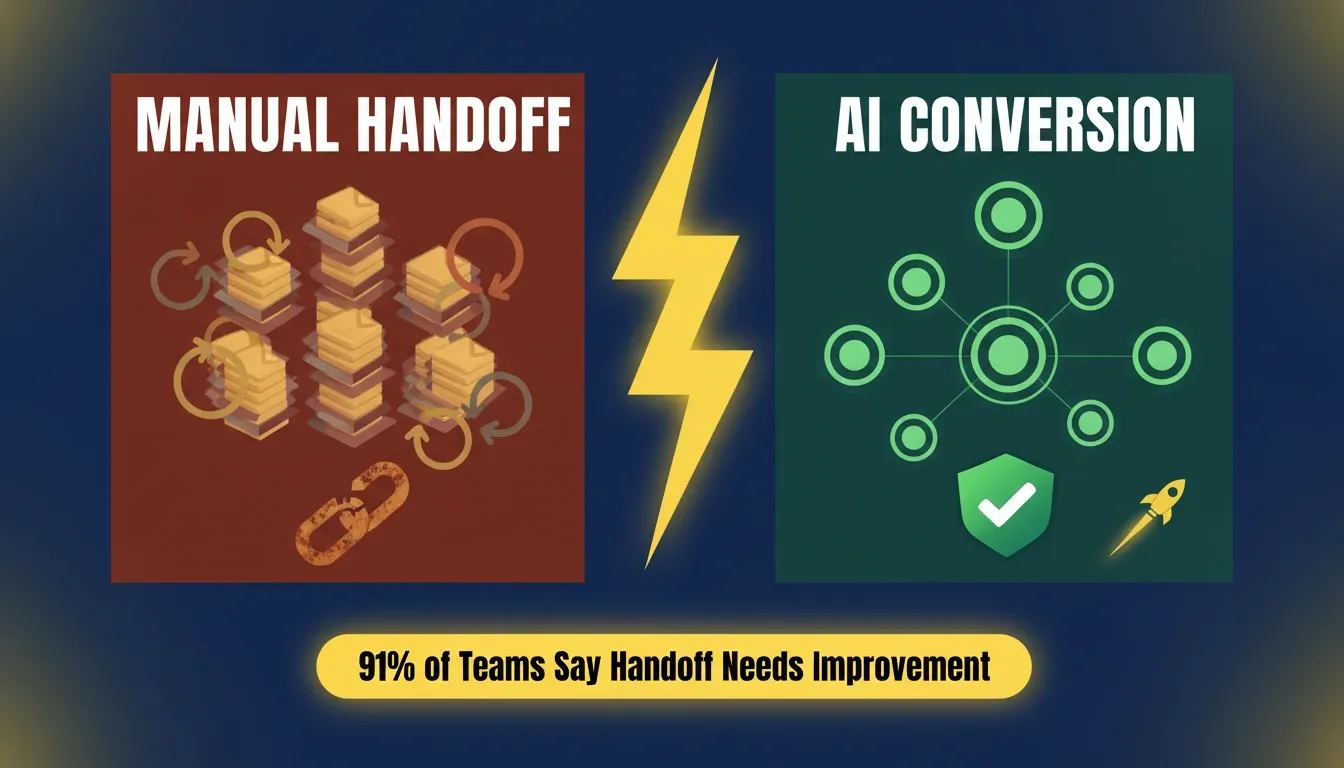
Manual design handoff creates friction at every stage. AI conversion removes the translation layer between what designers build and what developers ship.
How AI Converts Design Files into Production Code
The AI conversion pipeline works differently than traditional developer handoff. Rather than a person interpreting a design file visually, AI reads the structural data underneath your Figma layers and generates code for your target framework automatically.
-
AI parses your Figma file as structured data, not as a screenshot. Layer hierarchy, auto layout rules, design system tokens, component variants, spacing constraints, and frame dimensions all become machine-readable input for the code generation process.
-
The conversion follows three distinct stages: structural analysis, where the tool reads and interprets your design file; code generation, where it produces framework-specific output; and full stack assembly, where UI components connect with routing, state management, and backend logic.
-
Dev Mode in Figma gives developers access to code snippets, spacing values, and component properties. AI tools go further by reading the full design context and generating complete, functional UI components with proper interaction logic and responsive behavior built in.
-
Design tokens and variables map directly to CSS custom properties or Tailwind config entries. Your color system, typography scale, and spacing values translate into maintainable code without manual copying.
-
Plugins like Anima, Builder.io, and Locofy handle frame-to-code conversion within the Figma ecosystem. Full stack platforms like Rocket go further by generating complete applications from the imported design file, including backend logic, database connections, authentication, and deployment configuration.
The output quality depends heavily on how well your Figma file is structured before conversion. Teams that prepare their Figma designs for AI conversion report significantly better results on the first pass.
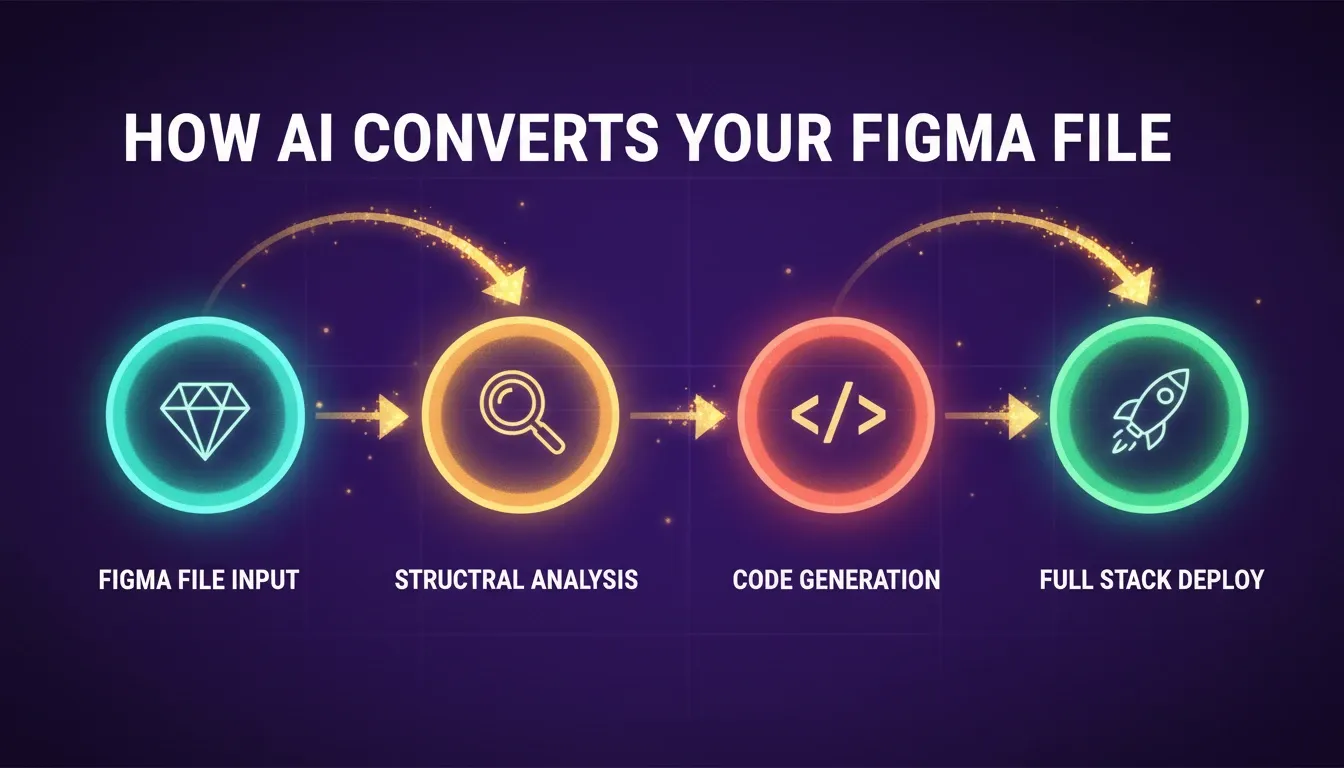
The four-stage AI conversion pipeline: Figma file input, structural analysis, code generation, and full stack deployment. Each stage builds directly on the last.
What Happens Under the Hood When You Convert a Figma Design?
Understanding the technical process helps you prepare your Figma files for better conversion results.
-
The AI reads each frame and its dimensions, padding values, gap spacing, and layout direction to determine whether a section becomes a flex container, CSS Grid layout, or positioned element.
-
UI components with defined variants get mapped to reusable code components with proper state handling. Buttons with Default, Hover, Pressed, and Disabled variants translate into interactive elements with corresponding CSS pseudo-classes.
-
Typography, colors, and spacing values export as design tokens that connect with your existing technology stack in real time.
-
Image assets, SVGs, icons, and illustrations get optimized for web delivery and exported alongside the HTML markup at appropriate dimensions.
-
The tool identifies interactive elements and generates appropriate event handlers, form validation logic, and navigation routing for the target platform.
How Should You Prepare Your Figma File Before Conversion?
File preparation is the highest-leverage activity in the entire pipeline. Teams that invest thirty minutes organizing their Figma file save hours of cleanup afterward. For the complete set of design guidelines Rocket uses during import, see the Figma design guidelines in the docs.
-
Use auto layout as your default for every frame. It maps directly to flexbox in CSS and gives AI tools clear information about spacing relationships and responsive behavior.
-
Name every layer semantically. Replace "Frame 74" with "ProductCard" or "NavigationHeader." These names become component names and CSS class names in your generated codebase.
-
Define your colors, typography, and spacing as Figma Variables rather than hard-coded values. Variables map to CSS custom properties or Tailwind theme tokens automatically.
-
Create component variants for every interactive state: Default, Hover, Active, Disabled, Loading. AI tools use these variants to generate proper state management.
-
Keep your layer hierarchy as flat as reasonable. Deeply nested frames produce bloated DOM structures with unnecessary wrapper divs.
-
Group and name all vectors and icons. Ungrouped or flattened vector elements are a common source of cleanup work after AI conversion.
For a deeper look at what makes a Figma file production-ready, the Figma file to production code guide covers spacing decisions, token structure, and layer organization in detail.
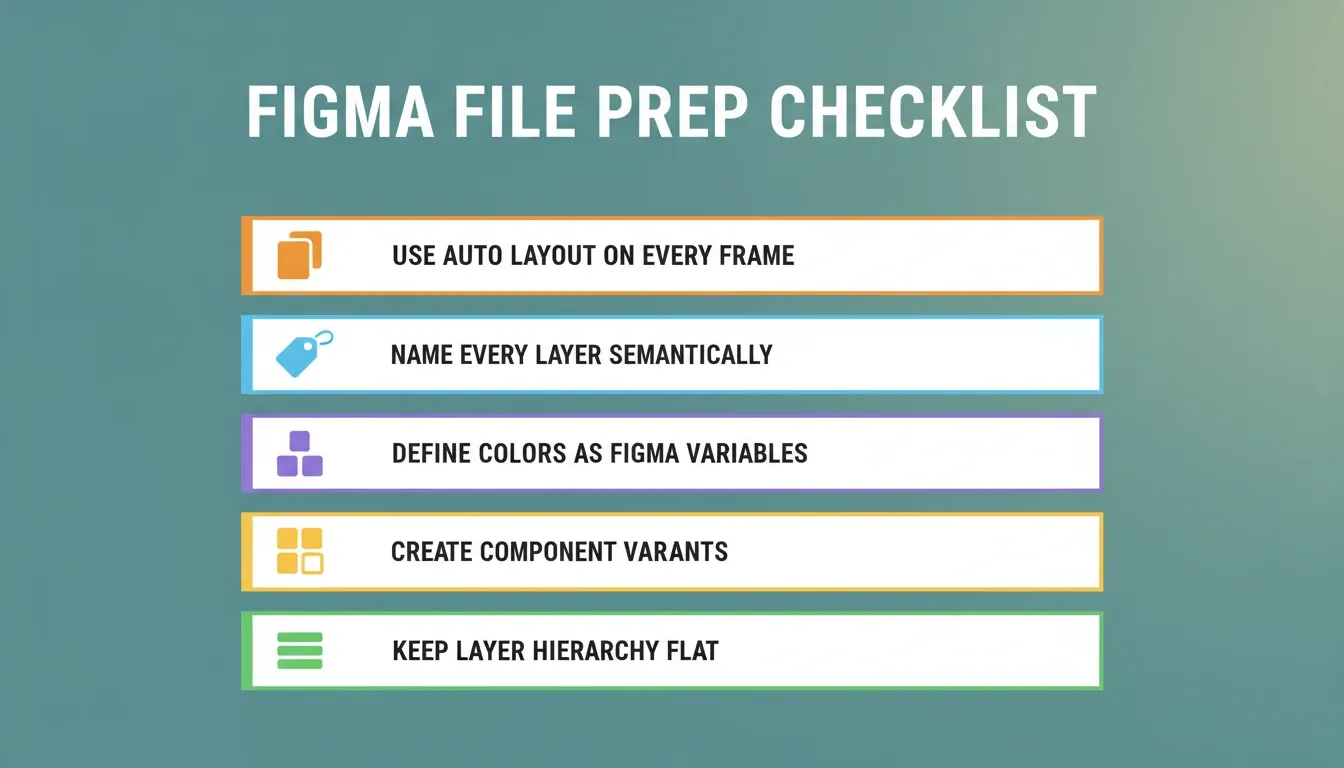
Five preparation steps that directly determine AI conversion quality. Well-structured files produce cleaner output on the first pass, with less manual cleanup required.
Which is Better: Builder.io, Locofy, or Anima for Figma Design Conversion?
Three major tools dominate the Figma-to-code space. Each takes a different approach to the conversion process. Understanding their strengths helps you choose the right tool for your Figma to full stack app workflow.
| Feature | Builder.io | Locofy | Anima |
|---|---|---|---|
| Supported Frameworks | React, Vue, Angular, Svelte, Next.js, Flutter, React Native | React, Vue, Angular, Next.js, Gatsby, React Native, Flutter | React, Vue, Tailwind, Next.js, HTML/CSS, shadcn/ui |
| Conversion Approach | CLI analyzes your existing codebase and matches patterns | Large Design Model with one-click Lightning conversion | Figma Dev Mode plugin with bidirectional Storybook sync |
| Mobile Apps Support | React Native and Flutter output | React Native and Flutter output | Web only, no native mobile apps |
| Design Token Handling | CLI replaces generic colors with your registered tokens | Converts Figma Styles and Variables to CSS custom properties | Maps Variables to CSS vars or Tailwind config |
| Backend / Full Stack | Frontend only | Frontend only | Frontend only |
| Best For | Teams with existing codebases who want matched output | Fast prototyping with direct GitHub sync | Design fidelity with Storybook component connection |
Pricing Comparison
| Tool | Free Tier | Entry Paid Plan | Growth / Pro Plan |
|---|---|---|---|
| Builder.io | Free for 5 users | Pro at $19/user/month | Growth at $39/user/month |
| Locofy | Limited free tier | Token-based from $33/month | Pay-as-you-go at $0.40/token |
| Anima | 5 generations/day | Starter at $19/month | Pro at $40/seat/month |
-
Builder.io gets roughly 75% of the way to production code, according to their documentation. Developer refinement is still required for scalable projects.
-
Locofy claims close to 80% automation of front-end development. Independent research from Bain suggests realistic end-to-end productivity gains are closer to 10-15% when measuring the full pipeline.
-
Anima has over 1.5 million Figma installs and was Figma's launch partner for Dev Mode, making it the most established plugin in the community.
-
None of these tools handle backend logic, database schema creation, user authentication, or deployment on their own. They produce frontend components that still need a full stack foundation.
-
The common limitation: they export code fragments, not complete applications. Routing, state management, API endpoints, and deployment infrastructure still need to be assembled separately.
If your goal is a complete, deployable product rather than a code export, you need a platform that operates at a higher level. The full stack AI approach produces working applications, not just styled components.
The AI Design-to-Code Workflow: Stage by Stage
Understanding how each stage of the Figma to full stack app pipeline works helps you avoid the bottlenecks that slow most teams down.
Two conversion paths: plugin-based frontend export requires manual backend assembly; Rocket's full stack generation produces a deployable product in a single session.
Where Rocket Fits When You Need More Than Code Export
Most design-to-code tools stop at generating frontend components. Rocket's Build pillar starts where they stop, taking your Figma design and producing a complete, deployable application in a single session.
Rocket is one part of a broader vibe solutioning platform that also includes Solve (AI market research and PRDs) and Intelligence (continuous competitor monitoring). The Build pillar alone covers the full Figma-to-app pipeline, but teams that use Solve before they build start with validated direction, not just a design file.
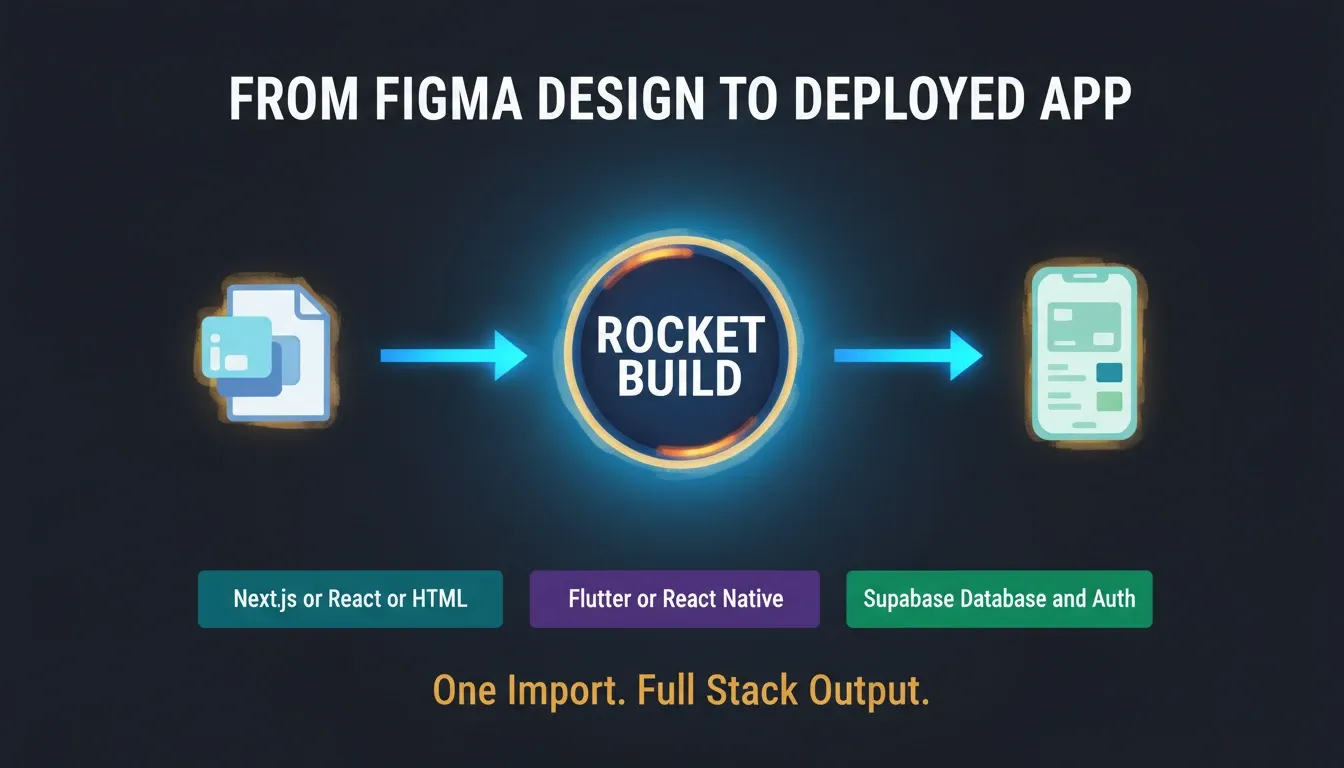
You import the Figma file. Rocket generates the full stack application, including frontend, backend, database, and auth, across your choice of web or mobile stack.
-
Upload your Figma file and get a production-grade application with full page routing, component state management, API layers, and data models. Output options are Next.js, React, or HTML/CSS for web and Flutter or React Native for mobile.
-
Connect your Figma account once via OAuth at the workspace level. One Figma account can be connected per workspace, and every project in that workspace can access your design files without re-importing.
-
Unlike plugins that generate code snippets for individual frames, Rocket reads your entire design file holistically and produces a cohesive application with consistent navigation patterns and shared UI components.
-
Built-in Supabase integration means your converted design gets a real PostgreSQL database, user authentication with email and social login, file storage, and edge functions.
-
After the initial build, you can refine through natural language chat, visual editing, or direct source code access. You can also choose between Next.js for web or Flutter for mobile to create apps for any target platform.
The gap between "design to code" and "design to product" is where most teams lose weeks of development time. Rocket closes that gap in a single session.
See the Figma import docs for the full connection walkthrough:
If you are deciding between building for web or mobile first, the guide to building a mobile app with AI walks through the full decision framework and stack selection.
What to Expect: Limitations and Honest Trade-offs
AI conversion is capable, but knowing where it reaches its limits saves time and prevents rework.
-
Complex animations need a manual pass. Figma prototyping animations, smart animate transitions, and multi-step micro-interactions are not fully captured in the initial AI output. Plan for a polish pass on animated elements.
-
Ungrouped or flattened elements produce less accurate output. If your Figma file has flattened vectors, unnamed layers, or components placed outside of frames, the AI has less structural data to work with. The file preparation checklist above addresses the most common issues.
-
Screen limits vary by plan. Rocket's Figma import supports 2 screens on the free Starter plan, 6 on Personal, 12 on the Rocket plan, and 25 on Booster. For larger projects, prioritize your core screens and import in logical batches.
-
One Figma account per workspace. The OAuth connection links one Figma account to your Rocket workspace. Teams using multiple Figma accounts should plan their workspace structure before connecting.
-
Generated code is a strong starting point, not a finished product. Accessibility polish, edge-case interactions, and performance tuning still benefit from a human review pass.
These trade-offs apply to every AI conversion tool on the market. The advantage of a full stack platform is that you are reviewing one coherent application rather than assembling disconnected code fragments.
Code Ownership, GitHub Sync, and Exit Paths
A common concern when using any AI builder is lock-in. Rocket is built around code ownership from day one.
-
You own the code. Every application generated by Rocket is standard Next.js, React, HTML/CSS, Flutter, or React Native, with no proprietary runtime or vendor-specific syntax.
-
GitHub sync lets you push your generated codebase to a GitHub repository at any point. From there, any developer can clone, fork, and continue work in any editor. See the GitHub code sync docs for setup.
-
Direct source code access is available inside the Rocket editor. You can view, edit, and export the raw source files without leaving the platform.
-
Because the output is standard framework code, you can start in Rocket and hand off to a development team at any stage without rewriting from scratch.
For teams evaluating whether AI-generated code holds up at scale, the full stack code automation guide covers architecture decisions, maintainability, and handoff patterns in detail.
Team Collaboration and Role-Based Access
Rocket supports multi-user workflows for design and development teams working on the same Figma-to-app project.
-
Workspace-level collaboration lets multiple team members access shared projects, view build history, and iterate on the same application simultaneously.
-
Role-based access controls who can edit, deploy, or manage workspace connectors, which is particularly useful for agencies and product teams with distinct designer, developer, and stakeholder roles.
-
The collaboration overview in the docs covers workspace setup, project sharing, and task assignment in detail.
For a broader look at how AI tools fit into team-based product development, the guide to team collaboration app development covers workflows, handoff patterns, and role structures.
What Does a Realistic Design-to-App Workflow Look Like?
Here is what a repeatable process looks like when you are shipping from Figma to a live product.
-
Step one: Structure your Figma file for AI consumption. Use auto layout everywhere, name layers semantically, define your design system with Figma Variables, and group all vectors.
-
Step two: Choose your conversion path based on project scope. Export via a Figma plugin for frontend-only work. Import into a full stack platform like Rocket when you need the complete application with database, authentication, and deployment.
-
Step three: Review and iterate on the generated output. AI gets you most of the way, but every generated application benefits from a human review pass checking accessibility, animation polish, and interaction edge cases.
-
Step four: Connect your backend services. Link Supabase for your database and auth layer, Stripe for payments, and any other connectors your app needs, all available from the Rocket connector library.
-
Step five: Deploy, test across devices, collaborate with your team on final adjustments, and ship.
"Figma design to Dev Mode with code connect. Figma MCP to push canvas to IDE. We used MCP to build..." - Reddit r/FigmaDesign community member, March 2026 (source)
The teams saving the most time are those whose Figma files are well-structured enough that AI produces clean output on the first pass. A properly prepared design file makes every downstream step faster.
The Fastest Path From Design to Deployed Product
The Figma to full stack app workflow has fundamentally changed. What used to take weeks of developer handoff, backend assembly, and deployment configuration now happens in a single session when your design file is well-structured and your conversion tool operates at the right level.
Plugins handle the frontend. Full stack platforms handle everything. As AI conversion continues to improve, the teams that invest in clean Figma file structure today will ship faster, iterate more, and spend less time on assembly work. You describe what you want to build. Rocket generates and deploys it. Start building on Rocket.new and turn your next Figma design into a live product today.
Table of contents
- -What is Figma-to-Code Conversion?
- -Why the Design-to-Code Gap Still Exists in Most Teams
- -How AI Converts Design Files into Production Code
- -What Happens Under the Hood When You Convert a Figma Design?
- -How Should You Prepare Your Figma File Before Conversion?
- -Which is Better: Builder.io, Locofy, or Anima for Figma Design Conversion?
- -Pricing Comparison
- -The AI Design-to-Code Workflow: Stage by Stage
- -Where Rocket Fits When You Need More Than Code Export
- -What to Expect: Limitations and Honest Trade-offs
- -Code Ownership, GitHub Sync, and Exit Paths
- -Team Collaboration and Role-Based Access
- -What Does a Realistic Design-to-App Workflow Look Like?
- -The Fastest Path From Design to Deployed Product