Setting up GitHub sync for AI apps correctly is the single most important infrastructure decision before your first commit. This guide covers how two-way sync works, what breaks it, how to fix it fast, and how different platforms handle it.
Every AI app builder promises GitHub integration. In practice, developers run into broken connections, silent disconnections, renamed repos that kill their sync, and OAuth tokens that expire without warning. The result is lost commit history, drifted codebases, and hours spent debugging instead of building.
This blog walks through exactly how repository sync works for AI-generated code, why it fails more often than traditional workflows, and what a reliable setup looks like.
Whether you are connecting a new project or troubleshooting an existing one, you will find step-by-step fixes, a platform comparison, and best practices that prevent the most common problems before they happen.
Why Does GitHub Sync Break for AI-Generated Code?
AI tools generate code at a pace that manual git workflows cannot match. Global GitHub commits reached nearly 5 billion in 2025, a threefold increase since 2019 (WIPO), and a significant share of that growth comes from AI-assisted development.
The sync problem is not a bug in any one platform. It is a structural mismatch between how AI tools generate code and how traditional version control was designed to receive it. Here is what that looks like in practice:
-
Volume: AI studio tools produce hundreds of lines per prompt. Without automatic commits, reverting bad outputs becomes painful
-
Frequency: Human developers commit several times per day, while AI-native workflows generate dozens of changes per session
-
Conflict source: Traditional merge conflicts come from human overlap. AI-native conflicts come from AI and human edits hitting the same files simultaneously
-
Audit trail: If your AI studio does not sync commits to GitHub, you have no record of what changed or when
-
Deployment drift: A disconnected repo means your live app and codebase diverge without warning
| Challenge | Traditional Dev | AI-Native Dev |
|---|---|---|
| Commit frequency | Several per day | Dozens per session |
| Conflict source | Human overlap | AI and human overlap |
| Review method | Line-by-line PR | Batch review of generated files |
| Rollback need | Occasional | Frequent (bad AI output is common) |
| Collaboration model | Pull requests only | Real-time sync and PRs |
| Branch strategy | Long-lived feature branches | Short-lived prompt branches |
Understanding these differences is the first step toward selecting the right GitHub connector for your project.
How Two-Way Repository Sync Works
Two-way sync means code changes flow in both directions between your AI development environment and your GitHub repository. Understanding the mechanics helps you debug it when it breaks.
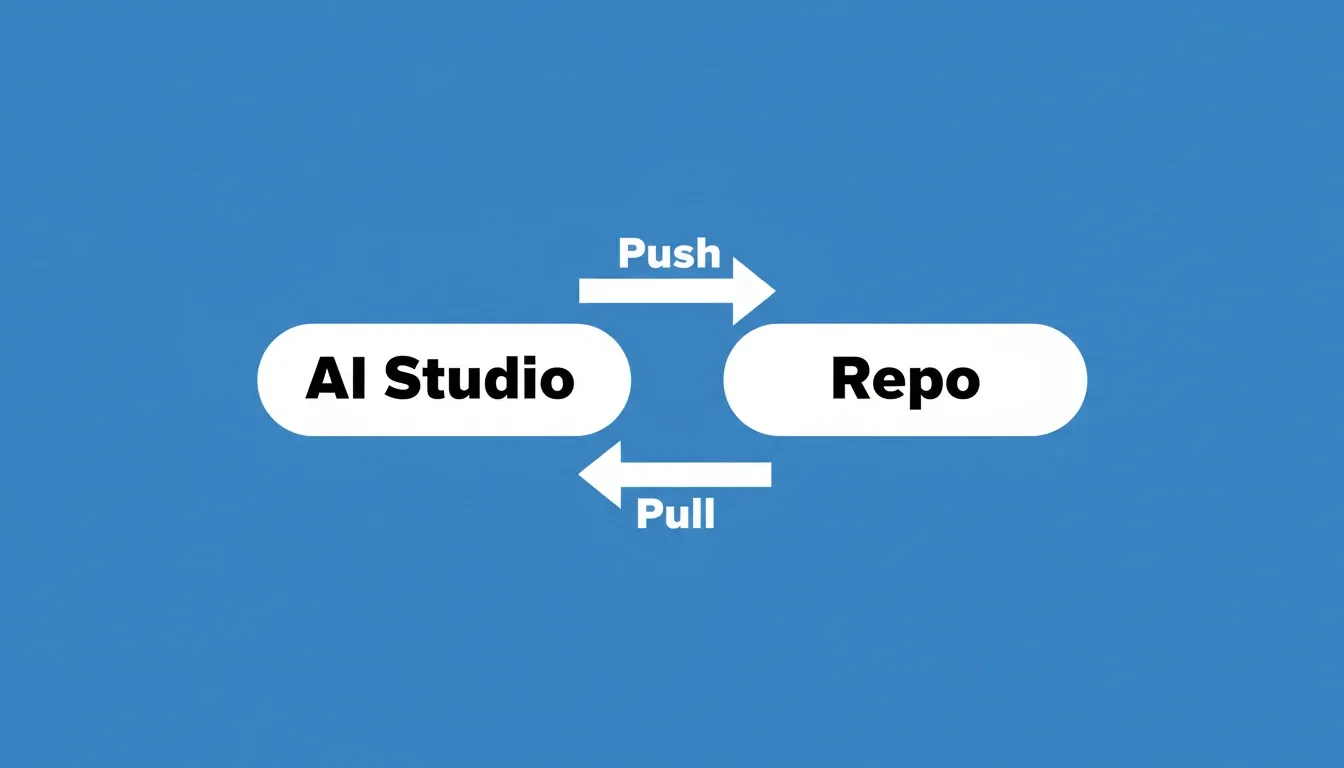
Two-way sync keeps your AI studio and GitHub repository in continuous alignment
The Push Flow
Your AI studio generates code, stages the changes, commits them with a message, and pushes to a specific branch on your GitHub repository. In a well-configured setup, this happens automatically after each prompt session. You never need to touch a terminal.
The Pull Flow
When a teammate merges a pull request on GitHub, the studio fetches those changes and applies them to the working project. This is where most platforms fail. The pull direction requires an active, authenticated connection to your repo at all times, and that connection breaks more often than the push direction.
Conflict Resolution
Most platforms attempt auto-merge when push and pull changes overlap. When conflicts arise, the user receives a prompt to resolve them manually inside the studio view. The quality of this experience varies significantly across platforms.
Branch Strategy for AI Apps
The branch strategy you choose determines how much pain you feel when AI output goes wrong. Here is a practical breakdown:
-
mainorproduction: Never sync AI-generated code directly here. Use it as the stable deployment target -
devorstaging: The primary sync target. AI commits land here first -
feature/\[description\]: Short-lived branches for specific AI-generated features. Merge todevafter review -
rocket-update: The branch Rocket uses automatically for Next.js TypeScript projects. It pushes here and opens a pull request tomaineach time
According to developer surveys, 84% of developers now use or plan to use AI tools in their workflow. With 180 million GitHub developers on the platform, sync between AI studio environments and repos is infrastructure everyone will expect from their tools.
Rocket's sync flow: full two-way for Next.js TypeScript, manual push for all other frameworks
What Breaks AI Studio Sync and Why
Most AI app builders advertise "GitHub integration." Community discussion threads reveal a messier reality. Here are the problems developers hit most frequently.
Desynchronization and Unexpected Rebinding
Google AI Studio updates have caused project desynchronization, where the studio silently reassigns your GitHub repo to a different project. One community discussion thread captured this precisely:
"The core issue here is not just data loss - it's unexpected reassignment of GitHub repositories across AI Studio projects without user awareness." — Google AI Developers Forum
This is not an edge case. Many developers found the same problem in their own projects after routine platform updates.
Renamed Repositories Causing Sync Failures
When a repo is renamed on GitHub, the old URL breaks immediately. Your AI studio still points to the old URL, and every push fails silently. The fix requires updating the remote origin URL manually. However, many platforms do not surface this option clearly in their connection settings.
In most cases, the solution requires disconnecting and reconnecting the repository with the updated name. There is no in-place URL edit available.
OAuth and Access Token Expiry
Connection settings break when OAuth tokens expire. The studio shows a vague error rather than telling you the token needs a refresh. The pattern repeats: reconnect, it works for a week, then sync stops again without any notification.
Why this happens: OAuth tokens issued to AI studio apps typically have a fixed expiry window. When the token expires, push and pull calls return 401 errors. Most platforms surface this as a generic "sync failed" message rather than a clear "token expired" prompt.
Silent Disconnection
Several community discussion threads document cases where AI studio projects appear "synced" in the settings panel, but the actual connection is inactive. The studio has cached a "connected" state that no longer reflects reality. Disconnecting and reconnecting is the most common fix, but it creates a fresh repo link that loses previous commit history context.
Framework Limitations
Not all AI builders support two-way sync for all frameworks. This is an honest capability boundary that most platforms do not disclose clearly. As a result, developers discover the limitation mid-project rather than before they start. To avoid these failure modes in your own projects, follow the best practices documented here.
How Rocket Handles GitHub Sync
Rocket treats GitHub as a first-class citizen, not a bolted-on extra. The platform was built with repository sync from day one. Here is exactly what that looks like in practice.
Connection: Authorize your GitHub account via OAuth. No API key, no terminal commands, no SSH key managed locally. Connect once at the workspace level and it is available across all tasks. 1.5 million people across 180 countries have tried Rocket, and the GitHub connector is one of the most-used features among builders.
Two-way sync for Next.js TypeScript: Every push automatically creates arocket-updatebranch and opens a pull request tomain. After the initial push, the button switches to "Pull from GitHub" so you can bring changes from your local IDE or from teammates back into Rocket. The pull always reads frommain.
One-way push for other frameworks: For non-Next.js projects, click Push whenever you want to update GitHub. No automatic pull request is created. Make changes in Rocket first, then push when ready.
Rocket surfaces your GitHub connection state clearly, with one-click reconnect when tokens expire
Automatic commit history: Every AI-generated change gets its own commit with a descriptive message. Your git log stays readable, and discussion threads on GitHub stay relevant to the actual code.
No silent disconnecting: When connection settings change or tokens expire, Rocket surfaces the error immediately with a clear step to reconnect. The settings panel reflects actual connection state, not cached state.
Version rollback: Access every previous version of your project and restore any state with one click when AI output goes sideways. This is separate from GitHub. It is Rocket's internal version history, which means you can roll back even if your GitHub connection is broken. Read more about how Rocket handles version history and one-click rollback.
Import from existing repos: Already have code on GitHub? Import it directly and continue building with AI assistance on top. Rocket clones a Next.js TypeScript repo and picks up where you left off. See how Rocket continues an existing Next.js codebase.
Permissions Rocket requests: Create new repositories on your behalf, read public and private repo names and metadata, and access your GitHub username and email address. Nothing broader than what the sync requires.
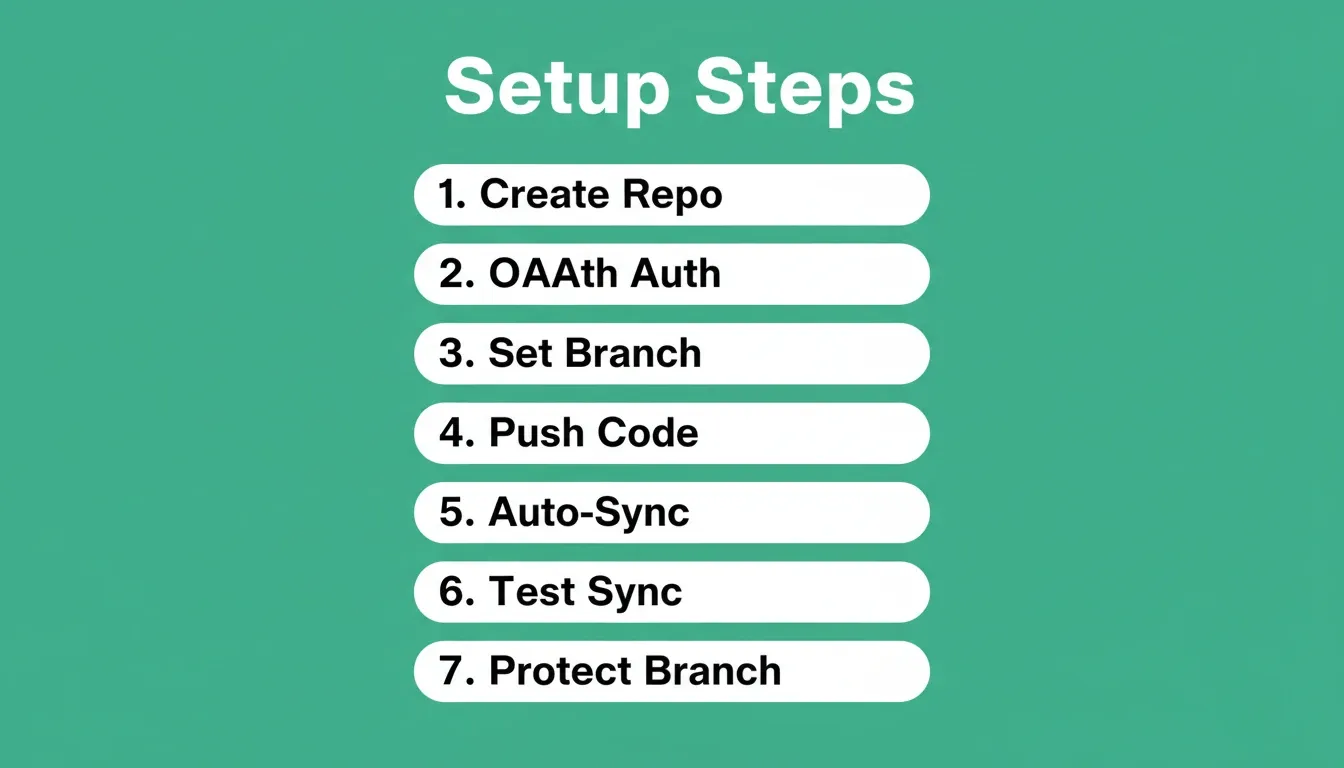
Step-by-Step: Connecting Your Repository to an AI App Builder
Here is the exact process for connecting your GitHub repo. The steps below reflect Rocket's flow. The general approach applies to other platforms too.
Step 1: Create or Select Your Repository
Navigate to GitHub and create a fresh repo, or locate an existing one. Copy the repository URL. Use a clear task name because Rocket automatically creates a repository using the task name, so clarity here saves confusion later.
Step 2: Authorize Access via OAuth
In Rocket, connect from any of four places: when creating a task (Clone from GitHub), from the GitHub icon in the toolbar, from the Connectors tab, or from workspace Settings. All four do the same thing. Complete the OAuth flow and authorize DhiWisePvtLtd. After authorization, you are redirected back to Rocket with GitHub connected.
Step 3: Configure Connection Settings
Select your repository from the list. Choose your default branch. If the repo was renamed or the old URL changed, update the remote origin URL to match. Verify that the repo name in your studio settings matches the current GitHub URL exactly before pushing.
Step 4: Push Initial Code and Verify
Trigger an initial push. Navigate to your GitHub repository in a browser tab and check that your files appear. For Next.js TypeScript projects, verify that Rocket created arocket-updatebranch and opened a pull request tomain. If you see an error, verify permissions and refresh your OAuth connection.
Step 5: Enable Auto-Sync and Confirm Branch Behavior
For Next.js TypeScript: auto-sync is on by default. Every push creates a PR, and every pull reads frommain. For other frameworks: push manually whenever you want to update GitHub. Your version history tracks every commit from both directions.
Step 6: Test the Round-Trip
Make a small edit directly on GitHub. Add a comment to any file. Then open your Rocket project and verify the change appears after pulling. This confirms the pull direction works. Next, make a prompt-driven edit in Rocket and check that GitHub shows the new commit onrocket-update.
Step 7: Set Up Branch Protection
On GitHub, navigate to your repository settings and add branch protection rules formain. Require at least one review on pull requests before merging. This adds a human review step that catches bad AI output before it reaches production. It is recommended for any project with more than one contributor.
Integrating GitHub Sync with CI/CD Pipelines
Once your code is on GitHub, you can connect it to CI/CD services for automated builds and deployments. This is where GitHub sync for AI apps pays its biggest dividend. Every AI-generated commit can trigger an automated test and deploy cycle without manual intervention. For a deeper look at deployment automation, see the complete guide to deploying full-stack apps with AI tools.
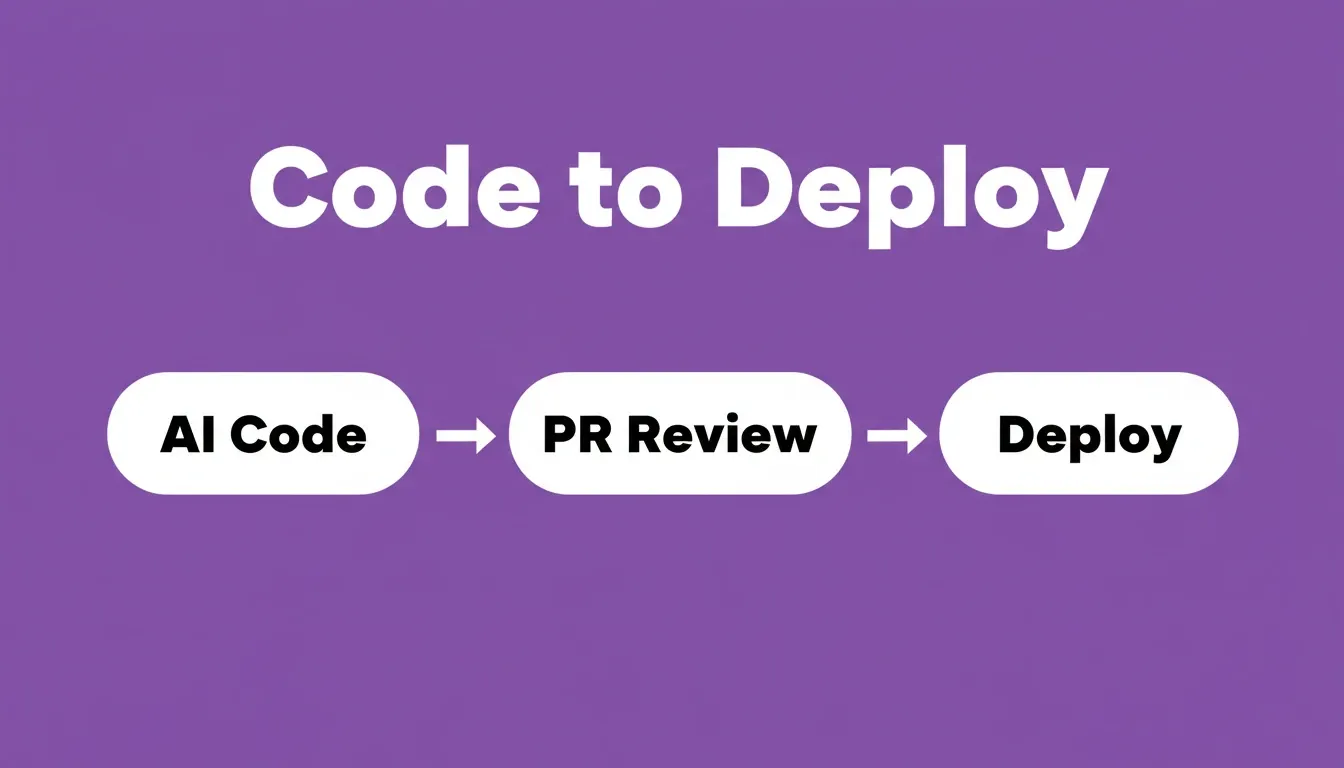
Every AI-generated commit should pass through review before reaching your deployment pipeline
GitHub Actions
Create a.github/workflows/deploy.ymlfile in your repository. A basic workflow for a Next.js app looks like this:
1name: Deploy on Push
2on:
3 push:
4 branches: [main]
5jobs:
6 deploy:
7 runs-on: ubuntu-latest
8 steps:
9 - uses: actions/checkout@v3
10 - uses: actions/setup-node@v3
11 with:
12 node-version: '18'
13 - run: npm install
14 - run: npm run build
15 - run: npm run deploy
Every time Rocket's pull request tomainis merged, this workflow triggers automatically.
Netlify and Vercel Integration
Rocket supports direct Netlify deployment after pushing code to GitHub. Connect your GitHub repo to Netlify, point it atmain, and every merge fromrocket-updatetriggers a new build automatically. For Next.js TypeScript projects, Vercel is the natural deployment target. Connect your GitHub repo and Vercel deploys on every merge tomain. Learn more about Netlify deployment with Rocket.
What to Automate vs. What to Review Manually
Not everything should go straight to production. Here is a practical rule for AI-generated code:
| Action | Automate | Review Manually |
|---|---|---|
| Linting and type checks | Yes | No |
| Unit tests | Yes | No |
| Staging deployment | Yes | No |
| Auth and payment logic | No | Yes |
| Data access changes | No | Yes |
| External API integrations | No | Yes |
| Production merge | No | Yes, always |
Troubleshooting Common Sync Errors
When your sync breaks, work through these steps before opening a support ticket. Most issues resolve at step three or four.
"Failed to sync with GitHub"
-
Open your project settings and navigate to the GitHub connection panel
-
Check if the repo was renamed. If it was, the old URL no longer resolves
-
Disconnect the current connection. Disconnecting does not delete files from your repo
-
Reconnect using the updated name and current repository URL
-
Verify sync status shows "connected" before making more edits
Repository Shows "Inactive" or "Retrieval" Mode
This issue appears frequently after platform updates. The studio marks the repo as inactive even though it is well under storage limits. The fix: unlink the repository completely, wait 30 seconds, then reconnect with a fresh OAuth grant. Save and verify the connection state before pushing.
Renamed Repo Not Recognized
Navigate to connection settings and look for the stored URL. If it shows the old repo name, update it manually. In some cases, you must disconnect, delete the old connection entry, and add the renamed repo as if it were new. There is no in-place URL edit in most platforms.
Changes Not Appearing After Merge
Check these four things in order:
-
Verify the sync is pointed at the correct branch, specifically
mainand notrocket-update -
Open the studio settings and click "refresh" or "re-sync"
-
Confirm the pull request was merged to your synced branch, not a different one
-
Check the commit history. If the latest commits from GitHub do not appear, disconnecting and reconnecting resolves this in most cases
OAuth Token Expired
Navigate to your GitHub account settings, find the authorized OAuth apps list, and verify your AI studio still has access. If the authorization is missing or expired, reconnect from the studio side. Set a monthly calendar reminder to check this. Silent token expiry is the most common cause of surprise disconnections.
Push Succeeds but No Pull Request Created
This is expected behavior for non-Next.js TypeScript frameworks. For other frameworks, GitHub integration is one-way and manual. If you expected a PR and did not get one, check which framework your project uses. For Next.js TypeScript, verify that therocket-updatebranch was created on GitHub.
Platform Comparison: GitHub Sync Across AI App Builders
Not all AI app builders handle GitHub sync the same way. Here is how the major platforms compare based on community discussion threads, developer experience, and documented behavior.
| Platform | Sync Type | Two-Way Support | Common Issues | Reconnect Ease |
|---|---|---|---|---|
| Google AI Studio | One-way push, manual pull | No | Repo rebinding, renamed URL issues, silent disconnecting | Multiple steps required |
| Lovable | Two-way sync | Yes | Cloud project errors, sync status lag | Moderate |
| Replit | Git clone and manual push | No | No native auto-sync, requires local git setup | Manual only |
| Rocket | Two-way (Next.js TypeScript) or one-way (other frameworks) | Next.js TypeScript only | Minimal reported issues | One-click reconnect |
One important distinction worth noting: Rocket is transparent about its sync boundaries. Two-way sync works for Next.js TypeScript. For all other frameworks, integration is one-way and manual. This is documented clearly. Most platforms do not make this distinction explicit, which is why developers discover the limitation mid-project rather than before they start.
Developers who found issues with Google AI Studio comment consistently that the platform's sync functionality feels like an add-on rather than a core feature. The discussion threads show the same pattern: users renamed a repo, lost the connection, spent hours finding the correct settings page, and then still had to disconnect and start fresh. For a broader look at how AI builders compare on key features, see the AI app builder comparison guide.
Best Practices for Keeping Your AI App in Sync
Once connected, these practices prevent the problems that fill community discussion threads.
Commit often, commit small. Let your AI tool auto-commit after each prompt session rather than batching dozens of changes into one push. This keeps your git log readable and makes rollbacks surgical rather than destructive.
Use descriptive branch names. When building a new feature with natural language prompts, create a branch likefeature/ai-chat-moduleso reviewers understand the context without reading every file diff.
Review AI-generated pull requests before merging. Skim the edits, check for hallucinated imports, and verify that updated dependencies are real packages. AI-generated code passes linting but can still introduce logic errors that only a human review catches.
Monitor your connection settings weekly. When OAuth tokens expire or a repo name changes, you want to catch it within hours, not after a week of lost commits.
Keep a decisions log in the repo. Add aDECISIONS.mdfile to record why certain AI-generated patterns were accepted. This gives memory to future contributors who view the project without the context of the original prompt sessions.
Never delete files without checking sync status. If your local build and the remote repo are out of sync, deleting files locally might wipe published components on your next push.
Label AI commits consistently. Use a prefix like[ai]or[rocket]for AI-generated changes so your git log clearly distinguishes human and AI authorship. This matters for code review, debugging, and audit trails.
Know the reconnect flow by heart. Disconnecting and reconnecting is the solution to most AI studio sync issues. Knowing the exact steps, specifically disconnect, wait, and reconnect with fresh OAuth, saves significant time when something breaks at a critical moment.
GitHub Sync Is Infrastructure, Not a Setup Chore
The platforms that earn long-term trust treat version control as invisible infrastructure. If your current workflow involves manual exports, broken connections, renamed repo confusion, or lost commit history, the problem is the platform, not the workflow.
As AI-generated code continues to grow as a share of total commits, GitHub sync for AI apps will become a baseline expectation rather than a differentiating feature. The builders who set it up correctly now avoid the debugging tax later.
You describe the problem. Rocket researches it, builds from that thinking, and keeps your code connected to GitHub from the first commit. Sign up for Rocket.new free and connect your repo in under sixty seconds.
Table of contents
- -Why Does GitHub Sync Break for AI-Generated Code?
- -How Two-Way Repository Sync Works
- -The Push Flow
- -The Pull Flow
- -Conflict Resolution
- -Branch Strategy for AI Apps
- -What Breaks AI Studio Sync and Why
- -Desynchronization and Unexpected Rebinding
- -Renamed Repositories Causing Sync Failures
- -OAuth and Access Token Expiry
- -Silent Disconnection
- -Framework Limitations
- -How Rocket Handles GitHub Sync
- -Step-by-Step: Connecting Your Repository to an AI App Builder
- -Step 1: Create or Select Your Repository
- -Step 2: Authorize Access via OAuth
- -Step 3: Configure Connection Settings
- -Step 4: Push Initial Code and Verify
- -Step 5: Enable Auto-Sync and Confirm Branch Behavior
- -Step 6: Test the Round-Trip
- -Step 7: Set Up Branch Protection
- -Integrating GitHub Sync with CI/CD Pipelines
- -GitHub Actions
- -Netlify and Vercel Integration
- -What to Automate vs. What to Review Manually
- -Troubleshooting Common Sync Errors
- -"Failed to sync with GitHub"
- -Repository Shows "Inactive" or "Retrieval" Mode
- -Renamed Repo Not Recognized
- -Changes Not Appearing After Merge
- -OAuth Token Expired
- -Push Succeeds but No Pull Request Created
- -Platform Comparison: GitHub Sync Across AI App Builders
- -Best Practices for Keeping Your AI App in Sync
- -GitHub Sync Is Infrastructure, Not a Setup Chore