
Build a parental controls dashboard with parent-child account linking, screen time limits, content filters, activity reports, and override flows. Use Rocket.new to generate the Next.js parent web dashboard and Flutter child app from a single prompt.
A parental controls dashboard is a feature set that lets parents manage a child's app experience from a linked account, covering screen time limits, content filters, activity reports, and override request flows. This guide covers every module you need to build one, plus how to ship a production-ready family safety app using Rocket.
Key takeaways
-
A complete parent dashboard needs five modules: child account management, screen time limits, content filters, activity reporting, and override request flows.
-
Parent and child accounts need separate permission levels enforced by Supabase row-level security policies.
-
Content flag notifications should route through Supabase Edge Functions and Resend. Never expose secret keys client-side.
-
Safe defaults matter more than configurable options: set restrictions on by default and let parents adjust.
-
Rocket.new generates Next.js web apps and Flutter mobile apps. Use both together for a full parent dashboard plus child mobile experience.
Why Family Apps Need a Parent-Child Account Architecture
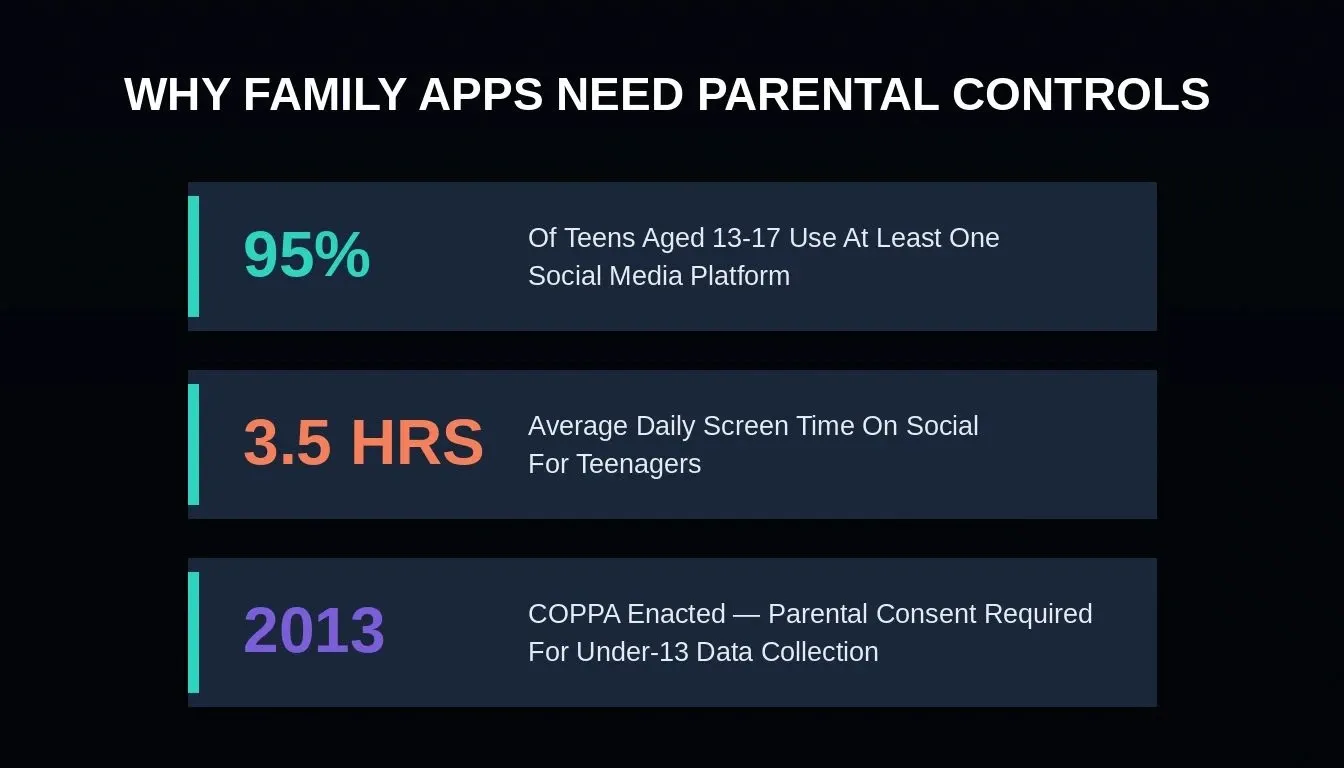
Key statistics driving the demand for parental controls in mobile apps
The shift toward family safety is clear. When Instagram launched Teen Accounts in 2024, teens 13-17 automatically received a protected experience with built-in limits on who can contact them and the content they see. Parents gained the ability to adjust and manage these settings through a linked parent account.
According to the U.S. Surgeon General's Advisory on youth mental health, up to 95% of young people aged 13-17 use at least one social media platform, with teenagers spending an average of 3.5 hours of daily screen time on social media. Parents want control over this. Regulators now demand it.
Meta's rollout of Instagram Teen Accounts proves the industry is racing to set parental controls as the default for minors. If you're building an edtech app, a gaming platform, or any family-oriented product, the parent-child linked account architecture is no longer optional.
-
COPPA compliance requires parental consent mechanisms. The FTC's Children's Online Privacy Protection Rule requires verifiable parental consent before collecting data from children under 13. Your app needs a parent-linked architecture to implement that consent flow. Note: this article describes technical patterns, not legal advice. Consult qualified counsel for COPPA compliance sign-off.
-
Family link patterns are becoming the standard. Google Family Link, Apple Screen Time, and Amazon devices all use parent-child account structures to manage restrictions, set screen time limits, and control app access across devices.
-
Age-based defaults reduce legal risk. When a child's account has restrictions set by default based on the child's age, your app demonstrates responsible design before a regulator asks questions.
-
Privacy requirements vary by country. Different regions enforce different age thresholds and consent mechanisms, so your parent dashboard must support configurable rules per account.
| Platform | Account Linking | Screen Time Limits | Content Filters | Location Sharing | Approval Flows |
|---|---|---|---|---|---|
| Instagram Teen Accounts | Yes | Yes (overnight blocks) | Yes (restricted content) | No | Yes (parent override) |
| Google Family Link | Yes | Yes (daily time limits) | Yes (app/web filters) | Yes | Yes (app approval) |
| Apple Screen Time | Yes | Yes (per-app limits) | Yes (age ratings) | Yes | Yes (purchase approval) |
| Amazon Kids+ | Yes | Yes (educational goals) | Yes (curated library) | No | Yes (content access) |
Any family-oriented app you create should match or exceed these capabilities. You don't need to code this from scratch when you can generate authentication systems with role-based access using AI tools. Understanding how to build a mobile app with AI step by step is the fastest way to get your family safety product off the ground.
What Does a Complete Parent Dashboard Include?
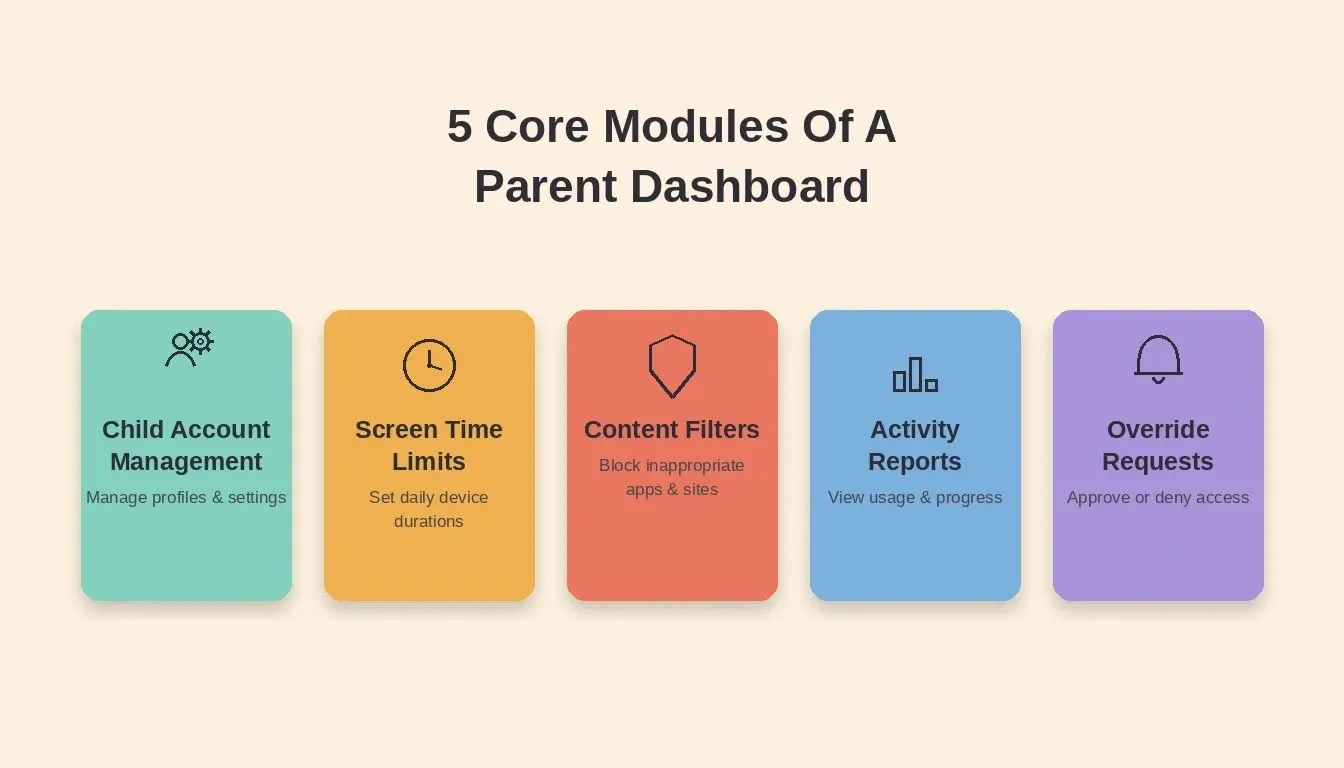
The five core modules every parent dashboard must include
A parent dashboard is the control center where parents manage their child's experience across devices. At minimum, it needs five core modules working together to keep kids safe.
-
Child account management. Parents create, link, and manage one or more child profiles from a single parent dashboard view. Each child's account gets its own set of restrictions based on their age group.
-
Screen time limits and scheduling. Parents set daily time limits, configure bedtime lockouts, and designate school-hour notification muting. Kids see countdowns on their devices while parents see usage reports.
-
Content filters and access controls. Parents choose what categories of content, apps, games, videos, and websites their child can access. Filters adjust as the child's age changes over time.
-
Activity reporting. A daily or weekly report shows parents how much time their child spent on each app, what search results they viewed, which friends they interacted with, and any flagged content attempts.
-
Override request flow. When a child hits a restriction, they can send a request to the parent for temporary access or unlimited time on a specific app or game. The parent receives a notification and can approve or deny from the dashboard.
Your parent dashboard should follow app security best practices to prevent kids from bypassing restrictions through settings manipulation or account switching. A secure architecture means children cannot reset their own controls.
Ready to start building?* Rocket.new generates the full parent-child account architecture, Supabase backend, and notification pipeline from a single prompt. *Start building your family safety app on Rocket today.
How Do Screen Time Limits and Content Filters Work Together?
These two systems run in parallel but share enforcement logic. When a child opens an app on their device, the system checks both the content filter (is this app or category allowed?) and the screen time limit (has the daily allocation been consumed?)
The restriction logic needs to handle edge cases well. What happens when a child is in the middle of a game and the time limit hits? Most apps show a 5-minute warning, then apply a hard lock.
Games, videos, music, YouTube, and social media apps typically consume the most screen time for kids. Location-based restrictions add another layer, letting parents block access to certain content when the child's device is at school versus at home. Learning how to build a social media app using no-code tools gives you a strong foundation for understanding how content restriction layers are typically structured.
How Should the Override Request Flow Work?
The override request is where the parent-child communication loop closes. Without it, kids feel trapped and parents feel like they're managing restrictions instead of a family conversation.
-
Request triggers. A child taps "Ask Parent" when they hit a block. The request includes which app or content they want access to, why (optional text message), and how long they need.
-
Parent notification delivery. The parent receives a push notification and an in-dashboard alert. They see the child's request details, current screen time usage for the day, and a one-tap approve or deny button.
-
Approval options with time controls. Parents can grant access for 15 minutes, 30 minutes, 1 hour, or until bedtime. They can also grant permanent access by adjusting the restriction rules for that specific app.
-
Denial with context messaging. When a parent denies a request, they can attach a short message explaining why. This keeps communication open and eventually teaches kids about boundaries in both digital and offline life.
-
Request history for transparency. Both parent and child can view past requests and approval decisions, creating transparency and reducing repeat arguments about the same apps or games.
This flow mirrors how family link systems work on major platforms, but you can customize it for your app's specific context. A gaming app might include "tournament exception" requests. An edtech app might auto-approve requests for educational apps during homework hours. The messaging component works similarly to building secure messages in social apps, where private communication between linked accounts requires proper security controls.
How to Build a Parental Controls Dashboard on Rocket
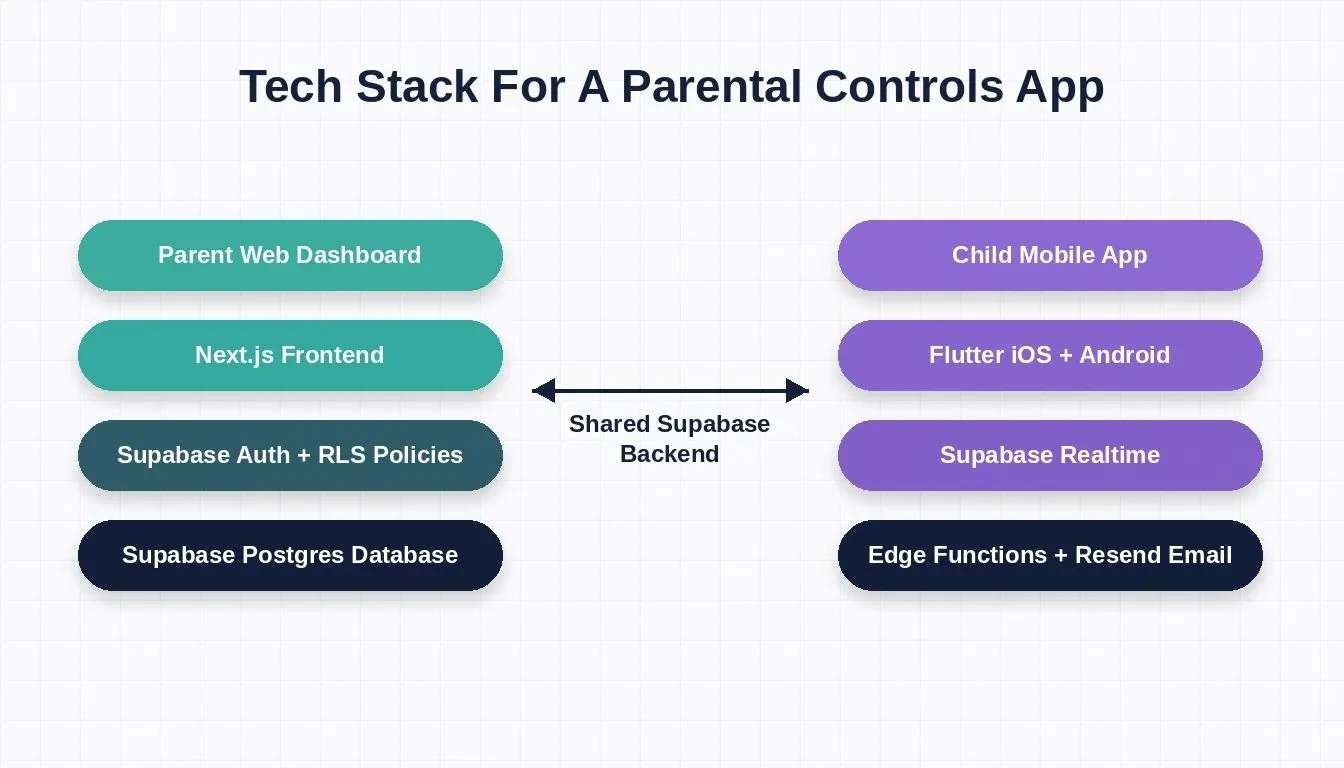
The dual-stack architecture Rocket.new generates for a parental controls product
So you have the full architecture spec. Parent-child account linking, restriction toggles, usage reports, override requests, and notification alerts. The question is: how long will this actually take to build?
Traditional development of a system like this typically requires a dedicated backend team and multiple sprint cycles. With Rocket.new, you can ship a working parent dashboard with all five modules significantly faster. Here's what makes the difference.
The stack: Next.js for the parent web dashboard and Flutter for the child mobile app
Rocket.new generates two complementary outputs for a product like this. Next.js powers the parent-facing web dashboard, where parents set restrictions, review activity reports, and manage child profiles from any browser. Flutter powers the child-facing iOS and Android mobile app, where restrictions are enforced, screen time countdowns appear, and override requests are sent. See why Rocket generates Next.js and Flutter for the full reasoning behind this stack choice.
Supabase for the backend
Rocket.new scaffolds a complete Supabase backend, including Postgres database, user authentication, file storage, and edge functions, all from chat. Connecting Supabase takes one OAuth authorization step: open Connectors, click the Supabase card, and authorize Rocket. Once connected, Rocket.new generates the database schema, auth flows, and row-level security policies from your prompts.
For the parent-child permission model, you implement this using Supabase row-level security (RLS) policies, a pattern where each database row is scoped to a specific user or role. Rocket.new generates these RLS policies from a prompt like: "Scope all child activity data so only the linked parent account can read it." If you want to understand how to enable this correctly, the guide on Supabase row-level security in AI-built apps covers the exact setup steps.
Resend for email notifications, routed through Supabase Edge Functions
Content flag alerts and weekly activity reports route through Resend. Because Resend API calls involve a secret key, they run server-side via Supabase Edge Functions. Rocket.new generates these edge functions from chat so your secret keys never reach the client.
Android and iOS deployment from one Flutter codebase
Your child-side family safety features work on all the devices kids actually use, without maintaining separate Android and iOS projects. The guide on building a mobile native app explains how Rocket.new handles cross-platform deployment from a single codebase.
How Should You Send Content Flag Notifications to Parents?
When a child attempts to access restricted content, or when the system detects age-inappropriate material, the parent needs to know right away. Here's how the notification pipeline should work in your app.
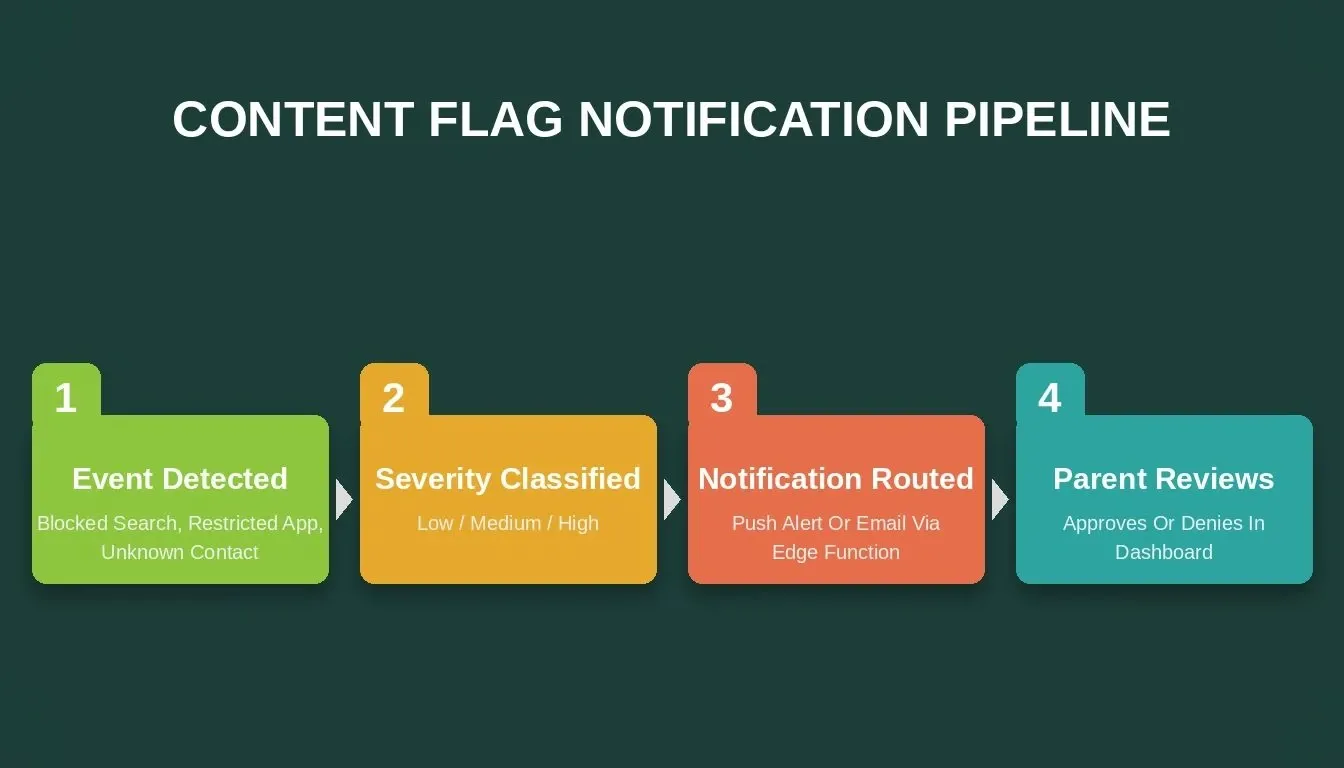
The four-step content flag notification pipeline from event detection to parent review
-
Event trigger detection. The app detects a content flag event: a blocked search query, an attempt to open a restricted website, a message from an unknown contact, or a camera permission request from an unauthorized app.
-
Severity classification system. Not every flag is urgent. Classify events as low (attempted access to time-limited app), medium (blocked content category), or high (contact from unknown user, attempt to change security settings or lock screen).
-
Notification routing by priority. High-severity events trigger both push notifications and email via Resend. Medium events appear in the parent dashboard report. Low events aggregate into the weekly activity summary.
-
Email content structure via Resend. The notification email includes: child's name, timestamp, event type, what was blocked, and a deep link back to the parent dashboard to review or adjust other settings.
-
Data minimization in every notification. Never include the full content of what was blocked in email messages. Reference it by category and let the parent view details within the secure app environment. Minimizing child data in outbound messages is a data-minimization practice aligned with COPPA's spirit, but it is not a substitute for the full parental consent and data-handling requirements COPPA mandates. Consult qualified legal counsel for compliance sign-off.
*"We cannot conclude social media is sufficiently safe for children and adolescents." - U.S. Surgeon General's Advisory on Social Media and Youth Mental Health, *HHS.gov
The notification system serves two helpful purposes. First, it keeps parents informed so they can determine when to talk to their child about online safety. Second, it creates an audit trail that proves your app actively works to prevent harmful content exposure, which matters for both compliance reviews and building user trust.
Remember, safe defaults matter more than configurable options. Set your notification preferences to maximum by default and let parents choose to adjust if they want fewer alerts. This mirrors how Instagram's Teen Accounts work: restrictions come on automatically, and only a parent can select which ones to change.
Your Family App Starts With the Right Architecture
The parent-child linked account pattern is no longer a nice-to-have for family apps. It's the standard that Meta, Google, Apple, and Amazon have normalized for the web and mobile. Any edtech founder, gaming studio, or social app builder serving kids needs this architecture ready before launch day.
The fastest path from spec to shipped product runs through Rocket.new. One prompt defines your parent dashboard with all five modules. Rocket.new generates the Next.js web dashboard, the Flutter child app, the Supabase backend with RLS policies, and the Resend notification pipeline together.
Ready to build a parental controls dashboard? Rocket.new generates the full parent-child account architecture, Next.js web dashboard, Flutter child app, Supabase backend with row-level security, and Resend notification pipeline from a single prompt. Start building your family safety app on Rocket today.
Table of contents
- -Why Family Apps Need a Parent-Child Account Architecture
- -What Does a Complete Parent Dashboard Include?
- -How Do Screen Time Limits and Content Filters Work Together?
- -How Should the Override Request Flow Work?
- -How to Build a Parental Controls Dashboard on Rocket
- -How Should You Send Content Flag Notifications to Parents?
- -Your Family App Starts With the Right Architecture