
Use contextual messages, skeleton loaders, and single-action CTAs on blank screens. Rocket generates Flutter apps with AI-driven state handling built in, saving hours of manual UX work.
Key Takeaways
-
An empty state is any screen with no content to display: first-time use, a failed AI response, a cleared list, or a pending data load.
-
AI-driven Flutter apps face unique empty state challenges because streaming responses, context window limits, and multi-layer error handling create states that standard Flutter architecture does not cover.
-
BLoC/Cubit is the strongest pattern for streaming AI responses; Riverpod's
AsyncValue is the cleanest for Gemini API and Firebase AI calls.
-
Skeleton loaders, single-action CTAs, and contextual copy are the three highest-impact UI fixes for blank screens.
-
Rocket's Build pillar generates Flutter apps with loading, error, and empty state widgets already wired in from the first prompt.
Handling the empty state in an AI-built Flutter app correctly is the difference between users who stay and users who leave.
According to Nielsen Norman Group, empty states left undesigned create confusion and decrease user confidence.
Mobile apps lose roughly 77% of their daily active users within the first three days of install. When your app relies on AI features that take seconds to generate responses, those blank screens become critical failure points that frustrate users and drive abandonment.
What Are Empty States and Why Do They Frustrate Users?
An empty state in a Flutter app is any screen that has no content to display, whether due to first-time use, a failed AI response, a cleared list, or a pending data load.
Every Flutter app encounters these moments. Blank screens appear during first-time use, after clearing data, when searches return nothing, or when AI models have not responded yet.
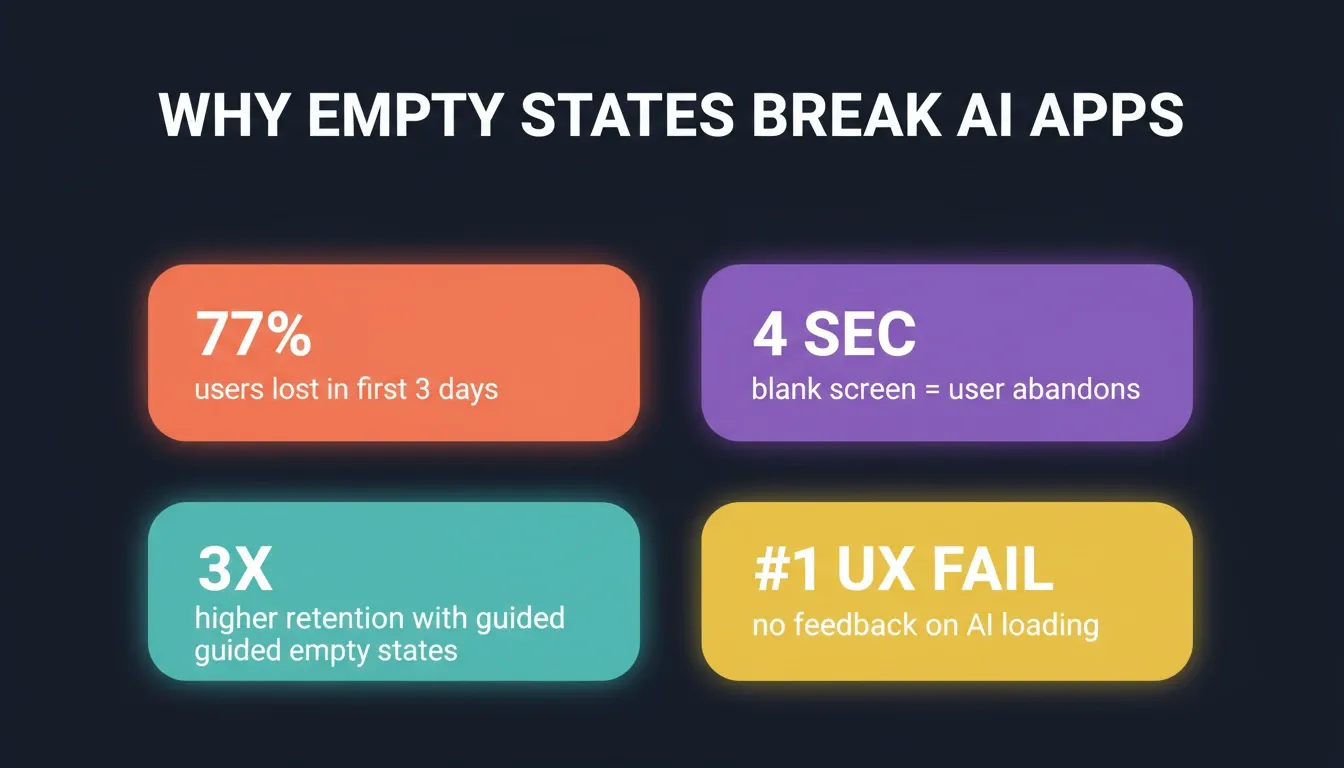
Key data points behind empty state failures in AI-powered mobile apps.
-
First-time use states appear when a user opens a new feature, and no data exists yet. Most apps default to a blank white screen with no widget guidance, which tells the user nothing about what belongs there or how to proceed.
-
User-cleared states show up after completing tasks or removing items. A to-do app with all tasks finished needs a celebratory moment, not dead silence on the screen.
-
No-results states occur when search or filter operations yield nothing. Without contextual guidance in the UI, users assume the app is broken.
-
AI loading states are unique to Flutter apps with AI features. When state management has not accounted for the time AI models need to process, users see a frozen screen and leave.
-
Error states cause the most damage. A cryptic response from a failed API call with no retry option in the UI components guarantees abandonment.
The widget tree in Flutter makes handling these states straightforward once you know the patterns. Building separate UI components for each state type transforms dead-end screens into guided experiences that keep users engaged with your Flutter app onboarding flow.
The five empty state types every Flutter app must handle before shipping.
How Do AI Features Create Unique Empty State Challenges?
Traditional empty states are binary: data exists, or it does not. AI-driven features introduce a spectrum of in-between states that standard Flutter architecture does not handle by default.
Consider a real scenario: in a Flutter chat app built with an AI backend, the response screen showed a blank white frame for four seconds before the first token arrived. No spinner, no skeleton, no indication the app was alive. Half the test users tapped away before the first word appeared. That four-second gap is an empty state problem, not a performance problem, and it is entirely solvable at the widget level.
-
Streaming responses create uncertainty: When an AI model generates text token by token, the screen transitions from empty to partially filled to complete. Without streaming response indicators in your state management logic, users do not know if the app is working, thinking, or frozen. The AI logic behind streaming responses needs explicit UI states for each phase.
-
AI logic fails silently: Most AI features depend on backend services: a Gemini API key, a Firebase AI logic configuration, or a server-side inference endpoint. When these fail, the app often shows nothing rather than explaining the problem to users. Firebase AI connections with Google Gemini require proper error handling at every layer.
-
System prompts need time to process: Complex system prompt configurations for AI chat features mean longer wait times. User input sits unanswered while the AI model processes context through the backend, and the screen stays blank with no streaming responses visible.
-
Error handling becomes multi-layered: An AI-driven feature might fail at the network level, the AI model level, or the response parsing level. Each layer needs its own message in the UI. The Firebase AI logic must account for API key expiration, rate limiting, and server-side timeouts.
-
Context windows overflow: When a chat history exceeds the AI model's context limit, streaming responses become unreliable. The app needs to communicate this state without confusing users who do not understand why the AI features stopped working.
"Products are like airplane flights; most problems happen during takeoffs and landings." - Tamara Olson, UX Designer, as cited on Toptal
The challenge is not technical complexity alone. AI features introduce timing unpredictability that widget-level state management must account for explicitly. Every streaming response, every AI logic call, and every Firebase AI setup needs its own loading, error, and empty state treatment in the code. Understanding how to integrate AI into an app properly is the foundation before tackling empty state design.
Which State Management Patterns Work Best for AI-Driven Screens?
Choosing the right state management approach determines how cleanly your Flutter app handles transitions between loading, data, empty, and error states. Here is how the three most popular patterns compare for AI-driven screens.
| Pattern | Empty State Handling | AI Feature Fit | Complexity | Best For |
|---|---|---|---|---|
| BLoC/Cubit | Explicit state classes | Strong for streaming responses | High boilerplate | Large apps with streaming AI |
| Riverpod | AsyncValuewith.when() | Clean for Gemini API and Firebase AI | Moderate | Multi-model apps |
| Provider | Manual state enum tracking | Works for simple AI features | Low but brittle | Small apps, one or two AI features |
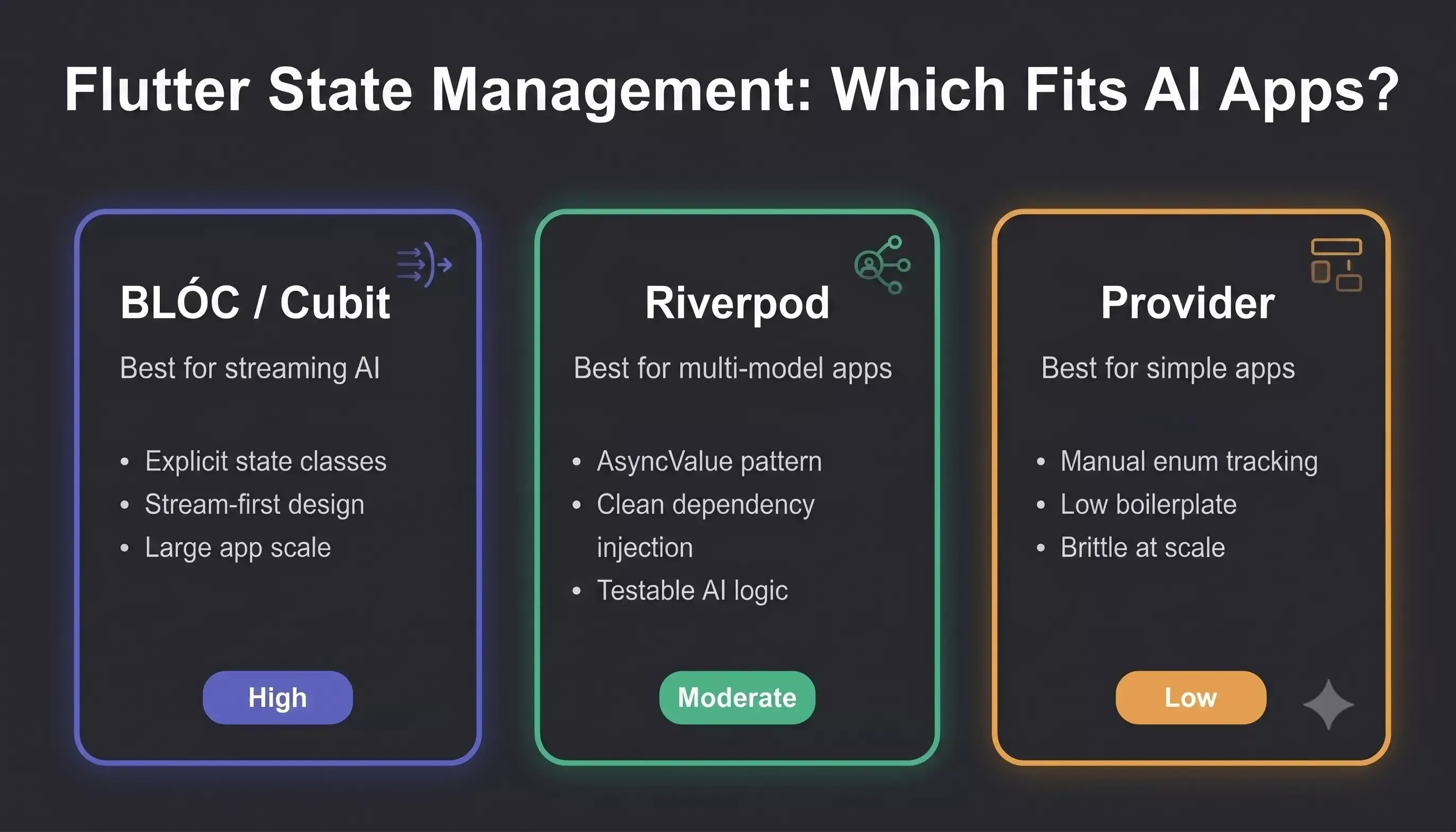
BLoC, Riverpod, and Provider compared across empty state handling, AI fit, and complexity.
-
BLoC excels at streaming. The pattern naturally models streaming responses from AI services. Each event produces a new state, and the UI layer rebuilds only what changed. For apps using Firebase AI logic with real-time updates, BLoC's stream-first design keeps empty state transitions smooth across the entire Flutter app.
-
Riverpod simplifies dependency injection. When your Flutter architecture uses multiple AI models, Riverpod's provider scoping prevents state leakage between features. The
AsyncValue pattern handles loading, error, and data in a single line following clean architecture principles.
- Provider works for simple apps. If your entire Flutter app has one or two AI features, Provider with a
ChangeNotifier and explicit state enums gets the job done. But dependency injection becomes messy when business logic grows, and testing AI logic in isolation requires more setup in large apps.
- Model View ViewModel bridges UI and logic. The MVVM pattern separates your app logic from UI components, making it easier to swap between different AI model configurations without touching widget code.
Here is a minimal Dart example of the AsyncValue pattern handling an empty AI response in Riverpod:
1// In your widget build method
2ref.watch(aiResponseProvider).when(
3data: (response) {
4 if (response == null || response.isEmpty) {
5 return EmptyStateWidget(
6 message: 'No response yet, ask a question to get started.',
7 icon: Icons.chat_bubble_outline,
8 onAction: () => ref.read(aiResponseProvider.notifier).retry(),
9 );
10 }
11 return ResponseView(response: response);
12},
13loading: () => const SkeletonLoader(),
14error: (err, _) => ErrorStateWidget(
15 message: 'Something went wrong. Tap to retry.',
16 onRetry: () => ref.invalidate(aiResponseProvider),
17),
18);
This single .when() call covers loading, empty, error, and data states in one place, with no scattered if blocks across your widget tree. The pattern you pick matters less than consistency; defining explicit states for every AI feature interaction prevents those silent failures that frustrate users.
How user input flows through API validation and model processing to reach streaming, empty, or error UI states.
A Dart file with clear state enums is worth more than clever abstractions when debugging AI-driven screens. For a deeper look at how Flutter mobile apps are built from scratch, the architecture decisions at the start determine how easily empty states can be added later.
What Practical Patterns Prevent Dead-End Screens?
Apart from architecture choices, specific UI patterns can rescue users from blank screens regardless of which state management library your Flutter app uses.
-
Skeleton loaders beat spinners. When a user asks a question and the AI model processes it, showing a content-shaped placeholder reduces perceived wait time. Users understand something is loading because the layout previews what will appear on screen.
-
Progressive disclosure for streaming. Display text as it arrives from the AI rather than waiting for the final call to complete. A text response appearing word by word gives users immediate feedback that the app is working.
-
Single-action CTAs in empty states. When a screen is blank, offer exactly one next step. "Start a conversation" or "Create your first project" with one button, not five competing options. This is a one-line change that makes a measurable difference.
-
Contextual copy over generic messages. "No messages yet, ask a question to get started" beats "No data" every time. According to UX Planet's practical guide, well-structured empty states always explain what is happening, why, and what to do about it.
-
Offline fallbacks with local storage. When the AI backend is unreachable, cache the last successful response locally. Show the cached data with a banner indicating the app is offline rather than a completely blank screen.
-
Rate-limiting messages that help. When a free-tier API limit is reached, tell the user exactly what happened and when they can try again. A countdown timer or upgrade option transforms frustration into direction.
-
Icon-based minimal states. A simple icon with a short message takes a single line to add in a Flutter widget. Even this minimal effort prevents the confusion of an empty screen.
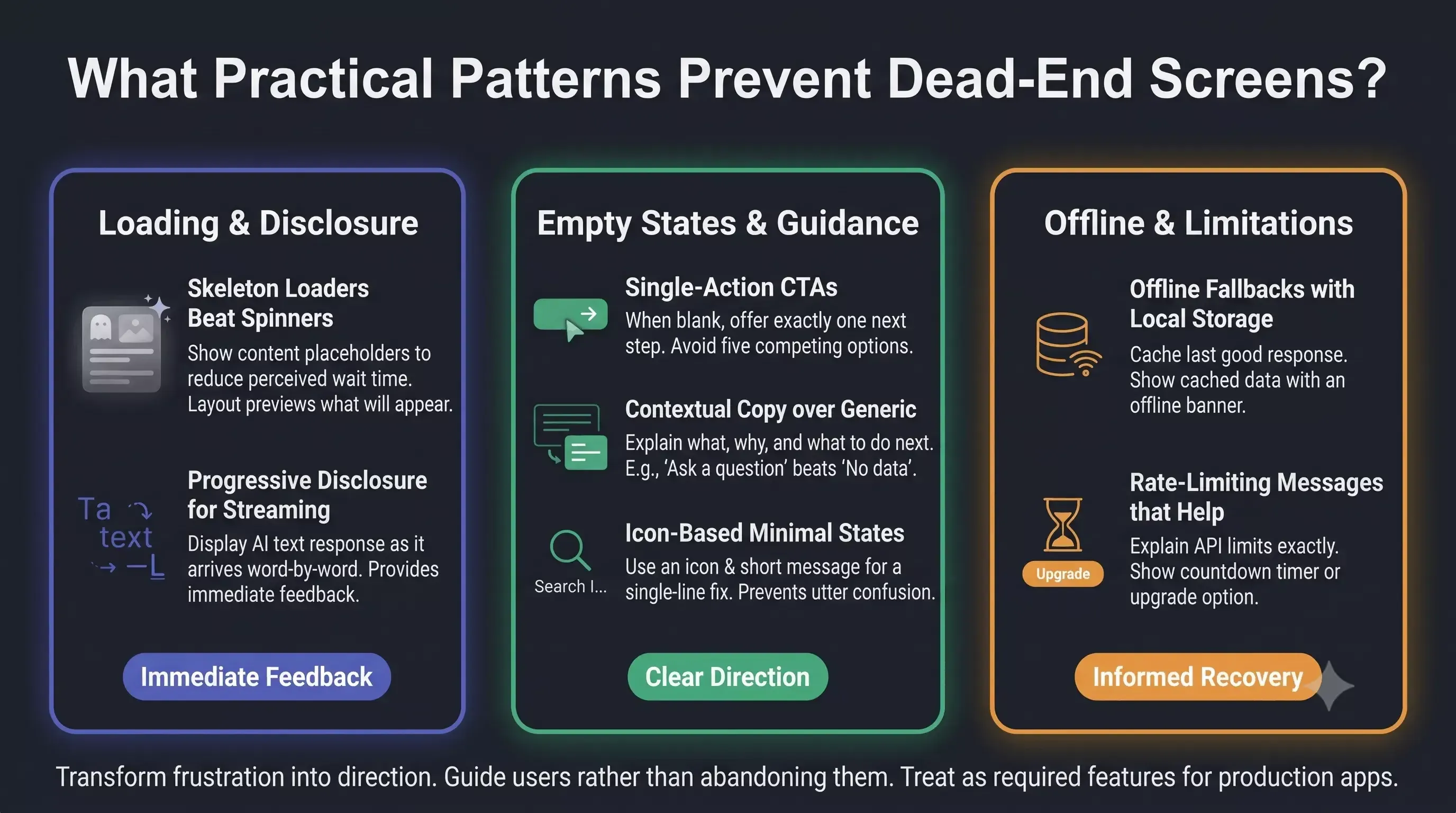
Each pattern solves a specific failure mode. Building these patterns into your app check process with proper backend connectors and treating them as required features separates production apps from prototypes. The final result is an app that guides users rather than abandoning them.
Developers building no-code mobile apps with AI often discover that empty state handling is the single most impactful UX improvement they can make after launch. The patterns above apply equally whether you wrote the code by hand or generated it from a prompt.
How Does Rocket.new Help You Skip the Empty State Boilerplate?
Writing state management code for every screen in a Flutter app takes hours. Multiply that by every AI feature, every error case, and every platform (Android, iOS, web), and the setup work dwarfs the actual product logic.
Rocket.new is the vibe solutioning platform with three pillars: Solve (market and competitive research), Build (AI-generated web and mobile apps), and Intelligence (continuous competitor tracking). For Flutter developers, the Build pillar is where empty state handling becomes automatic.
-
Rocket's Build pillar generates entire Flutter mobile apps and Next.js web apps from a natural language prompt. The platform creates production-ready Dart code with proper state handling already wired in, including loading indicators, error messages, and contextual widgets for every screen.
-
State patterns are built into the generated code. When Rocket creates a Flutter app with AI features, loading indicators, error messages, and contextual empty state widgets are part of the initial build using the proven state management patterns described in this article.
-
Figma-to-Flutter converts your designs into working widgets including the exact layout, messaging, and CTA buttons you specified. Figma files require preparation before import: grouped vectors, no invisible components, and proper overlay controls as described in Rocket's Figma design guidelines.
-
Iterative chat-based building for new features. Need to add a screen with streaming responses? Describe the loading and empty states in chat, and Rocket iterates on the existing code to wire in the state machine. Each conversation builds on the AI logic already in place.
-
Solve and Intelligence complement the build. Before writing a line of code, use Solve to research UX patterns for your specific app category. After launch, use Intelligence to track how competitors handle empty states in their own apps and iterate accordingly.
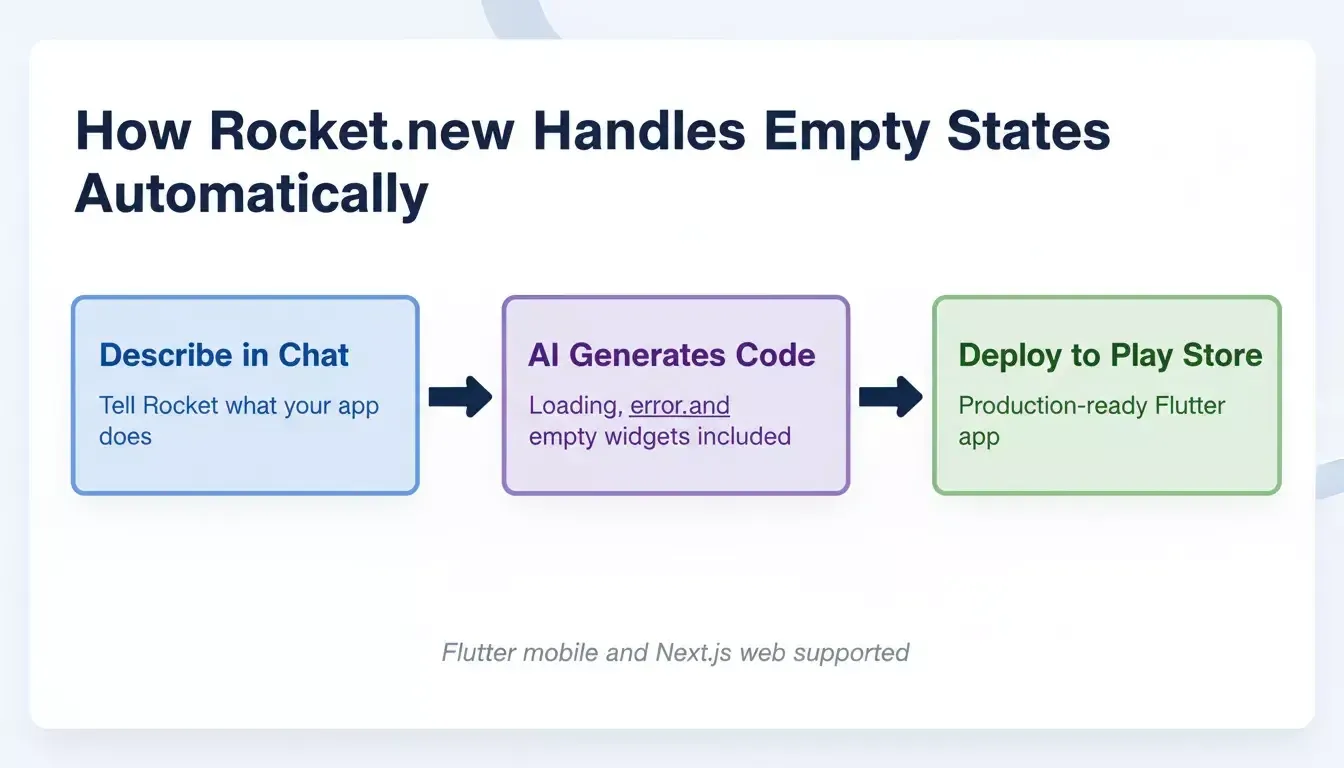
Rocket.new's Build workflow: describe your app in chat, receive production-ready Flutter code with state handling included, then deploy.
The difference is the starting point. Other tools give you a canvas and expect you to build every state transition by hand. Rocket gives you a working app where empty states, error handling, and AI response management are already created and ready for the Play Store. Teams that want to understand the full scope of what is possible can explore the AI app builder features before starting their first project.
Understanding how AI app builders compare to hiring a developer helps founders decide where to invest time, and empty state handling is one of the clearest examples where an AI builder pays for itself immediately.
Build Screens That Guide, Not Confuse
Every blank screen in your Flutter app is a fork in the road. The user either gets clarity and stays, or gets silence and leaves. With AI features adding timing unpredictability to every interaction, designing for those in-between moments is no longer optional for developers building production apps.
Your app's AI-driven screens deserve the same attention as your hero features. When state management, contextual messaging, and progressive loading work together, users never hit a dead end in your app.
Generate a Flutter app with AI state handling, skeleton loaders, and contextual empty states already built in from the first prompt.
Start building with Rocket today and ship production-ready Flutter apps without writing boilerplate state code from scratch.
Table of contents
- -Key Takeaways
- -What Are Empty States and Why Do They Frustrate Users?
- -How Do AI Features Create Unique Empty State Challenges?
- -Which State Management Patterns Work Best for AI-Driven Screens?
- -What Practical Patterns Prevent Dead-End Screens?
- -How Does Rocket.new Help You Skip the Empty State Boilerplate?
- -Build Screens That Guide, Not Confuse