Structured, section-by-section prompts produce clean, production-ready admin panels. These 20 tested templates cover sidebar, dashboard, CRUD, and settings, cutting build time from days to hours.
Why do most AI-generated admin panels fall apart?
Because one vague prompt forces the AI to make hundreds of design decisions at once, with no system instructions to guide it. The fix is simpler than it sounds: structured prompts that address each panel section individually.
The global AI market reached $514.5 billion in 2026, and artificial intelligence tools now power nearly 70% of new applications built outside IT departments. The builders shipping the cleanest panels are not writing better code. They are writing better prompts.
Here are 20 tested prompts that produce clean, functional admin UIs every time.
Why Most AI-Generated Admin Panels Fall Apart
The core problem is context. When you send a single vague message asking for "a complete admin panel," you force the AI to make hundreds of design decisions simultaneously without system instructions to guide it.
The Four Root Causes of Broken AI Panels
Generic requests produce generic results. AI models default to training-data averages when your prompt lacks specifics. You get a gray sidebar with random navigation names, a dashboard with five identical cards, and forms that ignore validation entirely.
Missing context means missing intent. Without defining your target audience, data types, or user roles, the AI fills gaps with assumptions. Those assumptions rarely match your actual business logic or the people who will use the system daily.
No prompt hierarchy means no visual hierarchy. When everything is requested at once, the AI cannot prioritize what users see first. Your metric cards compete with your sidebar, and your search bar hides behind an oversized header.
Designers think in sections, not monoliths. Professional admin UI follows a predictable architecture: sidebar, header, main content area, and detail panels. The AI responds better when your prompts mirror this mental model.
Writing effective system instructions for each panel component eliminates guesswork and gives the AI a clear assignment rather than an open-ended question.
What Good Admin Panel Prompts Actually Do
A well-structured prompt does three things: it constrains the design space, defines the data model, and specifies the interaction behavior. When all three are present, the AI stops guessing and starts executing.
The difference shows up immediately. A prompt that says "build a users table" produces a generic grid. In contrast, a prompt that says "build a users data table with sortable columns, a combined avatar-name-email cell, role badges in three colors, and pagination showing 1 to 10 of 847 users" produces something you can actually ship.
How to Structure Prompts for Each Panel Section
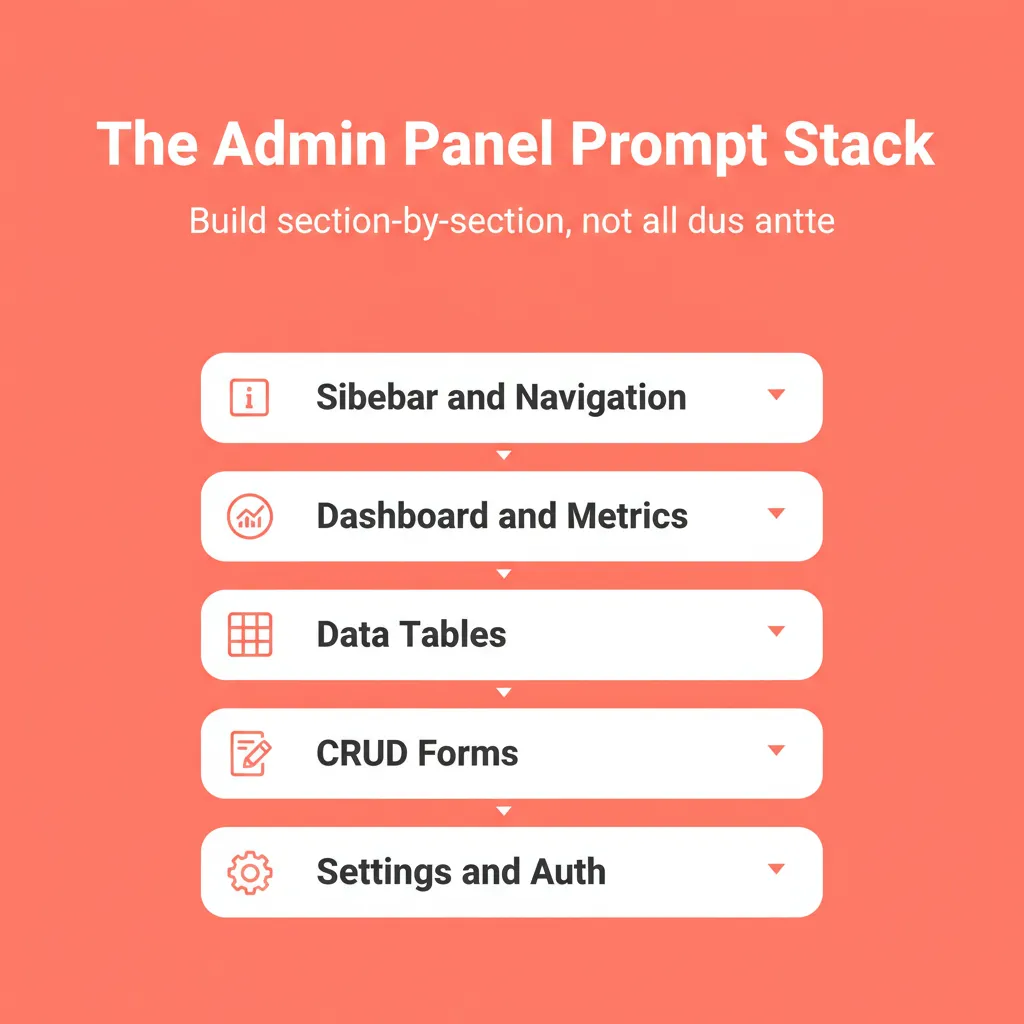
Every production admin panel shares the same core architecture. Breaking your prompt into these five sections creates consistent spacing, visual consistency, and navigation patterns that users expect from modern software.
| Panel Section | Key Prompt Details | AI Success Rate |
|---|---|---|
| Sidebar navigation | Fixed width, icon library, nav names, mobile behavior | 90%+ |
| Dashboard cards | Real numbers, trend indicators, grid layout | 95%+ |
| Data tables | Column types, pagination, empty state, loading states | 85%+ |
| CRUD forms | All four operations together, validation rules, modal behavior | 80%+ |
| Settings tabs | Tab names, field types per section, grouping logic | 75%+ |
You can generate a full-stack app from a single prompt when each section follows this structured approach.
The Prompt Stack Principle
Think of your admin panel build as a stack, not a single request. Each prompt builds on the previous output. The sidebar establishes the shell, the dashboard fills the main content area, and tables and forms come after the layout is locked.
This sequencing matters because the AI uses prior context to make decisions. For example, a sidebar prompt that specifies a slate-900 background and indigo-500 active states gives the dashboard prompt a color system to work from. Skip the sequence and you get visual inconsistency across sections.
Prompts 1 to 5: Sidebar and Navigation
The sidebar defines your entire panel structure. Get it wrong, and every other component feels disconnected.
Prompt 1: Fixed Sidebar Shell
Build a fixed left sidebar (250px width, slate-900 background, white text). Include a logo area at the top, navigation sections for Dashboard, Users, Products, Orders, Analytics, and Settings. Each nav item gets a lucide-react icon. Add an active state with indigo-500 accent highlight. Collapsible hamburger menu on mobile. React + TypeScript + Tailwind CSS.
Why this works: The width, color, icon library, and active state are all specified. As a result, the AI has no design decisions left to make, only implementation decisions.
Prompt 2: Nested Navigation with Sub-Items
Add nested sub-navigation to the sidebar Users section. When Users is clicked, expand to show: All Users, Roles and Permissions, Invitations. Indent sub-items with a left border accent. Collapse other sections when one expands. Keep the active page highlighted even inside nested groups.
Why this works: Accordion behavior and active state persistence are explicitly defined. Without this, the AI defaults to always-expanded navigation that clutters the sidebar.
Prompt 3: User Profile Dropdown
Add a user profile section at the bottom of the sidebar. Show avatar (40px circle), display name, and role badge. On click, open a dropdown with: My Profile, Account Settings, Notification Preferences, and Log Out (red text). Dropdown closes on outside click.
Prompt 4: Sidebar with Notification Badges
Add notification badges to the sidebar nav items. Orders shows a red circle with count ("12"), Messages shows an unread dot (blue), and Settings shows an orange warning icon when action is required. Badges update without page reload. Use subtle animation on count change.
Prompt 5: Breadcrumb Header Bar
Create a top header bar (64px height, white background, bottom border). Include breadcrumb navigation showing current path (Home, Users, All Users), a global search bar with keyboard shortcut hint (Cmd+K), notification bell icon with unread count, and the user avatar from the sidebar profile section.
Your sidebar is the foundation of your entire panel. Skip the manual stitching and let Rocket generate the full sidebar shell, navigation structure, and header bar in one go. Start building on Rocket and have your panel structure live in minutes.
Prompts 6 to 10: Dashboard and Metric Cards
Dashboards fail when everything screams for attention equally. These admin panel prompts create clear visual hierarchy by specifying exactly what the AI should emphasize.
Prompt 6: Stats Cards Row
Create a top row with 4 metric cards in a responsive grid. Cards: Total Users (12,847 with +12% green arrow), Active Orders (342 with -3% red arrow), Revenue ($48,293 with +8% green arrow), Conversion Rate (3.2% with +0.4% green arrow). Each card has a subtle icon, the primary number large, label small, and percentage change indicator. Use rounded-lg corners and light shadows.
Why real numbers matter: Writing "12,847 users" instead of "user count" forces the AI to format the layout for realistic data volumes. Placeholder text produces layouts that break with real data.
Prompt 7: Revenue Line Chart
Below the stat cards, add a line chart (2/3 width) titled "Revenue Over Time." Show the last 30 days with daily data points. Y-axis in dollars, X-axis in dates. Include a hover tooltip showing exact value and date. Add a comparison toggle to overlay the previous 30-day period as a dashed line. Use Recharts library.
Prompt 8: Recent Activity Feed
Next to the chart (1/3 width), add a "Recent Activity" feed showing the last 8 user actions. Each entry: avatar, user name, action description ("created a new order"), and relative timestamp ("2 min ago"). Scroll if overflow. Add a "View All" link at the bottom. Alternate row backgrounds for readability.
Prompt 9: Quick Actions Card
Add a "Quick Actions" card below the activity feed. Include 4 shortcut buttons in a 2x2 grid: Add New User (blue), Create Order (green), Generate Report (purple), and System Settings (gray). Each button has an icon and label. On hover, show a subtle scale animation.
Prompt 10: Performance Summary Table
Add a "Top Products This Week" mini-table below the chart section. Columns: Product Name, Units Sold, Revenue, and Trend (sparkline). Show 5 rows of sample data sorted by revenue. Include a progress bar inside the Revenue column showing percentage of monthly goal reached.
You have the dashboard prompts. Now put them to work. Rocket connects your metric cards, charts, and activity feed into a single deployable dashboard, no manual wiring required. Try Rocket for free and see your dashboard live in under two minutes.
Prompts 11 to 15: Data Tables and CRUD Operations
Data tables and CRUD interfaces are where admin panels either feel polished or fall apart. According to a Flatlogic comparison guide, nearly 70% of new applications are now built outside IT departments using AI-assisted tools. The CRUD layer is where most of that complexity lives.
The CRUD Completeness Rule
The most common mistake in CRUD prompting: asking for Create and Read, then adding Edit and Delete as afterthoughts. The AI builds each operation in isolation, and the result is four modals with four different design languages.
Instead, ask for all four operations in a single prompt. Specify shared behavior, such as modal size, validation pattern, and close behavior, just once. This keeps the interaction pattern consistent across every action in the panel.
Prompt 11: Users Data Table
Build a users data table with columns: Checkbox (bulk select), Avatar + Name + Email (combined cell), Role (colored badge: Admin blue, Editor green, Viewer gray), Status (active/inactive badge), Join Date, and Actions dropdown. Add sticky header, sortable columns (click header to sort), search input filtering by name or email above the table, and pagination below showing "Showing 1-10 of 847 users" with prev/next buttons. Include 5 realistic sample rows.
Prompt 12: Create User Modal
Create an "Add User" modal triggered by a button in the top-right of the users page. Form fields: Full Name (required), Email (required, validated with regex), Role (dropdown: Admin, Editor, Viewer, Guest), Department (dropdown), Status (toggle: active/inactive). Cancel and Save buttons in the modal footer. Show inline error messages below each field on validation failure. Modal closes on outside click and Escape key.
Prompt 13: Edit User Modal (Reusing Create)
Reuse the Add User modal for editing. Pre-fill all fields with existing user data. Change the title to "Edit User." Add a "Last updated: [date]" subtitle. Same validation rules apply. Add a danger zone at the bottom with "Deactivate Account" and "Delete User" links in red text, visually separated from the save action by a divider.
Why reuse matters: Asking the AI to reuse the Create modal for Edit enforces visual consistency. Building a separate Edit modal produces subtle differences in field spacing, button placement, and validation behavior that users notice immediately.
Prompt 14: Delete Confirmation Dialog
Create a delete confirmation dialog. Small centered modal with warning icon (orange triangle). Title: "Delete [user name]?" Body text: "This will permanently remove their account, data, and access. This action cannot be undone." Two buttons: Cancel (outline) and Delete (solid red). Show the user's avatar and name in the dialog for clarity. Close on outside click and Escape key.
Prompt 15: Bulk Actions Toolbar
When one or more table rows are selected via checkbox, show a floating toolbar above the table. Display: "[count] selected" text, then action buttons: Export CSV, Change Role (dropdown), Deactivate, and Delete (red). Add a "Select All" checkbox in the header. Show a confirmation modal before executing any destructive bulk action. Toolbar disappears when selection is cleared.
For a broader look at dashboard prompt patterns, the best AI prompts to build a SaaS dashboard guide covers 25 additional patterns for charts, KPI cards, and data visualization.
Data tables and CRUD interfaces are the hardest part to get right with prompts alone. Rocket generates the full user management layer, including sortable tables, modals, validation, and bulk actions, with consistent styling across every operation. Build your data layer on Rocket and skip the debugging.
Prompts 16 to 20: Settings, Auth, and Polish
The settings section is where most AI-generated panels reveal their weaknesses. Tabs that reload the page, password fields without strength meters, and billing sections with no invoice history are all common problems. These prompts close every gap.
Prompt 16: Tabbed Settings Page
Build a Settings page with horizontal tab navigation: Profile, Notifications, Security, Billing. Profile tab: avatar upload with preview, display name field, email (read-only with "Change" link), bio textarea (max 280 chars with counter). Save Changes button at the bottom of each tab. Tabs switch without page reload.
Prompt 17: Notification Preferences
In the Notifications tab, add toggle switches grouped in sections. "Activity" section: Email on new order, Push on new message, Weekly digest email. "Marketing" section: Product updates, Feature announcements. Each toggle has a title and one-line description text below it. Add a "Mute All" master toggle at the top.
Prompt 18: Security and Password Settings
In the Security tab, add: Password section with current password, new password (with strength meter: weak/medium/strong), and confirm password fields. "Change Password" button disabled until all fields valid. Below: Two-factor authentication toggle with setup flow showing QR code placeholder. Session management table showing device, location, last active, and a "Revoke" button per session.
Prompt 19: Billing and Subscription
In the Billing tab, show: Current plan card (plan name "Pro," price "$29/month," renewal date). Buttons: "Upgrade Plan" and "Cancel Subscription." Payment method section with credit card icon, last 4 digits, expiry, and "Update" link. Billing history table: Date, Description, Amount, Status (Paid badge green, Pending badge yellow), and Download Invoice link per row.
Prompt 20: Loading, Empty, and Error States
Add three states to the users data table. Loading: show skeleton animation (8 rows of pulsing gray bars matching column widths). Empty: centered illustration placeholder, "No users found" heading, "Try adjusting your search or filters" subtext, and "Clear Filters" button. Error: red alert banner at the top with "Failed to load users. Please try again." text and a "Retry" button. Add toast notifications for success/failure on any CRUD action.
Settings, auth, and polish are the last mile, and the hardest to get consistent across sections. Rocket handles the full settings layer, including tabbed navigation, security flows, and billing history, with the same design system as your sidebar and dashboard. Sign up for Rocket and ship a complete, polished admin panel today.
Admin Panel Prompt Comparison: Approaches Side by Side
| Approach | Output Quality | Visual Consistency | Build Time | Iteration Cost |
|---|---|---|---|---|
| Single vague prompt | Low | None | Fast (unusable result) | High: rebuild from scratch |
| Section-by-section (this guide) | High | Strong | 1 to 2 hours | Low: fix one section at a time |
| AI platform with context memory | Highest | Built-in | 20 to 30 minutes | Minimal: context persists |
The section-by-section approach beats the single-prompt approach on every dimension that matters. The AI platform approach, where context persists across the entire build, beats both.
Real-World Use Cases: Who Builds Admin Panels With These Prompts
SaaS founders use this sequence to build the internal dashboard before the customer-facing product. The admin panel becomes the control room, covering user management, subscription status, feature flags, and usage analytics in one place.
Agencies run all 20 prompts as a repeatable template. Client onboarding, project management, invoice tracking, and team permissions can be built in a single afternoon. The sidebar prompt changes; everything else stays the same.
Operations teams skip prompts 1 to 5 entirely and start at the data table layer. Their use case is internal tooling, such as inventory management, order processing, and support ticket queues. The guide on building internal tools with AI without a developer covers this use case in depth.
Solo developers use prompts 11 to 15 as a CRUD scaffold for any data model. Swap "users" for "products," "orders," or "leads." The column structure changes; the interaction pattern stays identical.
Tips to Get Even Better Results From These Prompts
Always specify your tech stack first. Adding "React + TypeScript + Tailwind CSS + shadcn/ui" at the end of every prompt gives the AI a consistent design language to work from. Without this, the AI picks its own stack, and it rarely matches what you used in the previous prompt.
Include real sample data with numbers. Writing "12,847 users" instead of "user count" helps the AI format layouts for realistic data volumes. Placeholder text produces layouts that break with real data.
Run prompts sequentially, not all at once. Each prompt builds on the previous output. The sidebar establishes page structure, the dashboard fills the main content area, and tables and forms come after.
Request mobile responsiveness in every prompt. If you skip this, you will spend hours retrofitting breakpoints later. Add "fully responsive, mobile-first" to every prompt as a trailing instruction.
Add states last. Loading skeletons, empty views, and error handling are easier to add after your base UI works correctly. Prompt 20 is last for a reason.
Name your component library once, then reference it everywhere. If you specify shadcn/ui in Prompt 1, every subsequent prompt should say "use the same shadcn/ui components from the sidebar." This prevents the AI from switching component libraries mid-build.
Teams that use structured prompts for scalable app creation report cutting their panel build time from days to hours. For a broader look at prompt patterns across different app types, the best prompts for app building guide covers additional use cases beyond admin panels.
How Rocket Turns a Single Prompt Into a Production Panel
So what happens when you want to skip the 20-prompt sequence and get a production-ready panel from one conversation? This is where Rocket changes the workflow.
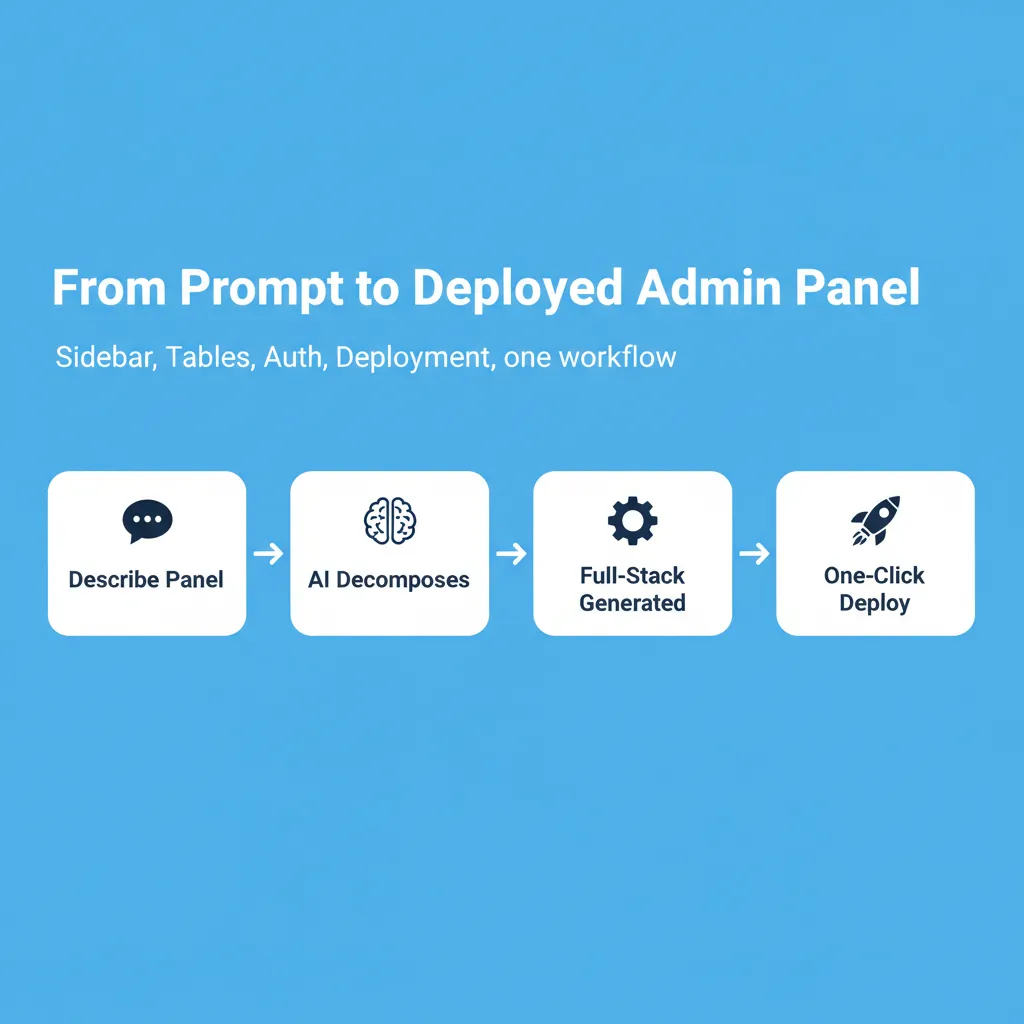
Context-aware AI agents handle the architecture split for you. When you describe your panel requirements in natural language, Rocket breaks your request into sidebar, dashboard, data table, forms, and settings components automatically. You get the structured output without writing structured prompts.
Full-stack generation, not just a frontend mockup. Rocket generates both the frontend components and the backend logic, including database schema, authentication flows, and API routes, in Next.js for web apps. Every build ships with SEO-ready structure, WCAG accessibility compliance, and GDPR coverage by default.
25+ integrations connect directly into the build. Stripe, Supabase, Mixpanel, Airtable, Notion, Linear, and others authenticate once and flow into every generated component. No manual wiring between services.
One-click deployment when the build completes. The same workflow that generates your panel deploys it to a live URL with staging and production environments, full version history, and one-click rollback. 1.5 million people have tried Rocket across 180 countries.
Rocket vs. Other AI Builders: What Is Different for Admin Panels
| Feature | Rocket | Bolt.new | Lovable | v0 (Vercel) |
|---|---|---|---|---|
| Full-stack generation (frontend + backend) | Yes: Next.js + Supabase | Frontend-focused | Frontend-focused | UI components only |
| Persistent context across sections | Yes: shared project memory | Per-session only | Per-session only | Per-session only |
| Built-in deployment | Yes: one-click, staging + production | Via StackBlitz | Via Supabase | Export only |
| 25+ integrations in build | Yes | Limited | Limited | No |
| Pre-build intelligence (Solve) | Yes | No | No | No |
| WCAG + GDPR by default | Yes | No | No | No |
The table above reflects publicly documented capabilities as of June 2026. Each tool has its own strengths depending on your use case and technical context.
Your Prompts Are Only as Good as Your Builder
The right prompt structure saves you from vague AI outputs, broken layouts, and inconsistent designs across panel sections. But the tool you feed those admin panel prompts into determines whether you get a static mockup or a deployed, working application.
The future of panel development is not writing longer prompts or more detailed specifications. It is choosing platforms where a single description produces sidebar, tables, forms, and deployment together without manual stitching. If you are building a full SaaS product alongside your admin panel, the guide to building a B2B SaaS product with AI covers the broader architecture decisions that affect your panel design.
Build Your Admin Panel Faster With Rocket
The best AI prompts to build an admin panel are the ones you do not have to write. As AI-assisted development matures, the gap between builders who use structured prompts and those who do not will widen. The gap between builders who use context-aware platforms and those who prompt in isolation will widen even faster. Describe your panel requirements once.
Rocket handles the architecture split, generates the full stack, and deploys to a live URL. Sign up for Rocket and ship your admin panel today.
Table of contents
- -Why Most AI-Generated Admin Panels Fall Apart
- -The Four Root Causes of Broken AI Panels
- -What Good Admin Panel Prompts Actually Do
- -How to Structure Prompts for Each Panel Section
- -The Prompt Stack Principle
- -Prompts 1 to 5: Sidebar and Navigation
- -Prompt 1: Fixed Sidebar Shell
- -Prompt 2: Nested Navigation with Sub-Items
- -Prompt 3: User Profile Dropdown
- -Prompt 4: Sidebar with Notification Badges
- -Prompt 5: Breadcrumb Header Bar
- -Prompts 6 to 10: Dashboard and Metric Cards
- -Prompt 6: Stats Cards Row
- -Prompt 7: Revenue Line Chart
- -Prompt 8: Recent Activity Feed
- -Prompt 9: Quick Actions Card
- -Prompt 10: Performance Summary Table
- -Prompts 11 to 15: Data Tables and CRUD Operations
- -The CRUD Completeness Rule
- -Prompt 11: Users Data Table
- -Prompt 12: Create User Modal
- -Prompt 13: Edit User Modal (Reusing Create)
- -Prompt 14: Delete Confirmation Dialog
- -Prompt 15: Bulk Actions Toolbar
- -Prompts 16 to 20: Settings, Auth, and Polish
- -Prompt 16: Tabbed Settings Page
- -Prompt 17: Notification Preferences
- -Prompt 18: Security and Password Settings
- -Prompt 19: Billing and Subscription
- -Prompt 20: Loading, Empty, and Error States
- -Admin Panel Prompt Comparison: Approaches Side by Side
- -Real-World Use Cases: Who Builds Admin Panels With These Prompts
- -Tips to Get Even Better Results From These Prompts
- -How Rocket Turns a Single Prompt Into a Production Panel
- -Rocket vs. Other AI Builders: What Is Different for Admin Panels
- -Your Prompts Are Only as Good as Your Builder
- -Build Your Admin Panel Faster With Rocket