
25 copy-paste AI prompts for building production SaaS dashboards, covering layouts, KPI cards, charts, data tables, and dark mode. Each prompt includes an example, what the AI produces, and pro tips for chaining them together.
The best AI prompts to build a SaaS dashboard give AI tools the specificity they need to generate production-ready analytics interfaces with KPI cards, charts, and data tables instead of generic outputs. Use the 25 prompts below to create layouts, visualizations, and dark mode variants that actually ship.
What Makes a Dashboard Prompt Actually Work?
The difference between a bad prompt and a good one comes down to four dimensions. When you use prompt templates that include each of these, AI tools generate clean, production-ready dashboard UI consistently.
| Dimension | Bad Prompt | Good Prompt |
|---|---|---|
| Specificity | "Make a dashboard" | "Generate a SaaS analytics dashboard with sidebar, 4 KPI cards, line chart, and data table" |
| Context | None | "For a B2B project management tool used by team leads tracking sprint velocity" |
| Sample Data | Generic placeholders | "Use realistic names: John Doe, Acme Corp. Revenue: $48,200 MRR" |
| Design System | Undefined | "Tailwind CSS, Inter font, border radius 8px, subtle borders, clean white background" |
One insight that separates good prompts from great ones: always include realistic sample data. When you use real names, revenue numbers, and customer counts, the AI makes better layout decisions about text sizing, column widths, and chart scales. Generic placeholder data leads to components that break when you feed in actual product metrics.
When you describe the dashboard concept with this level of detail, the AI generates real components instead of decoration. The design system specification alone makes a massive difference in output quality. Teams that write structured prompts for app building report dramatically better first-pass results.
Why Do Most Dashboard Prompts Produce Bad Output?
Why does the same AI tool that builds a polished landing page produce garbage when you ask for a SaaS dashboard? 84% of developers now use AI tools in their workflow, yet 66% report their biggest frustration is output that is "almost right, but not quite." The dashboard is where this pain hits hardest.
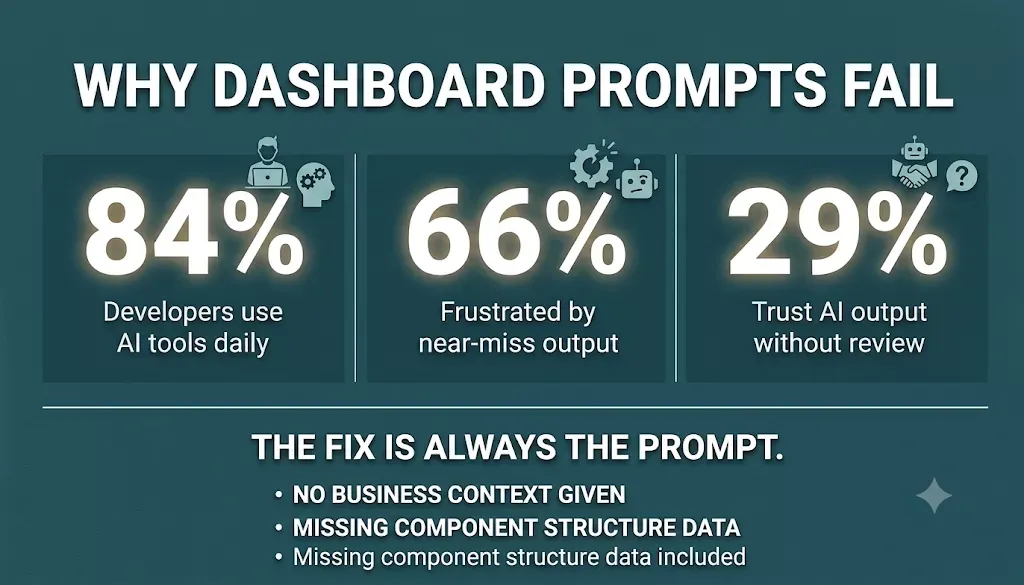
The data behind the dashboard prompt problem, and why specificity is the only fix
The problem is almost always the prompt itself. Vague prompts produce vague results.
- No business context given: the AI has no idea what metrics matter or who the users are, so it generates a generic analytics dashboard with random charts
- Single-line requests: asking for "a SaaS dashboard" gives the AI nothing to work with beyond a broad category and a blank canvas
- Missing component structure: without specifying sidebar navigation, KPI cards, data tables, or chart types, you get a cluttered page with no clear hierarchy
- Cognitive load ignored: good dashboard design reduces noise, but most prompts never mention information density or visual priority
So what does a prompt need to actually generate a professional SaaS dashboard? It needs layers. Now for the prompts themselves.
"20 battle-tested AI prompts to design world-class SaaS dashboards...I've used these to speed up dashboard concepting by 10x." — Aman Kumar, Product Designer on LinkedIn
Prompts for Layout, Sidebar, and Navigation
Get the shell right first; every other component depends on it.
Layout is the foundation. Get this wrong, and every other component feels disconnected. These prompts generate the shell that holds your entire app together. If you are also building a B2B SaaS product with AI, these layout patterns apply directly to your core product screens.
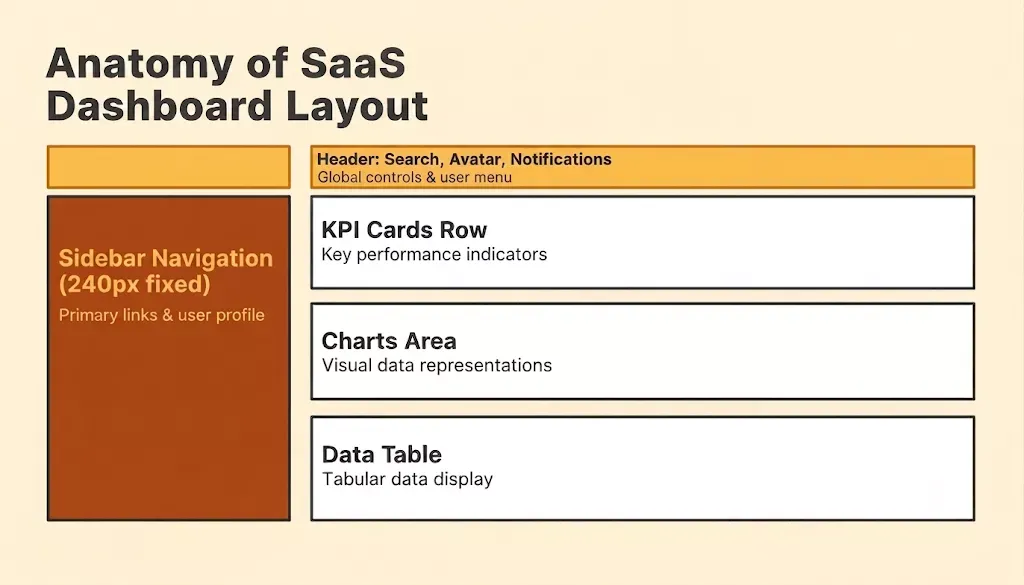
The four zones every SaaS dashboard layout needs before you write a single component prompt
Prompt 1: Fixed Sidebar Layout Prompt
Generates a complete SaaS dashboard shell with a fixed sidebar, top header, and responsive 12-column content grid in one shot.
Example prompt:
"Generate a professional SaaS dashboard layout with a fixed left sidebar (240px, dark mode background), top header with search bar and user avatar, and a main content area using a 12-column grid. Use Tailwind CSS classes and Inter font."
The AI will often produce:
- Fixed sidebar with icon-based navigation and active state indicators
- Top header with search input, notification bell, and user avatar dropdown
- 12-column main content grid ready to accept KPI cards and chart components
Prompt 2: Collapsible Sidebar Navigation Prompt
Builds a role-aware collapsible sidebar with dark mode toggle, perfect for multi-section SaaS analytics platforms.
Example prompt:
"Create a collapsible sidebar navigation for a SaaS analytics platform. Include icons for Dashboard, Analytics, Customers, Settings, and Billing pages. Add a role badge next to the user name and a toggle dark mode button at the bottom."
The AI will often produce:
- Collapsible sidebar with icon-only and expanded label states
- Role badge (Admin/Editor/Viewer) displayed next to the user name
- Dark mode toggle button pinned to the sidebar footer
Prompt 3: Responsive Mobile Navigation Prompt
Creates a navigation system that shifts from sidebar to bottom tab bar on mobile, with command bar and team switcher built in.
Example prompt:
"Build a responsive SaaS dashboard navigation that shifts from sidebar to bottom tab bar on mobile. Include notification bell with red indicator, search command bar activated by keyboard shortcut, and team switcher dropdown."
The AI will often produce:
- Desktop sidebar that collapses into a mobile bottom tab bar automatically
- Notification bell with unread count badge in red
- Cmd+K command bar with team switcher dropdown in the header
Prompt 4: Multi-Page Dashboard Layout Prompt
Generates a persistent multi-page shell with breadcrumb navigation, secondary tab bars, and skeleton loading states for smooth page transitions.
Example prompt:
"Generate a multi-page SaaS dashboard layout where the sidebar stays fixed across pages. Include breadcrumb navigation in the header, a secondary horizontal tab bar for sub-sections within each page, and loading skeleton states for page transitions."
The AI will often produce:
- Fixed sidebar that persists across all page routes
- Breadcrumb trail in the header updating per active page
- Skeleton loading cards and table rows for page transition states
Pro Tip: Chain Prompts 1 and 4: Generate your fixed sidebar shell first (Prompt 1), then use Prompt 4 as a follow-up to add breadcrumbs and skeleton states. Referencing the existing shell in your follow-up prompt ("keep the sidebar and header from the previous generation") prevents the AI from regenerating components that are already working.
Prompt 5: Empty State Onboarding Prompt
Produces a first-run dashboard experience with onboarding checklist, sample data preview cards, and data source connection CTAs.
Example prompt:
"Design a SaaS dashboard landing page for first-time users with an empty state. Show onboarding checklist progress bar, sample data preview cards, and CTA buttons to connect data sources. Clean white background with subtle borders."
The AI will often produce:
- Onboarding checklist with progress bar showing completion percentage
- Sample data preview cards with placeholder metrics and chart outlines
- CTA buttons to connect data sources (CSV, API, integrations)
Prompt 6: Analytics Header Component Prompt
Builds a reusable dashboard header with date range filter, comparison toggle, CSV export, and share link, the control bar every analytics dashboard needs.
Example prompt:
"Create a SaaS analytics dashboard header component with a date range filter, comparison toggle, export CSV button, and a share link dropdown. Use text sm muted labels and clear visual spacing between action groups."
The AI will often produce:
- Date range picker with preset options (7d, 30d, 90d, custom)
- Comparison toggle to switch between current and previous periods
- Export CSV button and share link dropdown with copy-to-clipboard action
Prompt 7: CRM-Style Grouped Sidebar Prompt
Generates a CRM sidebar with grouped navigation sections, unread count badges, and a workspace selector, ideal for pipeline and contact management dashboards.
Example prompt:
"Generate a CRM-style SaaS dashboard sidebar with grouped navigation sections: Overview, Pipeline, Contacts, Deals, Reports, and Settings. Add collapsible section headers, unread count badges on Pipeline and Contacts, and a workspace selector at the top with company logo placeholder."
The AI will often produce:
- Grouped sidebar sections with collapsible headers for each category
- Unread count badges on Pipeline and Contacts nav items
- Workspace selector at the top with company logo placeholder and dropdown
Prompt 8: Command Palette Overlay Prompt
Creates a persistent Cmd+K command palette that searches across pages, customers, reports, and recent actions, the power-user feature every SaaS dashboard needs.
Example prompt:
"Build a SaaS dashboard layout with a persistent command palette overlay. Users press Cmd+K to open a search modal that filters across pages, customers, reports, and recent actions. Include keyboard navigation hints and recent searches history below the search input."
The AI will often produce:
- Cmd+K triggered a modal overlay with fuzzy search across all dashboard entities
- Keyboard navigation hints (up/down to navigate, Enter to select, Esc to close)
- The recent search history is displayed below the search input when open
Pro Tip: Build the command palette last: The command palette (Prompt 8) needs to know what pages and entities exist in your app. Generate your full layout structure first using Prompts 1 through 7, then use Prompt 8 as a final pass. Feed the AI a list of your actual page names and entity types so the search results feel real, not placeholder.
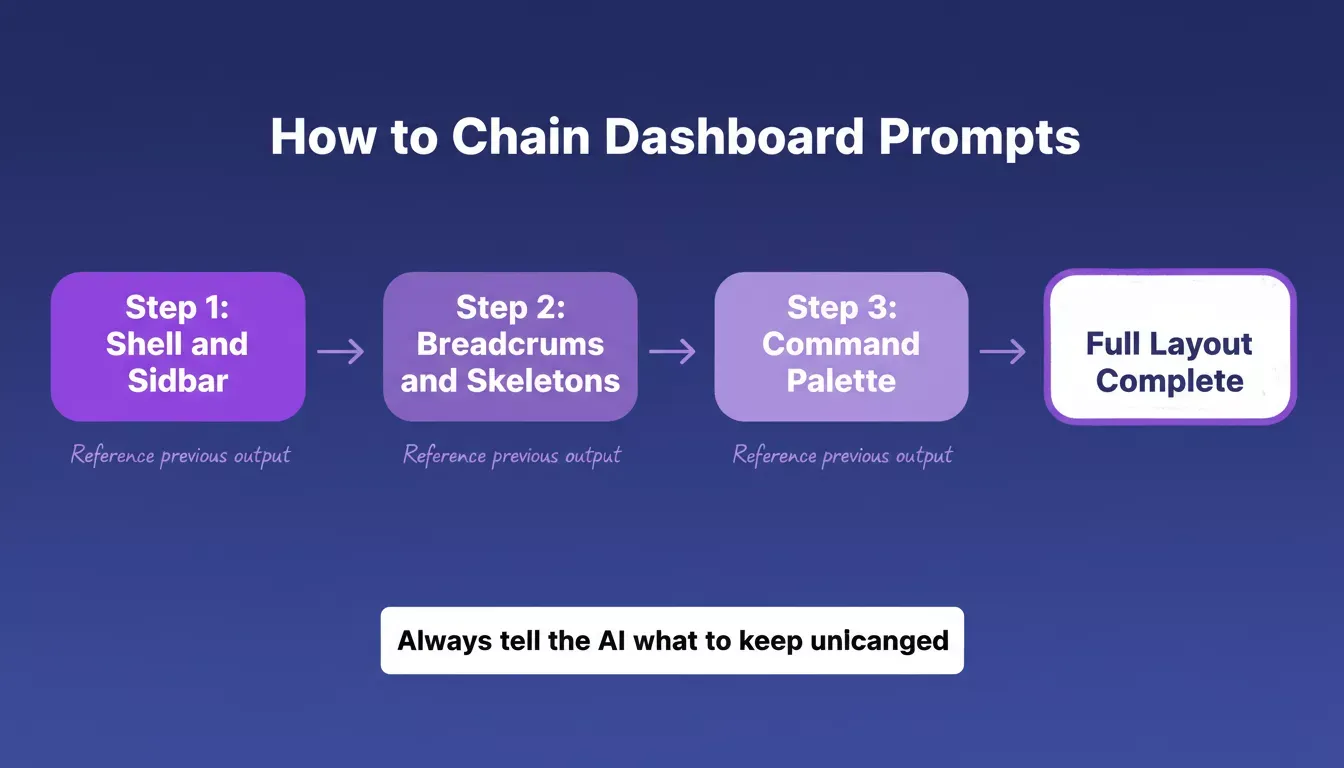
Chain these layout prompts in sequence: each one builds on the previous output without regenerating what already works
These layout prompts give the AI enough structure to produce pages that feel like a real product, not a random arrangement of UI elements. The key decision is specifying exact widths, grid columns, and navigation patterns so the generate step produces consistent results across your entire app.
Ready to build your layout? Open Rocket, paste any of these prompts, and your full SaaS dashboard shell is live in under two minutes. Start building your dashboard layout.
Prompts for KPI Cards, Charts, and Data Visualization
Specify the metric, the color, and the behavior, vague chart prompts produce vague charts.
Once the layout is set, the next layer is data visualization. This is where most AI dashboards either impress or overwhelm. The prompts below focus on generating metric displays that drive decisions instead of just filling space with charts. Understanding how data visualization dashboards turn metrics into growth helps you choose the right chart type for each metric before you write the prompt.
Prompt 9: KPI Card Row Prompt
Generates a row of four metric cards with sparklines, trend arrows, and realistic SaaS revenue data, the first thing users see on any analytics dashboard.
Example prompt:
"Generate 4 KPI cards for a SaaS analytics dashboard. Each card shows: metric label (text sm), large bold number, percentage change with green up or red down arrow, and sparkline mini chart. Metrics: Total Revenue $127,400, Active Users 12,847, Churn Rate 3.2%, MRR Growth +18%. Use subtle borders and bg white."
The AI will often produce:
- Four metric cards with large bold numbers and text sm muted labels
- Green up / red down trend arrows with percentage change values
- Sparkline mini charts inside each card showing 7-day or 30-day trend
Prompt 10: Revenue Line Chart Prompt
Creates a dual-line revenue chart comparing the current and previous year with hover tooltips, the core visualization for any SaaS analytics dashboard.
Example prompt:
"Create a revenue line chart component for a SaaS dashboard. X-axis shows months (Jan-Dec), Y-axis shows dollar values. Include two lines: current year (indigo) and previous year (gray dashed). Add hover tooltips showing exact values and percentage change. Tailwind CSS styling with clean grid lines."
The AI will often produce:
- Dual-line chart with indigo solid line (current year) and gray dashed line (previous year)
- Hover tooltips displaying exact dollar values and year-over-year percentage change
- Clean grid lines with Tailwind CSS styling and a responsive container
Prompt 11: Customer Growth Area Chart Prompt
Builds a stacked area chart breaking down free, pro, and enterprise customer growth with a time period selector, essential for tracking SaaS expansion metrics.
Example prompt:
"Build a customer growth area chart for a SaaS analytics dashboard showing three stacked layers: free users (light blue), pro users (indigo), enterprise customers (dark purple). Include legend, time period selector (7d, 30d, 90d, 1y), and total customer count as a metric card above the chart."
The AI will often produce:
- Three-layer stacked area chart with light blue, indigo, and dark purple fills
- Time period selector tabs (7d, 30d, 90d, 1y) above the chart
- Total customer count metric card positioned above the visualization
**Common Mistake: Stacked vs Grouped -**When prompting for multi-segment charts, AI tools default to stacked area unless you specify otherwise. If you want to compare segments side-by-side rather than show a cumulative total, add "use grouped bars, not stacked" to your prompt.
Prompt 12: Plan Distribution Donut Chart Prompt
Generates a donut chart showing plan breakdown by percentage with a center total count, the go-to visualization for SaaS pricing tier analysis.
Example prompt:
"Generate a donut chart component showing plan distribution for a SaaS product. Segments: Starter 34%, Professional 41%, Enterprise 25%. Show percentage labels inside each segment. Include a center text displaying total customers: 8,429. Muted color palette with good contrast."
The AI will often produce:
- Donut chart with three segments and percentage labels inside each arc
- Center text showing total customer count (8,429) in large bold type
- Muted color palette with accessible contrast ratios across all segments
Prompt 13: Feature Usage Bar Chart Prompt
Creates a grouped bar chart comparing feature adoption across Free, Pro, and Enterprise segments, the clearest way to visualize where different customer tiers engage.
Example prompt:
"Create a bar chart comparing feature usage across customer segments. Features on the Y-axis: Reports, Automation, API, Integrations. Segments shown as grouped bars: Free (gray), Pro (blue), Enterprise (indigo). Include value labels at bar ends."
The AI will often produce:
- Horizontal grouped bar chart with features on the Y-axis and segment bars side by side
- Three bar groups per feature: Free (gray), Pro (blue), Enterprise (indigo)
- Value labels at the end of each bar showing exact usage counts
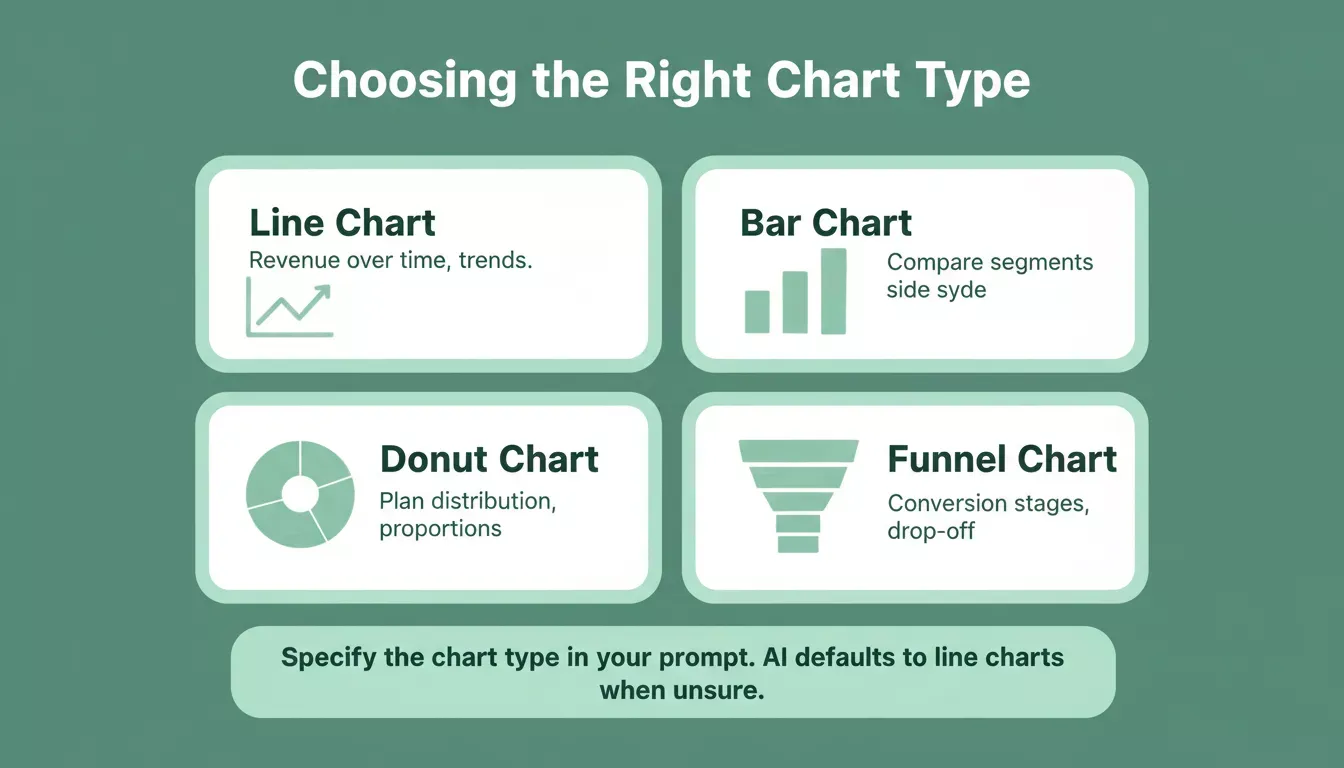
Match your chart type to your question; specify it in the prompt, or the AI will default to a line chart
Pro Tip Chain KPI cards with charts: Generate your KPI card row first (Prompt 9), then reference the same metric names in your chart prompts. Telling the AI "use the same MRR and Active Users values from the KPI cards above" keeps your data consistent across the entire dashboard.
Prompt 14: Real-Time Metric Cards Prompt
Builds a live metric card row with pulse indicators and auto-refresh animations, the right component for uptime, session, and performance monitoring dashboards.
Example prompt:
"Design a real-time metric card row for a SaaS dashboard showing: Active Sessions (1,247 with live green pulse dot), Server Response Time (142ms), Error Rate (0.3%), and Uptime (99.97%). Each card updates every 5 seconds with a subtle animation."
The AI will often produce:
- Four metric cards with a live green pulse dot on the Active Sessions card
- Auto-refresh animation on each card, cycling every 5 seconds
- Color-coded values: green for healthy metrics, amber/red for threshold breaches
Prompt 15: Conversion Funnel Chart Prompt
Generates a visual funnel showing drop-off at each stage from visitor to enterprise upgrade — the most actionable chart for SaaS growth teams.
Example prompt:
"Generate a conversion funnel chart for a SaaS analytics dashboard. Stages: Visitors (45,000), Signups (8,200), Activated (4,100), Paid (1,850), Enterprise Upgrade (310). Show drop-off percentages between stages and use progressively deeper indigo shades for each level."
The AI will often produce:
- Five-stage funnel with progressively narrowing bars and deeper indigo shades
- Drop-off percentage labels between each stage showing conversion loss
- Stage labels with absolute counts and relative conversion rates
Prompt 16: Customer Health Score Grid Prompt
Creates a health score dashboard section with color-coded rings per customer and an at-risk summary row, the core view for customer success teams managing churn.
Example prompt:
"Create a customer health score dashboard section with a grid of 6 metric cards. Each card shows: customer name, health score (0-100 with color-coded ring: green above 70, yellow 40-70, red below 40), last activity date, and MRR value. Add a summary row above showing average health score and at-risk customer count."
The AI will often produce:
- Six customer cards with circular health score rings (green/yellow/red by threshold)
- Last activity date and MRR value are displayed on each card
- Summary row at the top showing average health score and at-risk customer count
Prompt 17: Revenue Analytics Section Prompt
Builds a complete revenue analytics section combining MRR line chart, NRR gauge, and small multiples grid, everything a B2B SaaS finance dashboard needs in one block. This pattern also works well for financial reporting dashboards where you need multiple metrics in a single view.
Example prompt:
"Generate a revenue analytics dashboard section with: monthly recurring revenue line chart, net revenue retention gauge chart (target 120%), and a small multiples grid showing revenue by product line. Use sample data that looks realistic for a B2B SaaS company."
The AI will often produce:
- MRR line chart with month-over-month trend and realistic B2B SaaS sample data
- NRR gauge chart with a 120% target marker and current value indicator
- Small multiples grid showing revenue breakdown by product line
Pro Tip - Use the revenue section as a template for other metrics: The three-part layout in Prompt 17 (line chart + gauge + small multiples) is a reusable pattern. Swap MRR for DAU, NRR for retention rate, and product lines for feature adoption; you get a completely different analytics section with the same structural prompt.
These nine chart prompts are ready to use now. Paste any of them into Rocket and get a production-ready data visualization component generated and wired together in minutes. Build your analytics dashboard
Prompts for Data Tables, Filters, and Dark Mode
Name every column, describe every row state; tables break when prompts stay vague.
Data tables are where SaaS dashboards get complex. Users need sorting, filtering, pagination, and inline actions. These prompts handle the data-heavy pages that make or break your product for daily use. Teams building AI-built internal dashboards that connect Airtable, Notion, and Mixpanel will find these table prompts especially useful for admin and ops views.
Prompt 18: Customer Data Table Prompt
Generates a sortable, paginated customer table with avatar, plan badge, status indicator, and MRR, the standard data view for any SaaS customer management screen.
Example prompt:
"Generate a customer data table for a SaaS dashboard. Columns: Name (with avatar), Email, Plan (role badge with color), Status (active/churned indicator), MRR, Last Active date. Include zebra striping, sortable column headers, search filter at top, and pagination showing 10 rows per page."
The AI will often produce:
- Six-column table with avatar + name, color-coded plan badge, and active/churned status pill
- Zebra striping, clickable sortable column headers with sort direction arrows
- Search filter input at the top and pagination controls showing 10 rows per page
Prompt 19: User Management Table Prompt
Creates a user management table with bulk selection, role dropdowns, status toggles, and an invite modal, the admin screen every SaaS product needs.
Example prompt:
"Create a user management data table with bulk action toolbar. Show checkboxes for row selection, columns for user name, email, role badge (Admin/Editor/Viewer), last login, and status toggle. Add filter dropdowns for Role and Status. Include an 'Invite User' button with modal form."
The AI will often produce:
- Checkbox column enabling bulk row selection with a bulk action toolbar appearing on select
- Role badge column (Admin/Editor/Viewer) and status toggle per row
- Filter dropdowns for Role and Status, plus an Invite User button opening a modal form
Prompt 20: Invoice Management Page Prompt
Builds a complete invoice management dashboard page with a filter bar, data table, and summary metric cards, everything a SaaS billing screen requires.
Example prompt:
"Build a complete dashboard page for invoice management in a SaaS product. Include filter bar (date range, status, customer), data table with columns (Invoice #, Customer, Amount, Status, Due Date, Actions), and summary metric cards at top (Total Outstanding, Overdue, Paid This Month). Add hover states and focus states on interactive elements."
The AI will often produce:
- Filter bar with date range picker, status dropdown, and customer search
- Data table with Invoice #, Customer, Amount, Status badge, Due Date, and action buttons
- Three summary metric cards at the top: Total Outstanding, Overdue, and Paid This Month
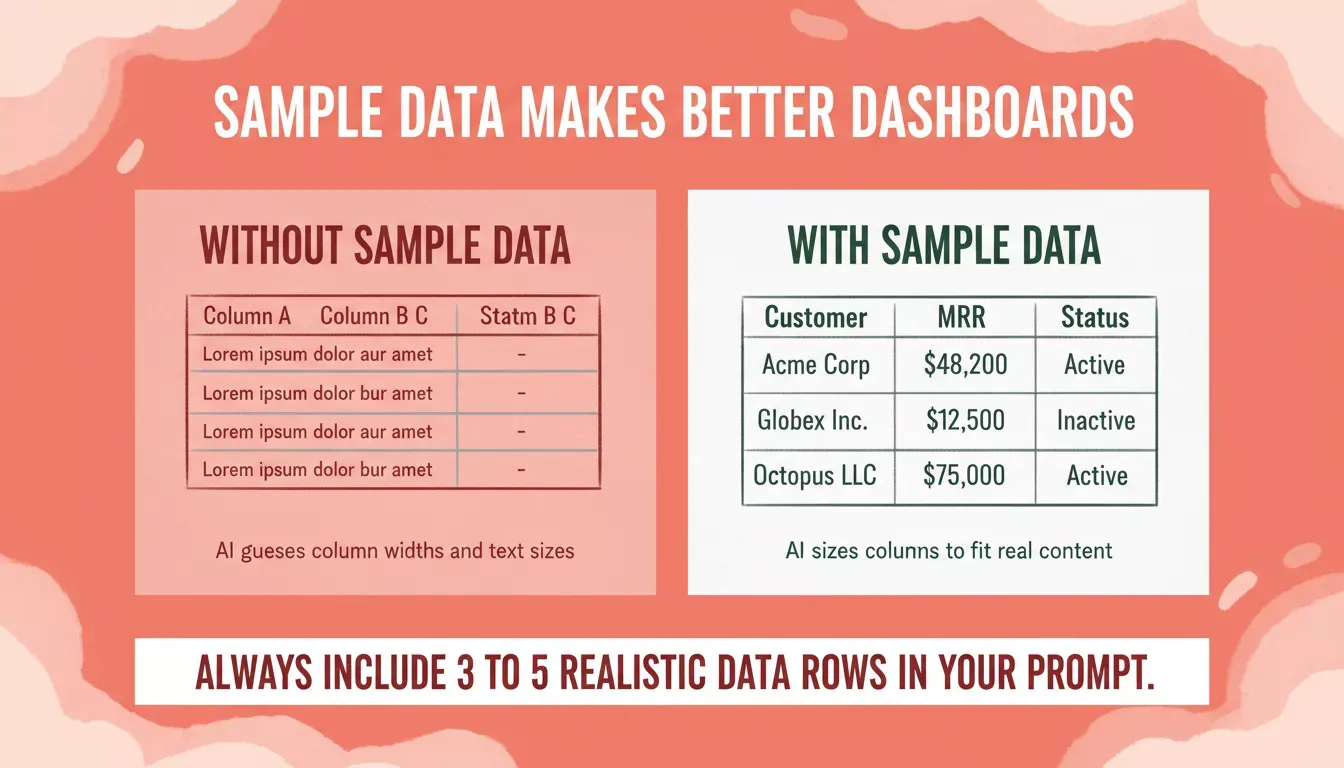
Always include 3 to 5 realistic data rows in your prompt. The AI sizes columns and text to fit real content, not placeholders
Prompt 21: Dark Mode Dashboard Prompt
Converts a white analytics dashboard to a full dark mode variant with vibrant chart colors and a sidebar toggle, the most-requested UI variant for SaaS products.
Example prompt:
"Generate a dark mode variant of an analytics dashboard. Convert white backgrounds to gray-900, use gray-800 for cards with subtle borders, and swap text colors to gray-100 for primary and gray-400 for secondary. Keep chart colors vibrant against dark backgrounds. Show the toggle dark mode switch in the sidebar footer."
The AI will often produce:
- Full dark mode layout with gray-900 background and gray-800 card surfaces
- Text swapped to gray-100 (primary) and gray-400 (secondary) throughout
- Vibrant chart colors are maintained for contrast on dark surfaces, with a dark mode toggle in the sidebar footer
Common Mistake - Generating dark mode too late: Most teams prompt for dark mode after finalizing the light version. Chart colors that look clean on white (light indigo, pale blue) become invisible on gray-900. Generate dark mode alongside your light mode from Prompt 21 onward, not as a final step.
Prompt 22: Activity Feed Component Prompt
Creates a filterable activity log with timestamps, user avatars, expandable rows, and a load-more state, the real-time context layer every SaaS dashboard needs.
Example prompt:
"Create a SaaS dashboard activity feed and recent activity log component. Each entry has: timestamp, user avatar (small), action description, and affected resource link. Include filter tabs: All, Comments, Updates, Alerts. Add expandable rows that show full event details and a 'Load More' button with subtle loading state."
The AI will often produce:
- Activity feed entries with timestamp, small user avatar, action text, and linked resource
- Filter tabs (All, Comments, Updates, Alerts) above the feed
- Expandable rows revealing full event details and a Load More button with a loading spinner
Prompt 23: Settings Page Prompt
Generates a complete SaaS settings page with profile, team, billing, and API keys sections — the multi-section admin page that every product ships eventually.
Example prompt:
"Design a SaaS dashboard settings page with: Profile section (avatar upload, name, email fields), Team section (member list with role dropdowns), Billing section (current plan card, usage metrics, upgrade CTA), and API Keys section (masked key display, regenerate button, copy to clipboard). Use clean card layout with section headers."
The AI will often produce:
- Profile section with avatar upload, editable name and email fields
- Team section with member list, per-member role dropdowns, and remove action
- Billing section with current plan card and usage bar, plus API Keys section with masked display and regenerate/copy controls
Prompt 24: Subscription Management Table Prompt
Builds a subscription data table with plan badges, billing cycle, churn risk indicators, and MRR sort, the revenue operations view SaaS teams check every morning.
Example prompt:
"Generate a subscription management data table for a SaaS product. Columns: Customer Name, Plan (Starter/Pro/Enterprise badge), Billing Cycle (Monthly/Annual), Next Invoice Date, MRR, and Actions (Upgrade, Pause, Cancel). Include filter by plan type and sort by MRR descending. Show a churn risk indicator icon on rows where last login exceeds 30 days."
The AI will often produce:
- Subscription table with color-coded plan badges (Starter/Pro/Enterprise) and billing cycle labels
- MRR column sorted descending by default with filter by plan type dropdown
- Churn risk warning icon on rows where last login exceeds 30 days
Prompt 25: Inline Chart Data Table Prompt
Creates a data table where each row contains an inline progress bar, sparkline, and trend arrow — the advanced analytics view that combines tabular data with visual context in one component.
Example prompt:
"Build an analytics dashboard page that combines a data table with inline charts. Each row in the table shows: Feature Name, Adoption Rate (inline progress bar), Daily Active Users (sparkline), and Revenue Impact (currency value with trend arrow). Add column-level filters, CSV export button in the header, and a summary card row above showing totals for each numeric column."
The AI will often produce:
- Data table rows with inline progress bars for adoption rate and sparklines for DAU trend
- Revenue Impact column with currency values and green/red trend arrows
- Column-level filter dropdowns, CSV export button in the table header, and a summary totals row above the table
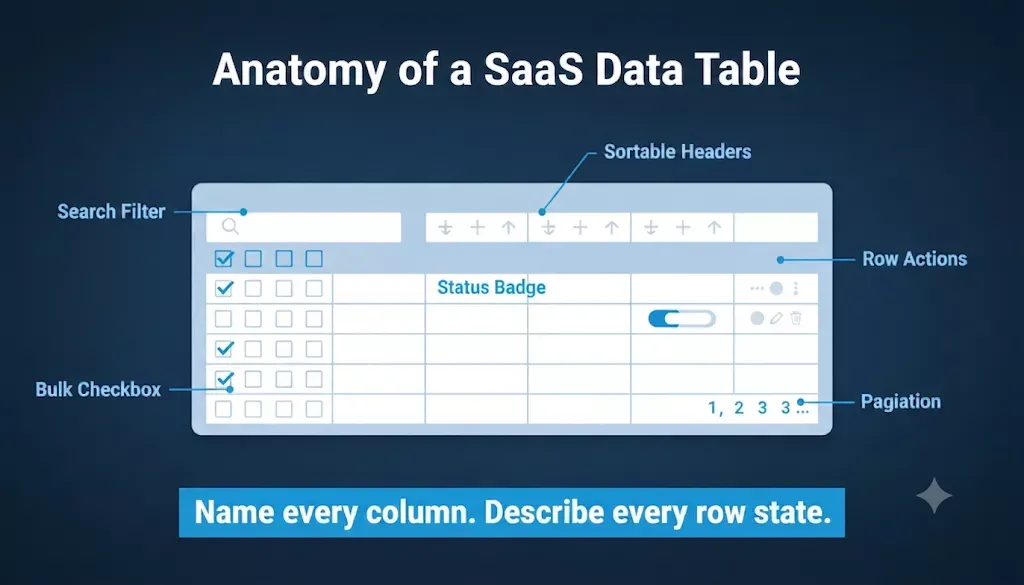
Every element in this diagram needs to be named in your prompt — the AI only generates what you describe
The data table prompts work best when you name specific columns and describe exact row states. AI tools struggle with tables when the prompt is vague about what data appears in each column. Only 29% of developers trust AI output without verification, so always review generated table logic against your real data schema.
All 25 prompts are copy-paste ready. Take the ones that match your current build phase into Rocket, and the platform generates the full app with connected pages, working charts, and production-ready code in one workflow. Turn these prompts into a live dashboard.
How Should Teams Iterate on AI-Generated Dashboards?
Getting a good first output is only step one. The real skill is knowing how to refine AI dashboards without regenerating everything from scratch each time.
- Target one component per follow-up prompt: instead of asking the AI to fix the entire page, isolate the specific section that needs changes
- Reference what already works: tell the AI which parts to keep unchanged so it does not break what is good to fix what is bad
- Add sample data incrementally: start with a few prompts using placeholder data, then feed in realistic values once the layout and component structure are locked
- Test dark mode early: a dashboard concept that looks clean on white backgrounds might have contrast problems in dark mode, so generate both variants before finalizing
Teams that treat AI code generation as a conversation rather than one prompt to rule them all produce better results consistently. Scaling SaaS products built with AI tools requires this iterative approach from day one. Reviewing the top AI SaaS builder tools also helps you understand which platforms handle iteration best.
Your Next Dashboard Starts With the Right Words
The prompts in this article give your AI tools the specificity and context they need to produce professional SaaS dashboards. Pick the category that matches your current project phase, customize the sample data values, and apply prompt engineering best practices to get tighter output each time.
Your SaaS product deserves a dashboard built with intention, not guesswork. The right prompt makes the difference between a professional analytics interface and a page of random charts nobody uses.
From Prompt to Deployed Dashboard on Rocket
So you have 25 prompts. The next question is: where do you use them? Most AI tools generate dashboard code in isolation. You get a component, maybe a few pages, but then you are left connecting pieces manually, wiring up data sources, and figuring out deployment yourself.
Rocket takes a different approach. You describe your SaaS dashboard concept, and the platform generates the entire app with connected pages, sidebar navigation, working charts, data tables with real component logic, and production-ready code in Next.js or Flutter. No stitching fragments together. No manual friction between design and deployment.
Compared to tools like Bolt or v0 that generate isolated UI components, Rocket builds full-stack apps from a single prompt with authentication, database, and analytics wired together. Where other platforms stop at a visual mockup, Rocket ships a working product you can deploy immediately. Rocket connects 26+ third-party services, including Stripe, Supabase, Mixpanel, Airtable, and Notion, directly into the build; authenticate once, and they flow into every generated component.
- Full project context: the AI understands your entire SaaS product, not just one page at a time
- Connected workflows: dashboard pages link to settings, user management, and billing automatically
- Design system consistency: Tailwind CSS design tokens stay uniform across every generated component
- One-click deployment: go from prompt to live SaaS dashboard without touching a CI/CD pipeline
If your team is tired of generating pretty screenshots that never make it to production, Rocket closes that gap. It is the difference between generating a dashboard and shipping one.
Table of contents
- -What Makes a Dashboard Prompt Actually Work?
- -Why Do Most Dashboard Prompts Produce Bad Output?
- -Prompts for Layout, Sidebar, and Navigation
- -Prompt 1: Fixed Sidebar Layout Prompt
- -Prompt 2: Collapsible Sidebar Navigation Prompt
- -Prompt 3: Responsive Mobile Navigation Prompt
- -Prompt 4: Multi-Page Dashboard Layout Prompt
- -Prompt 5: Empty State Onboarding Prompt
- -Prompt 6: Analytics Header Component Prompt
- -Prompt 7: CRM-Style Grouped Sidebar Prompt
- -Prompt 8: Command Palette Overlay Prompt
- -Prompts for KPI Cards, Charts, and Data Visualization
- -Prompt 9: KPI Card Row Prompt
- -Prompt 10: Revenue Line Chart Prompt
- -Prompt 11: Customer Growth Area Chart Prompt
- -Prompt 12: Plan Distribution Donut Chart Prompt
- -Prompt 13: Feature Usage Bar Chart Prompt
- -Prompt 14: Real-Time Metric Cards Prompt
- -Prompt 15: Conversion Funnel Chart Prompt
- -Prompt 16: Customer Health Score Grid Prompt
- -Prompt 17: Revenue Analytics Section Prompt
- -Prompts for Data Tables, Filters, and Dark Mode
- -Prompt 18: Customer Data Table Prompt
- -Prompt 19: User Management Table Prompt
- -Prompt 20: Invoice Management Page Prompt
- -Prompt 21: Dark Mode Dashboard Prompt
- -Prompt 22: Activity Feed Component Prompt
- -Prompt 23: Settings Page Prompt
- -Prompt 24: Subscription Management Table Prompt
- -Prompt 25: Inline Chart Data Table Prompt
- -How Should Teams Iterate on AI-Generated Dashboards?
- -Your Next Dashboard Starts With the Right Words
- -From Prompt to Deployed Dashboard on Rocket