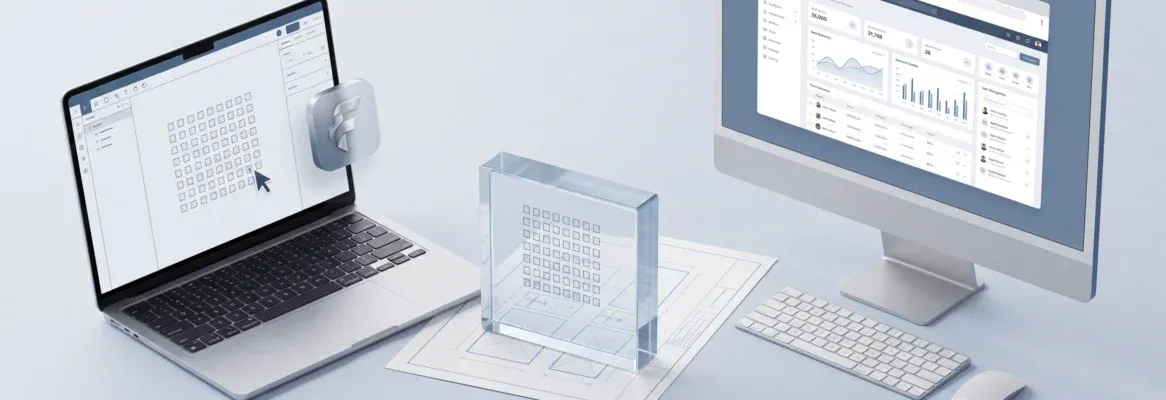
Converting a Figma to Admin Panel design into production-ready code is the most error-prone handoff in software development. This blog covers why it fails, what fixes it, and how AI eliminates the gap.
Why does a polished Figma admin panel end up looking nothing like the deployed product?
According to Figma's 2025 industry data, 91% of developers and 92% of designers believe the handoff process needs improvement. That gap between "design done" and "code shipped" costs teams weeks of back-and-forth revisions, broken spacing, and mismatched components.
Admin panels are particularly vulnerable to design-to-code handoff failures. They pack dense data tables, multi-state components, role-based layouts, and responsive grids into every screen.
This blog walks through why Figma-to-admin-panel conversions fail, what a reliable workflow looks like, and how modern AI tools solve the fidelity problem entirely.
Why Do Design-to-Code Handoffs Fail for Admin Panels?
The design-to-code gap is not new, but admin panels make it worse than any other project type. Understanding where handoffs break down is the first step toward fixing them. Here is where things consistently go wrong.
- Spacing and alignment drift: Developers eyeball padding values instead of extracting exact design tokens from the Figma file. A 12px gap becomes 16px, and suddenly your sidebar navigation feels off-balance across every screen.
- Component state mismatches: Admin panels contain dozens of interactive states: hover, active, disabled, loading, and error. Designers create these in Figma, but developers often miss half of them during the build process.
- Typography and color inconsistency: Dashboard UIs rely on precise type hierarchies to distinguish data labels from values. When a developer substitutes the wrong font weight or hex code, readability drops instantly across the entire admin panel.
- Responsive behavior gaps: Most Figma files show a single breakpoint. Admin panels need to work across varying desktop monitor sizes, and developers are left guessing how tables and charts should reflow.
- Missing design system documentation: Without a shared design system, every developer makes independent decisions about spacing, color, and component structure. The result is an admin panel that looks slightly different on every page.
- Research from Luzmo shows that 67% of SaaS teams have low confidence in their in-app analytics offering (dashboard development research by Luzmo). A major reason is the visual disconnect between what was designed and what shipped.
These are not edge cases. They are the default outcome when teams rely on manual inspection to transfer complex dashboard layouts into code. Exploring AI tools that turn Figma designs into code is one way teams are starting to close this gap.
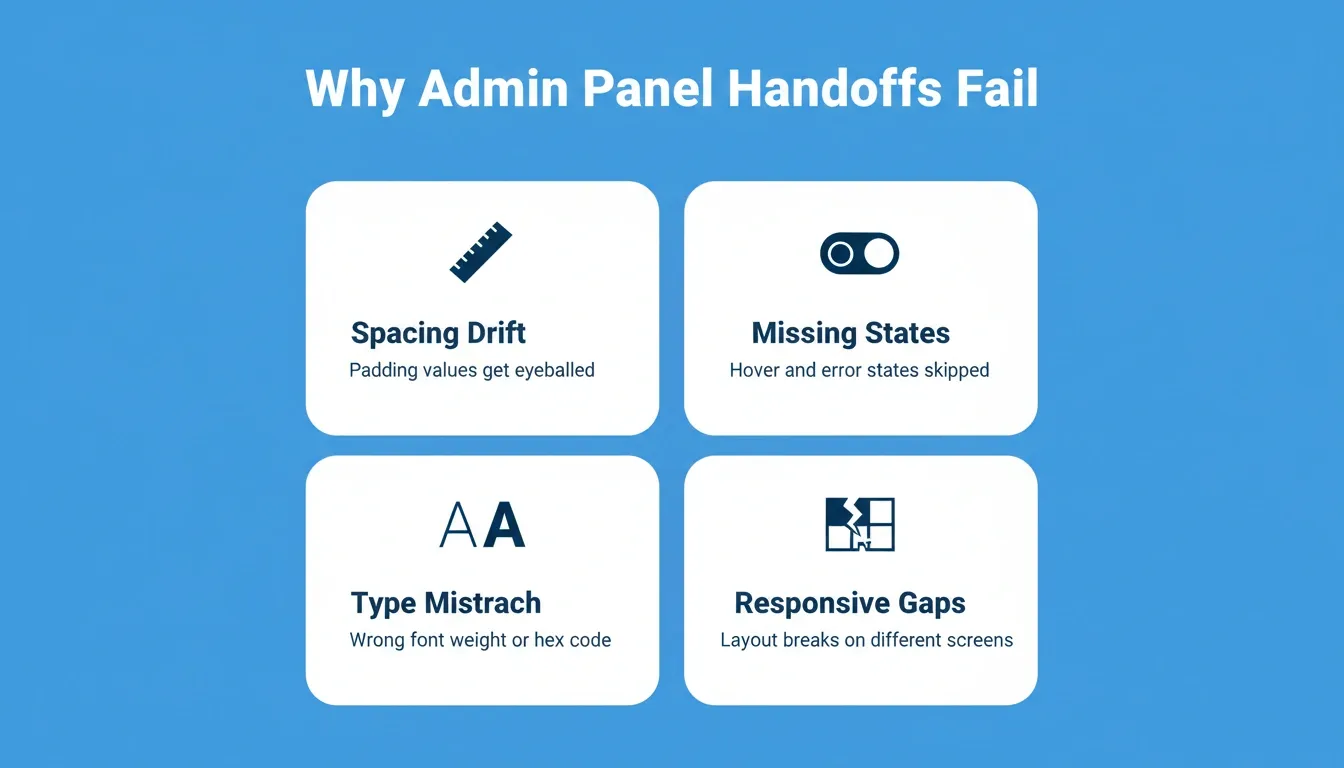
The four root causes of design-to-code handoff failures in admin panel development
What Makes Dashboard UIs Harder to Convert Than Marketing Pages?
Marketing pages have a predictable structure: hero section, features grid, testimonial, and CTA. Admin panels are a fundamentally different challenge. The complexity that makes them powerful is exactly what makes them difficult to convert from Figma to production code.
- Data density per screen: A typical admin panel view displays 3-5x more interactive elements per viewport than a landing page. Tables, filters, charts, breadcrumbs, and action menus all compete for attention and must be coded precisely.
- Nested component hierarchies: Admin panels use design systems with deeply nested components. A single table row might contain a status badge, avatar, text truncation logic, and a context menu, each with their own sub-states.
- Conditional visibility logic: Which columns show for an admin versus a viewer? Which action buttons appear based on record status? These conditional rules live in the designer's head but rarely get documented in the Figma file itself.
- Multi-page consistency: Landing pages stand alone. Admin panels require a persistent navigation shell, shared filter contexts, and consistent interaction patterns across 20-50 or more views.
- Auto-layout complexity: Admin panels built with Figma's auto-layout feature require precise constraint mapping to produce responsive code. When auto-layout is applied inconsistently across frames, the generated output breaks at different viewport widths.
This complexity is exactly why traditional "inspect and code" approaches produce admin panels that feel slightly wrong everywhere. The visual gap compounds across every screen until the whole system looks half-finished.
Step-by-Step Workflow for Pixel-Perfect Figma to Admin Panel Conversion
Whether you use AI-powered tools or a hybrid approach, the reliable path from Figma design to production admin panel follows a consistent sequence. Each step builds on the previous one, and skipping any of them is where fidelity breaks down.
- Design audit: Review the Figma file for completeness before any code is written. Confirm all component states exist, auto-layout is applied consistently, and spacing values use design tokens rather than arbitrary numbers. Well-named layers produce significantly cleaner generated code.
- Token extraction: Pull color, typography, spacing, and border-radius values into a structured format. Design tokens are the bridge between what was designed and what gets built. They become your source of truth for the entire codebase.
- Component mapping: Match each Figma component to its code equivalent. Identify which elements need custom building versus which map to existing UI library components. This step prevents duplication and keeps the admin panel maintainable.
- Code generation: Use an AI-powered builder or write components manually. The key is maintaining a one-to-one mapping between design tokens and code variables so future design edits propagate cleanly through the codebase.
- Visual diff check: Overlay screenshots of the built admin panel against the original Figma frames. Flag any pixel-level differences in spacing, color, or typography before deployment to staging.
Teams using this structured approach report cutting revision cycles by 25% or more. For a deeper look at preserving every spacing decision from your Figma file, the results speak for themselves.
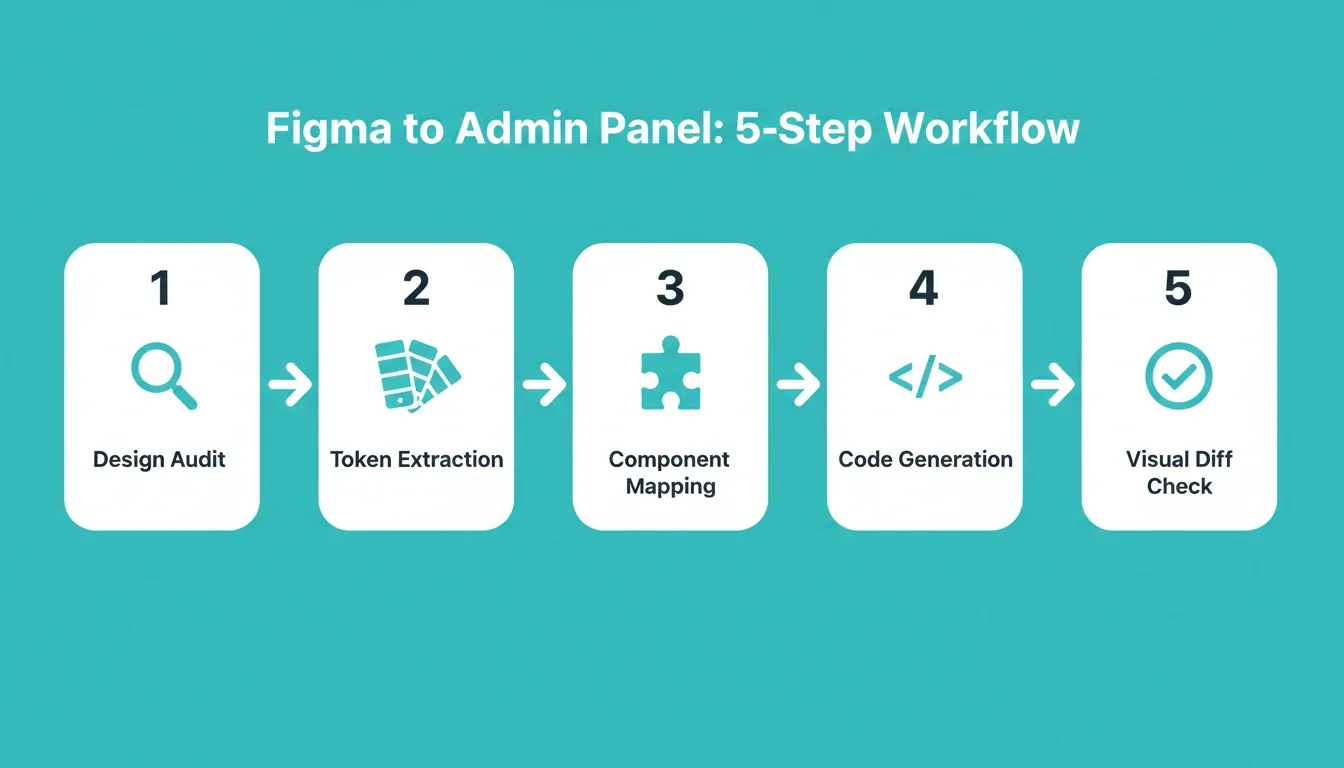 The five-stage Figma to admin panel conversion workflow that eliminates revision cycles
How Rocket Converts Your Figma File Into a Live Admin Panel
Most design-to-code tools stop at generating static HTML from a Figma file. Rocket takes a different approach. It reads your Figma file's structural layers, not just a screenshot, and converts them into a working, deployable admin panel in a single session.
How the Figma Connector Works
Rocket connects to Figma via OAuth at the workspace level. Once connected, you import designs directly from the chat interface by clicking the + button and selecting Add from Figma. Paste your Figma URL, select the frames to convert, and Rocket generates production-ready Next.js TypeScript (web) or Flutter (mobile) code from your selected admin panel screens.
What Rocket reads from your Figma file:
- Auto-layout structure and constraint settings across all frames
- Design tokens: colors, typography scales, spacing values, and border-radius
- Component variants and all interactive states
- Prototype click-through connections, which are mapped directly to page routes
- Layer naming conventions, since well-named layers produce cleaner React components
What Gets Generated From Your Figma Admin Panel Design
- Preserved visual hierarchy: Typography scales, color systems, and spacing values carry over exactly as designed. No interpretation, no approximation.
- Functional from day one: Rocket produces working admin panels with real navigation, data table interactions, role-based views, and responsive layouts built in from the first generation.
- 26+ service connections: Connect Supabase for your database, Stripe for billing management, or any of the other supported services directly during the build. Your admin panel works with live data immediately.
- Full code ownership: Download the complete Next.js TypeScript codebase at any time. Two-way GitHub sync keeps your admin panel project in version control.
- Staging and production environments: Test changes in staging before pushing to production. Full version history with one-click rollback means nothing you build is ever lost.
Iterate on Your Admin Panel Without Re-Explaining
After the first generation, refine specific sections through natural language. Tell Rocket to adjust a table column width, change a chart color, or wire up a Supabase table, all without touching code yourself. Visual Edit mode lets you click any element in the live preview to change text, style, or spacing directly.
For a complete picture of how Rocket handles the full stack from a Figma file, the Figma to Next.js conversion guide covers every step of the technical pipeline.
Teams building dashboard products can also explore the Figma to SaaS dashboard guide for a deeper walkthrough of component structure and token handoff.
Check out how teams are building internal tools and admin panels with full-stack generation from a single prompt.
Traditional Coding vs AI-Powered Figma to Admin Panel Conversion
The economics of admin panel development have shifted significantly. Here is how the two approaches compare when you are working from a completed Figma design.
| Factor | Traditional Hand-Coding | AI-Powered Conversion |
|---|---|---|
| Timeline | 4-12 weeks | Hours to days |
| Cost range | $6,000 to $40,000+ | Platform subscription |
| Design fidelity | Depends on developer skill | Pixel-level accuracy |
| Responsive behavior | Manual coding required | Auto-generated from Figma auto-layout |
| Iteration speed | Days per change | Minutes per change |
| Backend connectivity | Separate development phase | Built into generation |
| Code ownership | Full codebase | Full codebase plus export |
| Staging and rollback | Requires DevOps setup | Built-in, one-click |
- The global dashboard software market reached $7.8 billion in 2025 and is growing at 10.2% annually according to dashboard software market analysis. This growth is driven largely by demand for faster, more cost-effective admin panel development approaches.
- 41% of companies spend over 4 months building dashboards. For teams competing in fast-moving markets, that timeline is no longer acceptable when AI-powered Figma to admin panel conversion can deliver results in hours.
For teams with an existing Figma design, the AI path removes the most expensive variable in the equation: the weeks of manual translation between what was designed and what gets built.
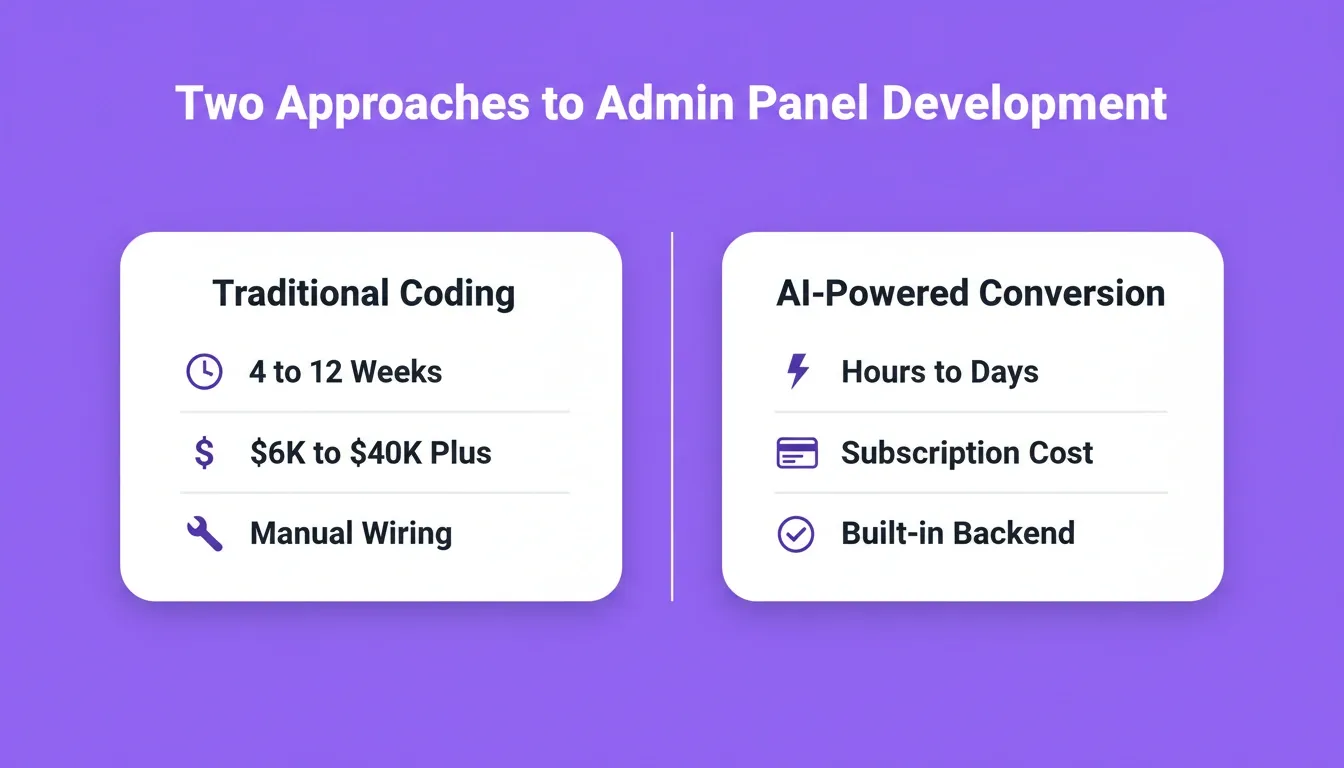 Traditional hand-coding vs AI-powered Figma-to-admin-panel conversion: a side-by-side comparison
What Developers Are Saying About Figma to Admin Panel Tools
The frustration around Figma-to-code workflows is not theoretical. Developer communities discuss it constantly, and the pain points are consistent across teams of all sizes.
"Hand-coding every mockup isn't feasible given our fast pace and feature requests. I've explored AI tools that export Figma to code, but I'm unsure if they're reliable." — UX designer on r/UXDesign, discussing the handoff challenge with 70+ community responses
Teams want speed and fidelity, but most tools deliver only one. That is the core tension driving the conversation across Reddit, LinkedIn, and design forums when it comes to Figma to admin panel workflows.
Developer trust remains the biggest adoption barrier for AI-powered design conversion tools. Teams need output code that is clean, maintainable, and production-grade, not throwaway prototypes that require rewriting from scratch.
The conversation is shifting from "should we automate this?" to "which automation actually works at production quality?" That distinction matters for admin panels, where every visual detail affects usability and every broken state erodes user trust.
The community consensus is moving toward AI-assisted conversion as the practical default. This is especially true for complex, data-heavy admin panel interfaces where manual handoff has the highest failure rate.
Build Admin Panels That Match Your Figma Design Intent
The gap between a beautifully designed Figma dashboard and a production-ready admin panel does not have to exist. With structured workflows and the right tooling, every pixel value, component state, and responsive breakpoint can transfer faithfully from Figma design to deployed code.
The key principles that make Figma to admin panel conversion successful:
- Use design tokens consistently in Figma before import. They become your code variables and ensure spacing and color stay consistent across the entire admin panel.
- Apply auto-layout to every frame, not just top-level containers. This is what enables responsive behavior in the generated code.
- Name your layers descriptively. Rocket reads layer names to generate component names, so clear naming produces cleaner, more maintainable code.
- Import frames one section at a time for complex admin panels, then connect them through chat to build the full navigation structure.
- Use Visual Edit mode to fine-tune after generation rather than re-importing the entire Figma file.
Your next admin panel project does not need to start with weeks of developer interpretation. It can start with the Figma file you already finished designing.
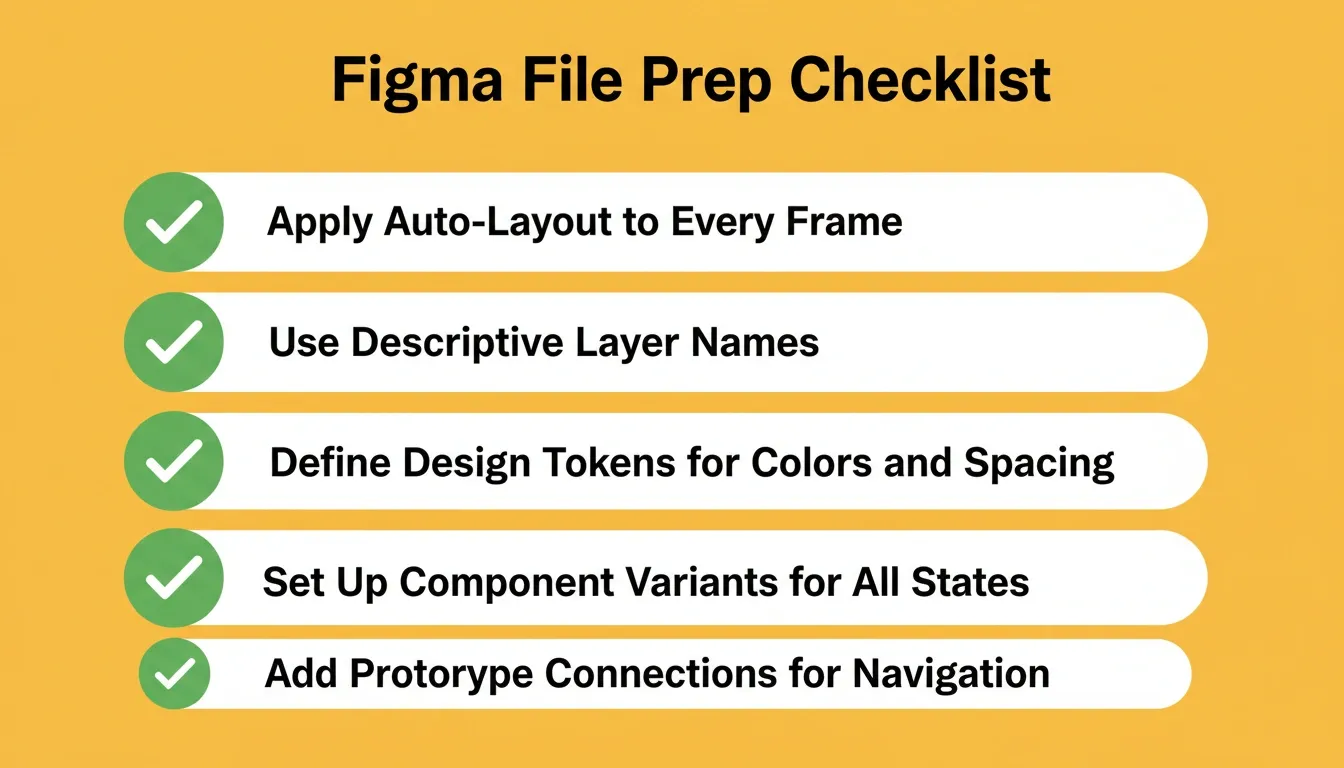
Five Figma file preparation steps that produce the cleanest admin panel code output
From Figma Design to Production Admin Panel
The Figma-to-admin-panel workflow is no longer a weeks-long translation exercise. AI tools that read design tokens, auto-layout structure, and component hierarchies are closing the gap between Figma design intent and deployed admin panel code. As these tools improve, the distance between a finished Figma file and a live admin panel will continue to shrink.
The teams shipping fastest today are the ones who stopped rebuilding their Figma designs from scratch. They import the file, connect the backend, and iterate through conversation, not revision cycles. If your admin panel is still waiting in a developer backlog, that is the problem worth solving.
Start building on Rocket.new and ship your admin panel today.
Table of contents
- -Why Do Design-to-Code Handoffs Fail for Admin Panels?
- -What Makes Dashboard UIs Harder to Convert Than Marketing Pages?
- -Step-by-Step Workflow for Pixel-Perfect Figma to Admin Panel Conversion
- -How Rocket Converts Your Figma File Into a Live Admin Panel
- -How the Figma Connector Works
- -What Gets Generated From Your Figma Admin Panel Design
- -Iterate on Your Admin Panel Without Re-Explaining
- -Traditional Coding vs AI-Powered Figma to Admin Panel Conversion
- -What Developers Are Saying About Figma to Admin Panel Tools
- -Build Admin Panels That Match Your Figma Design Intent
- -From Figma Design to Production Admin Panel